
Avid Pro Tools Multiseat Software Activation Instructions
Getting started
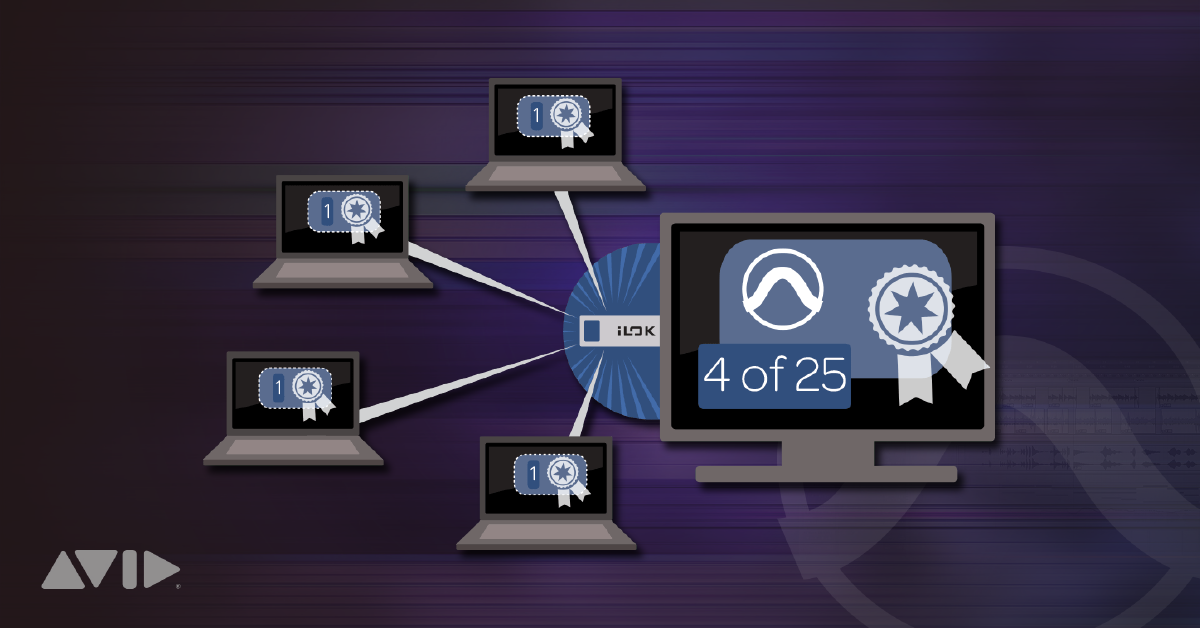
In this guide, we will show you how to register, download and activate a Pro Tools Multiseat license. Follow the sections below to get started.
- Create iLok account
- Create Avid account
- Register activation codes
- Authorize iLok server license
- Set up iLok server and computers
Create an iLok account
Avid software is licensed with iLok. That means you will need to connect its iLok license to your computer to use it. For Avid software, this can be done with an iLok USB dongle or iLok Cloud Session. If you don’t already have an iLok account, you’ll need to create one and install the iLok License Manager app. If you already have an account, pass these steps and continue to Create Avid Account. Learn more about iLok licensing in our iLok Quickstart Guide.
- Go to iLok’s registration page and complete the registration form. Take note of your User ID and password.
- Open the iLok Account Activation email and click on the verification link.
- Download and install the iLok License Manager.
- Launch the iLok License Manager app and sign in to your iLok account.
- (optional) Connect an iLok USB dongle and, when prompted, click Yes to register it to your account.
Pro Tools and iLok licenses
A valid iLok license must be detected every time you launch Pro Tools. To get the licenses, you must enter your iLok account information into your Avid Master Account (next). This tells Avid which iLok account to send your license(s) after you register an Activation Code. Once done, The iLok License Manager app can then be used to store licenses on either a physical iLok USB dongle or iLok Cloud Session.
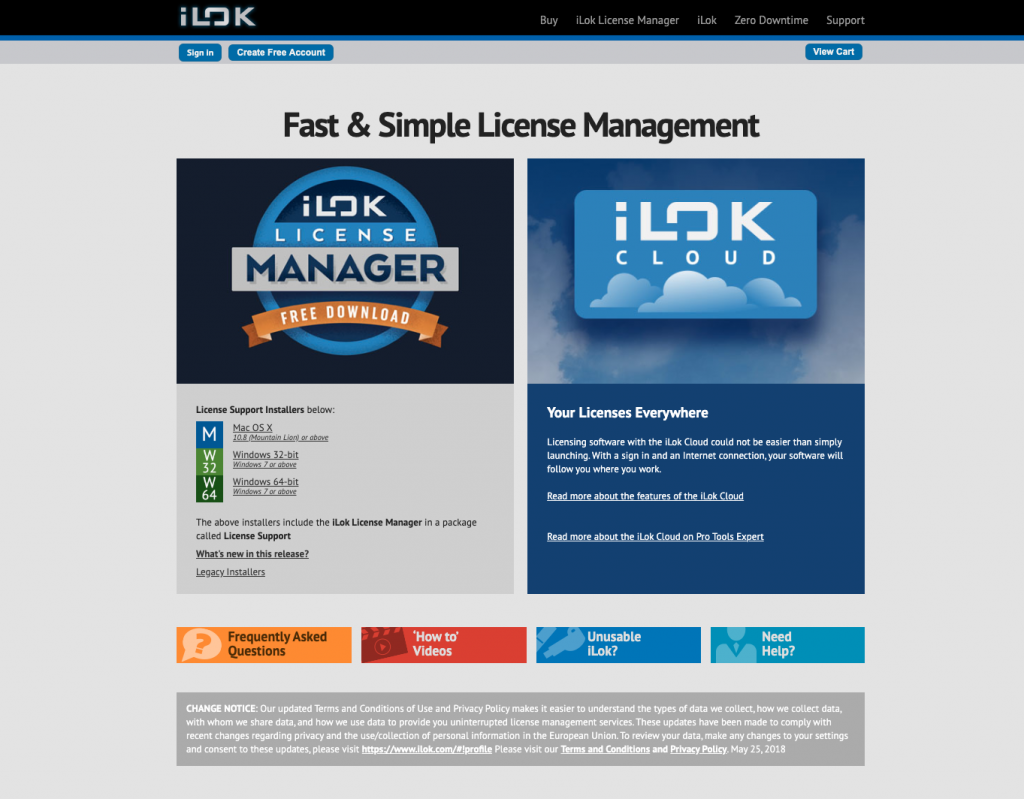
Click the image to download iLok License Manager.
Create Avid account
Before you can activate the software with Avid, you first need to create an Avid Master Account. We strongly recommend writing down your email address and password and keep them in a safe place. If you forget, you may need to reset your Avid password or iLok info. Once you create your Avid account, you can register the Activation Codes to your account.
- Sign in to your current Avid Master Account or create a new one.
- Go to the Default iLok Account page of your Avid Master Account.
- Enter your iLok ID, click Use this account, and follow the on-screen instructions to sign in and sync your iLok account.
iLok user ID
iLok User IDs are case-sensitive so be sure to enter it exactly how you created it. If you are not sure about which User ID to use, log in to the iLok License Manager. If you see licenses you own, or your iLok USB dongle is detected (the icon isn’t red), you have the correct account. If not, then your licenses are likely associated with a different User ID.
Syncing iLok ID with your Avid account.
Register activation codes
When you purchase a Pro Tools Multiseat license, you receive two activation codes; one for the software and the other is for the iLok server which the client (remote) computers will get the licenses. You must register them both to your Avid account before they can be licensed with iLok. Follow these steps to register your Activation Codes.
- Copy the Multiseat License Server Activation Code e-mailed to you from your Sweetwater Sales Engineer and go to the Avid Activation page.
- Paste the code into the box and click Activate Product.
- Follow the on-screen instructions to complete the registration process.
- Repeat steps 1-3 with the Multiseat License Activation Code.
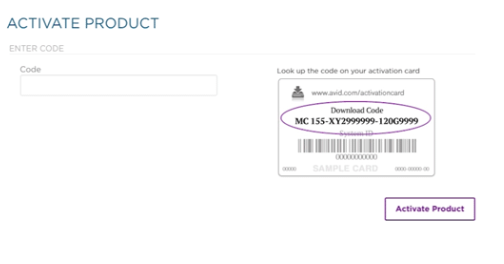
Click here to redeem the Activation Codes.
Authorize iLok server license
For a Multiseat license to work, you must first move both the Server and Multiseat licenses to an iLok USB dongle and set up a host computer to act as the iLok server. Follow these steps to authorize the licenses.
- Connect an iLok USB dongle to the host (server) computer and launch the iLok License Manager.
- Locate the iLok Server and Multiseat licenses in the Available tab.
- Drag and drop both licenses onto the icon for your iLok USB dongle.
- When the Multiseat license is moved to the iLok, you will receive a message stating the iLok Server isn’t running. Click Yes when you see this message.
- In the next window that appears, you will be prompted to enter the amount of “floating licenses” (seats) you wish to activate.
Transferring an iLok license to the iLok USB dongle.
Set up iLok server and computers
After the server and Multiseat licenses have been authorized to you iLok, the final step in the process is to enable the iLok server (host) computer and connect client computers. While a constant internet connection is not required, both the host and client computers must be on the same local network. The iLok must be connected to the host computer at all times, as well. Follow these steps to set up the iLok server and client computers.
iLok server computer
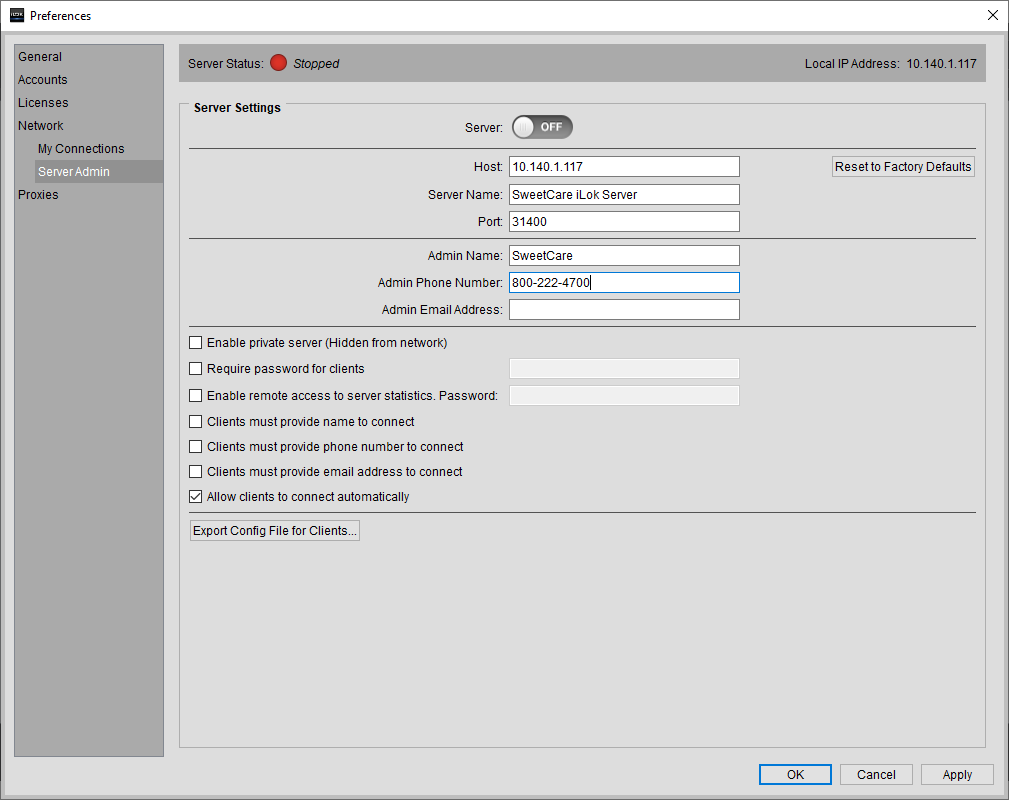
- Launch iLok License Manager, navigate to File, go to Preferences, and then select Server Admin.
- Confirm the following server settings for the host computer are correct.
- Host: This is the server computer’s default IP Address.
- Server Name: Enter the name the client computers should see (i.e. Music Classroom iLok Server)
- Port: Leave this at its default port number of 31400.
- Admin contact information: The contact information of the server system’s administrator.
- Click the Server switch to turn it on.
Export the server configuration file
You can export server settings as a configuration file to transfer to the client computers so they can easily connect. This is particularly useful for systems using VPN’s, if the network is password protected, or if you set the server to be private.
Client computers
- Launch iLok License Manager, navigate to File, go to Preferences, and then select My Connections.
- Click the checkbox next to Automatically connect to license servers found on the network (LAN) to automatically connect to the host computer. Alternatively, you can click the + button to manually connect either by IP Address or Config file.
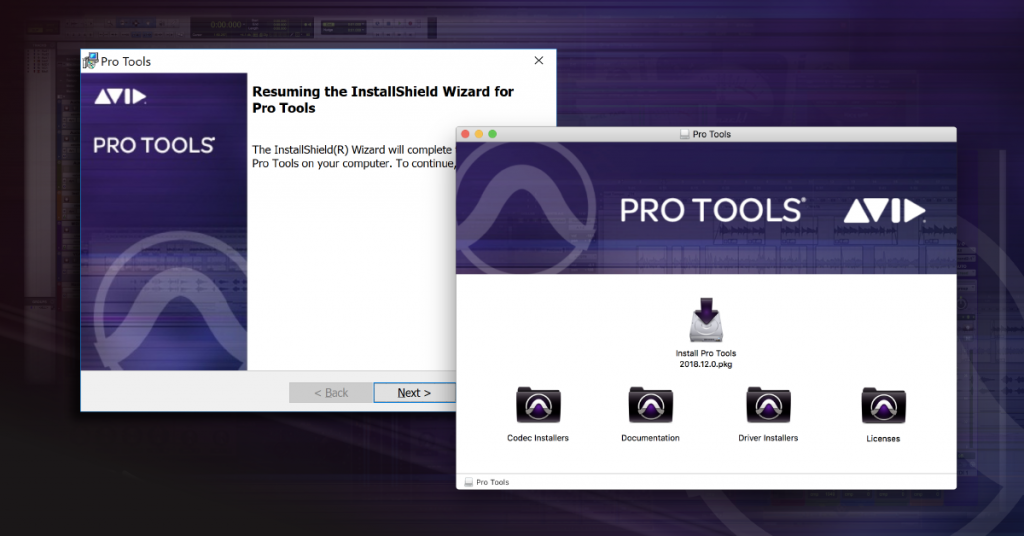
Now that you have successfully activated your Pro Tools Multiseat license, continue to learn how to download and install Pro Tools.
Additional resources
When you need help, Sweetwater has the answers!
Our knowledge base contains over 28,000 expertly written tech articles that will give you answers and help you get the most out of your gear. Our pro musicians and gear experts update content daily to keep you informed and on your way. Best of all, it’s totally FREE, and it’s just another reason that you get more at Sweetwater.com.

