

Novation Circuit Series Setup Guide
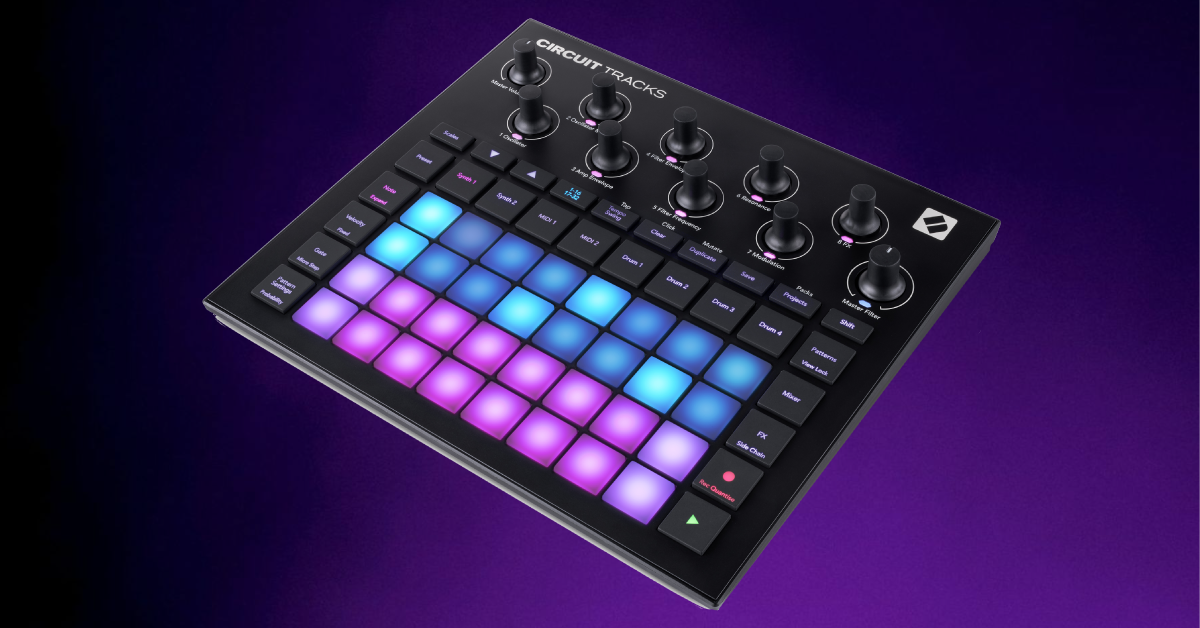
In this guide, we’ll show you how to get up and running with the Novation Circuit series Groovebox. This means you’ll learn about registering the device, how to set up and connect it, and also how to create a song from scratch. Follow the sections below to get started.
Register the device
Before you start creating music with the Circuit series Groovebox, you’ll first need to register it with Novation. Once registered, you’ll get access to free synth packs, plugins, and content with the Novation Sound Collective. You’ll also need to register the device to perform firmware updates via the Novation Components app.
- Log into your Novation account. If you don’t have one yet, you can create one here.
- Once logged in, click My Hardware, and select Register A New Product.
- Use the drop-down list to select the Circuit product you own.
- Fill out all of the necessary information, including the serial number located underneath the QR code located on the back. You can also find the serial number on the back of the box.
- Go to the My Software section of your Novation account to account to access the bundled software.
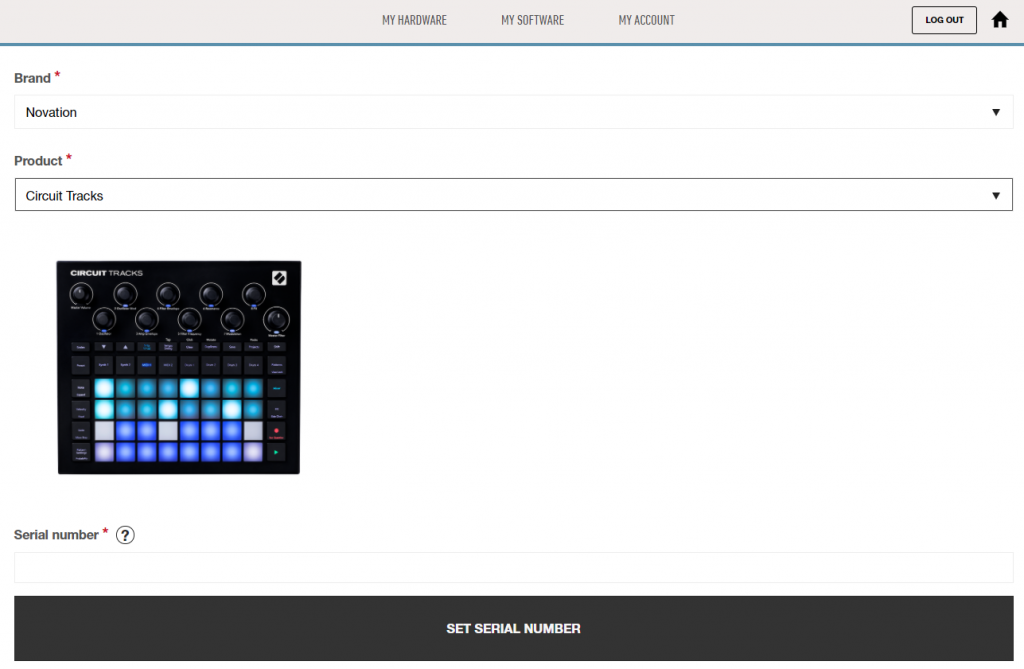
Click the image to register your Groovebox
Novation Groovebox online setup
Novation has made an online setup guide so you can get started fast with your Circuit series Groovebox. It walks you through the registration process and has videos for setting up and using your device. Click the image below to get started and enjoy using your new Circuit series Groovebox!
- Connect the device to your computer and power it on.
- Open the folder and double-click the Click Here To Get Started .html to begin the registration process.
- PC: Double-click This PC, then double-click Circuit Tracks drive.
- Mac: Open the Tracks folder that appears on your desktop.
Download and install Components
Once your device is registered, you’ll next want to download and install the Novation Components app. If you use a MIDI-enabled web browser (Google Chrome or Opera), you can launch and use the software on a new web page. Still, it’s always good to install a copy to your local drive, in case you’re on the go and don’t have internet access readily available.
- Go to the Novation Components page, scroll down and click Download Standalone.
- Navigate to your Downloads folder, launch the installer and follow the on-screen instructions.
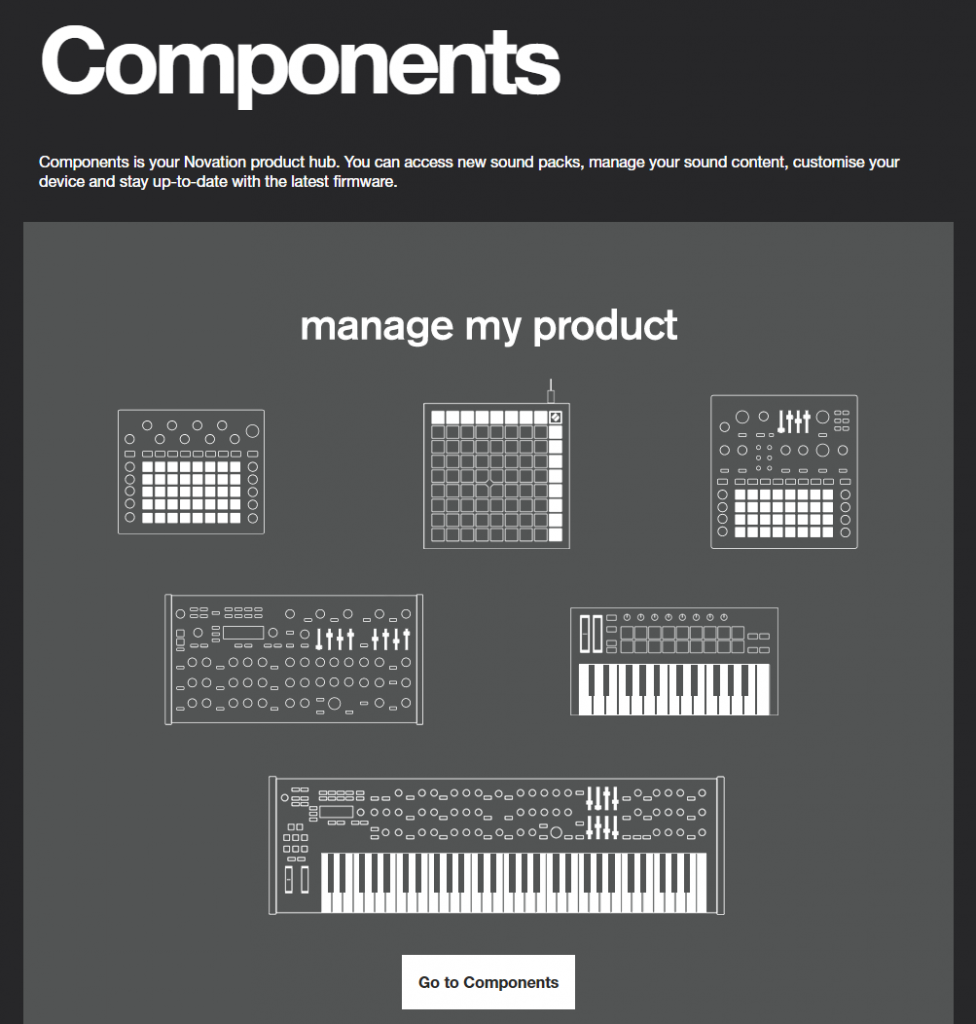
Click the image to download and install Novation Components
Setup and connections
One great thing about the Circuit series hardware is the connectivity capability. From external synths and other drum machines to computers, the ways you can incorporate it in your rig are endless. Here are the hardware connections available.
MIDI
One way to connect to external hardware is via 5-pin MIDI cables. For you to control the external gear, connect a MIDI cable from the MIDI OUT port to the external device’s MIDI IN port. If you want to have external hardware control the Novation, connect a 5-pin MIDI cable from the MIDI OUT on the external hardware to the MIDI IN of your Groovebox.
How to use the MIDI Thru port as a MIDI Out port
If you want to use the MIDI THRU as a secondary MIDI OUT, turn off the device, then press and hold the SHIFT button while powering on. Next, press the DUPLICATE button. When it turns green, it has been changed from MIDI THRU to MIDI OUT.
USB
IMPORTANT: Novation Circuit series Grooveboxes doe not support audio over USB. If you want to record the sounds from the device, you’ll need to connect it to an audio interface using ¼-inch TRS cables (one for mono, two for stereo).
The Novation can be battery powered, but it can also be powered (and charged) via the USB port. You can also connect the Novation to your computer to update your firmware via the Components app, and also use it as a MIDI controller in your DAW. The controller is class-compliant on both Mac, so no additional driver software is necessary to operate it on a computer. Windows users will have to download and install the driver from the software section of their Novation account.
Sync
The Groovebox can be synchronized to an external device’s tempo via MIDI or CV using the 3.5mm SYNC jack. This is best used when connecting to time-based synths such as arpeggiators or if you’re using it with a Eurorack system.
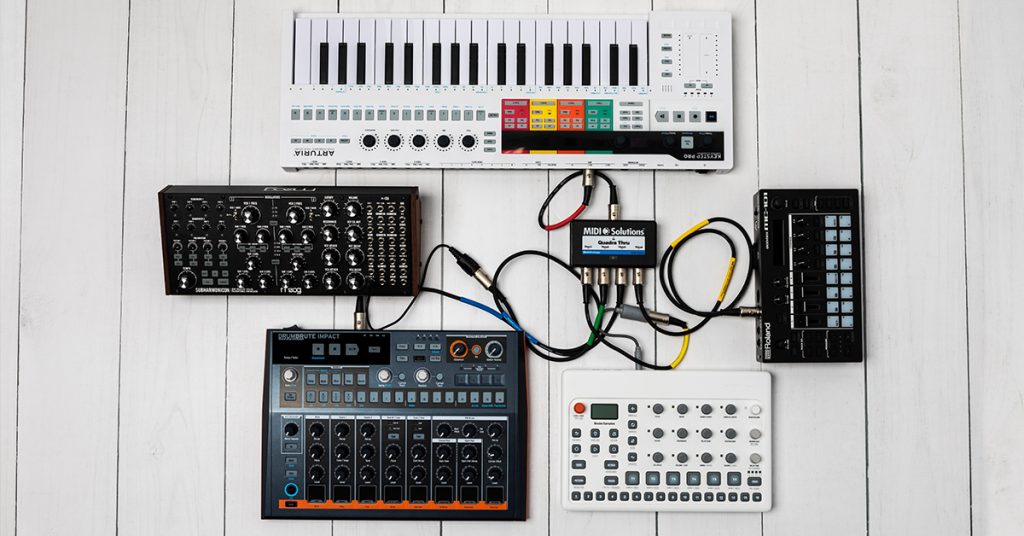
Learn more about how to sync your MIDI devices together!
Audio inputs
One great feature of the Circuit Tracks is that it has two mono audio inputs (which can be switched to a single stereo input). The Circuit Rhythm has a stereo L/R pair. When a device is connected via the audio in, you can then use the built-in mixer and sound effects to control the external audio!
MicroSD
The Groovbox has a MicroSD slot so that can expand your sample content storage. If you do use a MicroSD card, make sure that it’s Class 10 and formatted as FAT32. Check out Novation’s support page for more information!
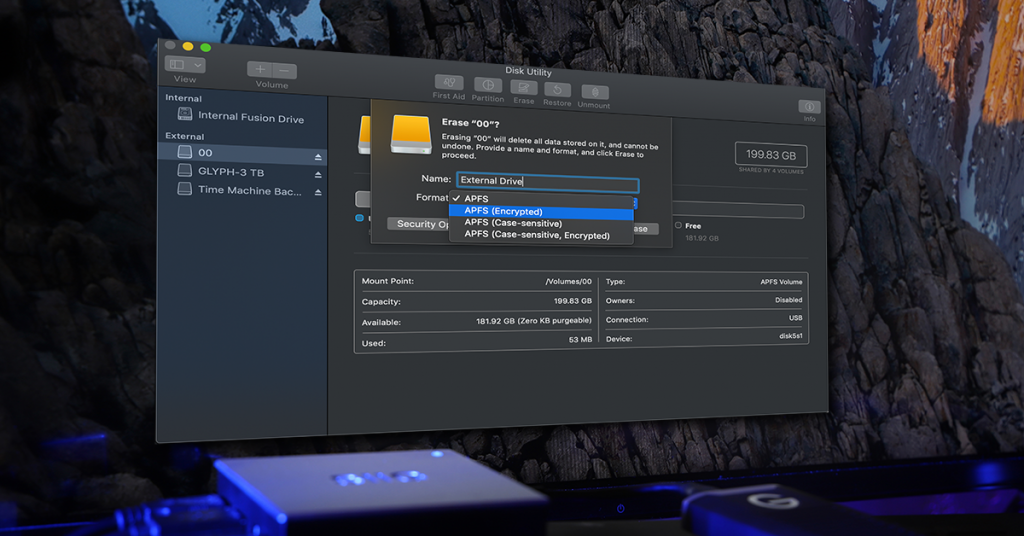
Learn more about external storage file system formats and why they matter!
How to create a sequence
You can record a sequence in two different ways: live recording (which is then automatically quantized to the closest beat) or step recording. It’s a straightforward process, either way, so we’ll show you how to perform a live recording with a synth and how to step record using the drums. Follow these steps to learn how to create a sequence.
When editing a pattern, hold the Shift button and press the Patterns/ View Lock button to freeze the Step display (top 16 pads). This is useful when you want to edit a specific part of a sequence.
Live recording
TIP: You can record automation this way, as well!
- Press Synth 1 to select the first synth track.
- Press the Preset button, press one of the 32 purple pads to choose the preset you want, then press Synth 1 again to select it.
- Press the Note button to switch between two and four octaves.
- Press the REC button to arm the track, then press the play button once you’re ready to begin recording.
- If you want to record a 32 bar pattern, press the 1-16 17-32 button before pressing play.
- If you want to clear the pattern, press the Patterns button, hold the Clear button, then press the pattern you want to clear.
Recording Synths
Step recording
- Press Drum 1 to select the first drum track.
- Use the Up and Down arrows to change between kits.
- Select the sample from the bottom 16 orange pads you want to trigger, then use the top 16 pads to enter that drum’s pattern.
Recording Drums
Pattern settings and probability
To make your patterns more unique, you can change the way it’s played back by pressing the Pattern Settings/Probability button.
Single-pressing the Pattern Settings button will let you change the notes’ speed (1/8th note, 16th note, etc.) and the order in which the notes are played. The eight yellow LEDs (second row of pads) adjust the speed, and the four purple LEDs adjust the playback order.
Double-pressing the Pattern Settings button will take you into Probability mode. As the name implies, changing the probability will change the likelihood of when a note is played—the lower the probability, the less chance it will trigger.
Additional resources
Novation Circuit Rhythm Tutorial Playlist
Novation Circuit Tracks Tutorial Playlist
When you need help, Sweetwater has the answers!
Our knowledge base contains over 28,000 expertly written tech articles that will give you answers and help you get the most out of your gear. Our pro musicians and gear experts update content daily to keep you informed and on your way. Best of all, it’s totally FREE, and it’s just another reason that you get more at Sweetwater.com.


Offer applies only to single-receipt qualifying purchases. Select manufacturers may require that only the manufacturer’s products qualify towards the minimum purchase amount needed to be eligible for promotional financing. Otherwise, an invoice that meets the minimum purchase amount and contains at least one qualifying manufacturer product is eligible for promotional financing. No interest will be charged on promo purchase balance, and equal monthly payments are required on promo purchase until it is paid in full. The payments equal the amount financed divided by the number of months in the promo period, rounded up to the next whole dollar. These payments may be higher than the payments that would be required if this purchase was a non-promo purchase. During the last month(s) of the promo period the required monthly payment may be reduced due to the prior months’ rounding. Regular account terms apply to non-promo purchases. New Accounts as of 07/31/2025: Purchase APR is 34.99%. Penalty APR is 39.99%. Min Interest Charge is $2. Existing cardholders: See your credit card agreement terms. Subject to credit approval.
Offer applies only to single-receipt qualifying purchases. No interest will be charged on the promo balance if you pay it off, in full, within the promo period. If you do not, interest will be charged on the promo balance from the purchase date. The required minimum monthly payments may or may not pay off the promo balance before the end of the promo period, depending on purchase amount, promo length and payment allocation. Regular account terms apply to non-promo purchases and, after promo period ends, to the promo balance. New Accounts as of 07/31/2025: Purchase APR is 34.99%. Penalty APR is 39.99%. Min Interest Charge is $2. Existing cardholders: See your credit card agreement terms. Subject to credit approval.
The estimated required monthly payment shown which excludes taxes and delivery equals the amount financed divided by the number of months in the promo period, rounded up to the next cent. During the last month(s) of the promo period the required monthly payment may be reduced due to this rounding. These payments apply only with the financing offer shown. If you make these payments by the due date each month, you should pay off this amount financed within the promo period, if it is the only balance you are paying off. If you have other balances on your account, this payment will be added to any other minimum monthly payments.
Applies only to select items from this manufacturer. Ask your Sweetwater Sales Engineer for more details.