

Novation Bass Station II Quickstart Guide
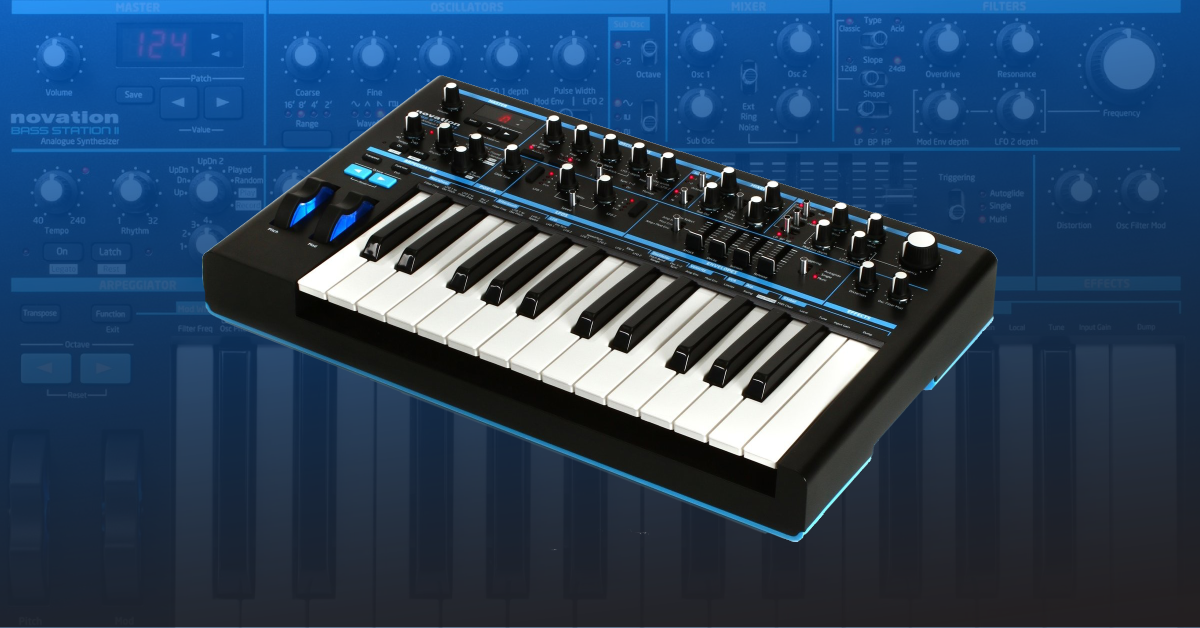
Getting started with the Novation Bass Station II
In this guide, we will show you how to register, set up, and connect the Novation Bass Station II. Follow the instructions below to get started.
- Register the Bass Station II with Novation
- How to set up the Bass Station II
- Working with Bass Station II patches
Register the Bass Station II with Novation
Before we get connected, the first thing you’ll want to do is register the Bass Station II with Novation. Upon registration, you’ll receive access to the Sound Collective, which is a group of free plug-ins sent every few months. You’ll also be activating Novation’s 3-year warranty.
- Log in to your Novation account. If you don’t have one, you can create it here.
- Once you’re logged in, click My Hardware, and select Register A New Product.
- Use the dropdown boxes to select the AFX Station, enter the Serial Number then click Set Serial Number.
- Go to the My Software section of your Novation account to access your free bundled software.
- You will receive an email periodically, notifying you of the new plug-ins that you’ll have access to. If you don’t see these emails, be sure to check your Spam folder.
Download and install the driver (Windows users only)
If you’re a Windows user, you must first download and install the Bass Station II’s driver before connecting it. This will ensure that it works correctly. Go to the software download page, then click DOWNLOAD next to the Novation USB driver.
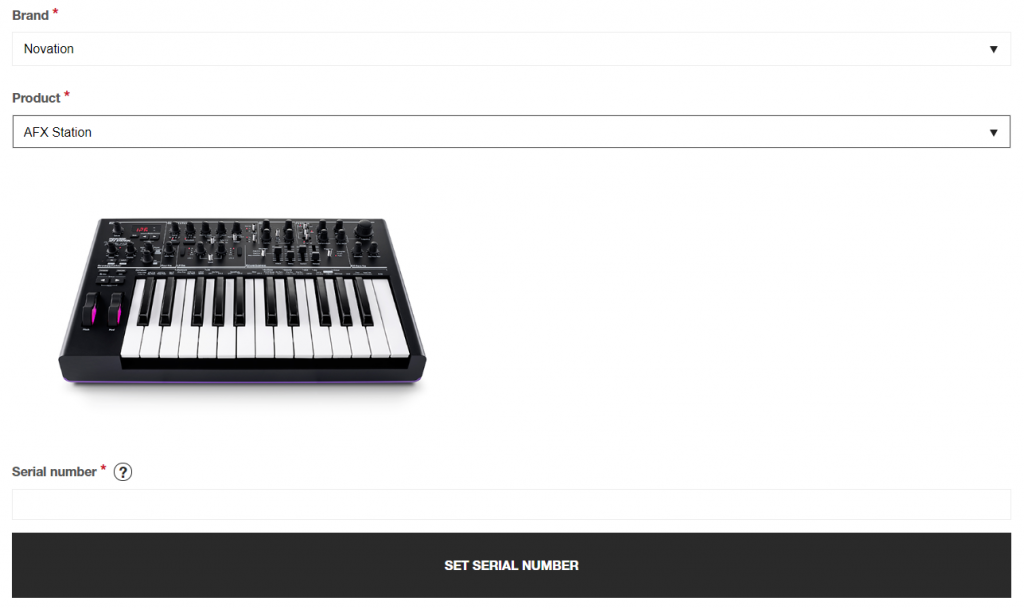
Click the image to register your Novation Bass Station II.
How to set up the Bass Station II
Setting up the Novation Bass Station II is pretty simple. It has all of the standard connections you would find in a modern synth, like USB, MIDI In and Out, and headphone and line inputs. Here are a few tips when setting up your Novation Bass Station II:
- Connect all of your gear before turning everything on. This will help reduce the risk of loud pops.
- The Bass Station II has a powerful headphone amplifier. When connecting your headphones, turn the headphone knob down and gradually turn it up to a comfortable listening level.
- MIDI can’t be sent between your computer and any external hardware connected via the Bass Station II MIDI DIN ports.
- The Bass Station II is bus-powered, meaning that you can use your computer’s USB port to power it. We recommend connecting it directly to your computer, as USB hubs (primarily passive) may not provide enough power.
- If you’re powering the Bass Station II via USB on a laptop, Novation recommends that the laptop’s AC power connector be plugged in. If running the Bass Station II on the laptop’s battery, you may run into connectivity issues.
Working with Bass Station II patches
The Novation Bass Station II is a paraphonic synth, which means that you can play different notes through the same signal path (i.e., VCA, DCF). You can store up to 128 patches, which is plenty to get creative! You can also use the Components software to store multiple banks of presets, which means any patches and banks you’ve created can be recalled at any time!
Loading a patch is as simple as using the Patch pads underneath the LED display. After it’s loaded, feel free to experiment and tweak the parameters any way you’d like! If you like how it sounds, make sure to save it because it will disappear as soon as you go to a new preset.
How to save patches on the Bass Station II
You can save custom patches on your Bass Station II to either a factory preset slot (patch slots 0-63) or an empty user slot (patch slot 64-128). The save procedure is quite simple, as well.
- Press the Save button once.
- Once the patch number on the LED display flashes:
- Press Save again to save over the current slot.
- Use the Patch pads, select the patch slot you’d like to save to, then press Save again.
Related content
Sweetwater Synth Clips Playlist
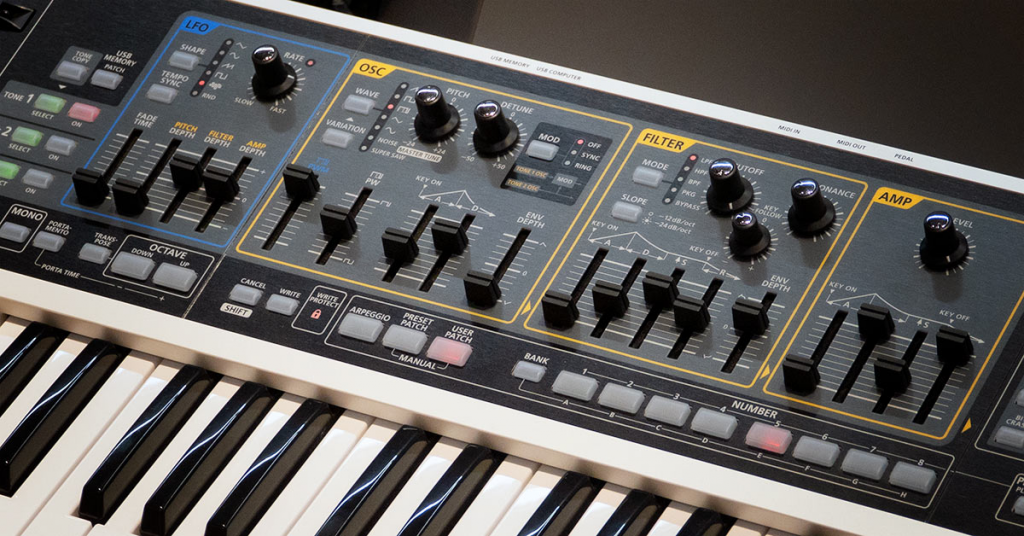
Learn more about the basics of synthesizers!
Learn More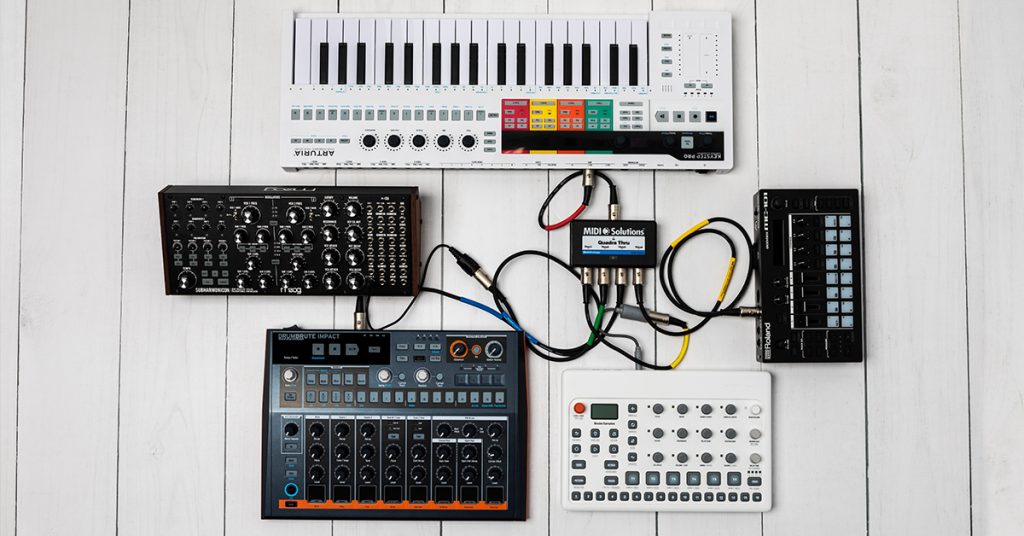
Learn more about how to sync MIDI hardware!
Learn MoreAdditional resources
Bass Station II Walkthrough Playlist
When you need help, Sweetwater has the answers!
Our knowledge base contains over 28,000 expertly written tech articles that will give you answers and help you get the most out of your gear. Our pro musicians and gear experts update content daily to keep you informed and on your way. Best of all, it’s totally FREE, and it’s just another reason that you get more at Sweetwater.com.

