

Navigating the Creation Station 450v6 BIOS
Getting started
The BIOS is the key component for getting your computer fully booted up. It’s what loads all your primary drivers, hard drives, and even your OS. You can also change things such as RAM and CPU settings, what hard drive to boot from, then conveniently save those configurations.
All Sweetwater Creation Stations have an optimized BIOS setting profile that is geared towards high performance. If by any chance you do run into something where you need to access the BIOS, you can easily reload this profile without having to change anything manually. So in this article, we will walk you through the Creation Station 450 v6 BIOS.
- To get into the BIOS, press the Del key or F2 key repeatedly as soon as you turn the computer on. This will take you to the main screen.
- Press the F7 key to get into Advanced Mode. On the top left corner of the screen, you can change the date and time by clicking it.
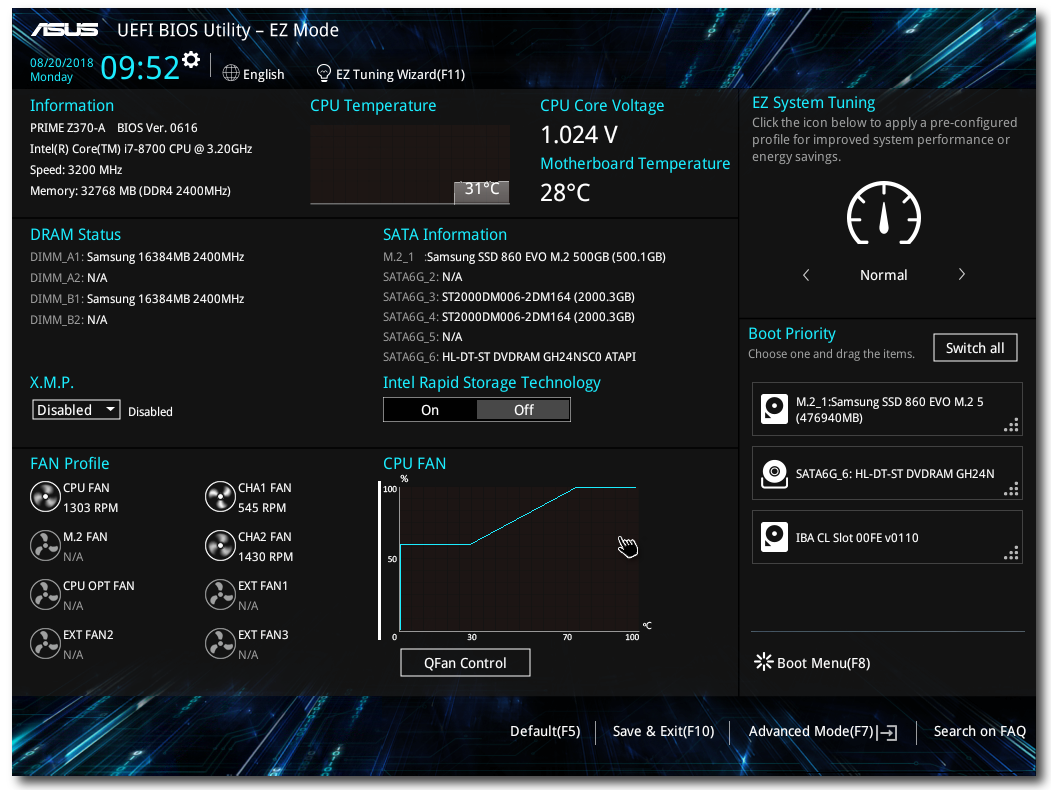
BIOS Easy Mode. Click to enlarge.
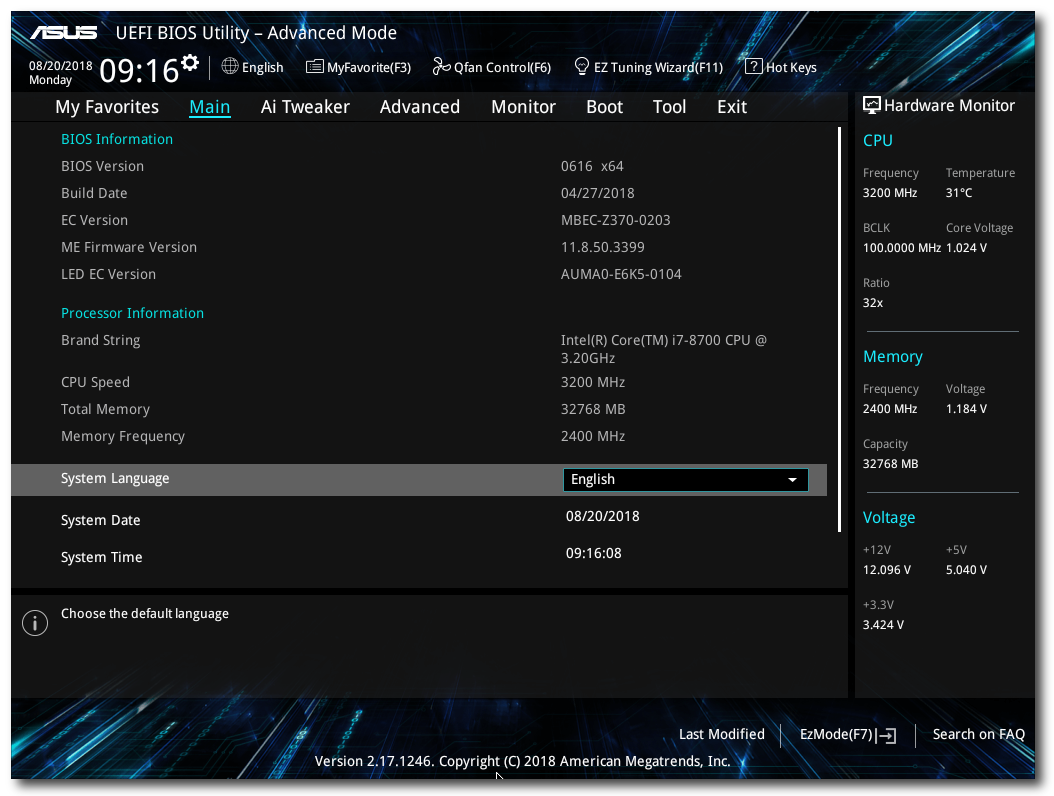
BIOS Advanced Mode. Click to enlarge.
You can change the boot order of the hard drives by going into the Boot Menu. This is the first thing to check if the computer isn’t fully booting.
- Under Boot Options, make sure that the SATA6G_6 DVDRAM drive is set as Boot Option 1, and the M2_1 disk is set as Boot Option 2.
- When selecting Hard Drive BBS Priorities, make sure that the M2_1 disk is set to 1, or else it will not show in your Boot Options menu.
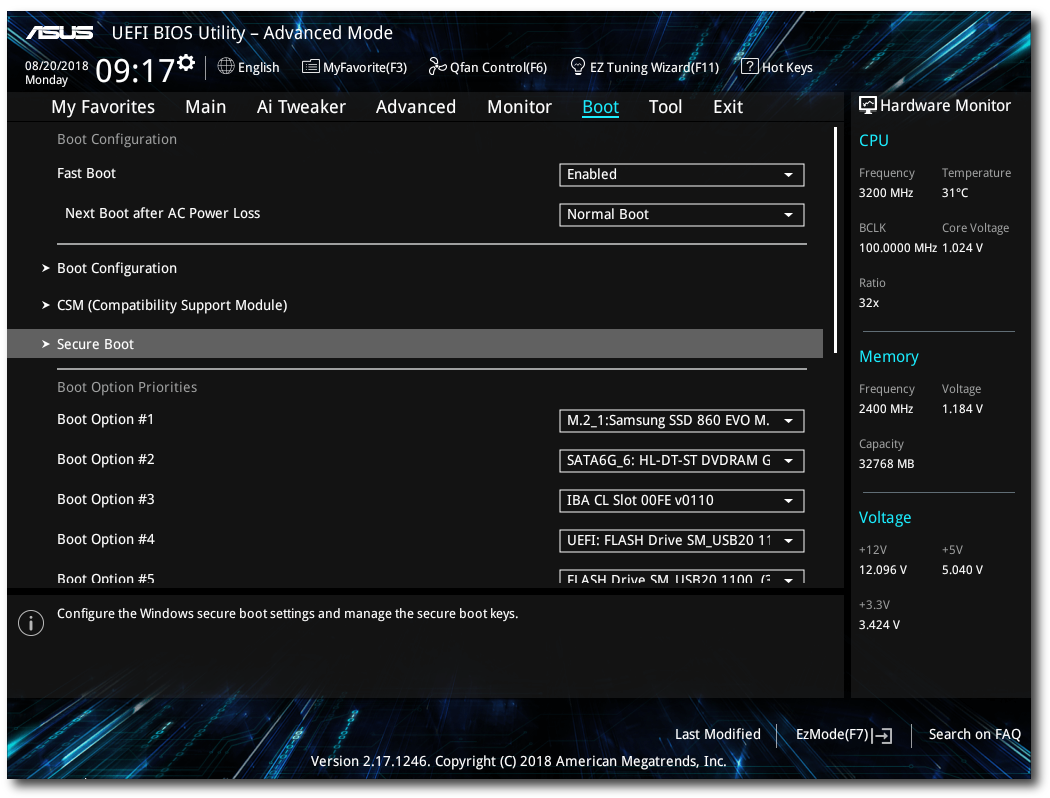
BIOS Main Boot screen. Click to enlarge.
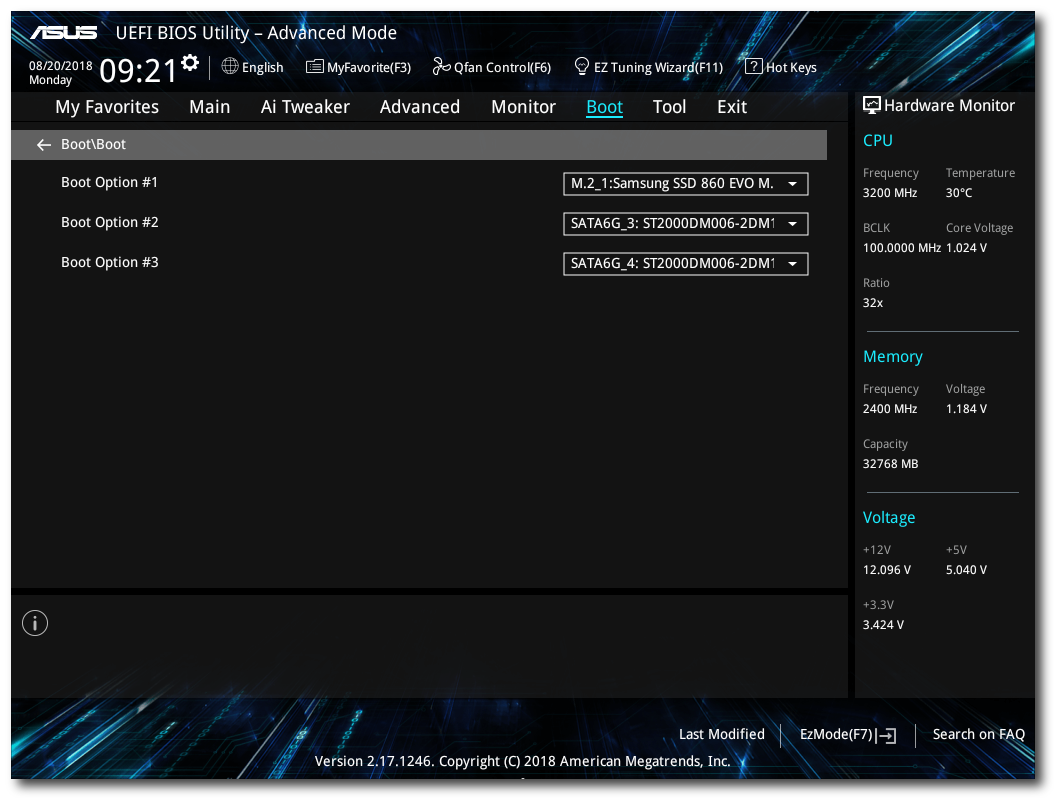
BBS Priorities screen. Click to enlarge.
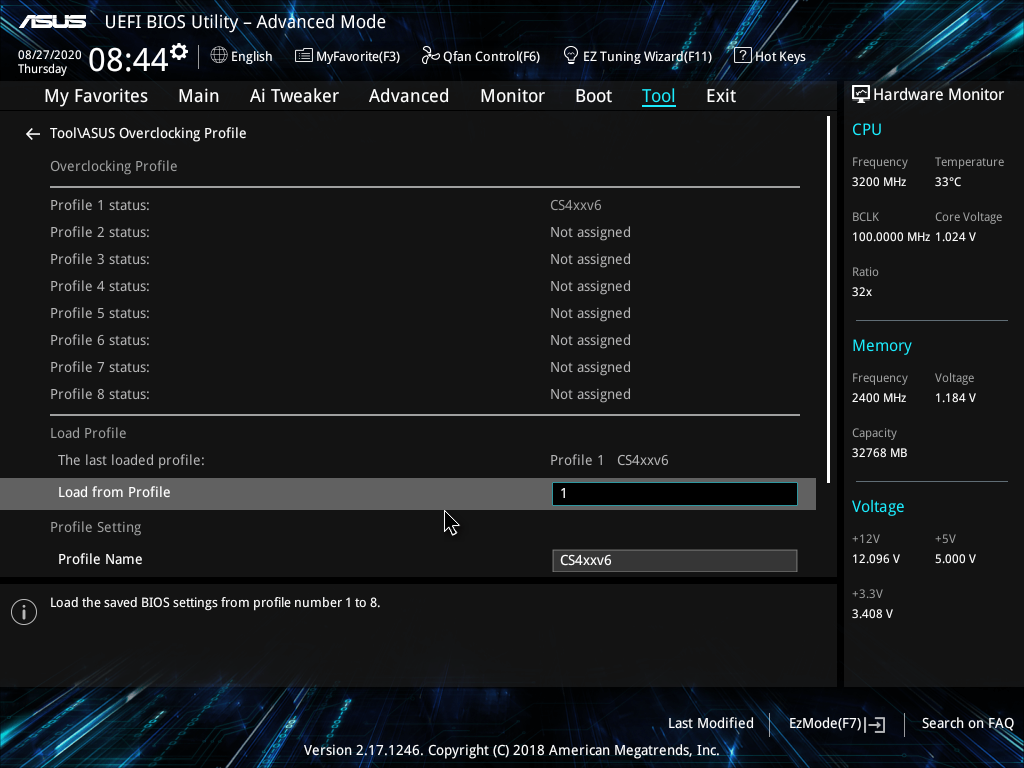
Load the Creation Station profile
To load the default Creation Station profile, navigate to Tool, Overclocking Profile, and choose CS4XXv6 from the Profile 1 Status dropdown.
Related content
- Troubleshooting Audio Interface Issues on Windows 10
- Where can I download the drivers for my audio or MIDI interface?
- How to Install and Use ASIO4All
- How to Back Up Windows 10
When you need help, Sweetwater has the answers!
Our knowledge base contains over 28,000 expertly written tech articles that will give you answers and help you get the most out of your gear. Our pro musicians and gear experts update content daily to keep you informed and on your way. Best of all, it’s totally FREE, and it’s just another reason that you get more at Sweetwater.com.

