
Native Instruments Software Activation Instructions
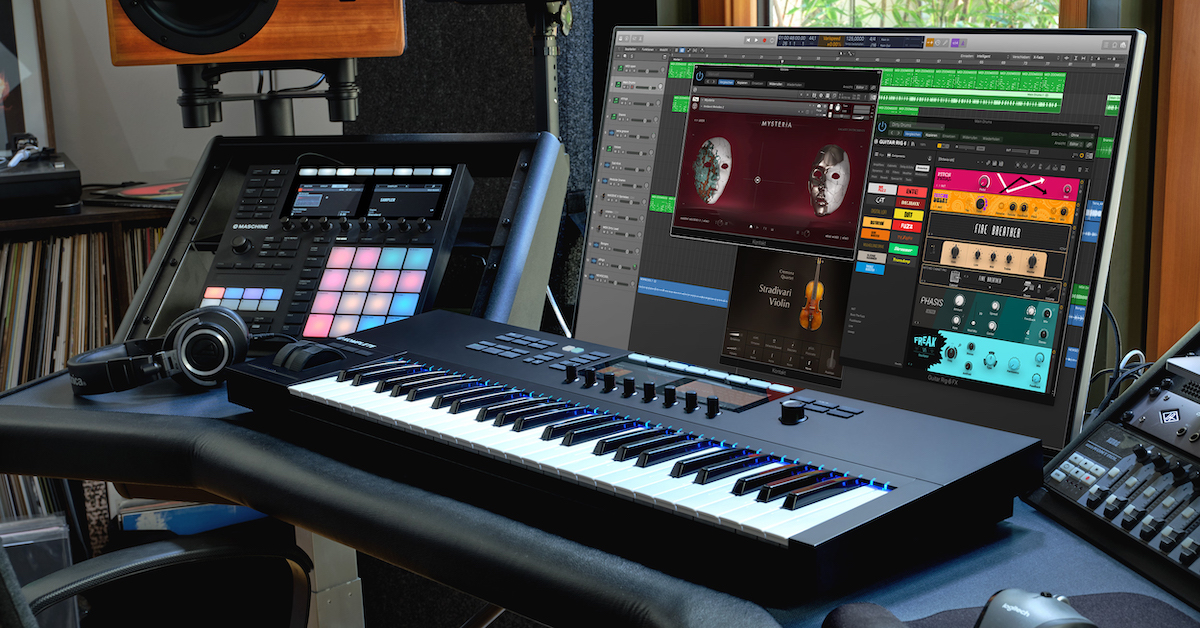
To activate your Native Instruments software, you must register it to a Native Instruments account. Follow each of the sections below to get started.
- Download and Install Native Access
- Configure Native Access settings
- Register the serial number and install the software
Download and install Native Access
Native Instruments products are registered, installed, and updated via their all-in-one software management application, Native Access. If you have already installed Native Access and created an account with Native Instruments, skip this section and scroll down to Register the serial number and install the software. Otherwise, follow these steps to install Native Access on your computer and set up your account.
- Download and install Native Access.
- Launch Native Access and sign in to your account. If you don’t already have an account with Native Instruments, create a new one. We recommend to write down your email & password and keep them in a safe place. If you forget, they can be reset here.
Windows .zip files
Before installing, Windows users first need to use Extract All on your Native_Access_Installer.zip folder (click here to see what that looks like.) Open the newly created Native Access Installer folder and double-click the Native Access Setup PC.exe file to start installing.
Configure Native Access settings
Before we install your products, let’s update your Native Access preferences for download and content locations. These settings will determine where Native Access downloads and installs your software and library content (instruments for Kontakt 5, Battery 4, and Reaktor 6). For more information on how to change these locations, visit Native Instrument’s article on this topic. Follow these steps to customize your settings:
- Click the gear icon, select Preferences, then click File Management.
- For Download location, select where you want your downloads to show up.
- For Content location, select where you want to install your library content.
Sound library installation location
While sound libraries can be installed on your internal hard drive, we always recommend installing to an external hard drive. Sample libraries will take up a lot of space on your internal hard drive!
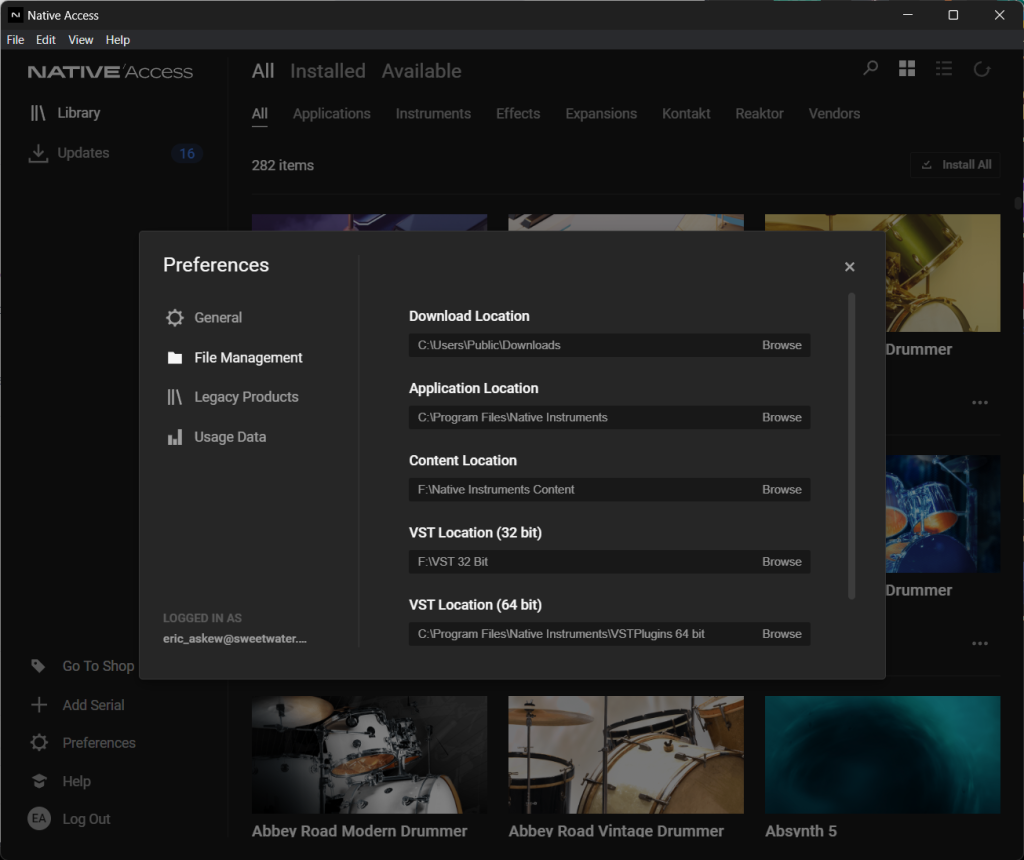
Windows VST locations
Make sure to add your VST locations to your DAW preferences so your Native Instruments plug-ins show up! Here’s a great article from Native Instruments that will show you how to update your VST 64 & 32 locations to your computer’s default settings.
Register the serial number and install the software
Now that your preferences have been updated, you’re ready to use Native Access to register and install your software.
Once installed, launch Native Access and confirm each product is updated to the most recent version. Follow these steps to register, download, and install your Native Instruments software.
- Click Add a Serial and enter your product’s serial number. Then, click Add Serial at the bottom right.
- Find your product in the Not Installed area of Native Access and click Install.
Download speeds
Download times will vary depending on your service provider and connection speed. Be patient, sample libraries have a lot of files. Try installing one at a time and avoid using the Install All feature if you experience download or installation failure.
Related Articles
When you need help, Sweetwater has the answers!
Our knowledge base contains over 28,000 expertly written tech articles that will give you answers and help you get the most out of your gear. Our pro musicians and gear experts update content daily to keep you informed and on your way. Best of all, it’s totally FREE, and it’s just another reason that you get more at Sweetwater.com.

