
Native Instruments Komplete Audio Interface Quickstart Guide
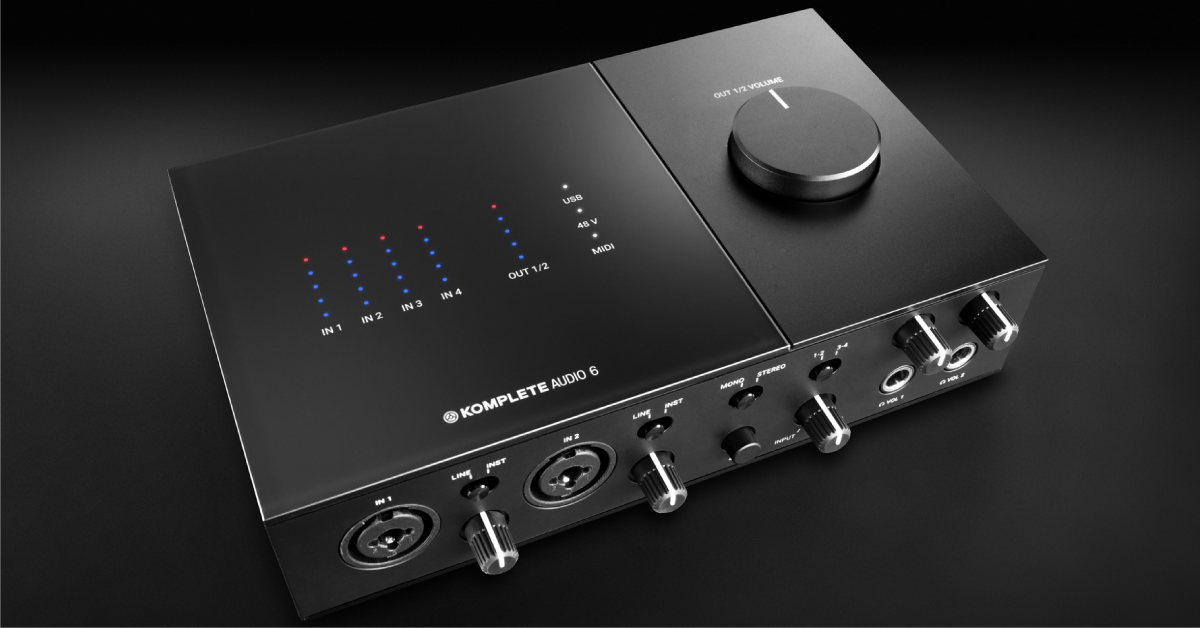
In this guide, we will show you how to register, set up, and connect your Native Instruments Komplete Audio interface. Follow the instructions below to get started.
- Register the Native Instruments Komplete Audio interface
- Setting up and connecting the Komplete Audio interface
How to register the Native Instruments Komplete Audio interface
Before you get everything set up and connected, you’ll first need to register the Komplete Audio interface with Native Access. Once you register the interface, you’ll receive a free copy of Ableton Live Lite, a free two-month subscription at Sounds.com, and a bundle of Native Instrument effects plug-ins and software like Maschine Essentials and Komplete Start.
Download and install Native Access
The Komplete Audio interface is registered, installed, and updated Native Instrument’s all-in-one software management application, Native Access. If you have already installed Native Access and created an account with Native Instruments, skip this section and scroll down to How to Register the Komplete Audio serial number. Otherwise, follow these steps to install Native Access on your computer and set up your account.
- Go to the Native Access download page, and click the Download button for your OS.
- Navigate to your Downloads folder, run the Native Access installer, and follow the on-screen instructions.
- Launch Native Access and sign in to your account. If you don’t already have an account with Native Instruments, you can create one here.
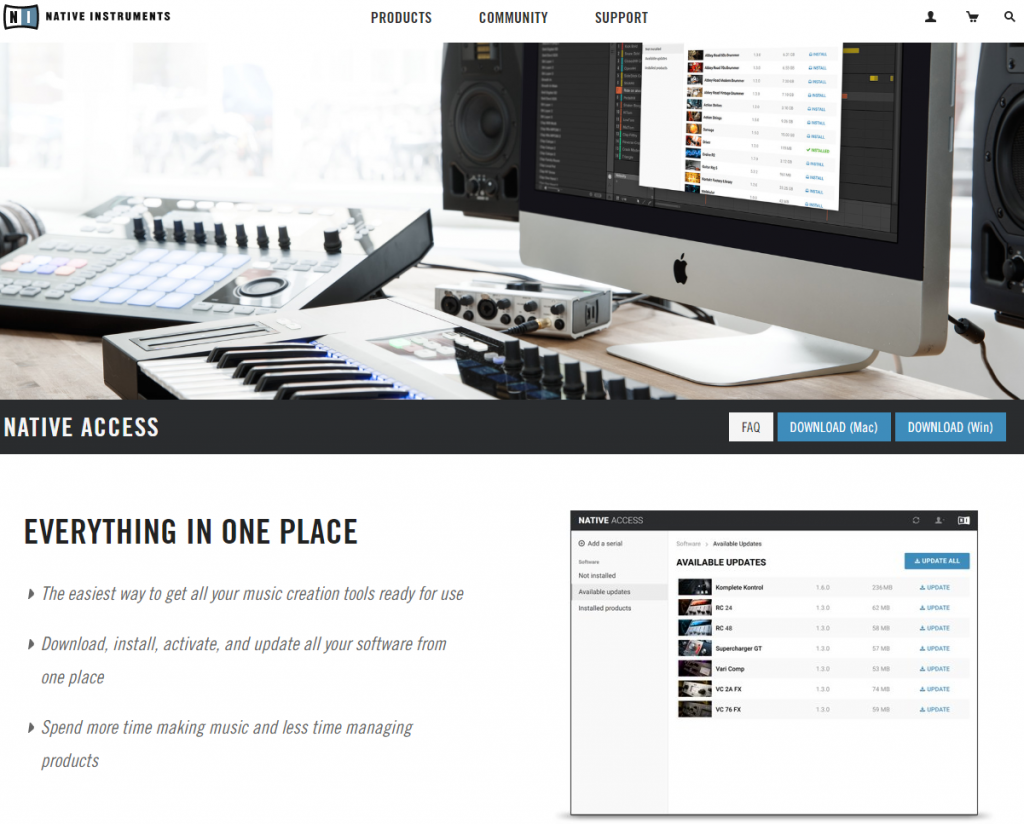
Click the image to download Native Access
Register the Komplete Audio serial number
After creating a Native Instruments account and installing Native Access, the next step is to register your Komplete Audio via the Native Access app. You will only need to register the hardware, as your bundled Native Instruments software licenses will automatically be authorized to your Native Instruments account. To download, install, and activate Ableton Live Lite, check out our article here.
- Launch Native Access, and click Add a serial.
- Locate the serial number of your Native Audio interface, enter it in the Serial number field, and then click ADD SERIAL.
- The Native Audio serial number is located on a registration card that came in the box alongside the interface. If you can’t find it, the serial number is also located at the bottom of your interface.
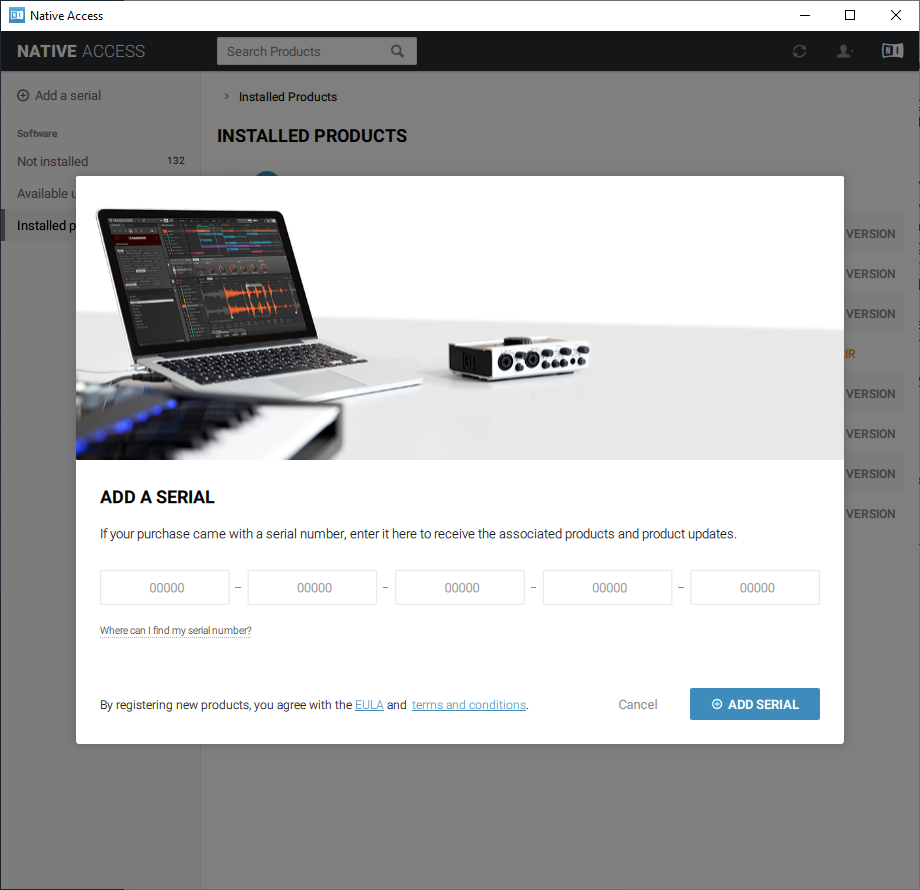
Enter the Native Instruments Komplete Audio serial number in Native Access
Downloading software through Native Access
Once registered, you can now download and install your Native Instrument effects plug-ins and virtual instruments within the Not Installed section of Native Access. Before installing it, consider updating your Native Access download and content locations, so you know where your software will be installed. Follow these steps to configure your Native Access Download and Content locations.
- Click the Person icon and select Preferences.
- For Download location, select where you want your downloads to show up. By default, the download location will be the native OS download location.
- For the Content location, select where you want to install your plug-ins and libraries.
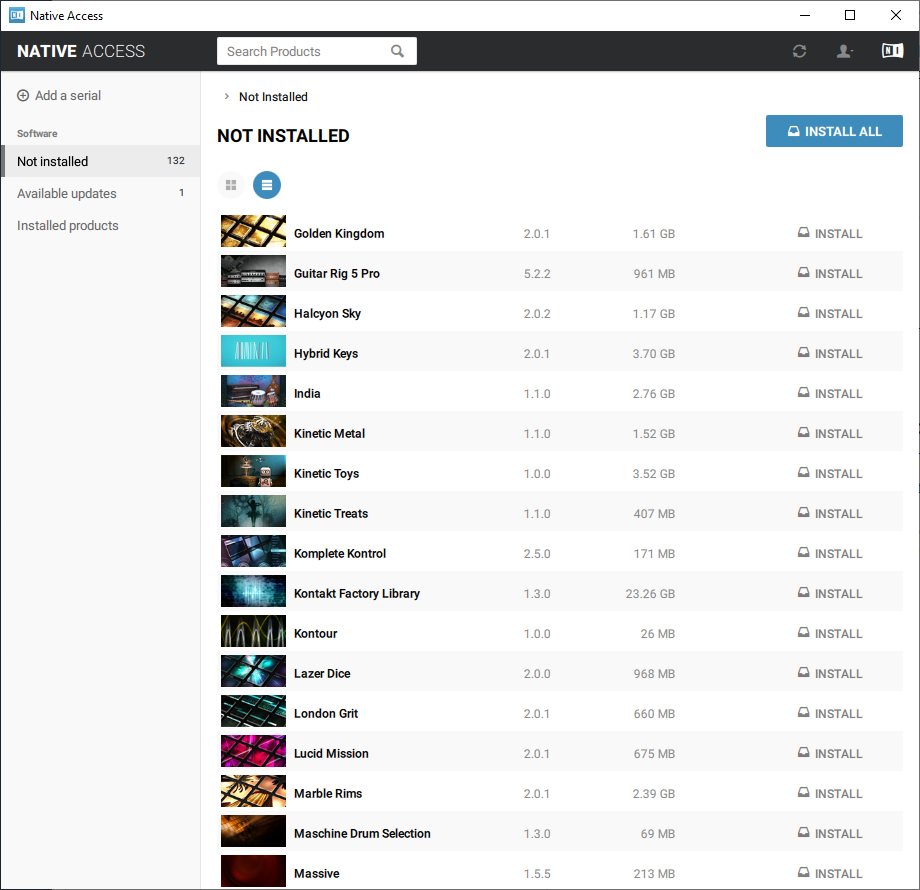
Native Instruments software that hasn’t been installed.
Windows users installing software through Native Access
Be sure to add your VST locations to your DAW preferences so your Native Instruments plug-ins will show up. Check out our article to learn about how to add VST locations inside your DAW.

Learn more about how to add VST plugins into a Windows DAW!
Setting up and connecting the Komplete Audio interface
Now that you’ve successfully registered your interface with Native Instruments, it’s time to get everything set up and connected. The Komplete Audio interface is class-compliant on Mac, which means no additional software is required. However, Windows users will first need to download and install the Komplete Audio ASIO driver from the Native Instruments website before connecting. If you’re a Mac user and own a Komplete Audio 1 or 2 interface, skip this section and continue to “Connecting your gear.”
If you’re a Mac user and own a Komplete Audio 6 interface, please follow the steps below as you will need to download and install the Device Updater.
Download and install the ASIO driver (Windows users only)
Before connecting your Native Instruments Komplete Audio interface to your PC, you’ll need to download and install the ASIO driver for the interface to communicate correctly with your computer. Not downloading the driver or downloading the driver after the interface is connected can result in connectivity issues. Follow these steps to download the driver.
- Go to the Native Instruments Drivers & Other Files Download page, and scroll down until you locate your Komplete Audio interface.
- If you own a Komplete Audio 6 interface, you will need to download and install the latest Device Updater file.
- Navigate to your Downloads folder, locate the driver file, then launch the installer file.
- PC: Right-click the .zip file, select Extract all…, and then click Extract. Double-click the new .exe file and follow the on-screen instructions.
- Mac: Double-click the .dmg file. In the window that appears, double-click the .pkg file and follow the on-screen instructions.
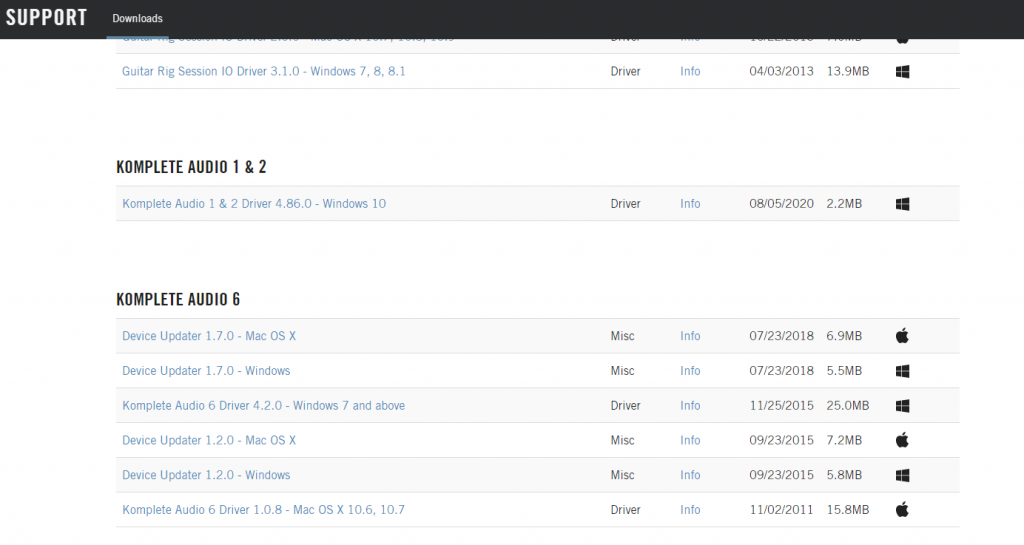
Click the image to download the Komplete Audio driver and Device Updater files.
Connecting your gear
Now that you’ve got all of the above taken care of, let’s get set up and connected! Every interface in the Komplete Audio series is bus-powered, which means no external power supply is necessary.
TIP: We highly recommend connecting your interface directly to your computer, preferably a USB 2.0 port. USB hubs may not provide enough power to your interface, resulting in connectivity issues, and connecting to a USB 3.0 port may result in connectivity issues.
- Turn the Volume knob all the way down, then connect your speakers.
- If you have headphones connected, turn its volume knob all the way down, as well.
- Connect the USB cable from the interface to your computer, then power it on. The USB LED on the interface will light up.
- Navigate to your OS sound settings and set it as the default input and output device.
- PC: Right-click the Speaker icon on the Windows taskbar, select Sounds, then click the Playback tab. Locate and select the interface, click Set Default, then click OK to close the menu. Do the same in the Recording tab.
- Mac: Click the Apple icon from the Menu Bar and select System Preferences. Click Sound, then select the Komplete Audio under the Input and Output tabs.
- If applicable, connect your headphones to the jack on the front.
- Play some music or a video, and slowly turn the main Volume (and headphone) knob up until it’s at your desired listening level.
- Launch your DAW, select your Native Instruments Komplete Audio interface as the primary playback and recording device.
Headphone controls
The Input/Host knob is used to blend the output signal of anything connected to the inputs and the audio that’s being played back. If you want to hear more of your mix, start turning the knob to the right (Host). This is useful if you’re only mixing. If you want to hear more of the input signal while recording, turn the knob to the left. Turning the knob more and more towards the input will allow you to hear more of the input for close to zero latency.
Related content

Learn more about how to optimize your Windows 10 computer for audio recording!
Learn More
Learn more about how to optimize your Mac computer for audio recording!
Learn More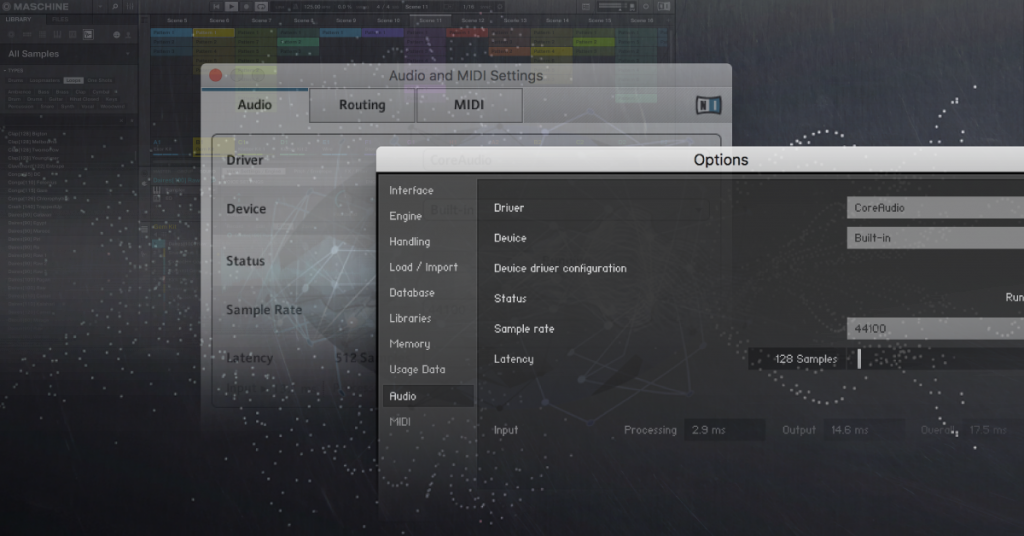
Learn more about configuring Native Instruments Audio and MIDI Settings!
Learn More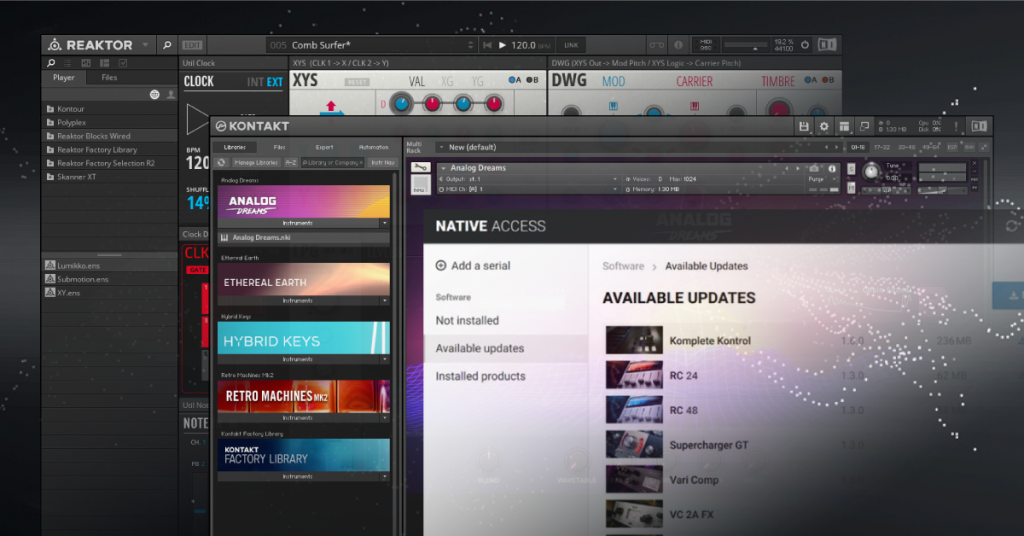
Learn more about managing Native Instruments library content!
Learn MoreAdditional resources
Getting started with MASCHINE
Creating “Yours” with Komplete Start
When you need help, Sweetwater has the answers!
Our knowledge base contains over 28,000 expertly written tech articles that will give you answers and help you get the most out of your gear. Our pro musicians and gear experts update content daily to keep you informed and on your way. Best of all, it’s totally FREE, and it’s just another reason that you get more at Sweetwater.com.

