

Korg drumlogue Firmware Update Guide
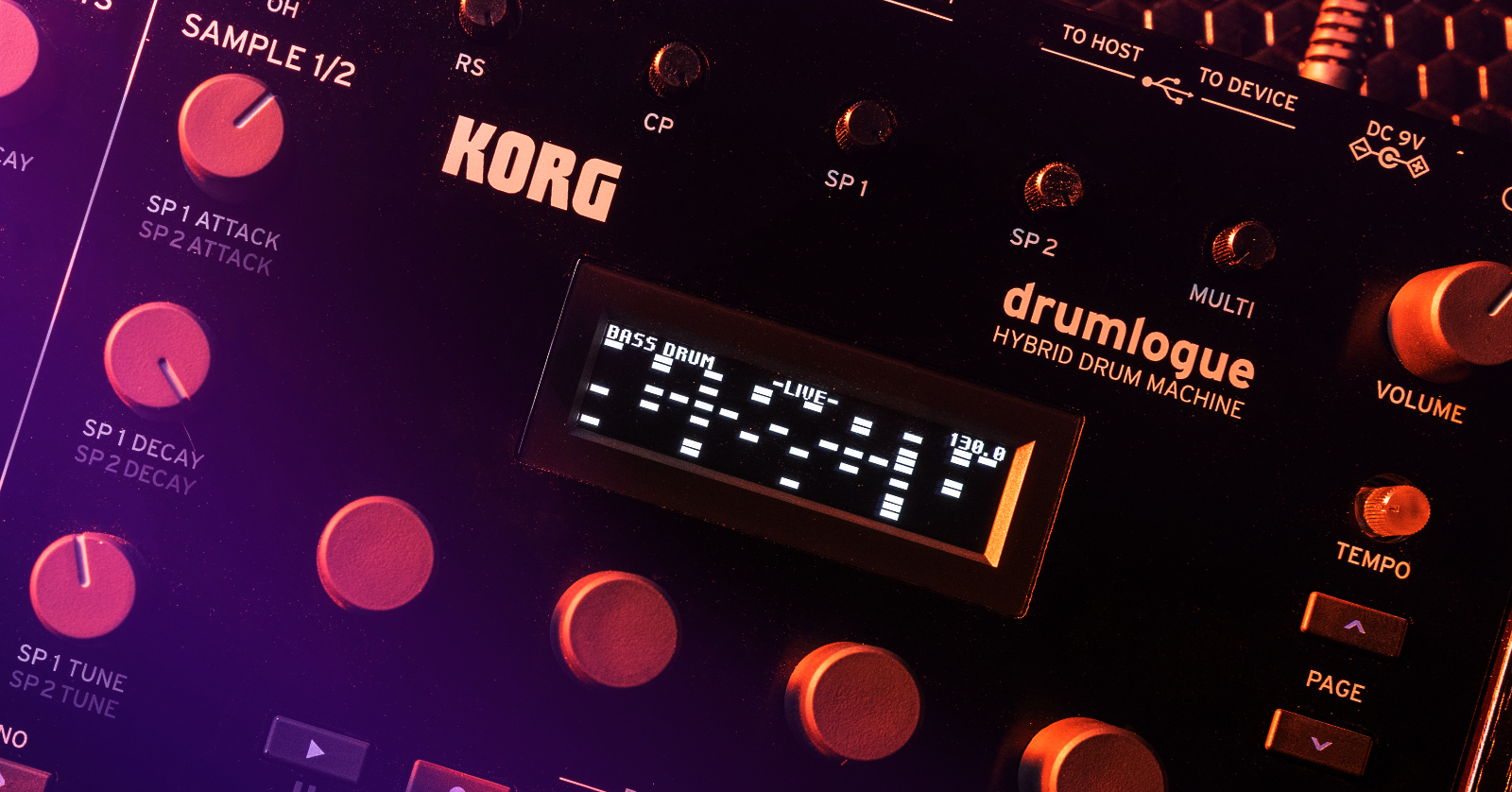
Korg will release drumlogue firmware updates that add great new features and address bugs in the current version installed on your device. It is very important to update the firmware before using the drumlogue for the first time. Follow the instructions below to get started.
Back Up Your Data
Before performing a firmware update, it is critical to back up any data stored on your Korg drumlogue. After the update, programs and drum kits will be automatically migrated to a new format. Backing up all your programs and kits allows you to retain the ability to revert to an older system version in the future.
- With the drumlogue turned off, connect it to your computer via USB.
- Press and hold the Record button while powering on the unit.
- Create folder on Desktop and copy all folders from drumlogue to your desktop.
- Press Play to complete power sequence.
Update the Firmware
NOTE: Hold the PLAY button while powering on the unit to check what firmware version your drumlogue is running.
After you have backed up your data, you can update the firmware.
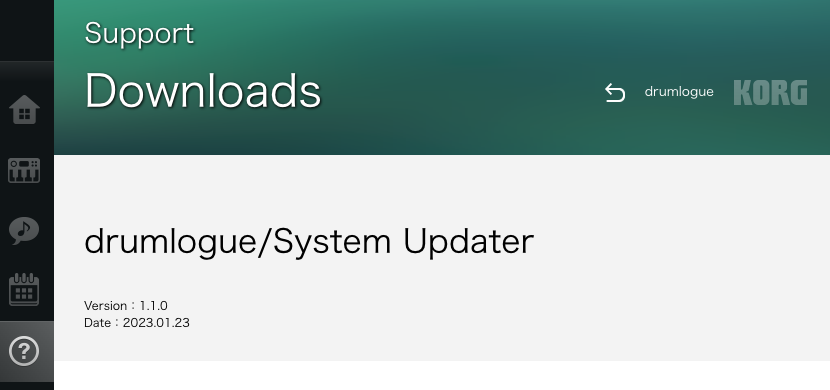
- Go to the Korg drumlogue firmware download page, scroll to the bottom, and download the latest drumlogue/System Updater version.
- Navigate to your Downloads page, then locate and extract the .zip file.
- With the power off, connect the drumlogue to your computer using the USB to Host port.
- Once connected, press and hold the SHIFT and PLAY buttons while turning on the unit. You should now see WAITING FOR UPDATE FILE on the display.
- The drumlogue will now appear as a storage device on your computer.
- Copy the drumlogue_system_update_v_x_x.bin file you extracted in step 2 to the UPDATE folder and wait until the transfer is complete.
- Safely eject the drumlogue from your computer, press </ENTER on the unit, then wait until the firmware update is installed. Do not power off the unit during the firmware update, as you may damage it!
- Once the update is complete, the screen will go blank for approximately 20 seconds. When you see COMPLETE, PLEASE REBOOT!, power cycle the unit to complete the firmware update process.
When you need help, Sweetwater has the answers!
Our knowledge base contains over 28,000 expertly written tech articles that will give you answers and help you get the most out of your gear. Our pro musicians and gear experts update content daily to keep you informed and on your way. Best of all, it’s totally FREE, and it’s just another reason that you get more at Sweetwater.com.

