
IK Multimedia X-GEAR Quickstart Guide
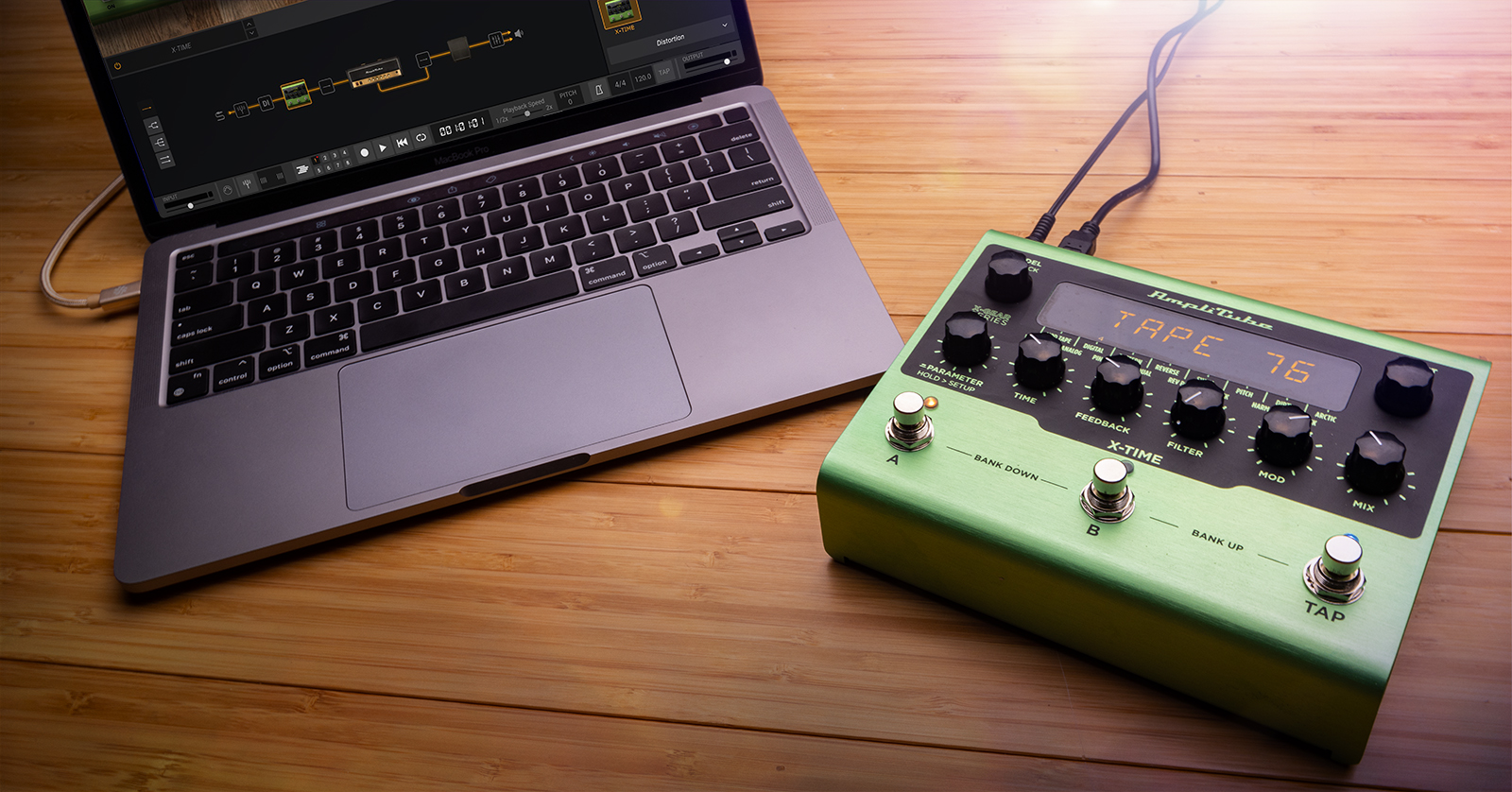
In this guide, we will show you how to register, connect, and use an AmpliTube X-GEAR guitar pedal for the first time. Follow the sections below to get started.
Register the Pedal
Before you get up and running, you’ll need to register the X-GEAR guitar pedal with IK Multimedia so you can access the software necessary to control your pedal.
- Log into your IK Multimedia account. If you don’t have an account yet, click the Register button and fill out the necessary information to create a new account.
- Download and install IK Product Manager for your OS.
- Once installed, launch the app, then log in using your IK Multimedia account credentials.
- Once logged in, click Manage My Products, select Register Product, then enter the serial number of your AmpliTube X-GEAR pedal on the card inside the box.

Authorize and install the software
After registering your X-GEAR pedal, AmpliTube and the necessary Librarian software will be available to authorize and download. You also receive one free copy of select IK Multimedia instruments!
- Within IK Multimedia Product Manager, click Hardware, then click Software.
- If you’re a Windows PC user, click Driver to download and install the dedicated ASIO driver.
- Click Install. Once the download is complete, the installer should launch automatically.
- To get your free bonus software, click the Giftbox icon (green), use the dropdown to select the piece of software you’d like, then click Proceed.

Update the firmware
IK Multimedia will release firmware updates periodically, which often add new features and presets and address any bugs in the current firmware. The process is simple, too!
- Connect your X-GEAR pedal to the computer and launch the X-GEAR Librarian software. You will be prompted to do this if there’s a firmware update.
- Click Update. The process takes a minute or two, so be sure not to disconnect the pedal!
- Once the process is complete, you will be prompted to close the window. You will now be able to use the Librarian software.
Factory reset
If your pedal isn’t acting as it should, or if you want a fresh start, you can perform a factory reset. The process is also simple.
- Press and hold the Parameter knob, then turn it until you see Global Setup.
- Press the knob again, then turn it until you see Factory Reset.
- Press the knob, then press it once more to complete the factory reset.
- It will take a minute or two, so be sure not to unplug the power during this time!

Setup and Connections
Incorporating your X-GEAR pedal into your guitar rig is easy. If you’re using a mono instrument, like your guitar, connect it to the L (MONO) input. If you plan on using a stereo instrument, such as a keyboard, you will use both L+R inputs.
Depending on your setup, you may want to choose one way or another, so check out our content on understanding pedal order and the best pedal order!
How to use AmpliTube X-TIME delay pedal
How to use AmpliTube X-DRIVE distortion pedal
Understanding Pedal Order
How to Use X-GEAR Pedals with Amplitube and Librarian
One feature of your X-GEAR pedal that sets it apart from the rest is the ability to create, edit, and manage all of the internal presets directly on your computer. You will use the X-GEAR Librarian software to import, manage, and arrange presets on your pedal. Exporting and editing presets are all done within AmpliTube.
- Connect the X-GEAR pedal to your computer.
- Launch the X-GEAR Librarian software, then select the pedal you are working with. If it’s grayed out, try disconnecting and reconnecting the pedal. Also, be sure to try a different USB port on your computer.
- If you want to arrange preset order, drag the presets up and down in the Hardware Library side of the software.
- Click and drag the preset(s) from the Hardware Library to the Local Library to import pedal presets for you to edit within AmpliTube.
- Launch AmpliTube, click the pedal icon, scroll down until you see your pedal, then drag it into the signal chain. This will pull up the pedal view.
- For example, if you own the X-TIME pedal, navigate to the Delay section, then click and drag X-TIME to the signal chain.
- Use the footswitch and knobs on the software to edit parameters.
- Once you’re finished editing, click the down arrow next to the preset’s name, then click Save to overwrite the preset or Save As to save it as a custom preset.
- Launch the Librarian software to export your newly created preset, locate it on the Local Library, then drag it to Hardware Library.

AmpliTube X-GEAR pedal Librarian overview
When you need help, Sweetwater has the answers!
Our knowledge base contains over 28,000 expertly written tech articles that will give you answers and help you get the most out of your gear. Our pro musicians and gear experts update content daily to keep you informed and on your way. Best of all, it’s totally FREE, and it’s just another reason that you get more at Sweetwater.com.

