
IK Multimedia TONEX ONE Quickstart Guide
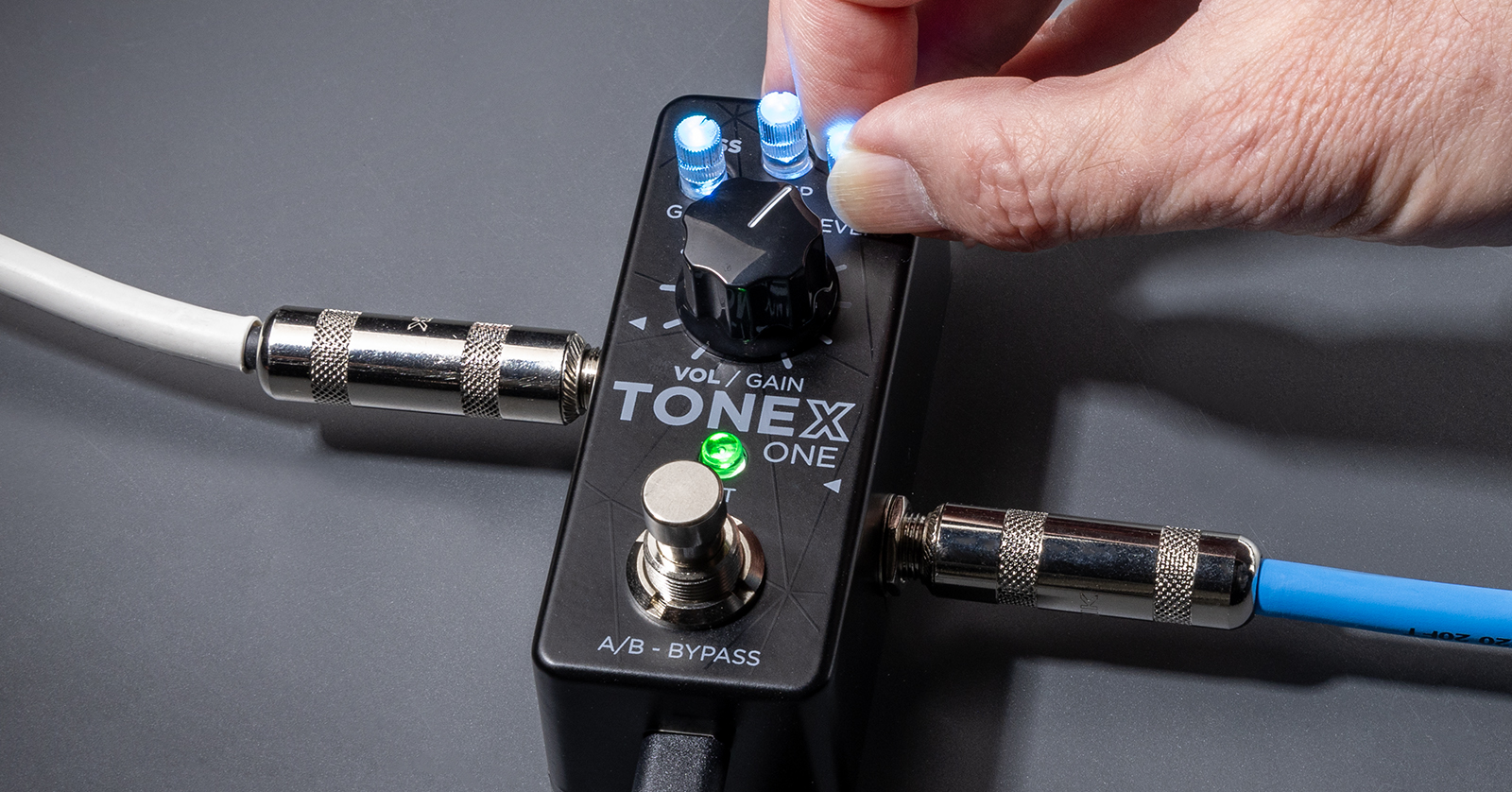
The TONEX ONE is a tiny stompbox that lets you take 20 amp models anywhere. Connect it to your Mac or your Windows PC, and with the TONEX Editor app, you’ll have access to thousands of Tone Models which you can organize and upload to your hardware unit. Read on to get started.
- Register Your Purchase and Download the Apps
- Update the Firmware
- Usage Scenarios
- TONEX ONE Tone Model, Stomp, and Preset Structure
- Front Panel and Connections
- Basic Operation
- Using the TONEX Editor App
Register Your Purchase and Download the Apps
You can plug in your guitar and start playing through the TONEX ONE right away, but to access the thousands of Tone Models, you need to connect your TONEX ONE to your Mac or your Windows PC and use the TONEX Editor app. The software becomes available when you install the IK Multimedia Product Manager app on your computer and use it to register your TONEX ONE serial number.
Register the TONEX ONE
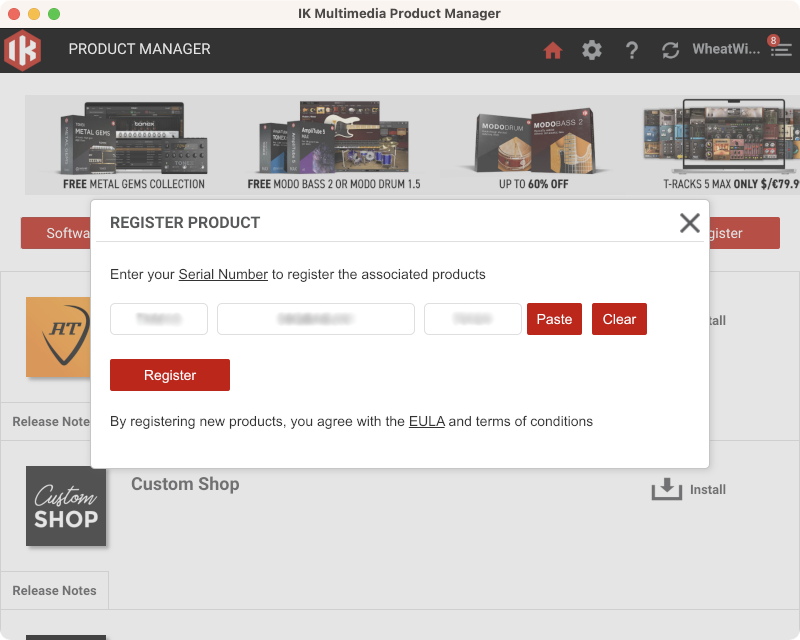
Register your TONEX ONE in the IK Multimedia Product Manager app.
- On your computer, go to the IK Multimedia website and log in to your IK Multimedia account. If you don’t have an account, fill out the necessary information under New User.
- Download and install the IK Product Manager app for your OS.
- Launch the app, then log in using your IK Multimedia username and password.
- Under Manage My Products, select Register Product, then enter the serial number of your TONEX ONE found on the card in the box.
Authorize and Download the Software
The TONEX SE and AmpliTube 5 SE apps
The TONEX ONE comes with the TONEX SE, TONEX Editor, and AmpliTube 5 SE apps.
In the IK Multimedia Product Manager app, now that you have registered your serial number, click Hardware, then Software.
If you are a Windows user, click Driver to download and install the ASIO driver.
Under Software, you will see the TONEX SE and AmpliTube SE apps listed; click on them, then follow the prompts to download and install them. In the Product Manager, you will also see links to download the user manuals for the apps.
Update the Firmware
IK Multimedia provides new firmware updates for the TONEX ONE to fix bugs and add new features. Updates are easy to install using the TONEX app on your Mac or Windows PC.
Follow the instructions at our SweetCare guide: IK Multimedia TONEX ONE Firmware Update.
Then come back here to continue.
Usage Scenarios
There are many ways you can use the TONEX ONE. You can connect it to:
- A power amplifier with your own cabinet
- An FRFR (full-range, flat response) powered cabinet
- A PA system
- A computer for auxiliary input of practice tracks for silent practicing with headphones or with powered monitor speakers
- A computer for recording (using the TONEX ONE as an audio interface)
- A real amplifier
For details on connecting and configuring the TONEX ONE for each of these scenarios, learn more in the TONEX ONE User Manual > Connections.
Check out IK Multimedia’s overview video:
IK Multimedia: TONEX ONE mini guitar pedal – Overview
TONEX Tone Model, Stomp, and Preset Structure
A Tone Model is an IR (impulse response) capture of a real guitar- or bass amplifier and speaker cabinet rig.
A Tone Model can also include a stomp. A stomp is an IR made from one or more real guitar effects pedals such as boost, overdrive, fuzz, distortion, EQ, or preamplifier pedals. Stomps do not reproduce time-based effects such as delay, chorus, or flanger.
With the latest firmware update installed, a preset can consist of the following, which you can program in the TONEX Editor app:
- Noise gate
- Compressor
- Modulation
- Tone Model
- Tone EQ
- Delay
- Reverb
Front Panel and Connections
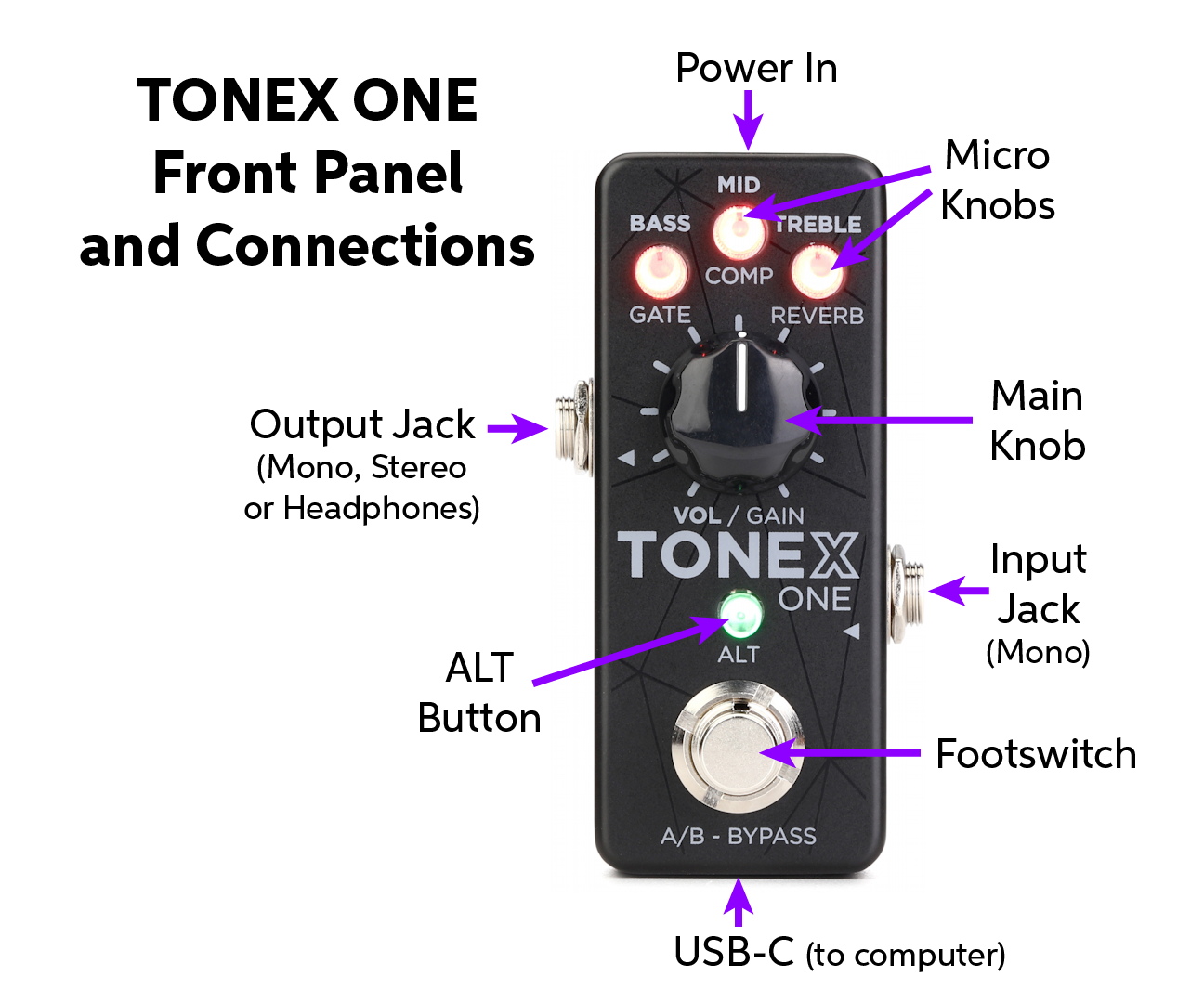
TONEX ONE front panel and connections
Input Jack
Connect a 1/4-inch TS mono, unbalanced instrument cable from your guitar or another pedal.
Output Jack
Supports monaural or stereo output. You can connect the TONEX ONE to other pedals on your pedalboard, to a PA system using a direct box, to an FRFR powered speaker cabinet, to studio monitors, or to headphones.
The output has a 1/4-inch TRS jack. Connect a cable with a 1/4-inch TS connector for mono, a TRS connector or a stereo breakout cable for stereo, or connect your headphones.
Power Input
Attach a 9V DC 120mA center negative power adapter.
USB-C
Connect the USB-C data cable to your Mac or Windows PC to use the TONEX SE app to edit and store presets and to upgrade the firmware.
The TONEX ONE also acts as an audio interface, so you can record your guitar through the TONEX ONE to your DAW.
You can also stream practice tracks from any app on your computer to the TONEX ONE over the USB connection. On the TONEX ONE, you can play along on your guitar and monitor with your headphones. Adjust the output volume of a practice track on the app itself on your computer to control the volume going into the TONEX ONE. Adjust the volume of your guitar on the TONEX ONE using its volume knob.
You can power the TONEX ONE over the USB-C connection to your computer or with a USB power adapter rated at 5V 260mA.
ALT Button
Press to access alternative parameters.
Hold for three seconds to lock all controls.
Hold for six seconds to access the global setup mode.
Micro Knobs
Rotate to set the main parameters for the preset: bass, mid, and treble.
When the ALT button is pressed, rotate to set the value for gate, compressor, and reverb.
Main Knob
Rotate to set the preset’s volume.
When the ALT button is pressed, set the preset’s gain.
Footswitch
In dual mode, press to toggle between preset A and preset B.
In stomp mode, press to engage or bypass the unit.
Hold to access the tuner.
Basic Operation
Browsing Presets
TIP: If you select presets while connected to the TONEX SE app, you can see the name and full description of each preset displayed in the app, making it much easier to find your choices.
Hold down the ALT button while pressing the footswitch to enter browsing mode.
The three micro knobs indicate which of the 20 presets is selected for one of three slots:
- Bass knob: dual mode preset A
- Mid knob: preset B
- Treble knob: the stomp preset
To change the preset in the selected slot, turn the corresponding micro knob. It will change color according to the selected preset.
To select the next preset slot, press the footswitch.
Once you have selected presets for all three slots, press ALT, and the footswitch to return to play mode.
Global Setup Mode
Hold the ALT button for six seconds to enter global setup mode.
Dual Mode and Stomp Mode
Turn the Bass knob fully counterclockwise to select dual mode.
Turn the Bass knob fully clockwise to select stomp mode.
Cabinet Bypass
Turn the Mid knob fully counterclockwise to activate the speaker cabinet model on all presets.
Turn the Mid knob fully clockwise to bypass the cab on all presets.
Input Trim
Use the Treble knob to set your guitar’s input level. The knob’s LED will glow green to indicate signal strength; if it turns red, that’s clipping, so turn it down.
Global Volume
While in global setup mode, the main knob sets global volume rather than Tone Model amplifier gain.
Using the TONEX Editor App
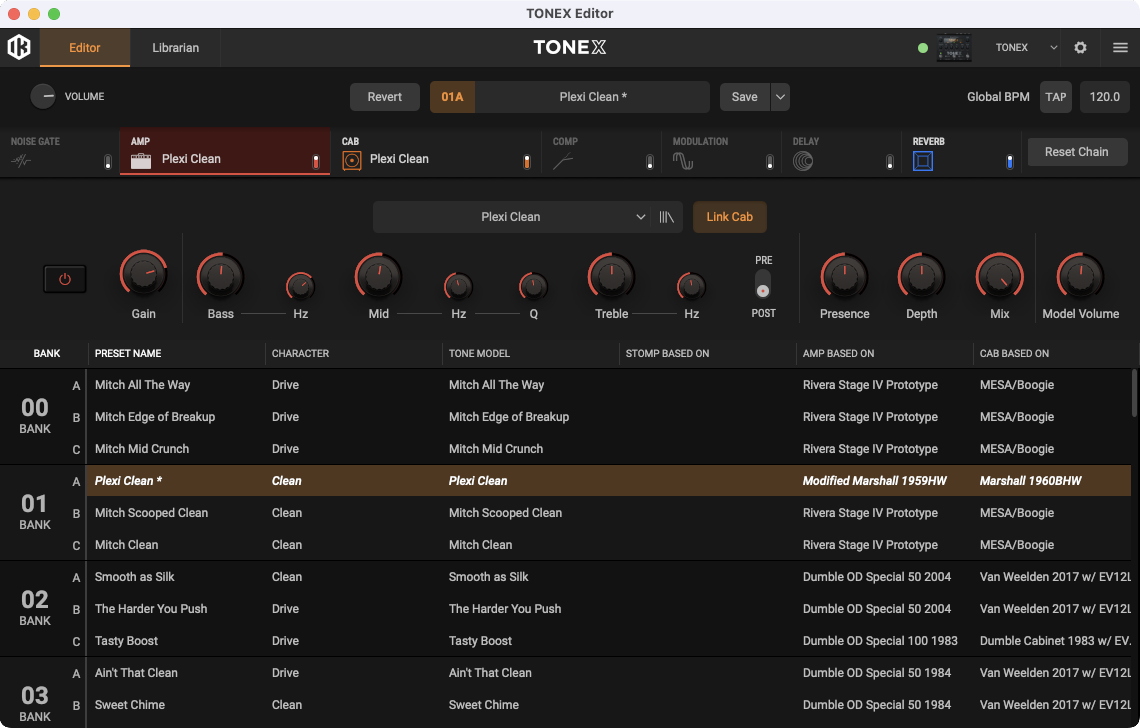
The TONEX Editor app
IK Multimedia provides three apps for working with TONEX products:
- The TONEX Editor app is for managing and controlling your TONEX hardware.
- The TONEX Modeler app is used to capture rigs and create Tone Models.
- The Amplitube TONEX app is a standalone application to play, capture, organize and transfer Tone Models.
If you don’t see the TONEX Editor app on your Mac or Windows PC, go back to IK Multimedia Product Manager, log in to your account, and click the Software tab. You’ll be notified that there is an update to the TONEX software for you to install.
Here’s IK Multimedia’s TONEX Editor tutorial.
ikmultimedia: TONEX Editor – Getting Started
Connect your TONEX ONE to your computer using a USB data cable and adapter if needed.
Open the TONEX Editor app.
The app may prompt you to update the firmware in the unit to make it compatible with this version of the app. In that case follow our instructions in the IK Multimedia TONEX ONE Firmware Update Guide.
Learn more in the TONEX Editor User Manual, which you can download from the Manuals tab in IK Product Manager after installing the latest software update.
Related Articles
When you need help, Sweetwater has the answers!
Our knowledge base contains over 28,000 expertly written tech articles that will give you answers and help you get the most out of your gear. Our pro musicians and gear experts update content daily to keep you informed and on your way. Best of all, it’s totally FREE, and it’s just another reason that you get more at Sweetwater.com.

