

IK Multimedia TONEX Expansion Software Activation Instructions
In this guide, we will show you how to register, download, and install your new IK Multimedia TONEX expansion. Follow the instructions below to get started.
IMPORTANT: You must have a ToneNET account to gain access to your TONEX expansion pack!
- Download and Install IK Multimedia Product Manager
- Register TONEX Expansion
- Sign into ToneNET
- Download the TONEX Expansion
Download and Install IK Multimedia Product Manager
The IK Multimedia Product Manager application is where you’ll register, authorize, and install all of your IK Multimedia virtual instruments, effects plug-ins, and hardware drivers. The content will be downloaded to whichever location you set.
- Log in using your IK Multimedia username and password. If you don’t have an account, you can create one here.
- Go to the IK Multimedia Product Manager product page and click on the download for your OS.
- After the download, go to your Downloads folder and launch the installer.

Click the image to download IK Product Manager for your OS
Register TONEX Expansion
Once installed, you can now register your TONEX expansion inside Product Manager.
- Launch IK Multimedia Product Manager and sign into your account.
- Click Register, copy and paste the Serial Number you received from your Sweetwater Sales Engineer, then click Register.
- Click Collections to verify that your expansion has been registered.
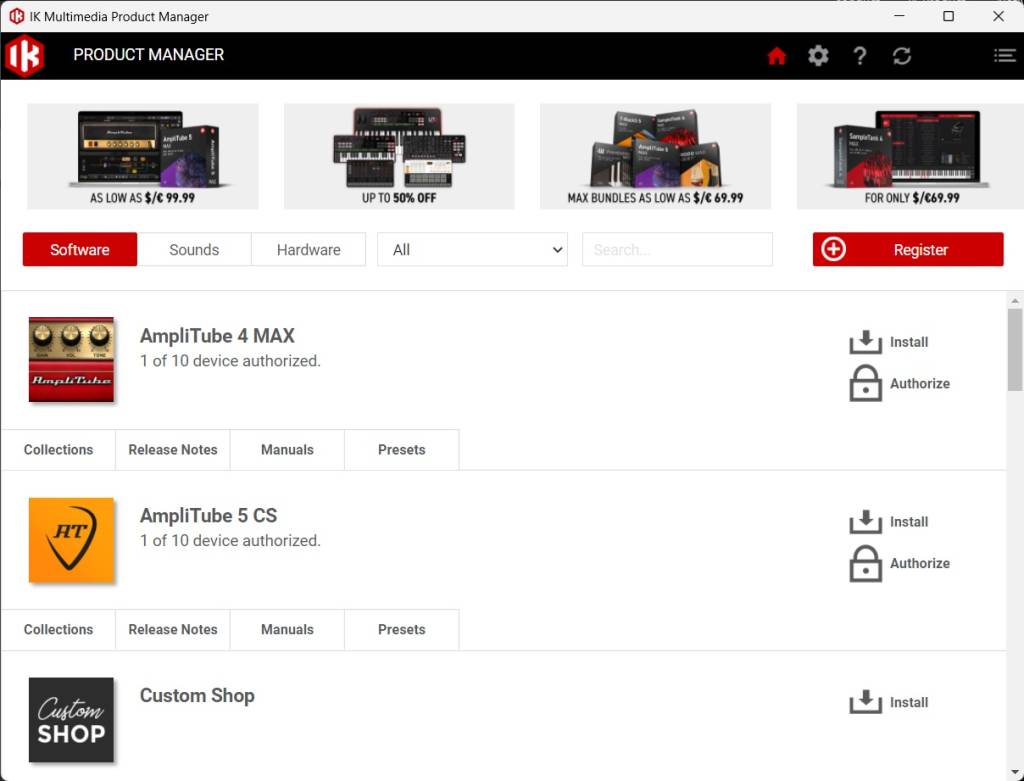
Click Collections to verify your expansion is registered to your IK Multimedia account.
Sign Into ToneNET
To get access to your TONEX expansions, you must first sign into your ToneNET account using your IK Multimedia account credentials.
- Go to the ToneNET home page, click Login, then enter your IK Multimedia account credentials.
- If this is your first time logging into ToneNET, you will be prompted to enter some additional information.
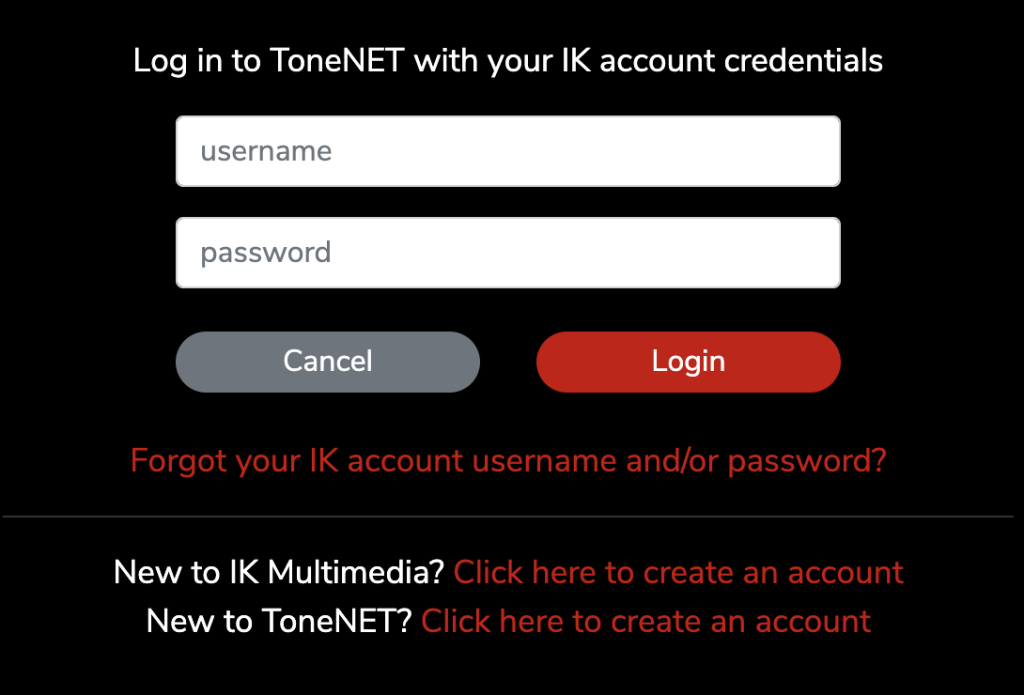
Click the image to sign into ToneNET
Download the TONEX Expansion
IMPORTANT: You must use the TONEX software’s standalone version to download the expansion pack.
Now that the expansion is registered to your IK Multimedia account, the last step is to download the TONEX expansion. You must be connected to the internet, as the download process is done through the TONEX standalone application.
- Launch the TONEX standalone application. The product should automatically be downloaded if you are signed in to your ToneNET account. To confirm, click Settings (three horizontal lines at the right-hand corner of the app), then click the Account tab.
- If the status icon is green, the expansion should automatically be downloaded.
- If the status icon is red, this means you’re offline. If so, close the application, open a browser tab, and sign back into your ToneNET account.
- You will see your new expansion under Owned Collections if correctly registered.
- If you don’t see the expansion under Owned Collections, navigate to the Account settings, then click Restore Purchases. Your expansion should now begin downloading.
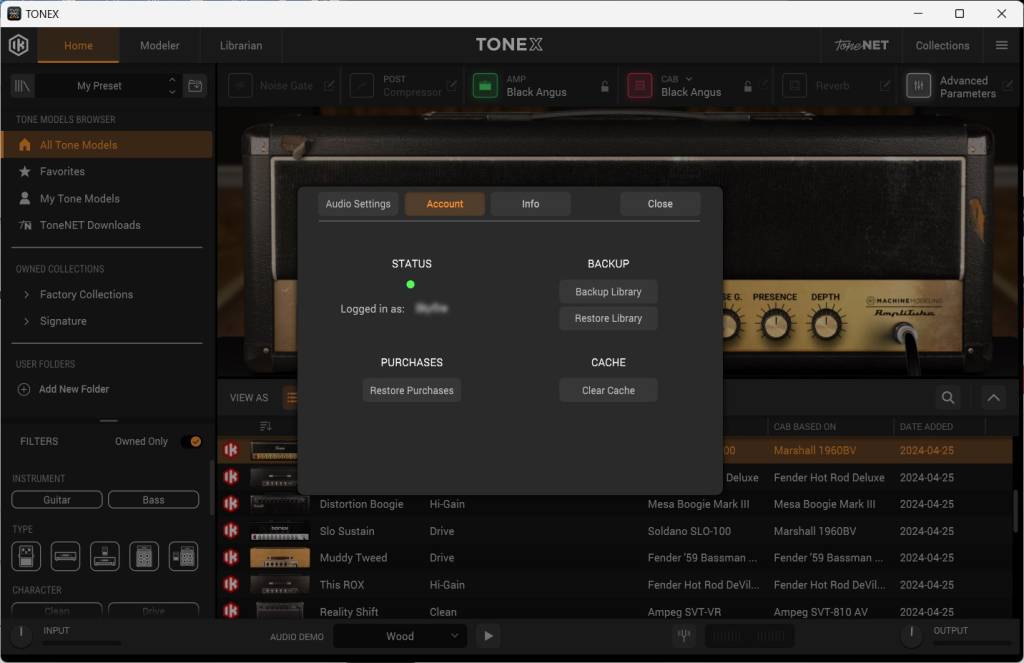
Click the Account tab to verify you’re online and the expansion shows under Owned Collection
When you need help, Sweetwater has the answers!
Our knowledge base contains over 28,000 expertly written tech articles that will give you answers and help you get the most out of your gear. Our pro musicians and gear experts update content daily to keep you informed and on your way. Best of all, it’s totally FREE, and it’s just another reason that you get more at Sweetwater.com.

