
IK Multimedia TONEX Capture Quickstart Guide
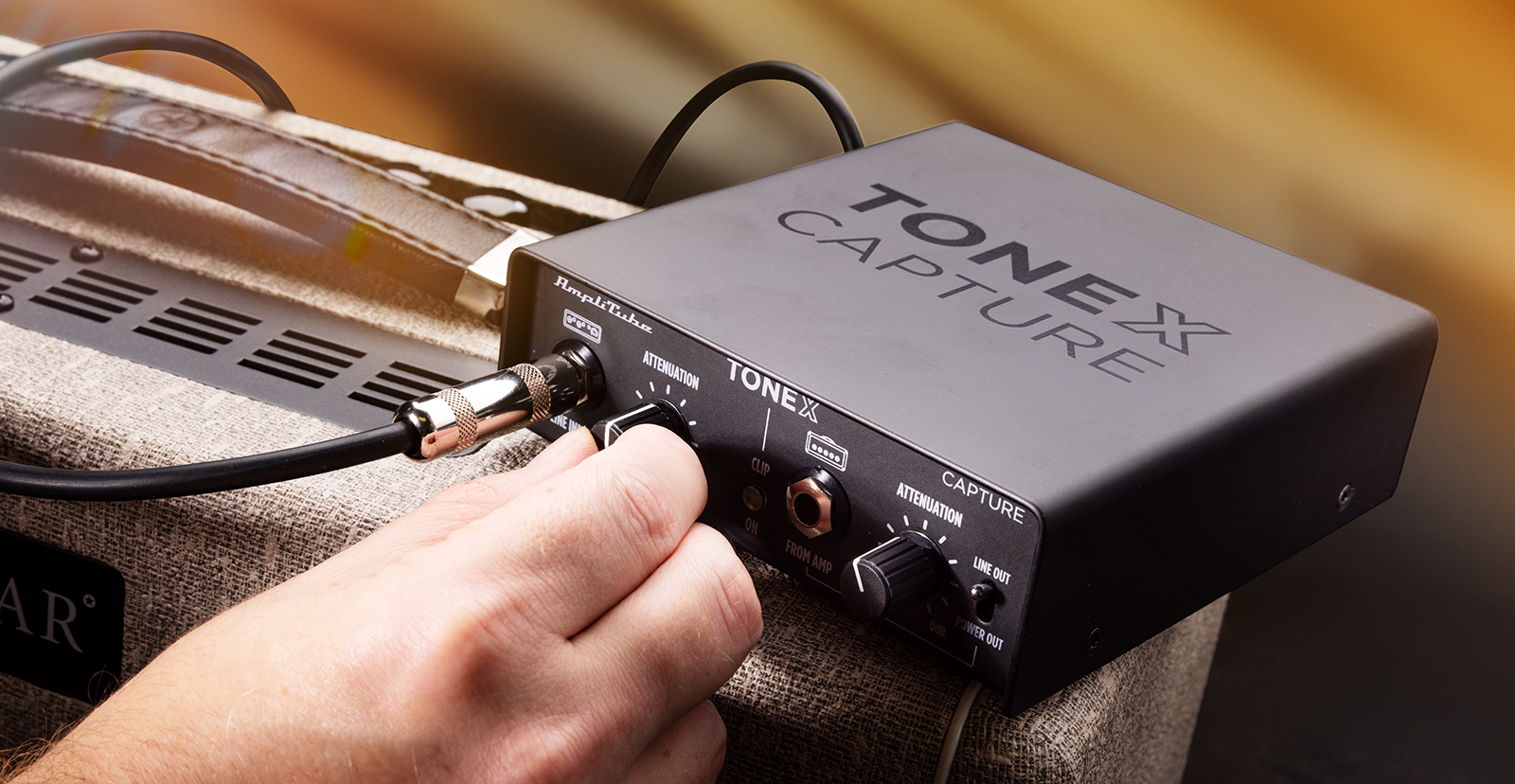
Here’s how to register, set up and use the TONEX Capture tone modeler and reamp box for the first time. Let’s get started.
- Register the TONEX Capture
- Authorize and download the software
- Setup and Connections
- Using TONEX Capture as a Reamp Box
- Capture Tones with the Tonex Modeler App
- TONEX Capture Tutorial Videos
Register the TONEX Capture
Register the TONEX Capture with IK Multimedia in order to download the TONEX software suite, which you need for re-amping. You’ll also receive a license for AmpliTube with your purchase.
- Log into your IK Multimedia account. If you don’t have an account yet, click the Register button and fill out the necessary information to create a new account.
- Download and install IK Product Manager for your OS.
- Once installed, launch the app, then log in using your IK Multimedia account credentials.
- Once logged in, click Manage My Products, select Register Product, then enter the serial number of your TONEX Capture on the card inside the box.
Authorize and download the software
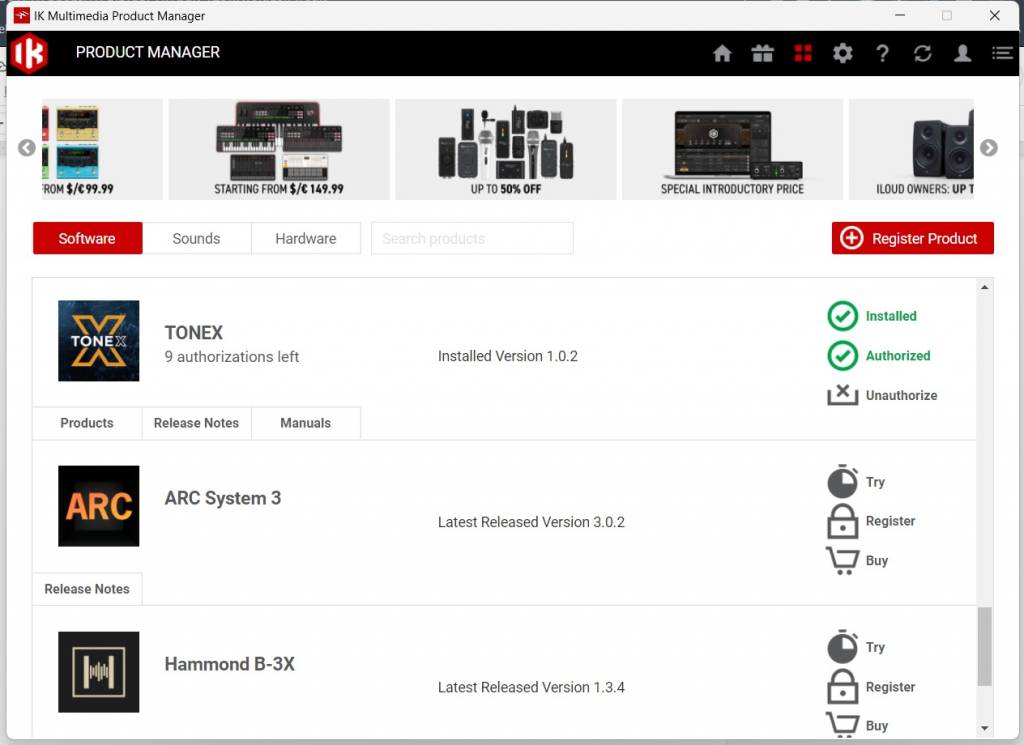
IK Multimedia Product Manager
Within IK Multimedia Product Manager, click Software, locate TONEX, and click Authorize.
Click Download. Once the download is complete, the installer should launch automatically.
IK Multimedia provides three apps for working with TONEX products:
- The TONEX Editor app is for managing and controlling a TONEX Pedal or TONEX ONE unit.
- The TONEX Modeler app is used to capture rigs and create Tone Models.
- The Amplitube TONEX app is a standalone application to play, capture, organize and transfer Tone Models.
If you don’t see all three of these apps on your Mac or Windows PC, go back to IK Multimedia Product Manager, log in to your account, and click the Software tab. You’ll be notified that there is an update to the TONEX software for you to install.
Use IK Multimedia Product Manager to download the newest versions of the user manuals for each of these apps.
Setup and Connections
TIP: An interface with more than two inputs and outputs is preferred — two for monitoring and one for your rig. Also, if you’re running into issues with the input and output signal, check your interface’s digital I/O routing software to ensure everything is set correctly.
Once you’ve registered the TONEX, the next step is to get set up and connected. You can connect one of two ways: directly or by using a speaker. Depending on how you want to capture your tone, you may want to choose one way over the other, but the process is simple either way.
Direct
If you want to send the pure amp signal directly to the interface for reamping, follow these steps.
- Connect a cable from the TONEX Capture’s Line Input to an available Line OUT on your interface.
- Connect a cable from the To Amp to the input of your guitar amp.
- Connect a speaker cable from the From Amp to your amp’s speaker out or between your amp and cab.
- Use a cable to connect from the TO CAB of the TONEX Capture to the cab’s input.
- Connect the Line Out to a line input on the interface.
Speaker
You can also capture the tone of your combo or amp and speaker using a unique test signal sent to your interface, almost like an impulse response.
- Connect a cable from a Line OUT on your interface to the Line Input on the TONEX Capture.
- Use a cable to connect from the To Amp to the amp’s input.
- Place a mic in the desired position, then connect it to an available input on your interface.
Using TONEX Capture as a Reamp Box
Consult the TONEX Capture User Manual for diagrams to set up these scenarios:
- Reamping with the amp head and cabinet
- Reamping with the amp head
- Reamping silently using a load box
Capture Tones with the TONEX Modeler App
Here’s IK Multimedia’s video introducing the TONEX Modeler app:
IK Multimedia: Meet IK’s New TONEX Modeler – Overview
Find specifics on setting up the TONEX Capture in the IK Multimedia Amplitube TONEX Modeler User Manual > Audio Setup and Rig Connections.
Now that you’ve got your rig set up, launch the TONEX Modeler app.
Follow the steps in the IK Multimedia Amplitube TONEX Modeler User Manual to start a new capture.
Start by indicating whether you will be capturing a Guitar or Bass tone model.
Then select the type of rig from these choices:
- Amp and Cab
- Complex Rig
- Stomp
- Amp
- Amp and Stomp
The manual provides detailed instructions for setting up your signal chain for each scenario.
Next you will set your input gain and adjust the attenuation on the TONEX Capture, and set the microphone preamp gain for the return signal.
Then it’s time to perform the capture, train the capture, and save the result.
TONEX Capture Tutorial Videos
NOTE: These older videos refer to using your TONEX Capture with the original TONEX app. You’ll be using the new TONEX Modeler app instead.
Here’s IK Multimedia’s overview:
IK Multimedia: TONEX Capture Overview
Sweetwater’s Mitch Gallagher and Don Carr demonstrate the process in detail:
Sweetwater: How to Make a Capture with the IK Multimedia TONEX Capture Re-amp Box
Related Articles
When you need help, Sweetwater has the answers!
Our knowledge base contains over 28,000 expertly written tech articles that will give you answers and help you get the most out of your gear. Our pro musicians and gear experts update content daily to keep you informed and on your way. Best of all, it’s totally FREE, and it’s just another reason that you get more at Sweetwater.com.

