
IK Multimedia Amplitube Quickstart Guide
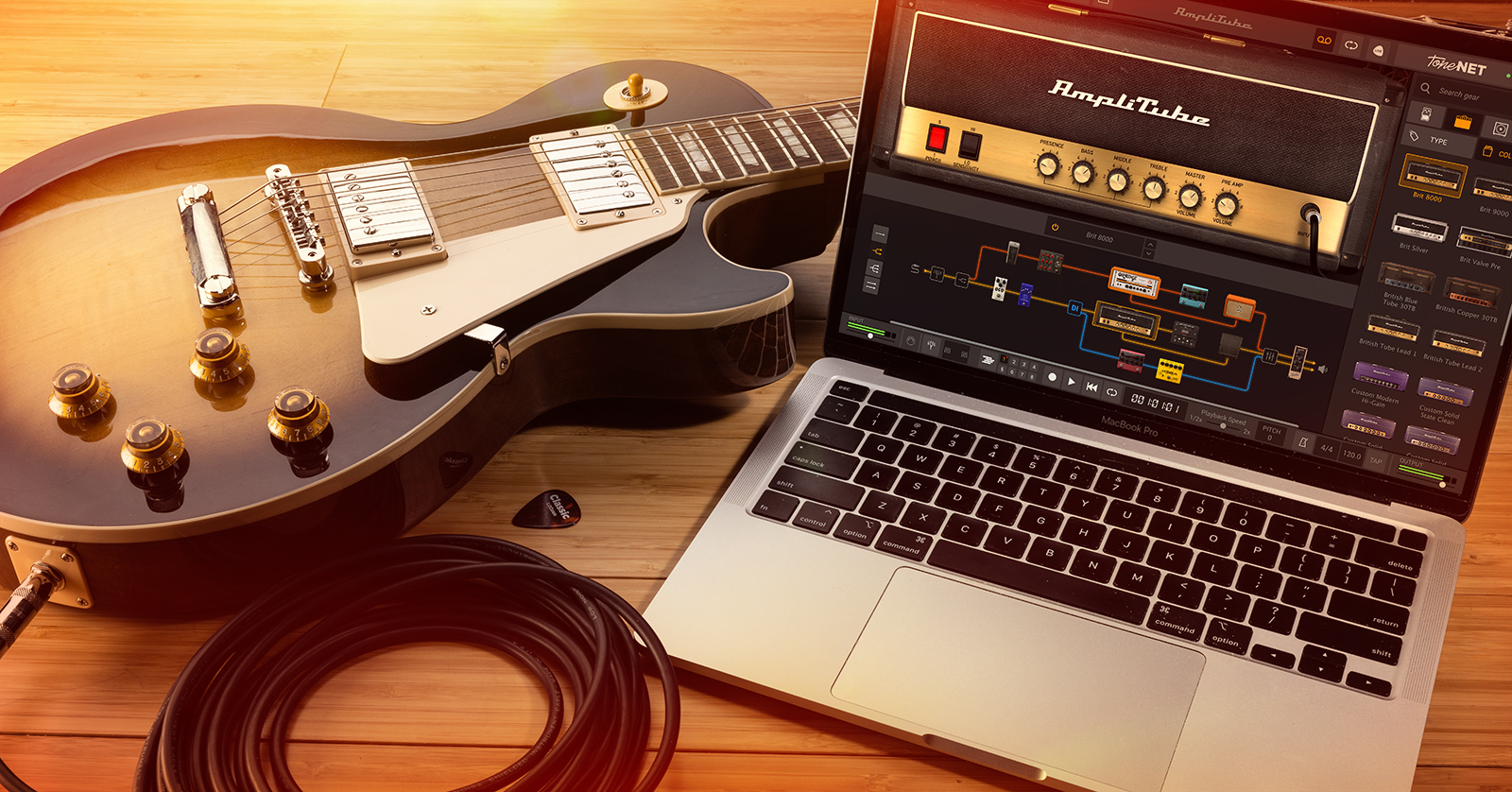
IK Multimedia AmpliTube 5 is a great guitar amp modeling software to have in your studio arsenal, so in this guide, we will show you how to get up and running to get the greatest sound in no time! Follow the sections below to get started.
Setup and Navigation
AmpliTube 5 is virtual guitar amp modeling software that you can use on its own or as a plug-in inside your DAW. After activating and installing it, you can launch it in standalone mode or load it as an effect plug-in in a DAW project. Besides the audio and MIDI settings, most functions remain the same as a plug-in inside a DAW and in standalone mode.
If you want to create or edit a guitar tone on the fly, use standalone mode to save time. If you plan on recording, you will need to use it as an effects plug-in within your DAW.
Audio and MIDI setup
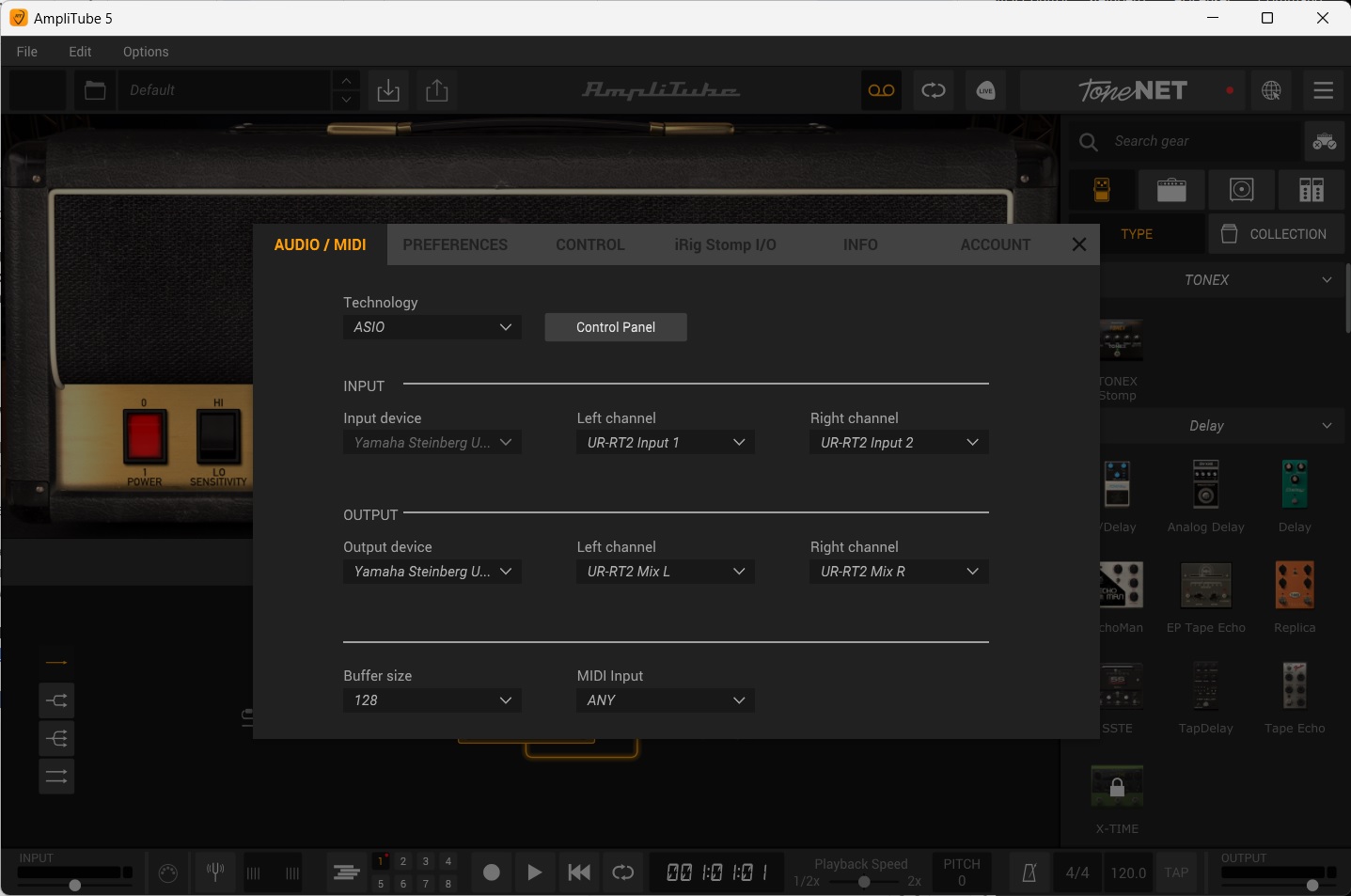
NOTE: Make sure the buffer size selected in AmpliTube matches that of the buffer size in your audio interface’s control panel, or else you may experience some pops, clicks, and latency discrepancies.
If you are using AmpliTube 5 in standalone mode, you will see the Audio/MIDIwindow appear. This is where you will need to update your audio I/O and MIDI input settings. You can also update MIDI program changes and tempo sources, and if you own an iRig Stomp I/O, you can calibrate its settings.
Navigating AmpliTube 5
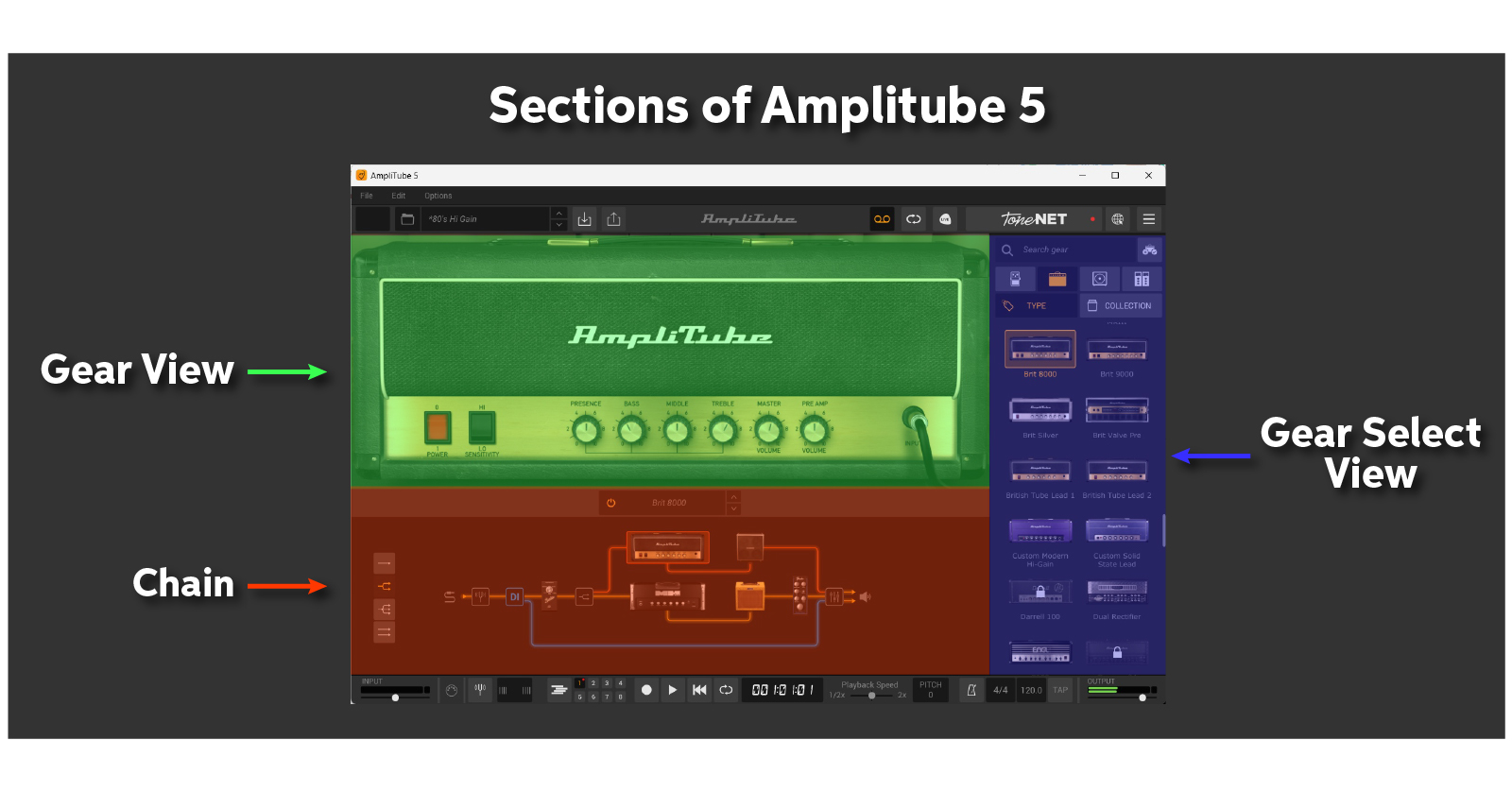
AmpliTube 5 is very easy to navigate, as it has three main sections: Rack, Gear View, and Gear View Selector. With its drag-and-drop capabilities, you can easily create and edit unique tones without fumbling through menus.
Rack
IMPORTANT: If you own AmpliTube and see a white Caution symbol, you do not own the appropriate expansion pack or version. You can still preview the preset, but there will be white noise once every 10 seconds.

The Rack section allows you to change the effects pedal order and even choose the chain! This means you can have a single, mono chain, a two-way or three-way signal chain, and a true stereo effects chain. This gives you unlimited flexibility when finding the right tone!
- Go to the Gear View Selection area to select what you want to add, then click and drag it into the Rack area.
- You can add an effect, amp, cab, or rack effect anywhere where it’s highlighted in white.
Gear View
The Gear View is where you will fine-tune adjustments to the selected effects pedal, cab, amp, or rack effect.
- When viewing the effects pedals, you can click on the virtual pedal switches or the Power button to turn the effect on or off.
Gear View Selector
You will search for effects pedals, amps, heads, and rack units in Gear View Selector. Once you find what you want, drag and drop it to Amplitude’s Gear or Rack section.
- If you drag and drop into the Rack area, it will automatically switch views.
- Type will sort available gear into groups, and collections will sort gear into the available “packs” you own.
AmpliTube 5 In-Depth: GUI – Chain, Gear Selector, Gear View
AmpliTube 5 – Overview
Recording in AmpliTube
One feature of AmpliTube that separates itself from other virtual guitar simulators is the ability to record tracks in standalone mode. So, if you don’t have access to your DAW or need to record your ideas quickly, launch AmpliTube and start recording!
- Click the four horizontal lines at the bottom of the standalone app to open the recording window.
- Select and record arm the track you want to record, then press the Record icon. Once complete, click it again.
- You can drag and drop .mp3 and .wav files into the DAW.

Related Articles
When you need help, Sweetwater has the answers!
Our knowledge base contains over 28,000 expertly written tech articles that will give you answers and help you get the most out of your gear. Our pro musicians and gear experts update content daily to keep you informed and on your way. Best of all, it’s totally FREE, and it’s just another reason that you get more at Sweetwater.com.

