

How do I install and use MIDI-OX for Windows?
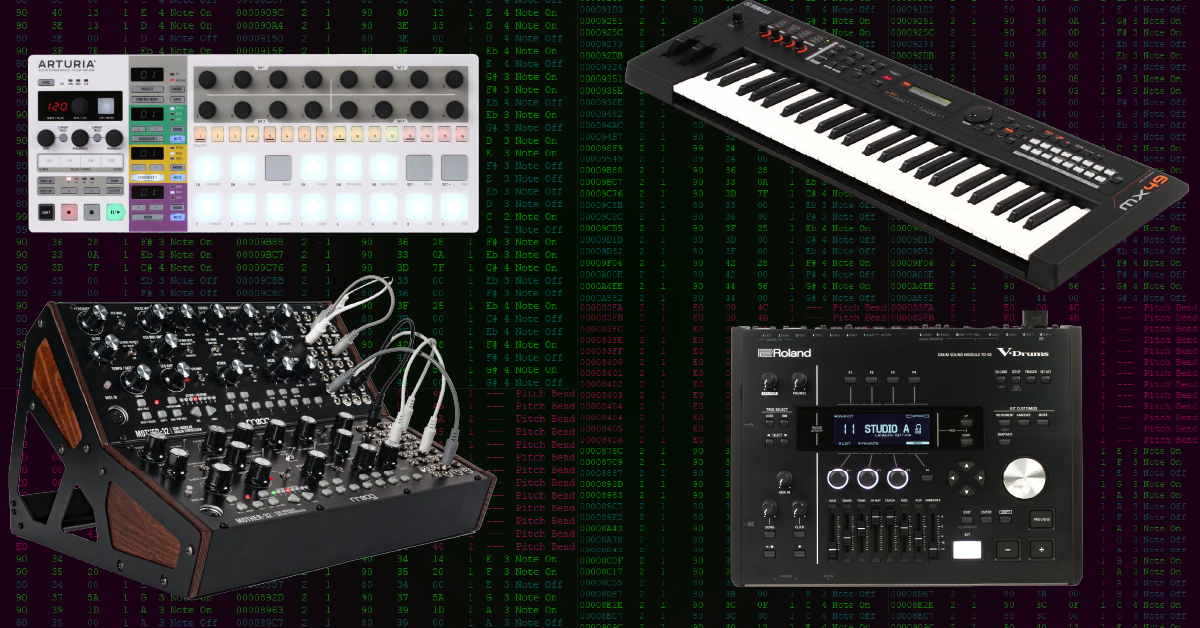
Getting started with MIDI-OX
When it comes to recording MIDI, a smooth, uninterrupted workflow is essential. In this guide, we will show you how to download and install MIDI-OX for your Windows PC. Follow the instructions below to download, install, and use MIDI-OX.
What is MIDI-OX?
MIDI-OX is a versatile utility that is great for troubleshooting faulty MIDI hardware devices. It also acts as a System Exclusive SysEx) librarian, which allows you to send (dump) and receive SysEx data.
So, if your MIDI controller isn’t triggering anything in your virtual instrument or inside your DAW, you can use MIDI-OX to see if it’s even transmitting MIDI data. If you have an analog synthesizer, you can use it to send and receive SysEx data. This could be a firmware update, factory reset, or even loading control parameters. Follow the steps below to learn how to install and use MIDI-OX.
How to download and install MIDI-OX
To begin, download the latest version of MIDI-OX from the official MIDI-OX website. Next, open your Downloads folder and run the installer.
- Go to http://www.midiox.com.
- Click Download MIDI-OX 7.x.x.
- On the next page, click Download located just above Previous Version.
- When the download is complete, go to your Downloads folder and run the installer.
- During the installation process, you will be prompted to select which type of license. Unless you are using it professionally, please choose Personal Use.
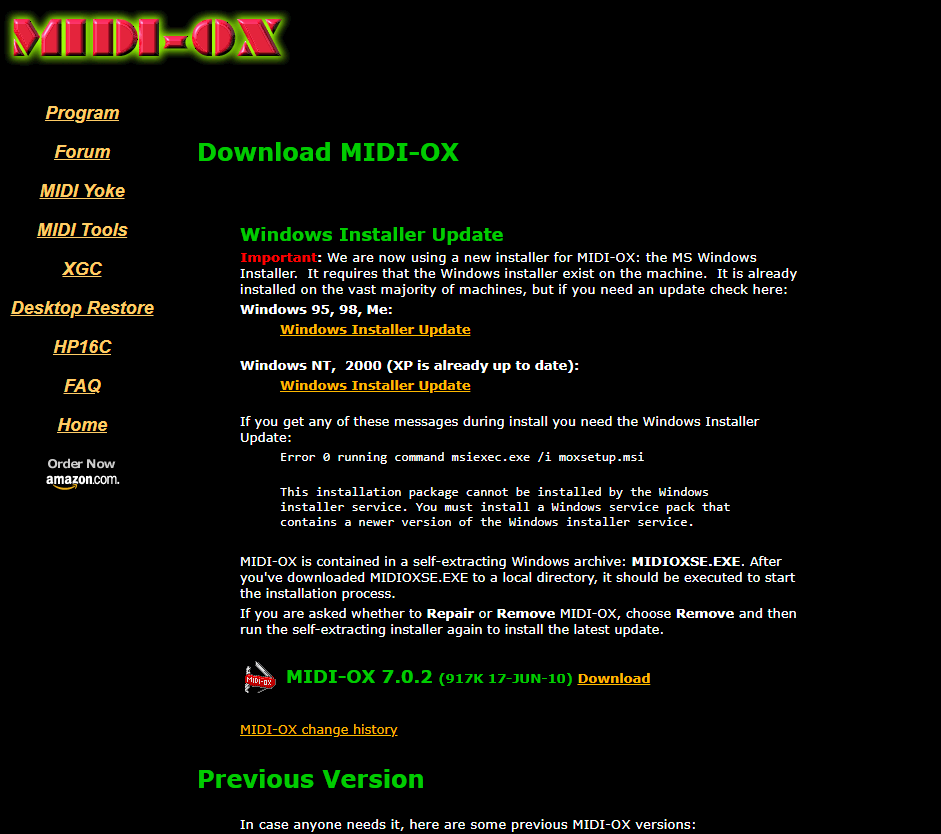
Click the image to download MIDI-OX.
How to use MIDI-OX
After you’ve installed MIDI-OX, you’ll need to connect your MIDI device, and then launch it. Once connected, you will then need to open your MIDI device and select it as the Input and Output port. After it has been selected, you can then trigger MIDI information from your device to see the results in the monitor window.
- Connect the MIDI device to your computer, then launch MIDI-OX.
- Navigate to the Options menu, then click MIDI Devices…
- If your device isn’t showing up, be sure you have the latest drivers installed, and that it was connected before launching MIDI-OX.
- In the MIDI Devices window, select your device under the MIDI Inputs and MIDI Outputs, and then click OK.
Troubleshooting MIDI input issues
IMPORTANT: When testing the MIDI input, be sure to enable Monitoring MIDI data. You can tell it’s enabled by seeing a green traffic light icon on the top toolbar and a dark blue box around REC located at the lower right-hand corner of MIDI-OX.
If an encoder or key is intermittent or not working at all, but you’re able to trigger and hear other notes, MIDI-OX is an easy way to determine whether or not your MIDI hardware’s input is faulty.
When you first launch MIDI-OX, you’ll see the MIDI Output monitor window. To test MIDI input, you’ll want to open the MIDI Input monitor. To do this, navigate to View, then select Input Monitor.
When the MIDI Input Monitor window is open, and you press a key or pad, turn an encoder knob, or use a mod wheel, MIDI-OX will detect it and display all related MIDI activity for that particular function. For example, if you press the F3 key on your MIDI keyboard, you’ll see F3 Note On and Note Off when you let go.

If that particular key, pad, encoder, or mod wheel isn’t displaying or displays intermittently, though, that means something may be wrong with your device. If that’s the case, here are a few things to try:
- Try a different USB or MIDI cable.
- Uninstall and reinstall the latest driver for your hardware.
- If applicable, be sure that your device has the latest firmware installed.
Troubleshooting MIDI output issues
IMPORTANT: When testing MIDI output, be sure to enable Monitoring MIDI data. You can tell it’s enabled by seeing a green traffic light icon on the top toolbar and a dark blue box around REC located at the lower right-hand corner of MIDI-OX.
If you’re controlling an external MIDI device, such as a rack synthesizer or drum machine with a DAW or a MIDI controller, and you don’t hear any sound, you can use MIDI-OX to troubleshoot output connectivity issues. Testing the MIDI output in MIDI-OX is especially useful with more elaborate setups, or if you’re using software or another external synth to trigger that module. Follow these steps to test the MIDI output of the device in question.
- Set the MIDI device in question as the Output device within the MIDI Devices…. menu.
- After that, go to Actions then select Keyboard. This will turn your computer’s keyboard into a MIDI keyboard.
- Press the Z, X, C, and Y keys on your computer’s keyboard. These will send MIDI notes C3, D3, E3, and F3.

If after you use your computer’s keyboard to trigger the external device and you’re still not hearing sound, here are a few things to try:
- Try a different USB or MIDI cable.
- Uninstall and reinstall the latest driver for your hardware.
- If applicable, be sure that your device has the latest firmware installed.
Using SysEx in MIDI-OX
SysEx (.syx) files are often used for firmware updates, program changes, factory resets, and also backing up anything that has been saved to your device. While it’s very uncommon for you to create your own SysEx data, you have the ability to within MIDI-OX. To learn more about SysEx and how to work with it in MIDI-OX, be sure to check out our article on how to send and receive SysEx on PC and Mac.
Related video content
Backing Up Your Patches
Related Articles
When you need help, Sweetwater has the answers!
Our knowledge base contains over 28,000 expertly written tech articles that will give you answers and help you get the most out of your gear. Our pro musicians and gear experts update content daily to keep you informed and on your way. Best of all, it’s totally FREE, and it’s just another reason that you get more at Sweetwater.com.

