
Expressive E Osmose Firmware Update Guide
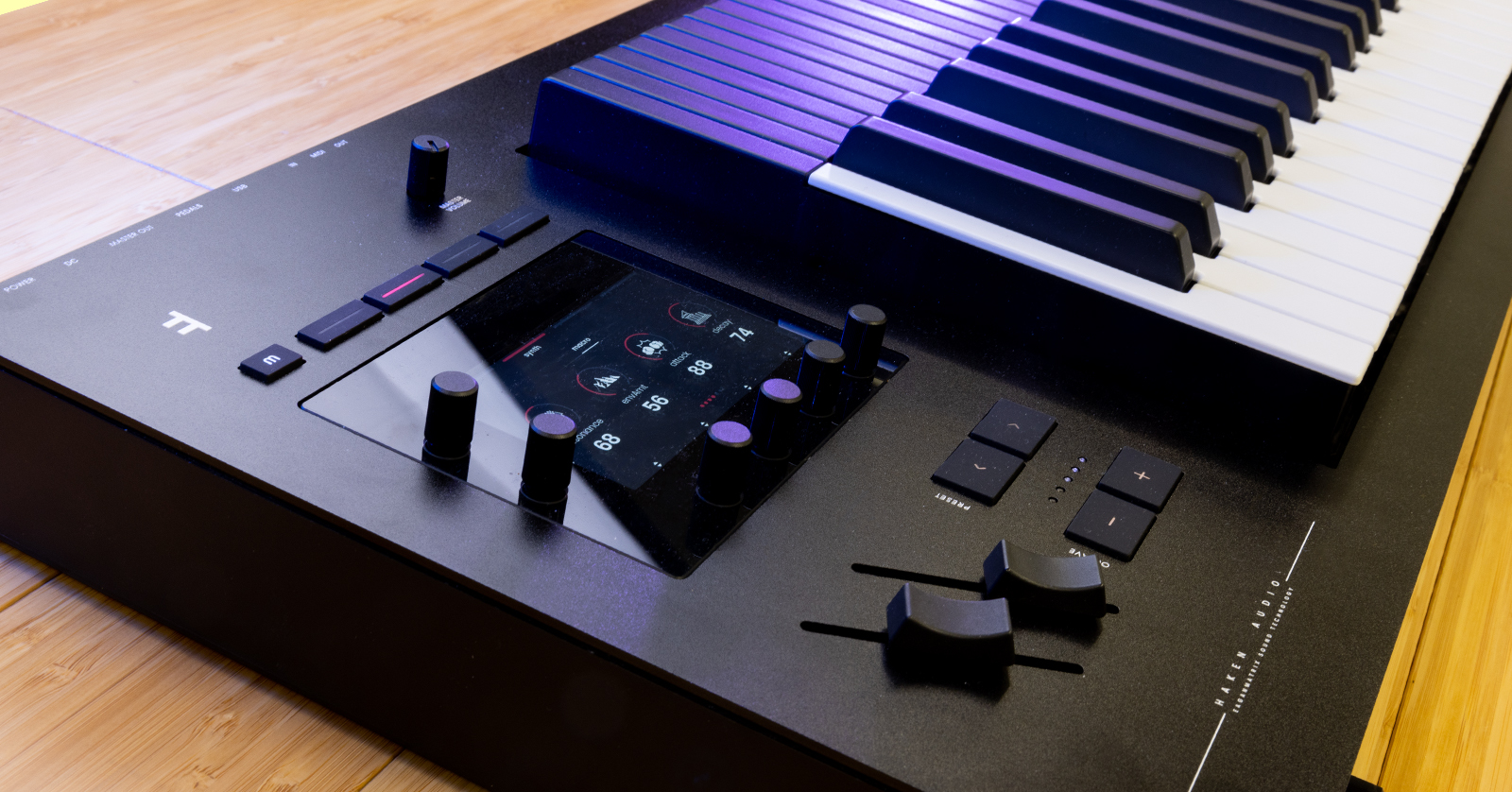
In this guide, we will show you how to perform a firmware update on your Osmose 49-key or Osmose 61-key synthesizer and MIDI controller.
This is a companion article to Sweetwater’s Expressive E Osmose Quickstart Guide.
- Check the Firmware Version on Your Osmose
- Find the Newest Firmware Version from Expressive E
- Before You Update the Firmware
- Performing the Firmware Update
Check the Firmware Version on Your Osmose
Connecting Power
The Osmose’s included 12V DC external power supply has a locking connector. When inserting the plug, align the power connector’s wings so to match the horizontal notches on the power input jack. Push the plug in firmly (it seats rather deeply), then rotate the barrel clockwise to secure it in the casing.
The System Settings Info Page
To check the firmware version on your Osmose keyboard:
- Power the keyboard up and wait a few seconds for the startup procedure to complete.
- Press the M button to the upper left of the display screen.
- Click the right-most encoder knob beneath the display screen, below the System gear icon.
- Turn the encoder knob to the upper left of the display screen to scroll through the menu pages: workflow > hardware > midi i/o > info.
- On the info page, note the full Osmose version number, for example, v1.0.6.
- Tap the M button twice to return your Osmose display to normal playing mode.
Find the Newest Firmware Version from Expressive E
In the Sweetwater Expressive E Osmose Quickstart Guide, we explained how to create an account at Expressive E and register your purchase so you can have access to the firmware updater.
On the Expressive E website, log in to your account and click on My Downloads and Serials.
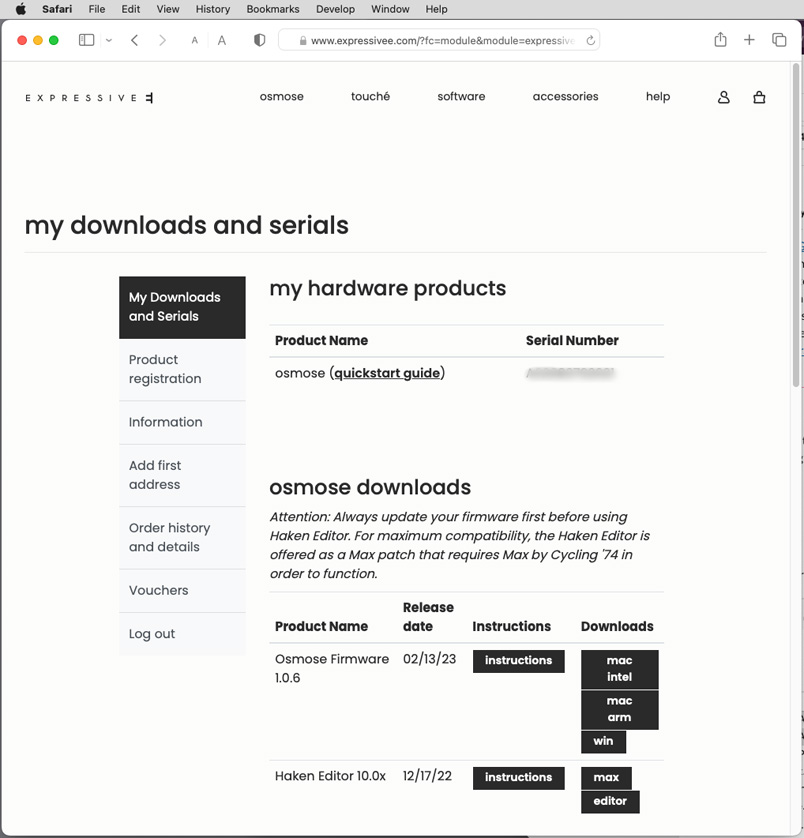
Under Osmose Downloads, you will find the most recent version of the firmware. If this number is higher than the version displayed on your Osmose, you need to perform an update.
If the number is lower, you don’t need to take any action, and you can return to the SweetCare Expressive E Osmose Quickstart Guide.
Before You Update the Firmware
IMPORTANT: If the firmware update process is interrupted, you may lose data. Follow these precautions to make sure this does not happen.
Expressive E provides these instructions:
- Always use OsmoseUpdater’s latest version. The application is downward compatible with older Osmose firmware versions. Minimum requirements for OsmoseUpdater are macOS 10.12 or Windows 10. Do not try the update from an older, incompatible machine.
- Lock Osmose’s power supply to prevent accidental disconnection. When inserting, align the power connector’s wings to match the horizontal notches on the power input. Push firmly, then rotate the barrel clockwise to secure it to the casing.
- Use the original Expressive E-branded USB cable. If not at hand, use a high-quality cable no longer than 2 meters.
- Connect Osmose to a dedicated USB port. Connect the USB cable directly to your computer, not to a USB hub.
- Disconnect all other USB devices from your computer as far as possible during the update.
- Deactivate any power-saving options that may make your computer disable its USB ports or switch off entirely after some idle time.
- Plug your computer’s power supply when performing the update from a mobile device.
- Make sure that no other application is running that could occupy the USB MIDI port of Osmose (no DAW, no Haken Editor etc.).
If you have problems establishing a stable USB connection with your system, it’s worth trying to launch the update from a different compatible computer.
Learn more in these Expressive E support documents:
Important precautions to avoid issues with OsmoseUpdater
I don’t have any presets on my Osmose after trying to update to firmware 2.0
Performing the Firmware Update
Download and install the Osmose Firmware Updater Utility
If a newer version is available on the My Downloads and Serials page, download the correct Osmose Updater installer for your computer. Choose between:
- Mac Intel for an older Mac with an Intel CPU
- Mac ARM for a Mac with an Apple silicon chip
- Win for a PC running Windows
Click on the Instructions button and download and follow the installation instructions.
Run the installer and launch it.
Use the Updater Utility
Connect the Osmose to your computer using the USB cable, and power it on.
A green dot shows that the Osmose is connected.

Do not check the box next to Advanced Mode.
Click on the file icon at the bottom of the screen. An Open dialog box will appear. Navigate to the location of the installer that you downloaded and select the update file that came with it.

In this example, the file’s name is
Osmose_v1.0.6.osmoseupdate
Begin the update process
When you have read the instructions and have everything set up, press the Update button.
The Osmose is unusual, as it is two devices in one: the Expressive E Osmose keyboard controller and a custom version of the Haken EaganMatrix sound engine. Each component has its own separate firmware. The Osmose Updater app installs each one in turn. This is done in four steps.
- Backing up your presets from your Osmose to the computer
- Updating the Osmose keyboard firmware
- Updating the Haken EaganMatrix synthesizer firmware
- Restoring your presets from the computer to the Osmose
TIP: The update process will take as long as 30 minutes.
You need to keep an eye on the progress of the update.
IMPORTANT: Do not quit the Osmose Updater Utility during this time, and do not permit your computer to go into sleep mode.
Do not disconnect or shut down the Osmose keyboard until you are prompted.
At one point in the process, after about 20 minutes, the front panel display on the Osmose will instruct you to “power cycle” the keyboard, meaning to shut the power down, wait a few seconds, and turn the power back on again.
After the first time you power cycle, the Osmose Updater Utility on your computer will perform additional steps. Then you will be prompted to power cycle the keyboard for the second time.
Follow the prompts.
The Updater Utility and the display on the keyboard will notify you when everything is complete.
Now you are updated, and it’s time to play your new keyboard. Head on back to SweetCare’s Expressive E Osmose Quickstart Guide for the next steps.
When you need help, Sweetwater has the answers!
Our knowledge base contains over 28,000 expertly written tech articles that will give you answers and help you get the most out of your gear. Our pro musicians and gear experts update content daily to keep you informed and on your way. Best of all, it’s totally FREE, and it’s just another reason that you get more at Sweetwater.com.

