
Elektron Model:Cycles Projects and Patterns

Getting started
Now that you know where everything is, it’s time to create a project. In this guide, we’ll cover the basics to get you up and running. However, the options and layers you can create are limitless, so feel free to experiment once you get the hang of it. For a deep dive on creating patterns and sequences, be sure to check out the Sequencer section of the Model:Cycles user manual. Follow the sections below to get started:
Create a blank project
When you first turn the Model:Cycles on, a factory project is loaded. This is a good starting off point so you can hear what the device is capable of. For this guide though, let’s create a project from scratch.
- Press the WRENCH icon to entire the Config Menu.
- Use the DATA ENCODER to navigate to Project, then press it to enter Project Manager.
- Use the DATA ENCODER once more to navigate to New, then press it to create a new project.
- Follow the same procedure if you want to load a pre-existing project.
- Press the BACK button twice to go back to the project’s main window.
Load samples
Loading samples (Machines) onto a specific track is simple on the Model:Cycles. You can either load the current sound from one of the Machines, or you can navigate through the factory library to select a specific factory or user sound. Follow these steps to load a sample onto a track. For this example, we’ll load a bass drum from the Factory folder.
To quickly load the currently selected Machine to a track, press the MACHINE button, press the TRACK (T1-T6) then use the DATA ENCODER to navigate through the different Machines. This is also a good way to quickly check which type of Machine is loaded on a track.
- Select the track (T1-T6), then hold the FUNC button while pressing the Machine button. This brings you to the Preset menu.
- Press the DATA ENCODER to open the Factory folder, then press it again to open the BD folder.
- Use the DATA ENCODER to scroll through the samples. To preview them, press the track button you’re adding it to.
- Press the DATA ENCODER once more to load it on the track, then press the BACK button twice to return to the main screen.
Save samples and kits
If you like the sound of samples and kits that are created, you can save them directly to the Model:Cycle. To save them, hold the FUNC button and press PRESET MENU. Next, press the FUNC button to save the preset, kit, or create a folder, which is useful to sort user samples from factory samples.
Grid recording
Grid recording is the Model:Cycles term for step sequencing. When grid recording, you’ll enter the steps using Trig buttons, but you’ll be entering static notes, meaning each step will trigger the same note. Grid recording is useful if you’re recording drum beats. All you need to do is press the track you want to record, press the RECORD button, then enter the steps.
Live recording
Live recording allows you to record notes in real-time. This is particularly useful if you’re recording a melodic synth line, or even using an external MIDI controller. Live recording is straightforward. Press and hold the RECORD button, then press the PLAY button to begin recording. Here are a few tips when live recording:
- If you want your recording to quantize in real-time, Hold FUNC, press QUANTIZE, then rotate the DATA ENCODER to change to Live Rec. Press the knob to turn it on.
- Turn pre-count ON. This will give you one measure before the recording starts. To turn it on, hold FUNC and press CLICK. Use the DATA ENCODER to select Pre.
Nudging steps
The Model:Cycles has a feature called Nudge. Unlike Swing, which alters an entire track, nudging lets you adjust a specific or multiple steps in front or behind the beat. This gives you a more unique pattern, and you don’t have to apply swing to an entire track. Follow these steps to nudge a step/steps.
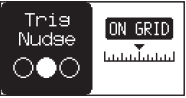
- Select a track and press the REC button.
- Press and hold the TRIG/TRIGS you wish to nudge, then use the Swing encoder to change the Nudge amount.
Retriggering samples
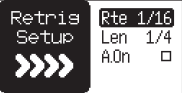
When you hold the RETRIG and a track button, you can have the sample retrigger at a specified amount. This is great if you want to, for example, record straight 16th notes on a hi-hat. You can change the Retrig functions by holding the FUNC button and pressing RETRIG. Use the DATA ENCODER to change the different preferences. Here are some tips for retriggering:
- For more dynamic swells, like a snare roll, turn velocity fixed velocity off.
- If you plan on making a pattern that’s four measures long, open the Retrig Menu and select A. On. When this is checked, it will automatically retrigger the track you selected.
- The current Retrig settings will be applied to every track you select. For example, if you have the Retrig rate set to 1/16, it will trigger at 1/16 anytime you engage it no matter which track is selected.
Saving patterns and projects
Once you’re happy with everything you’ve created, the final step is to save your Pattern and Project. This is all done within the Config Menu. When you save a Pattern, it will be saved within the current Project that’s loaded.
Save patterns
- Press the WRENCH icon to entire the Config Menu.
- Use the DATA ENCODER to navigate to Pattern, then press it to enter the Pattern menu.
- Name it something unique, use the DATA ENCODER to navigate to Save, then press YES to save your Pattern to the Project.
Save project
- Press the WRENCH icon to entire the Config Menu.
- Use the DATA ENCODER to navigate to Project, then press it to enter Project Manager.
- Scroll down to an empty slot, press the DATA ENCODER, and select SAVE. You’ll be prompted to name the Project.
- Press the DATA ENCODER once more to complete the save.
Related content
When you need help, Sweetwater has the answers!
Our knowledge base contains over 28,000 expertly written tech articles that will give you answers and help you get the most out of your gear. Our pro musicians and gear experts update content daily to keep you informed and on your way. Best of all, it’s totally FREE, and it’s just another reason that you get more at Sweetwater.com.

