
DW DWe Quickstart Guide
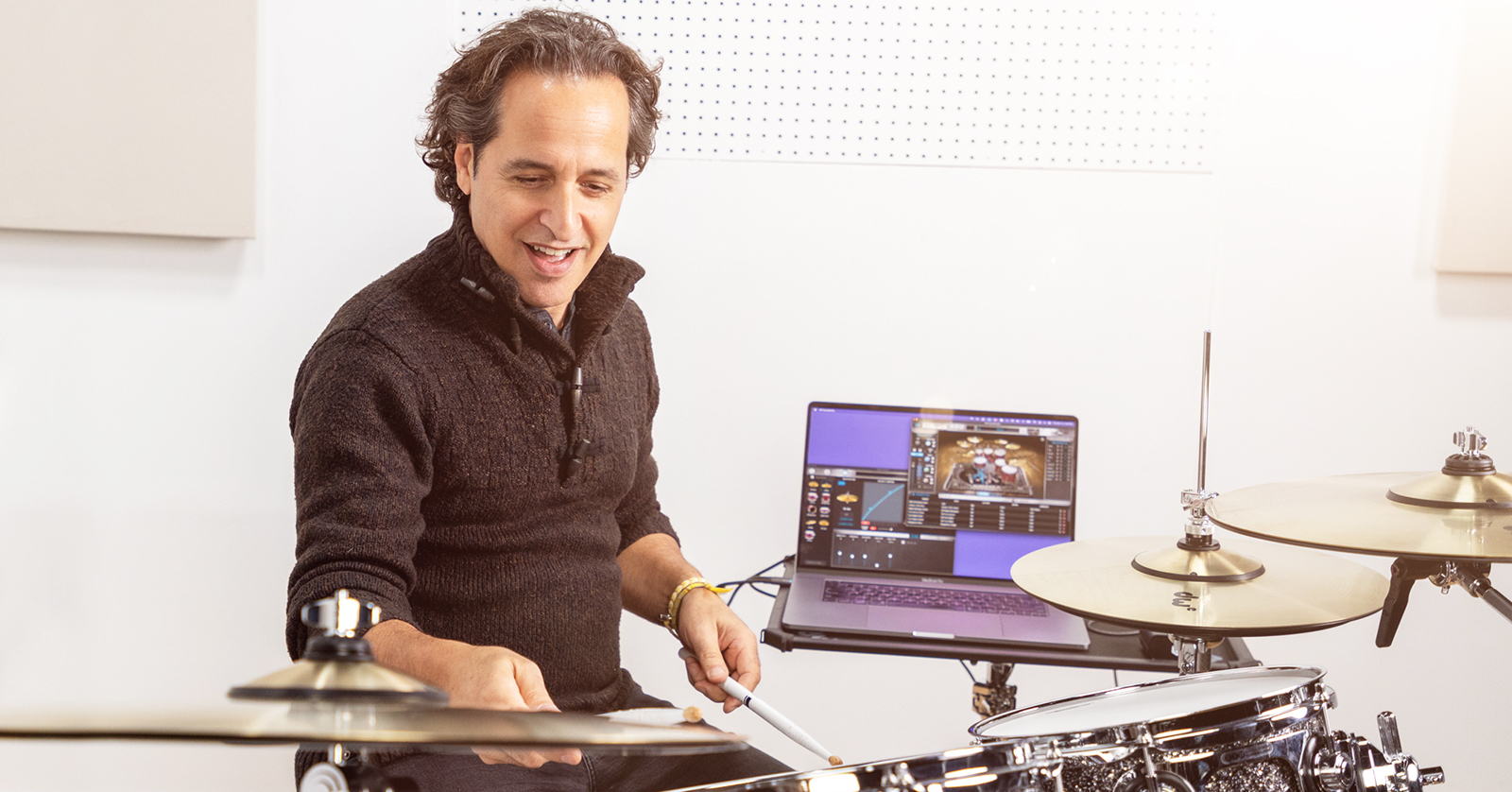
DW’s DWe hybrid drum kit is the perfect solution for when you’re at home or on the road. In this guide, we will show you how to get set up and connected and provide you with some fantastic tutorials from DW to get you up and running quickly. Follow the sections below to get started!
- Register the Software and Set Up the Kit
- Pair and Calibrate the Drums
- How to Update the DWe Firmware
- Changing the Batteries
- DW Soundworks Tutorials
Register the Software and Set Up the Kit
The DWe hybrid drum kit is a kit like no other, as all the triggers are controlled wirelessly! This lets you have a clean setup instead of dealing with a big mess of cables. It also has companion software that turns your computer into an electronic drum module.
Register the Software
NOTE: DW software activation is done through Roland’s Cloud Manager application, so your DW account will also be your Roland account.
DW has created a free virtual instrument, DW Soundworks, that is filled with high-quality drum samples. It is free upon purchase and integrates with your DWe kit seamlessly! It also includes the DWe Control application, which is the standalone software you need to control your pads and cymbals. Before using the kit, you must activate the software to your DW/Roland account.
- Open the “Welcome to Your DW Dream Kit” box. In the box, there’s a card with an activation code that you must use to register your DW Soundworks and DWe Control software.
- Log in or create a Roland Account.
- Download and install Roland Cloud Manager.
- Launch Roland Cloud Manager. Enter the activation code located on the card.
- Once you activate the software, download and install the plug-in, DWe Control, and any expansion packs you want.
- The sound libraries require approximately 100GB of free space on an SSD hard drive.
- Since these files are large, download times may be slow, depending on your Internet connection.
Set Up the Kit
Setting up your DWe kit is pretty much the same as setting up any other acoustic drum kit out there. The only differences are attaching the cymbals and hi-hats.
- Don’t use standard cymbal felts when using DWe cymbals. Instead, use the included rubber ones.
- When attaching the hi-hat, replace the current hi-hat tube with the one that came with your kit. Next, place the bottom hi-hat (black) and screw on the hi-hat attachment. Lastly, install the clutch on the top hi-hat and tighten it down to the hi-hat stand’s rod.
DWe Drums Unboxing and Quick Start with Patty Anne Miller
Pair and Calibrate the Drums
Now that you’ve set up your drum kit, it’s time to connect the DrumLink USB hub to your computer so you can pair and calibrate your drums and cymbals! The process is done through the DWe Control application and will only take minutes. Less time spent setting up gives you more time to play.
Pairing & Calibrating Drums & Cymbals
DWe Drums Control Trigger Settings
Optimizing the Hi-hat
Not every drummer plays the same way, so you may need to optimize the hi-hat settings to ensure it feels natural. Check out this video to learn how to optimize the hi-hat on your DWe kit!
DWe Drums Hi-Hat Optimization
How to Update the DWe Firmware
DW will release firmware updates periodically, adding new features or addressing current issues, so keeping your applications up to date ensures you have the best experience possible. DW has made firmware updates easy, so you’ll be up and running in no time.
When you launch DWe Control, you may see a yellow exclamation mark next to a specific pad or the HUB button (upper left-hand corner of the application).
- Click the drum that has the yellow exclamation mark, then click EDIT.
- Click UPDATE next to the Firmware Version, then strike the trigger selected. This will begin the firmware update.
- If the Hub needs to be updated, click the HUB button, then click UPDATE, which islocated next to the Firmware Version.
DWe Drums How to Update Trigger Firmware
Changing the Batteries
IMPORTANT! Do not use rechargeable or lithium batteries! Always use brand-name AA alkaline batteries.
The DWe drums and cymbals are battery powered and need to be changed approximately every one to two years, depending on usage. Battery installation couldn’t be easier!
Bass Drum
- Place the bass drum down, batter-head side facing up. Remove the hoop and the foam piece around the trigger box.
- Use a Phillips-head screwdriver to remove the battery compartment door and replace the batteries.
- Tap the center of the foam stack until you see a blue LED flash.
- Place the large foam piece you removed (step one) in its original place, then reattach the head and the hoop.
- Bring it up to tension, and you’re all set!
Snare and Toms
- Remove the batter-side hoop. Locate the battery compartment door.
- Remove the battery compartment door with a Phillips-head screwdriver. Replace the batteries.
- Tap the center of the foam stack until you see a blue LED flash. This indicates it’s working correctly.
- Reattach the head and the hoop. Bring it up to tension.
Cymbals
- Remove the cymbal from the stand. Flip it over.
- Locate and remove the battery compartment door using a Phillips-head screwdriver.
- Replace the battery, replace the compartment door, and place the cymbal back on the stand.
DW Soundworks Tutorials
Now that you know the basics and how to get around your kit, check out DWe’s video tutorials on how to work with the DW Soundworks software!
When you need help, Sweetwater has the answers!
Our knowledge base contains over 28,000 expertly written tech articles that will give you answers and help you get the most out of your gear. Our pro musicians and gear experts update content daily to keep you informed and on your way. Best of all, it’s totally FREE, and it’s just another reason that you get more at Sweetwater.com.

