
BFD Player Quickstart Guide
BFD Player is a fantastic virtual drum instrument packed with features, so we will show you how to navigate and use it in this guide. After registering and installing the virtual instrument, follow the sections below to get started!
Set Up Audio and MIDI Devices in BFD Player
NOTE: This section covers your setup within the standalone application. If you use it as a virtual instrument, audio- and MIDI device configuration is done through your DAW. If that’s the case, check out your DAW’s user manual to learn more.
BFD Player is a virtual drum instrument that you can use on its own (standalone) or as a virtual instrument plug-in within your DAW. You may need to update your audio settings to get sound out when you first launch BFD. You will also need to update the MIDI settings if you plan on using an electronic drum kit or another external MIDI device (like a keyboard or a drum pad).
Please note that these settings will not appear in the virtual instrument version of BFD.
- Download and install the driver for your audio- or MIDI device (if necessary), then connect it to your computer.
- Launch BFD Player, click the Gear icon at the bottom right, and select Settings.
- Use the dropdown boxes within the Audio and MIDI sections to update the audio- and MIDI configurations.
- If your device doesn’t show up in BFD Player, close out of the application, disconnect and reconnect the device, then restart BFD Player.
Updating the Keymap
BFD3 has keymaps for many electronic drum kits on the market. Keymaps are presets that automatically assign electronic drum pads to the correct samples in BFD.
- Connect the electronic drum kit or the MIDI controller to BFD Player. Update the abovementioned MIDI settings.
- Click the dropdown arrow located next to the drum kit preset.
- Navigate to Engine, select Keymap, and locate your electronic kit.
- Choose the BFD Player keymap if your kit or MIDI controller isn’t listed.
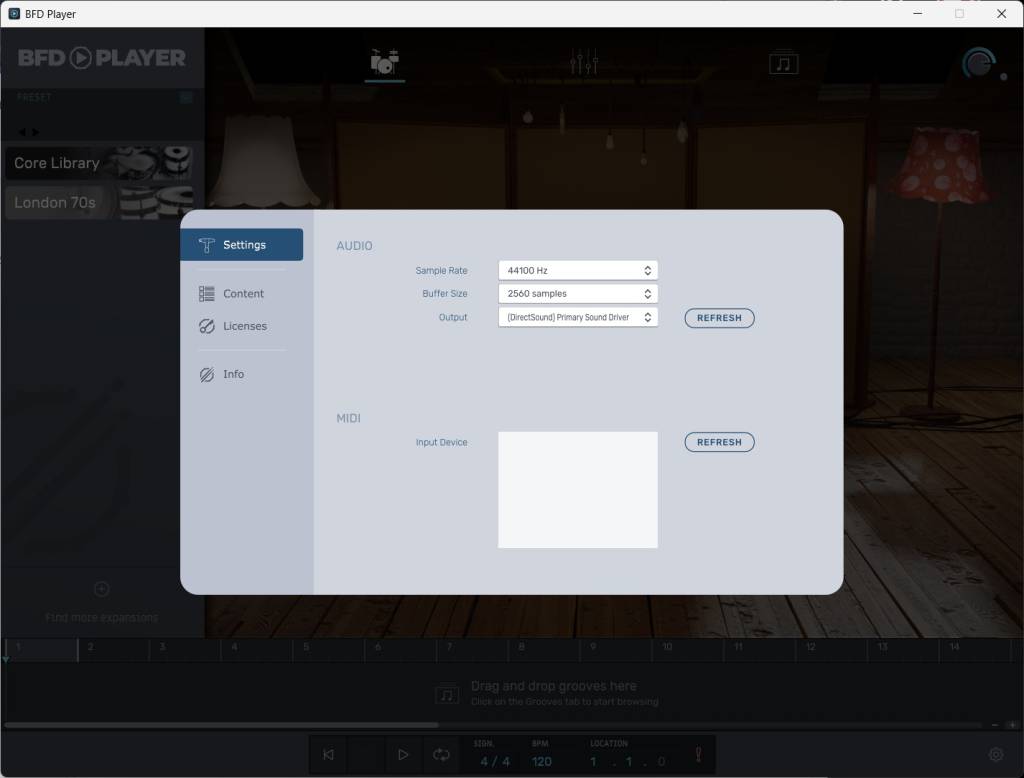
BFD Player Settings Menu
Navigating BFD Player
You can launch the desktop application or a virtual instrument track. As a plug-in and in standalone mode, the functionality is the same. If you want to practice or write down a quick arrangement, the standalone application is the way to go. However, if you plan on recording, use it as a virtual instrument within your DAW.
Kit View
The Kit view is where you can preview and change drum samples.
- Click the drum or cymbal to select and preview the sample.
- Click the Browse tab to pull up the selected drum/cymbal information. You can click the Play button to preview the sample at various levels.
- Hover over the I next to the drum version to view additional information, including what library it’s from, the manufacturer, and even the head type.
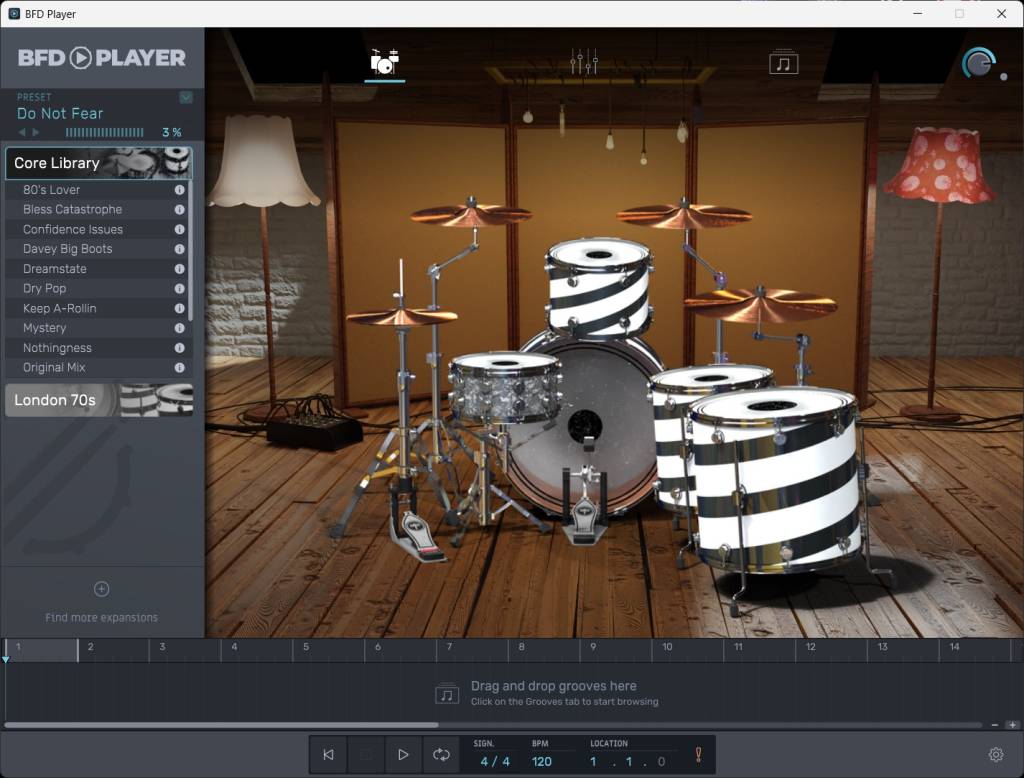
Kit view
Mixer View
The Mixer page is self-explanatory. This is where you’ll adjust levels, panning, attack/sustain, and tonal character. One great feature of BFD Player is multi-out functionality. Multi-out allows you to send each drum channel to separate outputs, which is helpful if you are recording in a DAW and want each drum on separate channels.
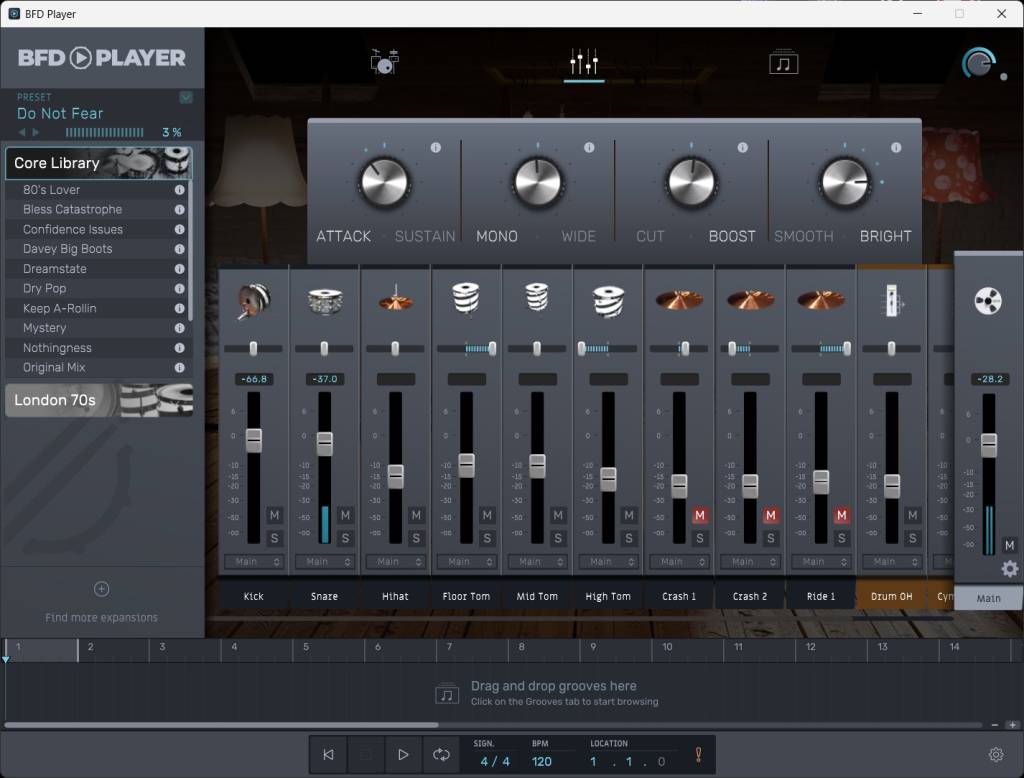
Mix view
Grooves View
The Grooves page lists all the preset grooves that come installed with BFD. You cannot edit the grooves within BFD player. However, you can import them into your DAW as MIDI files and edit them from there.
NOTE: BFD grooves are in a proprietary format, so they cannot be loaded in DAWs. You just need to click and drag the groove from BFD Player to your desktop, and it will be converted to a MIDI file.
- Audition the groove by clicking the play icon next to the groove name.
- Click and drag grooves to the bottom timeline. You can then arrange them by clicking and dragging them around.
- Click and drag grooves or highlight and drag entire arrangements from BFD Player directly to your desktop to convert them to MIDI. You can then load the MIDI files within your DAW.
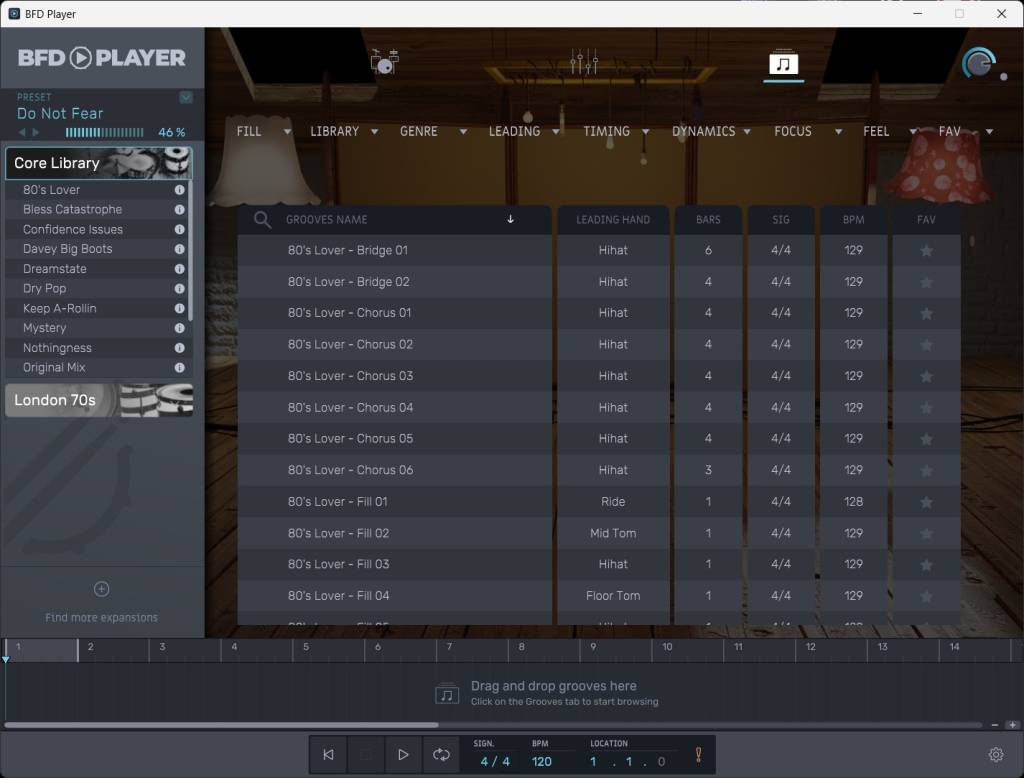
Grooves view
How to Create Drum Kits
While the preset kits in BFD Player are phenomenal already, if you have BFD Player expansions, you can mix and match drums and cymbals to create custom drum kits. Click the drum or cymbal you want to change, click Browse, locate the sample you wish to load, and you’re all set!
Import BFD Player Expansion Packs
If you purchased a BFD Player expansion, you can import it to BFD Player. After you activate and install the expansion, it’s ready to get imported.
- Register, download, and install your BFD Player expansion.
- Click the Gear icon. Select Content.
- Click Add. Choose the file path where you installed the expansion’s library.
- Click Rescan All. The expansion’s library should now appear on the left side of BFD Player.
BFD Player Walkthrough | BFD Drums
Related Articles
When you need help, Sweetwater has the answers!
Our knowledge base contains over 28,000 expertly written tech articles that will give you answers and help you get the most out of your gear. Our pro musicians and gear experts update content daily to keep you informed and on your way. Best of all, it’s totally FREE, and it’s just another reason that you get more at Sweetwater.com.

