
Audient EVO Quickstart Guide
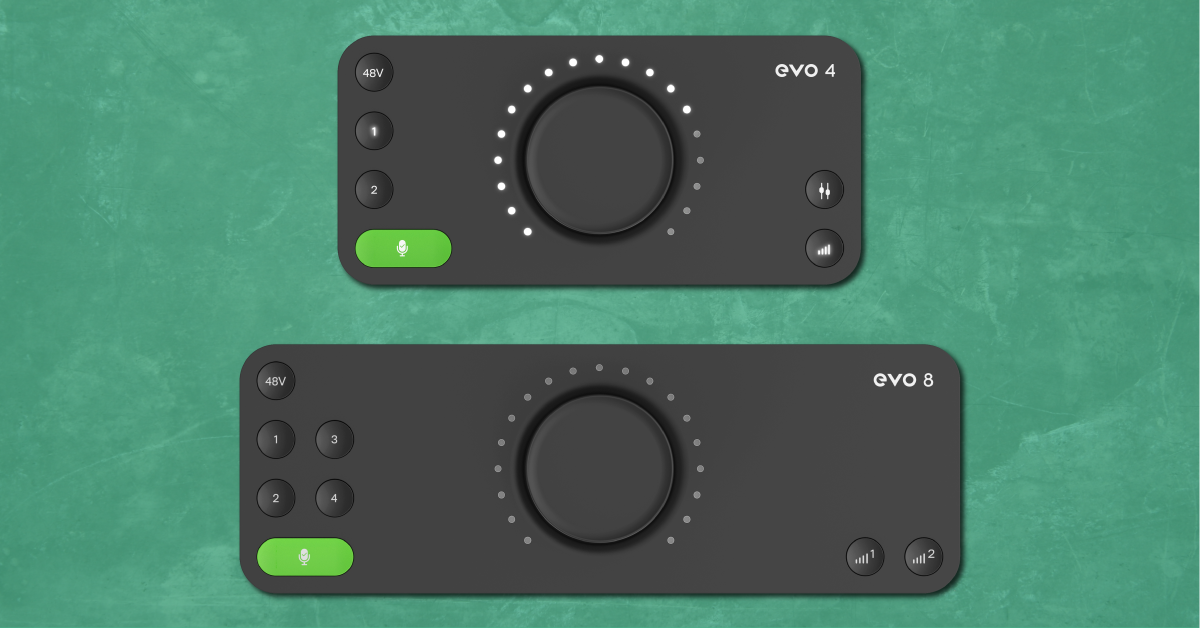
The Audient EVO is a powerful interface to have in your studio, so in this guide, we will show you how to register, set up, and connect it for the first time. Follow the sections below to get started.
- Register the EVO
- Download and install the drivers
- Connect the EVO to your computer
- Update your computer sound settings
Register the EVO
Before you get set up and connected, the first thing you’ll want to do is register the EVO with Audient. After registration, you’ll get a free copy of Cubase LE and Retrologue 2, as well as free plug-ins, loops, and more! Follow these steps to register your interface.
- Go to the Audient Creative Hub, fill out your information, then click Sign Up.
- Check for an email from Audient to verify your account. If it doesn’t show up in your inbox, be sure to check your spam folder.
- Click the software you wish to download, then click Register Product.
- Select your EVO, enter its serial number, then click Register.
- After registration, you will be taken to a page that will provide you instructions on how to redeem your software.

Click the image to register your Audient EVO series interface.
Download and install the drivers
Once the interface is registered, the next step is to download and install the EVO software and drivers. The EVO software allows you to control audio loopback and also lets you update the interface’s firmware.
The EVO is class-compliant on Mac, so all you need to do is download the EVO software. Windows users will need to install the Audient EVO driver and EVO software. All drivers and EVO software are included in one file, so no additional downloads are required.
- Go to your interface’s download page, then select the driver installer for your OS.
- Navigate to your Downloads folder and run the installer. Once the download is complete, you will be prompted to reboot your system.
- Windows: Double-click the .exe file to begin the installation process.
- macOS: Double click the .pkg to begin the installation process.
Connect the EVO to your computer
Now that the driver is installed and your computer is rebooted, you can then connect it to your computer.
- Connect the interface to an available USB port on your computer.
- We recommend not using USB hubs (passive hubs particularly) as they may not provide enough power to connect properly with your DAW.
- Once the interface is fully recognized, the green status LED will be lit green.
Connecting to an iOS device
The great thing about the Audient EVO is that it can also be used with any iOS device. (version 6.0 and up) Depending on what iOS device you’re using, the setup can be a little different so follow these steps to connect to your iOS device.
iPad Pro with a USB-C port
For the EVO to work with your iPad Pro with a USB-C port (not Lightning port), all you need to do is connect the EVO to your iPad Pro using a USB-C to USB-C cable. The USB-C port will provide enough bus power to work without any adapters.
iOS devices with a Lightning port
Unlike their USB-C counterpart, using the EVO interface with iOS devices that have Lightning ports require an official Apple Lightning to USB Camera Adapter and powered USB hub:
- Use the included USB-C to USB-A cable to connect the Lyra to the powered USB hub.
- Connect the USB-A to USB-A cable from the hub to the, then the adapter to your device.
Update your computer sound settings
After everything has been set up and connected, the last thing you’ll need to do is update your computer’s sound settings. For most apps that aren’t DAWs, this is done from Sound Settings (Windows) or Sound Preferences (Mac).
DAWs like Pro Tools, Cubase, Studio One, etc. have their own sound settings for selecting an audio device. When using your interface with a DAW, make sure to choose your Audient interface from the Playback Engine or Audio Settings window within your DAW. Follow these steps to select the EVO series interface as your computer’s audio playback device.
- Turn the Volume knob all the way down, then connect your speakers.
- If you have headphones connected, turn its volume knob all the way down, as well.
- Connect the USB cable from the interface to your computer, then power it on. The USB LED on the interface will light up.
- Navigate to your OS sound settings and set it as the default input and output device.
- PC: Right-click the Speaker icon on the Windows taskbar, select Sounds, then click the Playback tab. Locate and select the interface, click Set Default, then click OK to close the menu. Do the same in the Recording tab.
- Mac: Click the Apple icon from the Menu Bar and select System Preferences. Click Sound, then select the EVO under the Input and Output tabs.
- If applicable, connect your headphones to the jack on the front.
- Play some music or a video, and slowly turn the main Volume (and headphone) knob up until it’s at your desired listening level.
- Launch your DAW, select your Audient EVO as the primary playback and recording device.
Set Audio Levels Automatically With EVO Smartgain
Related Articles
When you need help, Sweetwater has the answers!
Our knowledge base contains over 28,000 expertly written tech articles that will give you answers and help you get the most out of your gear. Our pro musicians and gear experts update content daily to keep you informed and on your way. Best of all, it’s totally FREE, and it’s just another reason that you get more at Sweetwater.com.

