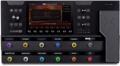
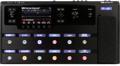
Sure, the newly released Line 6 Helix Stadium XL has those ultra-playable Agoura amp models and cabs. Plus, with the touchscreen and the great-sounding cabs and effects, all wrapped in a sleeker, lighter package, those are definitely worth the price of admission. First-impression videos and deep dives are flooding YouTube as everyone explores the pristine new sounds.
However, amid all the hubbub, don’t overlook how you can use the Stadium XL’s practical features. This article will show you how to get up to speed quickly, and you can immediately put these features to work improving your rehearsing, performing, and recording workflow so that you’re free to focus on making great music!
Here are some game-changing features that catapult the Helix Stadium XL far beyond just a simple multi-effects pedal.
- Preset Clips
- Dialing in Patches Quickly
- Setlists
- Info Screen
- Handy Level Matching
- Command Center
- Use Favorites to Build a Cohesive Signature Sound
- Think Outside the Multi-effects Box
Preset Clips
Utilizing preset clips can dramatically speed up the process of dialing in your factory and user presets.
A clip is a raw recording of the original instrument linked with a factory preset. While many users may reach for this feature to hear the intended use of a preset (e.g., for a Tele, bass, etc.) and to audition presets, amps, cabs, and effects, it’s a game changer for editing both factory and user presets.
Using clips can significantly boost your workflow by allowing you to edit presets while hearing the changes in real time without having to stop to play your instrument. After making hundreds, perhaps thousands, of presets on my own Helix over the years, this is a welcome development!
Using a Factory Preset Clip
Here’s how to use a clip. Go to a factory preset, press the paper-clip icon, and start the clip on repeat mode. You’ll hear it play immediately. Exit the clip screen and navigate to another preset, including a user preset. The original clip will continue playing until you touch the clip icon on any preset. You’ll hear the clip through your new preset, so adjust away while listening in real time without stopping to audition the changes on your instrument. Awesome!
Of course, I wouldn’t consider a new preset to be gigworthy without playing it on my own guitar, and sometimes I will edit presets in the context of the band mix or in the venue if possible. However, using the pre-recorded clip speeds up the workflow early on.
But that’s not all. Factory preset clips are automatically embedded into your own template or user preset if you start from a copy of a factory preset and do a “Save As.” You can then change everything from amps and cabs to effects and signal flow while retaining the factory clip.
Note that the input block of the new preset must be set to the same input as the factory preset (Instrument 1). For example, while a clip played, I opened an imported, IR-based acoustic Helix preset that received my Godin’s piezo output via Instrument 2. No sound. I changed the input to Instrument 1, and there it was in all its acoustic glory!
Clip Selection Pro Tip: Select a factory preset clip that matches your guitar’s pickup configuration, body type, and playing style by checking the Info icon. The factory preset clips were created on a wide range of instruments, including:
- Body styles: Stratocaster, Telecaster, Les Paul, SG, hollowbody, semi-hollowbody, extended-range, bass, and fretless
- Pickups: Passive and active humbuckers, single-coils, P-90s, piezo, passive and active bass pickups
- Content: Rhythm, lead, slap, and palm-muted playing styles
Dialing in Patches Quickly
Whether importing your old Helix presets, modifying Stadium XL factory presets, developing a template, or creating presets entirely from scratch, the Helix Stadium XL offers several powerful tools to jump-start your presets. The goal is simple: spend more time playing!
The Focus View/Hype View Dance
Here’s an incredibly fast way to find your tone. After selecting your amp, cab, and mic (type and placement), switch to Focus View and drag the cursor around for a few seconds until the sound meets your goal for that block. Resist the urge to dial in the nuances; just get the tone in the ballpark. You can finesse everything later. (This same quick Focus View tweak also works for effects.) Then change over to the Hype View. The 0 preset is your amp’s raw sound. Increasing the level incrementally adds more studio-processed polish to the tone. Finally, go back and forth between Focus View and Hype View until your preset is at least 80% complete. Take your main tone across the finish line by tweaking with Focus View or by using individual settings on individual blocks.
Focus View for Dynamic Snapshots & Song Section Elements
Once you’ve achieved your primary sound, it’s time to create snapshots. They are a great way to create contrast for song elements and develop dynamics as the song unfolds. Focus View makes creating snapshots even faster.
Create a preset for each song section by activating/deactivating effects blocks and tweaking effects. Remember that turning an effect parameter adjusts it across all snapshots — to make an adjustment that only affects the current snapshot, simultaneously push and turn the parameter knob. (The parameter will turn white.) Don’t forget to save!
Consider developing at least two versions of each snapshot so effects can grow dynamically as the song progresses — with two banks of snapshots, there’s room for plenty of options. Once you have the main snapshot dialed in, an easy way to create a “snapshot lite” version is to dial it back in Focus View. Change reverb/delay settings, modify the stereo width, adjust the level of distortion, boost, or output — whatever is needed. This will give you a great palette of sonic options for your preset.
An Alternate Approach to Snapshots
If you prefer to tweak settings live rather than using snapshots, then consider the XY Controller setting. This feature allows you to assign multiple effects and parameter settings — each with minimum and maximum levels — to a virtual controller you can adjust live during a set with either your finger, the Stadium XL expression pedal, or an external controller. There’s even an option to rubber band an automated return fade when the XY Controller is moved. With Stadium XL’s ability to connect up to four external expression pedals, this opens the door for many cool possibilities!
Setlists
Once your preset is dialed in, where can you store it for easy recall? That’s where the Stadium XL Setlist feature dominates.
A Big Difference Between Helix & Stadium XL
A Stadium XL Setlist and a Helix Setlist are entirely different animals. Same word, different functions. Understanding the difference will help you better organize your presets and IRs.
In the original Helix, a Setlist is the folder where presets are stored in four user banks. Presets can be stored in the order you developed them, grouped deliberately into handy categories, or arranged in performance order. The presets in the Setlist are the actual presets. Erase a preset from a Setlist, and it is gone forever — unless you saved a backup.
In the Stadium XL, your presets are stored in the Preset List. The Preset List functions similarly to the Helix’s Setlists — it’s where you keep, edit, order, and play all your factory and user presets. In the Editor app Library feature, you can organize presets into subfolders for helpful, searchable access. You can also back them up on your computer’s hard drive.
Pro Tip: While adequate for regular functionality, consider replacing the Stadium XL’s 32GB microSD card with a larger card if you plan on using a lot of IRs, creating a lot of presets, or using the upcoming song features.
The Stadium XL Setlist Advantage
Think of Stadium XL’s Setlist as a virtual list of 122 preset shortcuts or bookmarks that you can add, reorder, and delete for fast access during a gig or rehearsal. Being listed in a Setlist does not affect the actual presets themselves — they reside in the Preset List, safe and sound.
What’s more, editing a preset does not remove its reference in the Setlist. The Setlist always points to the preset’s updated version. Additionally, Setlists are editable and duplicable. However, if you delete a preset from the Preset List, then the Stadium XL automatically removes the reference from all Setlists. You don’t have to remove the reference yourself. It’s gone for good — unless you saved a backup. Gone are the days of worrying about which version of a preset is the right one. With Stadium XL, you’re always current.
Info Screen
Here’s a super-workflow-friendly feature. If you’ve ever tried to keep track of a bunch of IR/Preset links, struggled to remember key details about presets you only use occasionally, or mixed up similar patches that have slight modifications for different songs, then you’re going to love the Info Screen.
Not only can you read factory preset notes included by the original creator, but you can also save notes for presets you create yourself. Use this handy, searchable place to keep all the bits of info you don’t want to forget.
Whether you use third-party presets or design your own, consider including important details such as:
- Guitar pickup configuration
- Playback info and unusual I/O reminders
- IR information
- Play-style notes
- Snapshot list and descriptions
- Expression pedal settings
- Tempo
- Target sound/song/artist notes
- Rig or signal-chain notes
- Search keywords
- Clip information
- Grandma’s Chocolate Crinkle Cookie recipe (just kidding!)
Search Field
In addition to referencing Info Screen details, the powerful search field also checks Stadium XL preset and effects names as well as the names of specific OG gear that inspired them. The search scope includes preset name, amps, cabs, effects, and Preset Notes.
Handy Level Matching
I tend to create involved presets. It’s my nature — I love having options. That’s one of the reasons I’m so excited about these new Stadium XL features. But whether stacking overdrives and multiband compression or enjoying a simple amp and cab combination, I’ve learned that gain matching my input and output levels is vital for preventing unwanted clipping, maintaining consistent output levels, and staying above the noise floor.
Gain matching allows you to better judge your effects settings without making the “louder is better” error or squashing the life out of the signal with compression. So, it makes sense that the Stadium XL designers included level meters in the Focus View of amps/cabs/effects to help ensure correct gain staging. They made it easy to realize when an effect is beginning to nudge the rest of the signal chain into digital clipping territory. Keep an eye on the output icons at the end of each signal path — they’ll flash red whenever your signal clips. Another quick way to check levels is by using the output buttons to open the Matrix mixer screen. It’s handy as you maintain a consistent output level on your presets, and your FOH and recording engineers will love you for that!
Matrix
In addition to checking overall levels, the Matrix screen allows you to set different levels for your signal paths, inputs, and outputs. For example, you can send a raw output to be recorded on a DAW, another output to FOH, and another to IEMs, each with its own level and effects. Or you can create a mono out to FOH, bring in a stereo feed from your IEM mixer, and add your inspiring stereo guitar sound to feed into your IEMs. Or you can build a wet-dry-wet setup and send different outputs to FOH and three external amps. While you can create multiple output paths on the original Helix, it’s easier to manage overall levels with the Stadium XL.
Here’s another use. Because the Stadium XL has a built-in mixer and multiple inputs controlled in the Matrix, you can also use the looper to do a virtual soundcheck on your vocal channel, for example, while listening in the venue during soundcheck to tweak EQ. Currently, you’ll need to re-create the loop each time you turn on the Stadium XL, as loops cannot be saved (yet). Alternatively, you can record a file in a DAW and re-amp into the Stadium XL.
Command Center
Turn the Stadium XL into a multi-effects/playback/MIDI supercontroller with Command Center. This feature allows you to reassign all stomps (and the expression pedal) to do pretty much whatever you dream up. Plus, because you have two banks of stomps, the number of pedals at your command doubles. That’s a ton of flexible control.
Practically speaking, this means that one stomp can start your external Ableton track and activate your Stadium XL preset for your first song. The next stomp can turn on your boost and change patches on a keyboard. The next stomp can switch to your next Stadium XL preset and momentarily add an effect until you release the stomp. The next stomp can transpose whatever you’re playing a couple notes up the scale. The next stomp can add a 2dB boost in your IEM output. The next stomp . . . well, you get the extremely versatile point.
Use Favorites to Build a Cohesive Signature Sound
You may be inspired by Stadium XL’s wide assortment of options, running the full gamut of effects, amps, and cabs, to create super-complex presets. Alternatively, you may prefer dialing in something simple that conveys the straightforward essence of your music. Wherever you find yourself on this continuum from fully creative to fully consistent, the Stadium XL provides a great way to build a sound that’s truly your own.
A signature sound isn’t about every patch being identical. It’s about developing a consistent foundation that you can build upon with creative touches as inspiration strikes. Not only is your signature sound comprised of your choices of effects, amps, and cabs, but it also includes your playing style, dynamics, note choices, phrasing, and technique. These things combine into a unified whole that feels great and inspires you to play. It’s a tonal glue that brings your personality to the music.
Your signature sound develops over time. To help, when you find yourself choosing the same Stadium XL effects block in your presets, save that block to your favorites folder. There’s a good chance that this setting may become a piece of your signature sound. With the Stadium XL app Librarian screen, you can even organize subfolders for your signature-sound candidates for easy navigation later.
I like to keep a template called “SigTone.” It continually evolves and has become the starting place for many of my presets. When I see that I’ve been favoring a particular signal flow or effect, I’ll bake it into SigTone. If I find that I’m starting to lean in an entirely new direction, then I’ll give SigTone a new name to describe that era of my playing (remember to leave a note in the Info window for faster search recall!) and start fresh on a current SigTone template.
Adding a Touch of Consistency
As you cultivate your signature sound, consider maintaining at least one consistent tonal component in your presets. The most common way to do this is to use the same cab model in each of your presets. Perhaps you’re in love with a specific amp model. Or maybe you’re an ambient aficionado with a dripping, swirling modulation tracing every note. The Stadium XL is packed with effects and features that allow you to create a sound your audience will recognize.
Think Outside the Multi-effects Box
While these Line 6 Helix Stadium XL features can greatly aid workflow, they’re just a starting point. I look forward to seeing the creative applications people will invent, even outside the “traditional guitar pedal” realm.
New ideas are already starting to be explored. For example, Sweetwater influencer Bradford Mitchell (Worship Tutorials/Signal Theory) suggested that the Helix Stadium could be used by a music director to run a FOH mic with a stomp set to mute the FOH mic output and activate a team-only mic on a different output while using the Stadium to run MIDI commands and manage multitrack playback. No guitar is even in this picture.
Even so, many of us will be perfectly content playing those awesome Agoura amps!
Final Thoughts
As the Helix Stadium XL takes its position as the flagship of Line 6’s innovative products, consider these possibilities.
Cut the Cost
Take a big bite out of buying a Stadium XL by selling your unused gear on Gear Exchange. If that includes a Helix, then don’t forget to save copies of your patches and IRs first! Many Helix patches translate quite accurately into the Stadium XL, even with complex signal routing. Don’t forget to take your payout in the form of a Sweetwater Gift Card you can use for your Stadium XL purchase. That way, any seller fees will be waived, and you’ll get the most bang for your buck.
Don’t Forget the Helix & the Rest of the Line 6 Family
One cool benefit of the Stadium XL launch is that it gives the Helix a big bump. Yes, the Stadium XL has stepped into the top slot with new sounds and features that reach well beyond Helix capabilities, but Helix remains a strong multi-effects contender that looks and sounds great. Line 6 has already lowered prices on the rest of the Helix family and confirmed that the Helix models will continue receiving new updates and effects. Plus, with a decade’s worth of training videos, presets, and IRs available, this is a great opportunity to step up to a Helix or HX Stomp.
Reach out to one of our knowledgeable Sweetwater Sales Engineers at (800) 222-4700 and get started with a Stadium XL, Helix, or other Line 6 product today!
What’s in a Name? The Agoura amp model name came from the street name where the Line 6 Headquarters/R&D is located. Line 6 was originally named Fast Forward Designs. They developed components for other products, and confidentiality was super important. When a client would show up unexpectedly, to warn everyone to cover up secret projects, they would announce over the public address system, “Phone call on line six!” (They only had five phone lines.) The phrase stuck.