
What Is USB?
USB (Universal Serial Bus) is an industry standard for connecting peripheral devices to a host computer to transmit digital data and electrical power. With lots of practical applications, USB has evolved over the years. The terminology around USB, not to mention the kinds of cables and plug connections you need, may be a bit confusing. If you need to find the right USB cable to hook up your gear, it helps to understand the basics.
- What Is USB?
- How Does USB Work?
- What Kind of USB Cable Do You Need? Data or Charging?
- What Are the Common USB Cables?
- Versions of USB
- Sorting All This Out
- Finding the USB Cable You Need at Sweetwater
- I Understand USB, But What Is Thunderbolt?
- And That’s USB
What Is USB?
From the earliest personal computers through the 1990s, a computer required many different kinds of connections, or ports, present on the back and the front panels. These were required because different types of peripherals, such as keyboards, mice, printers, external hard drives, scanners, and cameras, used different protocols to transmit data. Some of these now-forgotten serial and parallel ports required large plug connectors with dozens of pins wired to bulky cables. Many devices on the other end required separate power supplies because the data cables could not carry electrical power.
USB was developed in the late ’90s by a consortium of companies, including Intel, to create a “universal” protocol that could be built into computers. Many types of devices that had previously used lots of different data protocols and cables could now be engineered to use this industry-standard USB interface. Certain devices could also be powered over the same USB cable. USB was released in 1996, and it caught on quickly when Apple released the first iMac in 1998. It provided two USB ports, replacing half a dozen other kinds of ports, and shipped with a USB keyboard and mouse.
Today, 25 years later, USB connections are everywhere, on devices made by all kinds of companies.
How Does USB work?
USB Host and Device

This Sweetwater Creation Station Windows PC is a USB host with several USB ports.
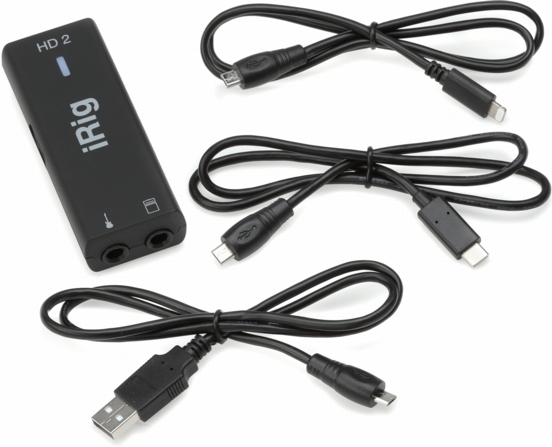
This audio interface, a peripheral device, comes with a variety of USB cables to connect to different hosts, including a computer or a phone.
Central to understanding USB are the concepts of the host and the device. A host is a computer that can use the USB port to accept connections from multiple USB devices, like flash drives, external hard drives, the computer’s keyboard and mouse, musical keyboards and MIDI controllers, audio interfaces, or even computer monitors. Using USB cables, a host can send and receive data from the devices. Certain devices can also draw power from the host over the same cable. However, devices cannot connect to other devices over USB unless the data gets routed through a host.
USB Hub and Powered Hub
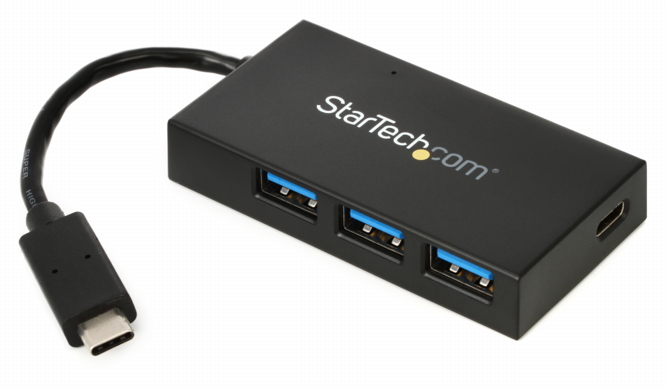
A USB hub lets you connect several peripheral devices to a single port on a host.
Another component is the USB hub, into which you can plug multiple devices in case your host computer’s ports are all occupied. The hub connects the data from multiple devices to the host along a single USB cable. Powered hubs have their own power supplies plugged into the wall to provide extra current to run certain connected devices.
Phones and Tablets and USB
A device like an Android phone or tablet, or an Apple iPhone or iPad, can function as a USB host. Certain peripheral devices, such as musical keyboards, audio interfaces, or cameras, can be connected to your phone or tablet via a cable adapter.
You can also connect a phone or tablet to a computer host with the appropriate USB cable in order to exchange data. An example would be uploading photos from your phone’s camera app to your photos app on your computer, although these days, you might be more likely to use Wi-Fi, cellular data, or Bluetooth for that purpose.
USB Charger
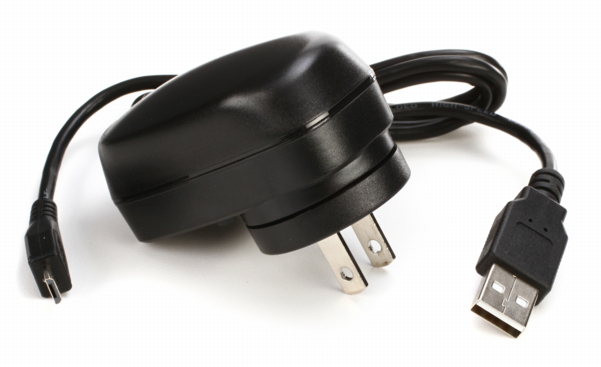
A USB charger with a USB cable
Many battery-powered devices, such as phones, tablets, and cameras, use USB cables to charge their batteries. You can hook a USB data cable from your phone directly to a host computer’s USB port to transmit data and charge the battery at the same time.
On the other hand, you can connect a USB cable from your device to a USB charger, which simply plugs into the wall to provide power to charge the battery. In this case, there’s no computer host, and no data is transmitted.
What Kind of USB Cable Do You Need? Data or Charging?
Do you need a cable to connect a device to a host to transmit data and power? Or do you only need to connect a device with a battery to a USB charger? There are two categories of cables: data and charging.
USB Data Cables
A USB data cable can transmit digital data between devices and also provide power. It’s a thick cable with electromagnetic shielding to protect the data transfer.
USB Charging Cables
A USB charging cable is a single-purpose, less expensive, thin cable. It is only wired to transmit power. You can use it to connect to a USB charger or a host, but a charging cable won’t work for sending data.
If you find a thin-looking USB cable and use it to connect a device to a computer, but the host can’t see the device to communicate with it, you probably have a charging cable instead of a data cable. It’s confusing, but many consumer devices and even some pro audio devices come with a USB charging cable because it only needs to serve one purpose.
What Are the Common USB Cables?
Now that you understand the difference between a charging cable and a data cable, you still need to find the correct USB cable with the right plug connector for your device. There are several different USB plug designs; unfortunately, some look rather similar.
Why Are There So Many Different Kinds of USB Cables?
When USB 1.0 first appeared, it was one standard that ran at one speed. In the 25 years since then, newer versions of USB have emerged that can transmit data much faster. Therefore, which kind of plug and cable you need also depends on which versions of USB your devices support.
Here’s an overview of the most common kinds of USB plugs, cables, and data connections.
USB Plug Connectors
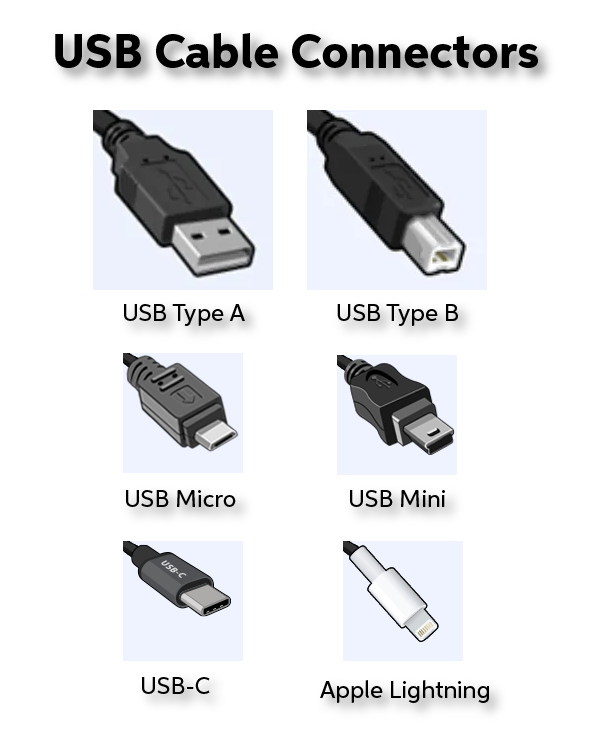
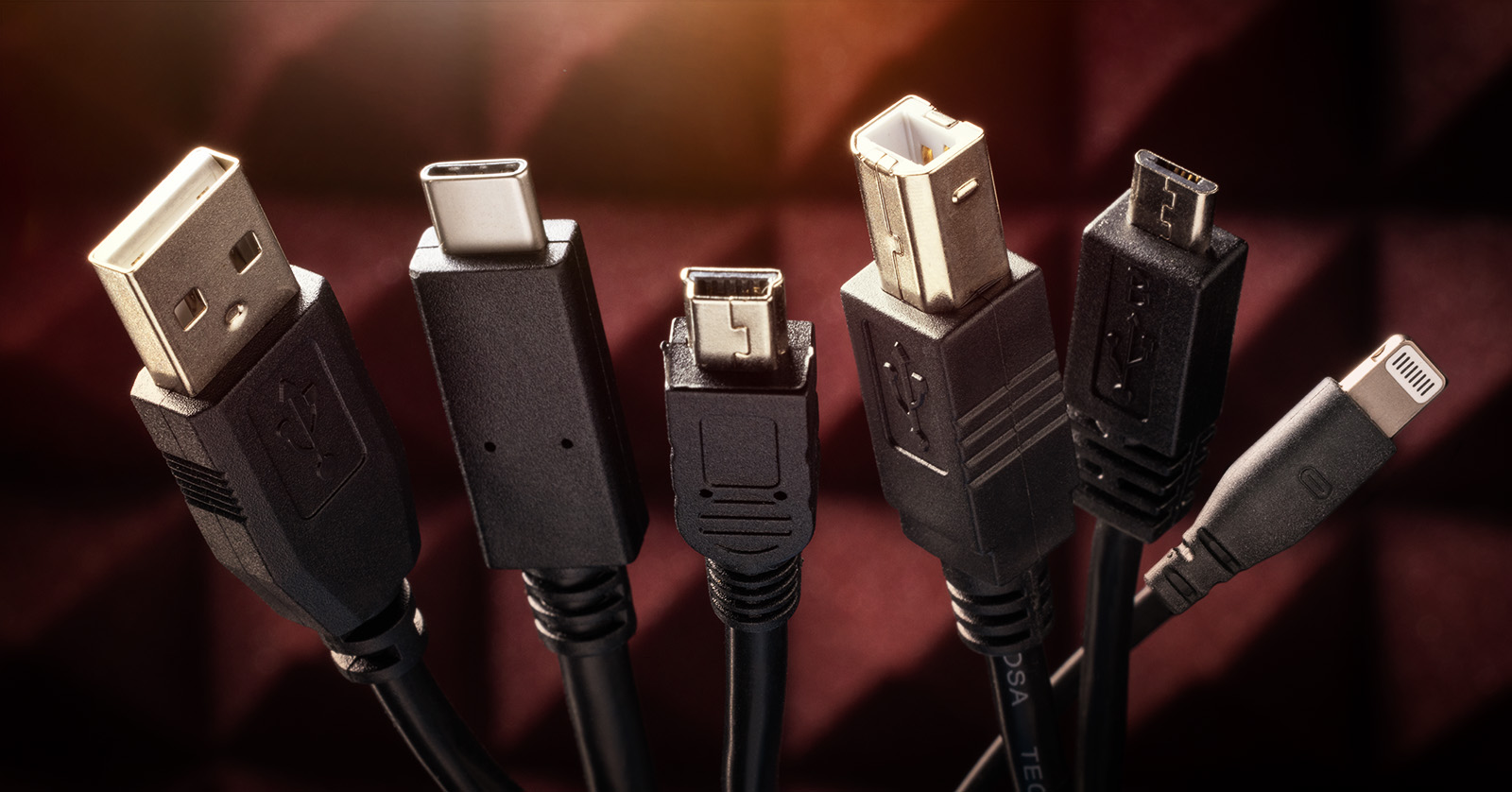
Common USB cable connectors
USB Type-A and USB Type-B were the first kinds of USB connectors on the market. You would typically find USB Type-A ports on a computer and a USB Type-B port on a peripheral piece of equipment, such as a printer or musical keyboard. A data cable with a USB Type-A connector on one end and a USB Type-B connector on the other is needed to connect the two.
Micro USB and Mini USB were developed to provide a smaller connection plug for devices that did not have room for the larger USB Type-B connector.
USB-C is the “modern” USB connector. Introduced around 2014, it is gradually replacing the other kinds of USB connectors.
Lightning is not a connector that’s part of the USB specification. Lightning is a proprietary Apple design found on iPhones, iPads, and a few other devices. We include it here because if you have an Apple device with a Lightning port, you will need a Lightning-to-USB cable to connect to a charger and perhaps to transfer data as well. As of late 2023, Apple is phasing out the Lightning connector. Newer Apple devices will use USB-C instead.
Versions of USB
When we talk about different versions of USB, we are talking about the speed at which the computer host and the device can communicate. A faster USB connection is a big deal for devices such as external hard drives and audio interfaces, but it’s less important for a device such as a keyboard or a mouse.
The newer versions of USB are backward compatible, meaning that a faster USB connection permits slower USB devices to use it. Conversely, though, if you connect a device with a faster version of USB to a host with a slower version of USB, or if you use a USB cable that’s not designed for the faster speed, then the data will be transmitted at the slower rate.
There are three categories of communication speeds commonly in use today: USB 2.0, USB 3.x, and USB 4.
USB 2.0 arrived around 2001. It is capable of transmitting a basic data speed of up to 480 Mbps (megabits per second).
A USB 2.0 cable typically has a USB Type-A connector on one end and a USB Type-B connector on the other, and both have white plastic inserts inside the plug connector. However, some devices with USB 2.0 and the older USB 1.0 and 1.1 use the USB Mini and USB Micro connectors on one end and USB Type-A on the other. With USB Mini and USB Micro cables, you have to check whether it’s a data cable or a charging cable.
USB 3.0 became available after 2008, and at 5 Gbps, it’s 10 times as fast as USB 2.
USB 3.1 came out around 2013 and has a speed of up to 10 Gbps, 20 times as fast as USB 2.
USB 3.2 came out around 2017 and has a speed of up to 20 Gbps.
The earlier generation of computers and devices with USB 3.0 use the older USB Type-A and USB Type-B connectors, but with cables engineered for higher speed. You can usually identify computers and devices that use the USB 3 protocols by the blue plastic inserts inside the ports and plugs.
It’s important to note that newer host computers and devices running at one of the USB 3.x speeds are more likely to use the USB-C connector.
USB 4 appeared in 2019 with speeds up to 40 Gbps; USB 4.2 can handle 80 Gbps. USB 4 ports use the USB-C connector and require special high-speed cables. As of this writing, USB 4 devices are less commonplace, but the protocol is supported on many host computers.
Sorting All This Out
To get the optimal data connection, you need to know which version of USB speed your host and devices use and which connector plugs are required. You also need a USB cable that is rated at the correct speed. Otherwise, the data connection will operate at a lower speed.
Figuring out the speed that a USB cable is capable of isn’t obvious, especially if you find an old cable in a drawer. If you need a new data cable, read the specifications on the package.
Finding the USB Cable You Need at Sweetwater
Now that we’ve explained all this, you need to find the right cable for the job.
Look at the ports on your device and your host to identify which connector you need at each end. If you have access to the owner’s manuals, look up the specifications, including where the correct connectors will be named, their version of USB, and the data transmission speeds.
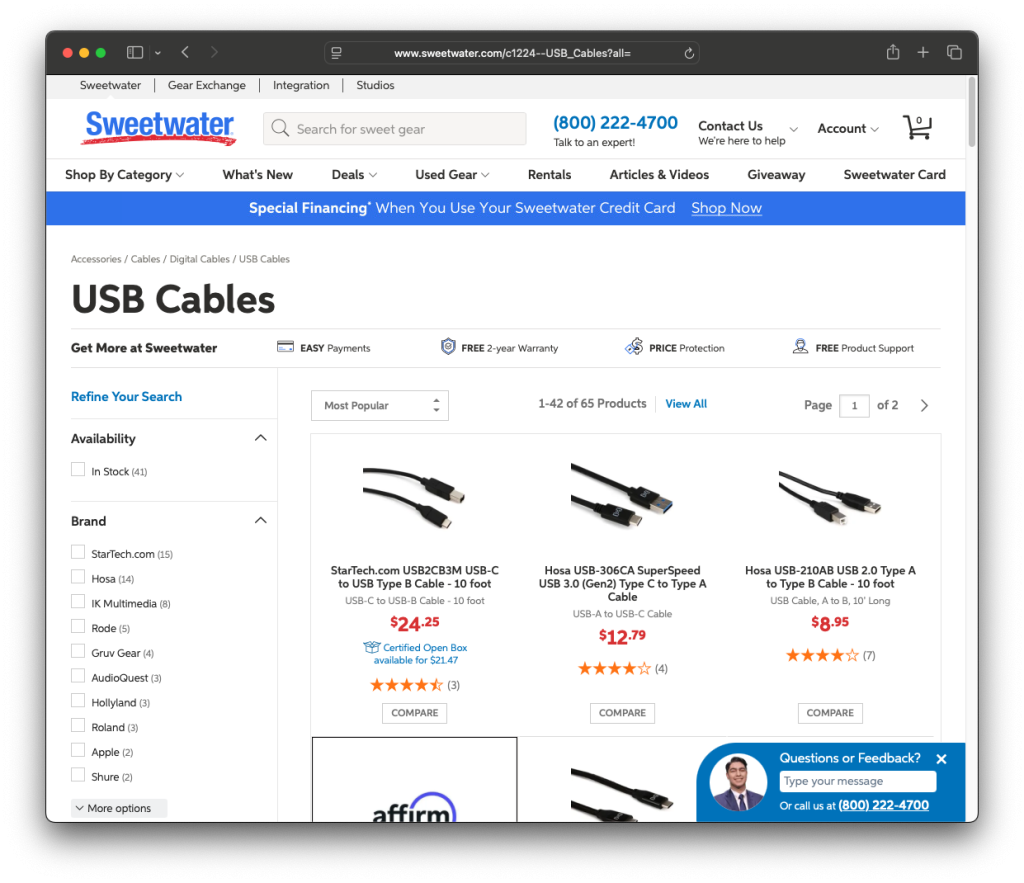
Once you know what you are looking for, go to Sweetwater’s USB Cables page. On the pane on the left, scroll down and choose which connector you need at each end of the cable to narrow down the choices. Then, click on the product to go to its landing page. Read the specs to confirm that it is the correct cable.
I Understand USB, But What Is Thunderbolt?
There is another kind of data protocol that can be mistaken for USB because it uses the same USB-C connector. It’s called Thunderbolt, and it is used by specialized devices such as high-end audio interfaces and video equipment. Certain computers and devices, notably the Apple Mac and the iPad Pro, have Thunderbolt ports. Connecting Thunderbolt devices requires special Thunderbolt cables.
If you came looking for information about USB, you probably don’t need to worry about Thunderbolt, but in case you do, check out our Sweetwater guide What Thunderbolt 3 and USB-C Mean to Musicians and Engineers.
And That’s USB
We hope this overview has explained a few things and helped you find what you need to connect your USB gear or charge your device. Check out Sweetwater for all your pro audio, content creator, and music needs.
Related Articles
When you need help, Sweetwater has the answers!
Our knowledge base contains over 28,000 expertly written tech articles that will give you answers and help you get the most out of your gear. Our pro musicians and gear experts update content daily to keep you informed and on your way. Best of all, it’s totally FREE, and it’s just another reason that you get more at Sweetwater.com.

