
Universal Audio UAFX 2.0 MIDI Guide
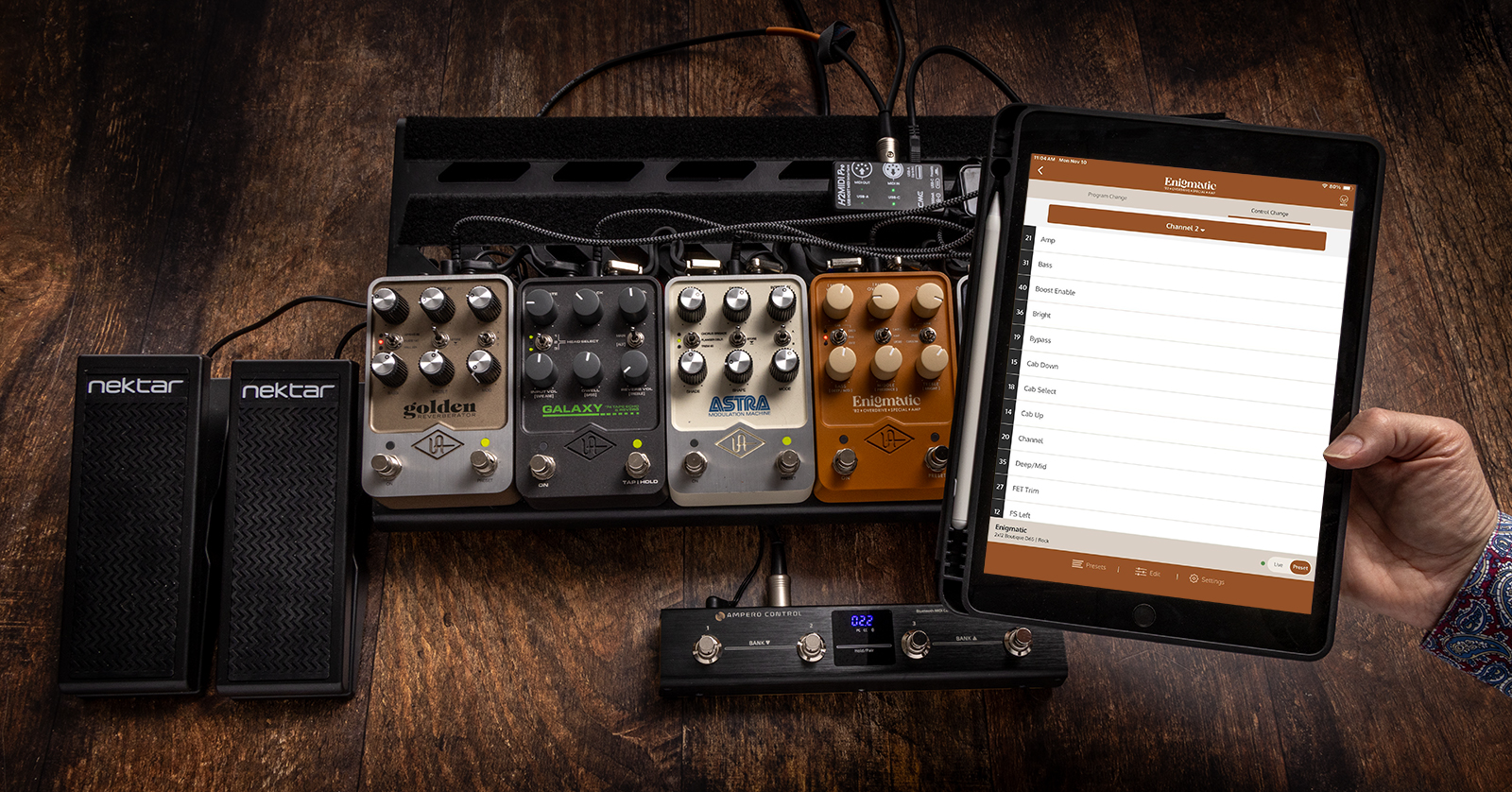
On November 11, 2025, Universal Audio released UAFX 2.0, a firmware update for their full-sized UAFX guitar amp and effect pedals, providing a host of new features. When you install version 2.0, you can now connect third-party external MIDI footswitches and expression pedals over USB cables to control parameters on one or more UAFX units.
To use these features with your 2.0-equipped UAFX pedals, you’ll need to put together your own pedalboard system with third-party hardware that you provide. We wrote this guide to help you get started.
- What UAFX Models Are Compatible with UAFX 2.0?
- UAFX 2.0 Firmware Update
- What Does Controlling UAFX Pedals with MIDI over USB Look Like?
- What Can You Control with MIDI over USB on UAFX 2.0?
- How USB Control Works on a Pedalboard
- USB Hosts for Your Pedalboard
- Using a USB Hub
- MIDI Footswitches & Expression Pedals
- Guitar Multi-effects Pedals That Can Output MIDI Commands
- Pedalboard Examples from Universal Audio
- What Kind of USB and MIDI Cables Do I Need?
- Universal Audio Support Resources
What UAFX Models Are Compatible with UAFX 2.0?
There are two kinds of UAFX pedal: full-sized and compact.
The full-sized amp and cab modelers and effects pedals can be recognized by having two footswitches. These are the models that can be updated to UAFX 2.0 and higher and can then be controlled by MIDI over USB-C. These include:
Amp Pedals
- Anti 1992 High Gain
- Dream ‘65 Reverb
- Enigmatic ‘82 Overdrive Special
- Knuckles ’92 Rev F Dual Rec
- Lion ‘68 Super Lead
- Ruby ‘63 Top Boost
- Woodrow ‘55
Effect Pedals
- Astra Modulation Machine
- Del-Verb Ambience Companion
- Galaxy ‘74 Tape Echo and Reverb
- Golden Reverberator
- Max Preamp and Dual Compressor
- OX Stomp Dynamic Speaker Emulator
- Starlight Echo Station
UAFX has another line, the compact effect pedals. They can be recognized by having one footswitch. While they have a USB-C port, and this is used to update the firmware, the UAFX compact pedals are not compatible with UAFX 2.0 and external MIDI control.
UAFX 2.0 Firmware Update
Before you go any further, you need to update your full-sized UAFX unit to firmware version 2.0 or higher.
Do this by connecting your UAFX unit to your Mac or Windows PC and running the UA Connect app. The app will prompt you if there’s an update that you need to install.
Follow the instructions in our Universal Audio UAFX Guitar Pedal Quickstart Guide.
Now that you’ve confirmed that your pedal is up to date, here’s our overview of working with MIDI controllers over USB.
What Does Controlling UAFX Pedals with MIDI over USB Look Like?
Overview
With UAFX 2.0, Universal Audio provides the means of receiving MIDI data over USB. Universal Audio does not provide external MIDI controllers, footswitches or expression pedals, or the equipment needed to interface them.
It will be up to you to put together a pedalboard system with third-party MIDI hardware that you provide and to interface it through USB.
You’ll need to program each piece of gear in the signal chain to send the desired MIDI commands and to interface with the next component in the chain.
You will need to consult the owner’s manuals and the MIDI implementation charts on each piece of gear to get them communicating with your UAFX pedals, and to determine any limitations of capabilities.
Many of these devices have configuration apps for your computer or mobile device that you’ll use to set them up.
Learn more in the Universal Control support article Getting started with UAFX 2.0 USB MIDI.
UAFX USB MIDI diagrams
Let’s start with some examples.
Controlling One UAXF Pedal with a USB Host
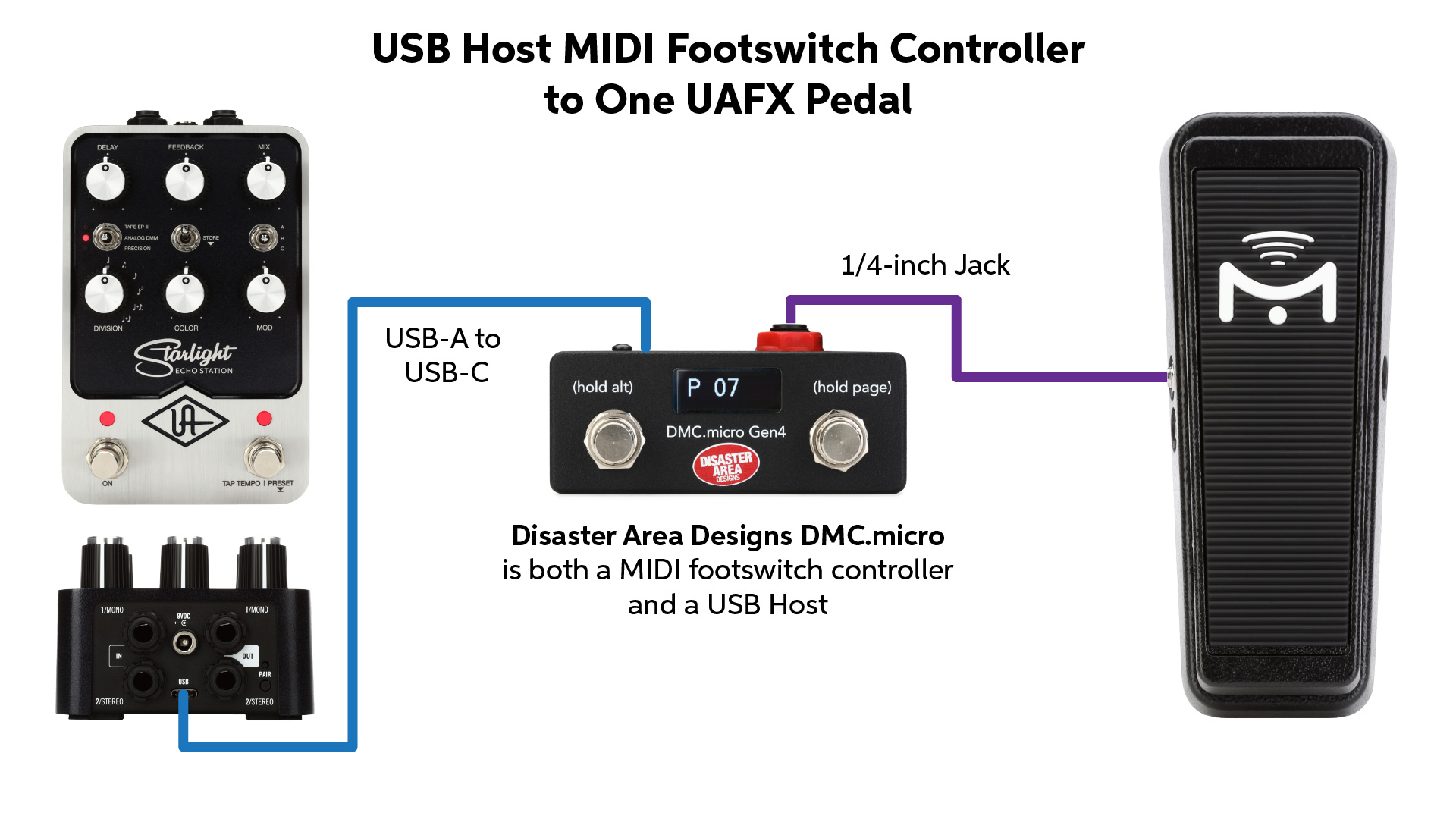
USB Host to MIDI Footswitch Controller to One UAFX Pedal
In this example, going right to left, a MIDI footswitch controller that’s also a USB host has an external expression pedal connected to it. The USB port on the controller is connected directly to the USB port on the UAFX pedal.
Controlling One UAFX Pedal with a Guitar Multi-effects Unit
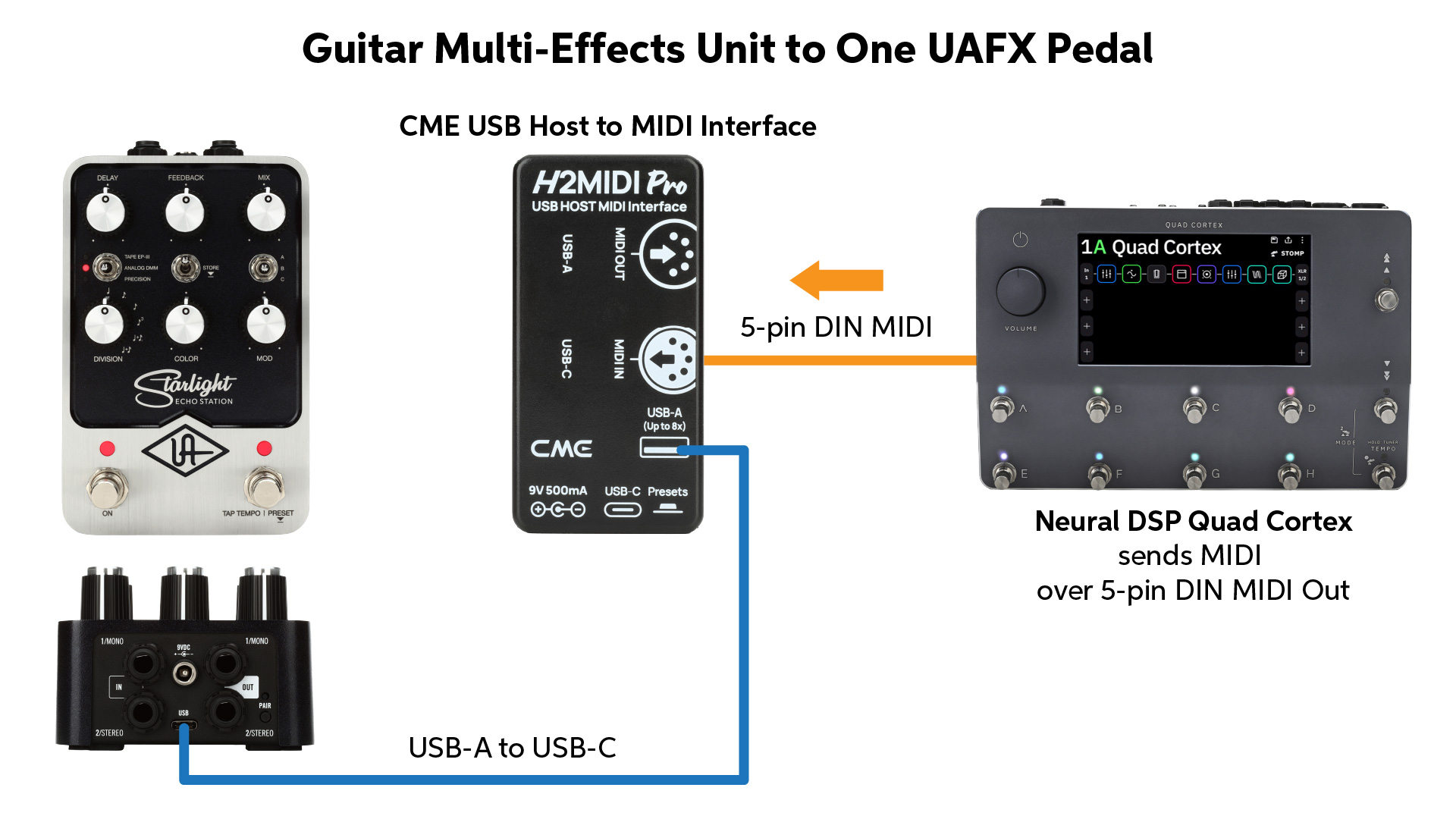
Using the MIDI output from a guitar multi-effects unit to connect to a UAFX pedal via a USB host to MIDI interface unit
In this example, right to left, a guitar multi-effects pedal with 5-pin DIN MIDI output is connected to a specialized USB host to MIDI interface. The USB output from the USB host is connected to the UAFX pedal.
Controlling Multiple UAFX Pedals
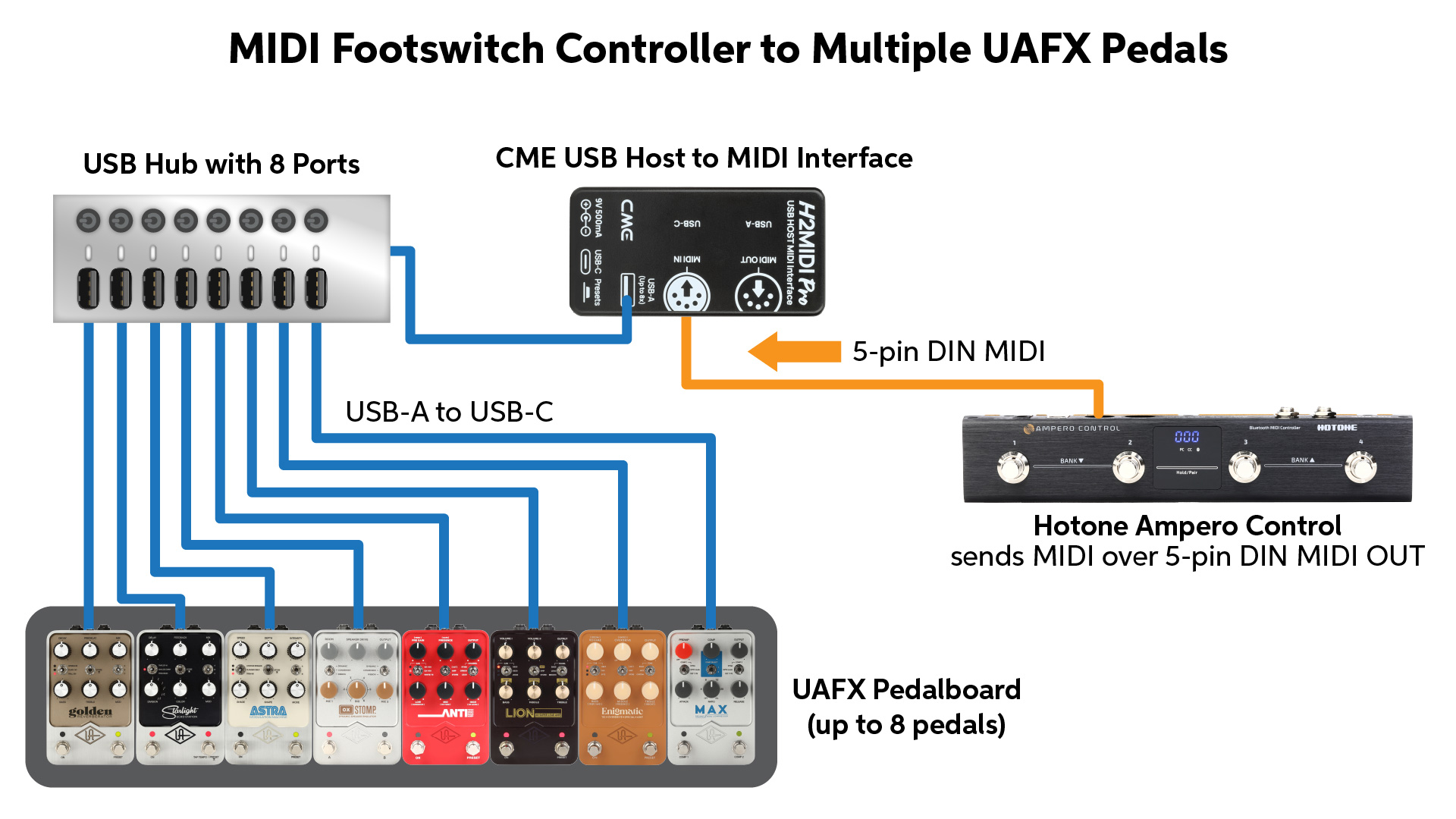
Controlling up to eight UAFX pedals from a MIDI controller with a USB host and a USB hub
In this example, right to left, a MIDI footswitch controller sends its 5-pin DIN MIDI output into a USB host to MIDI interface. The USB output from the USB host is connected to an 8-port USB hub. The outputs from the hub are each connected to the USB port on eight UAFX pedals.
What Can You Control with MIDI over USB on UAFX 2.0?
To program presets and parameters on your UAFX pedals, you use the newest version of the UAFX Control app on your iPhone, iPad or Android device, over Bluetooth or USB cable connection. When you connect each pedal to the app, the app will display the MIDI parameters available for each pedal and give you an interface to set them up.
On UAFX pedals with a Preset switch (all amp pedals plus the Starlight, Astra, Golden and OX Stomp effects), you can save 128 presets in the app, for recall with MIDI program change commands. You can also configure MIDI CC (continous controller) messages to control various parameters with expression pedals.
Some models of UAFX effects pedals don’t have a Preset switch, and those don’t have presets available. However, you can control parameters with MIDI CC.
With the time-based effects units (Starlight, Astra, DelVerb and Galaxy) you can use MIDI clock sync sent from a USB host device to control tempo, or beats per minute (bpm).
Universal Audio provides a quick overview of which features are available on which pedals in this article.
For detailed information, be sure to reference the newest version of the UAFX owner’s manuals, which explain the features for each pedal, with MIDI control charts.
How USB Control Works on a Pedalboard
USB works when one primary piece of gear, called the USB host, connects and sends and receives signals among multiple USB peripheral devices. It’s important to understand the distinction between host and device, which are equipped with different circuitry.
USB peripheral devices can’t send signals directly to other USB peripheral devices. Multiple USB peripheral device can connect to a single USB host, which can then route data between USB peripheral devices. When you have multiple USB peripheral devices that need to send and receive data through a USB host, that’s when you need a USB hub, which creates a “star topology.”
Your pedalboard needs each of these three kinds of gear: USB host, hub, and peripheral devices.
A computer or a tablet are the most common examples of a USB host.
On the pedalboard, however, you won’t be using a computer as the USB host. Rather, you can use certain models of specialized interface and certain MIDI footswitch controllers that function as a USB host.
The important point about setting up a system for UAFX control is that lots of pieces of gear on your pedalboard have a USB port and can send MIDI data over it, but those pieces of gear are USB peripheral devices, not USB hosts.
You can’t connect most MIDI controllers with USB directly to a UAFX pedal using USB cables. As we’ll explain in the next section, the way to hook things up is to take the MIDI Out from a controller and connect it to a specialized piece of gear, the USB host to MIDI interface.
USB Hosts for Your Pedalboard
CME H2MIDI Pro
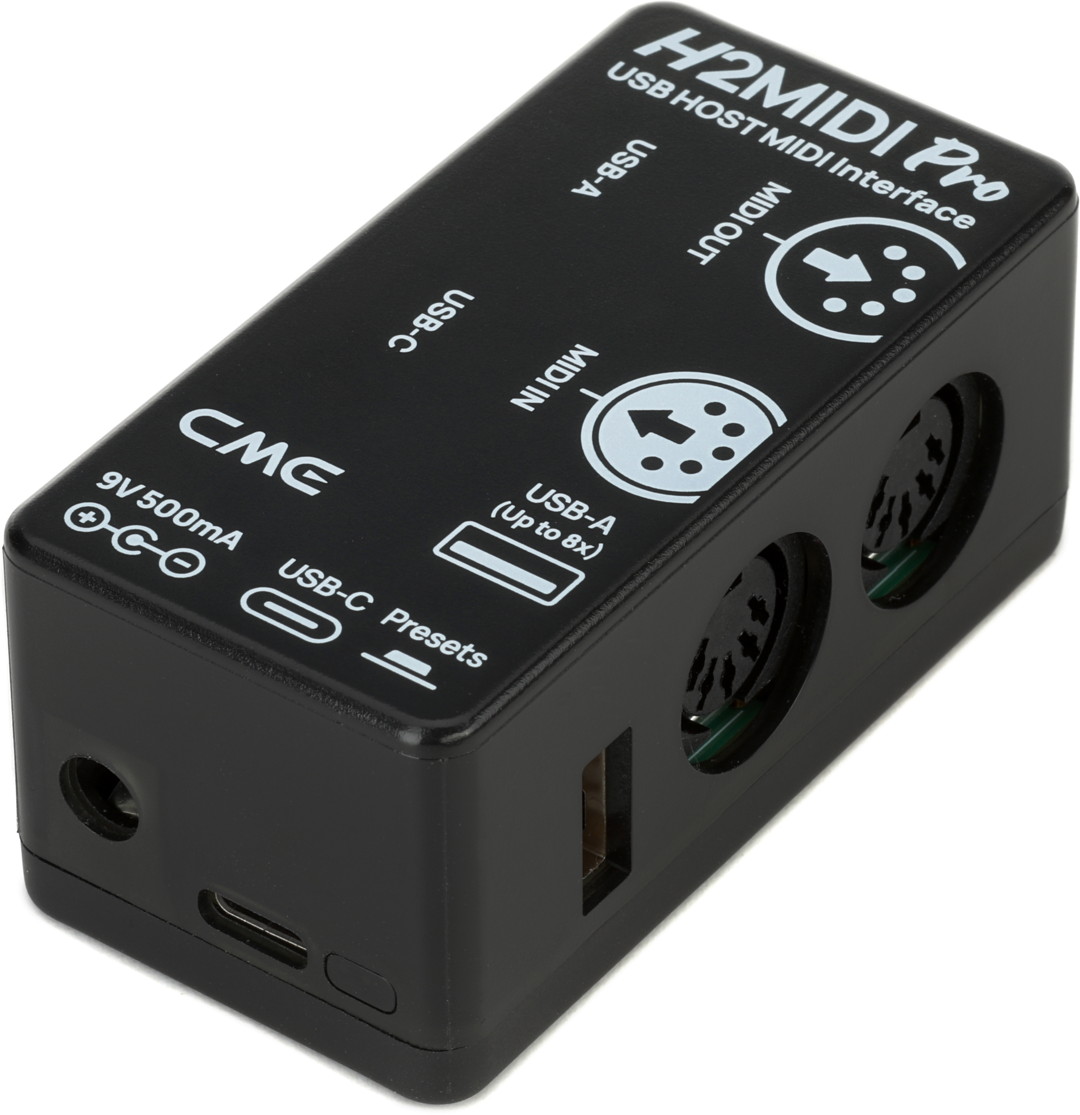
CME H2MIDI Pro MIDI to USB interface
The CME H2MIDI Pro MIDI to USB interface is a third-party pedalboard-friendly device recommended by Universal Audio for use with UAFX 2.0. Connect the 5-pin DIN MIDI Out from a MIDI footswitch controller to the MIDI In on the H2MIDI, connect its USB-A port to a USB hub, and then connect USB cables from the hub to multiple UAFX pedals, or other brands of pedals for MIDI over USB.
The CME H2MIDI Pro has its own control app, called CME HxMIDI Tools, that runs on macOS, Windows, iOS or Android. The app makes it easy to route, filter and map the MIDI commands coming from your MIDI footswitch controller to as many as eight UAFX pedals, each on their own MIDI channel, simultaneously. Once you save the settings to the CME unit, you can use your rig without the connection to the CME app.
Follow CME’s instructions to update the firmware on your H2MIDI Pro to the newest version before hooking it up to your pedalboard, and make sure you are running the newest version of the HxMIDI Tools app.
CME also makes the CME Pro H4MIDI WC advanced MIDI interface, which provides a second MIDI input.
Disaster Area Designs DMC.micro Gen4 MIDI Footswitch Controller
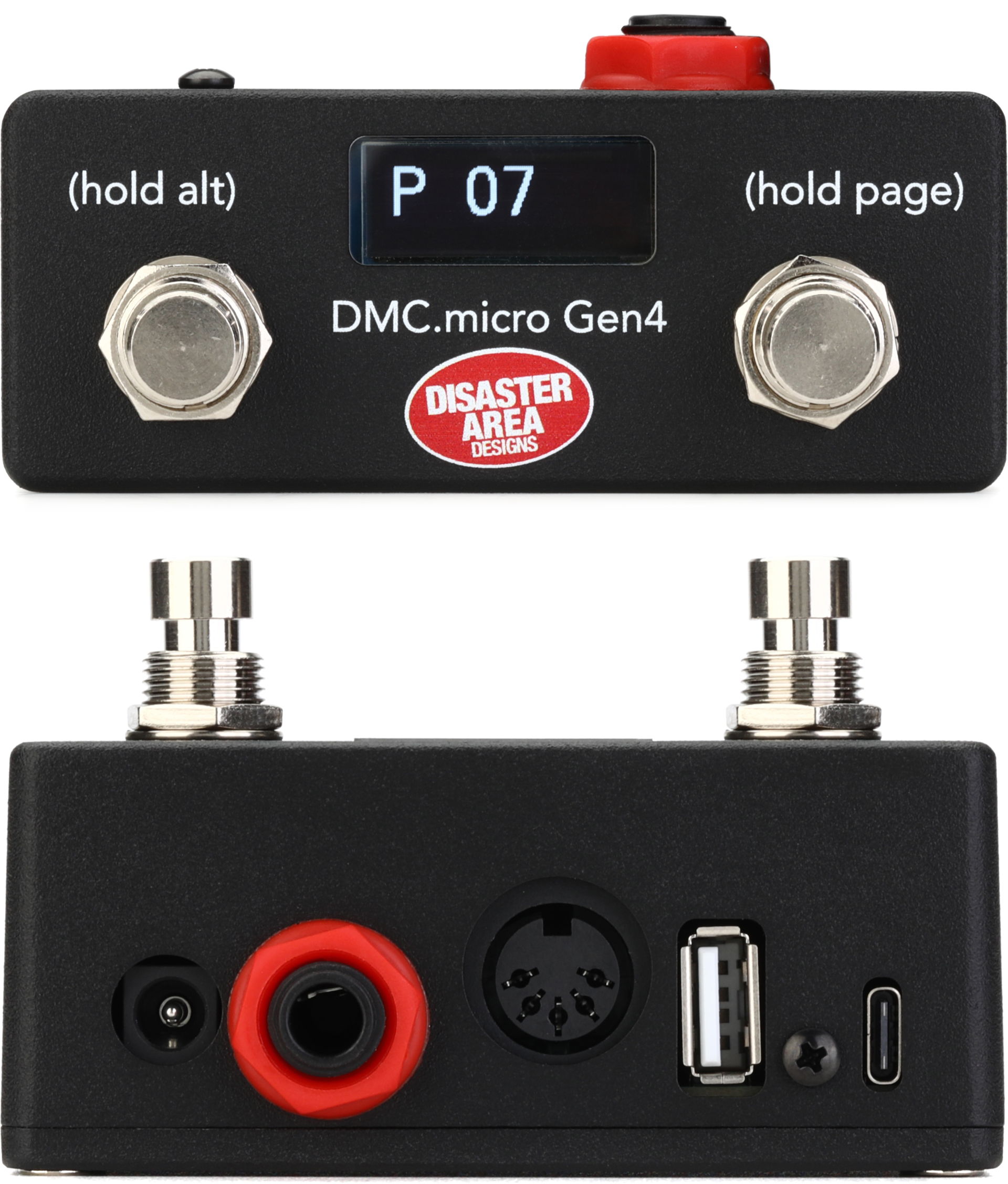
Disaster Area Designs DMC.micro Gen4 MIDI Footswitch Controller
The Disaster Area DMC.micro Gen4 is a practical option because it is both a USB host and a MIDI footswitch in one unit. It also has an input for an external expression pedal. You can take the USB-A output from this USB host, connect it to a USB hub, and then connect to your UAFX pedals.
Disaster Area Designs provides a web-based editor app to configure its functions. Follow the instructions to update the firmware on this unit to the newest version before hooking it up to your pedalboard.
The Disaster Area MIDI Baby 3 Gen 4 is another suitable option.
Other USB Host Interfaces
For Universal Audio’s list of USB host MIDI interfaces that are known to work with UAFX pedals, see this support article.
Using a USB Hub
To connect a USB host to multiple USB peripheral devices (pedals) simultaneously, you need a USB hub. Depending on your rig, you can connect and control up to eight UAFX pedals on one USB hub.
Note that certain pieces of gear have a USB A port, while others such as the UAFX pedals have a USB-C port. You’ll need a hub and/or adapter cables to connect one to the other.
MIDI Footswitches & Expression Pedals
Overview
There are many makes and models of MIDI footswitch controllers you can use with UAFX 2.0.
In addition to providing two or more footswitches, some controllers will have a built-in expression pedal, or provide 1/4-inch TRS connections for attaching one or more external expression pedals. These controllers usually have an internal programming facility, a display screen, and possibly an app for your phone or computer for setting up the MIDI commands.
Some MIDI footswitch controllers are MIDI only.
Some MIDI footswitch controllers also have a USB port — but if the device’s documentation doesn’t state that it is a USB host, then it’s a USB peripheral device.
Hotone Ampero Control Bluetooth MIDI Foot Controller
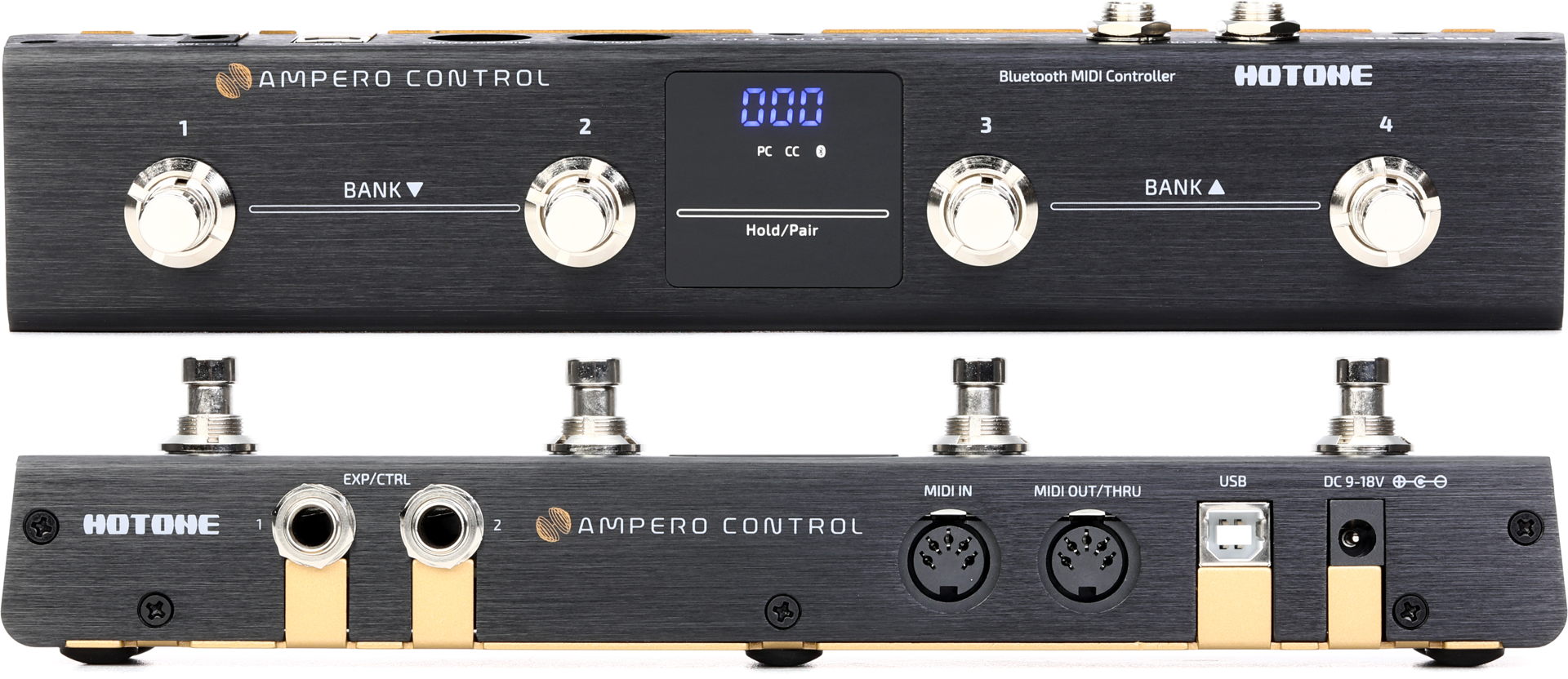
Hotone Ampero Control Bluetooth MIDI Foot Controller
You can use the Hotone Ampero Control Bluetooth MIDI Foot Controller by connecting its MIDI Out to a USB host to MIDI interface such as the CME H2MIDI Pro.
The Hotone unit provides a phone app for configuring presets of MIDI commands sent by the footswitches and connected expression pedals.
In this scenario you won’t be using the Ampero Control’s USB port, because the unit is a USB peripheral device and not a USB host.
Guitar Multi-effects Pedals That Can Output MIDI Commands
Many models of guitar multi-effects units can transmit MIDI commands. You can connect the MIDI Out port from one of these units to a USB host to MIDI interface such as the CME H2MIDI Pro to connect to UAFX pedals.
A specific application is that many of these multi-effects have presets with signal routing options for an external effects loop. You can program the preset on the multi-effects unit not only to place UAFX pedals in the audio signal chain, but also to send MIDI commands to the UAFX pedals to configure and control them.
Once again, when these multi-effects units have a USB port, they are typically a USB peripheral device, not a USB host. That’s why you need to use the MIDI Out in this scenario.
Pedalboard Examples from Universal Audio
Here are photos of pedalboards built by Universal Audio to illustrate different scenarios with multiple UAFX pedals connected to a USB hub.
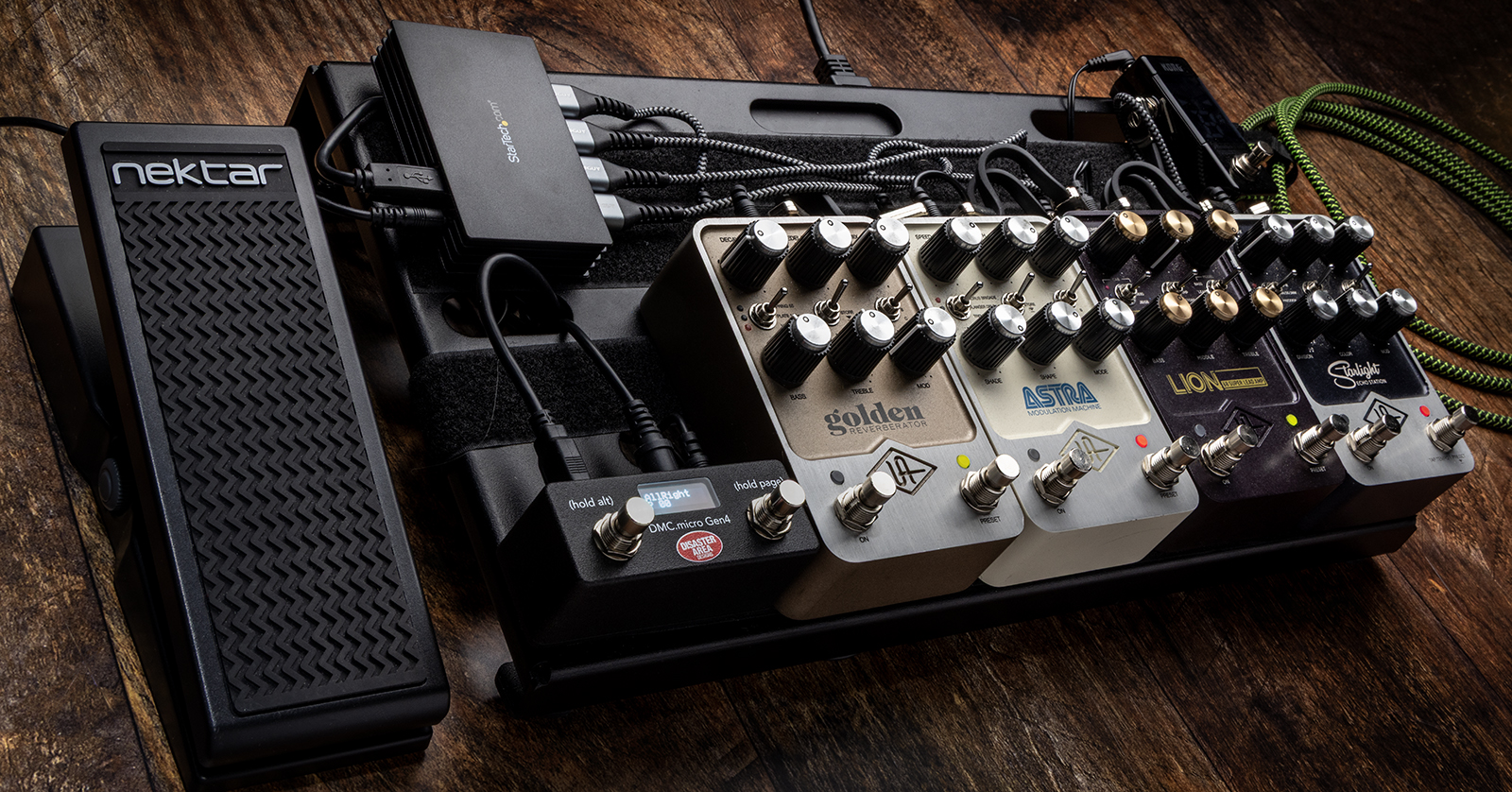
Pedalboard with Disaster Area Designs DMC.micro Gen4 with a four-port USB hub to control four UAFX pedals
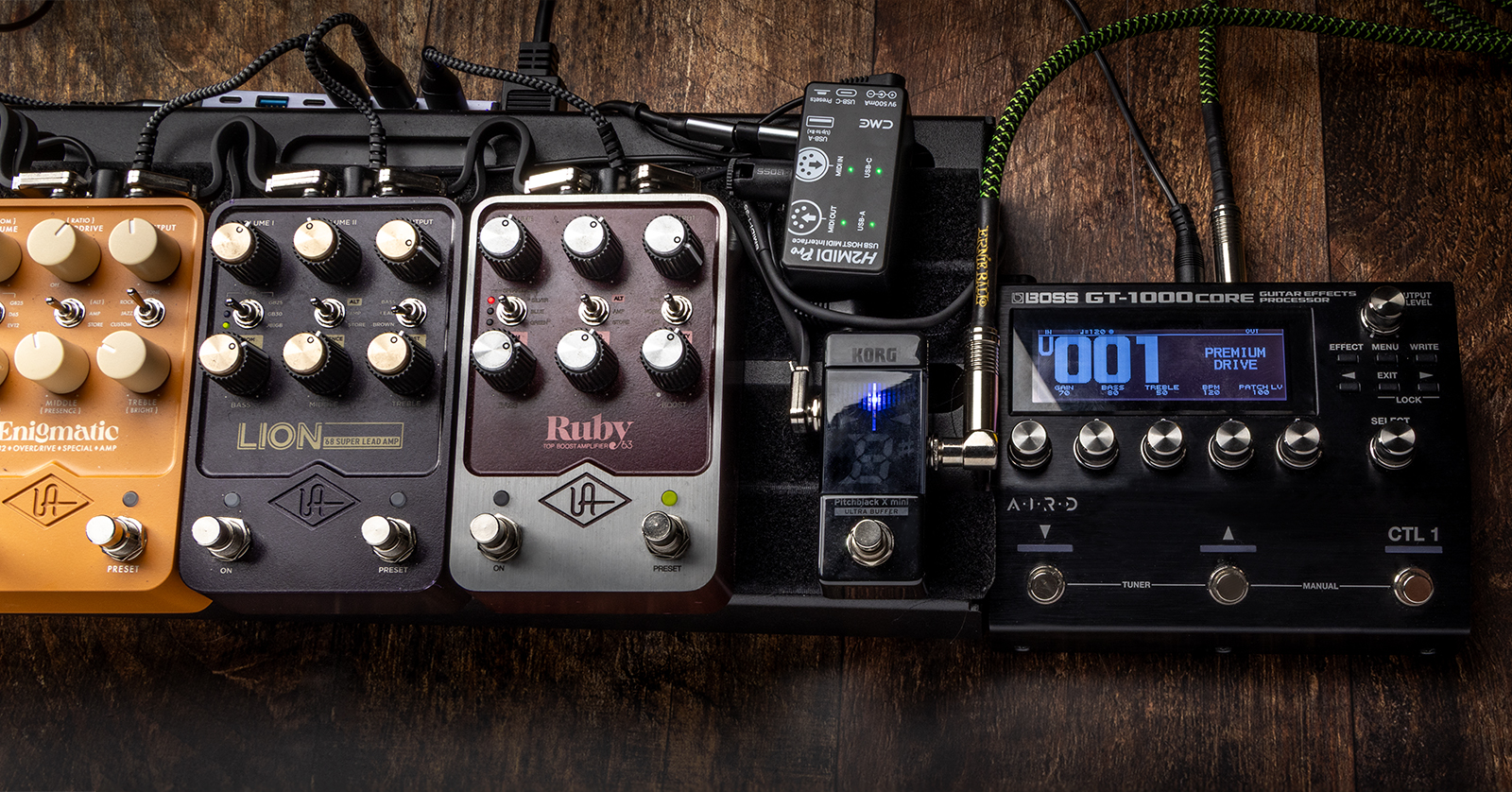
Pedalboard with BOSS GT-1000 Core guitar multi-effects pedal with USB Out into a CME H2MIDI Pro USB host to a USB hub to control three UAFX pedals
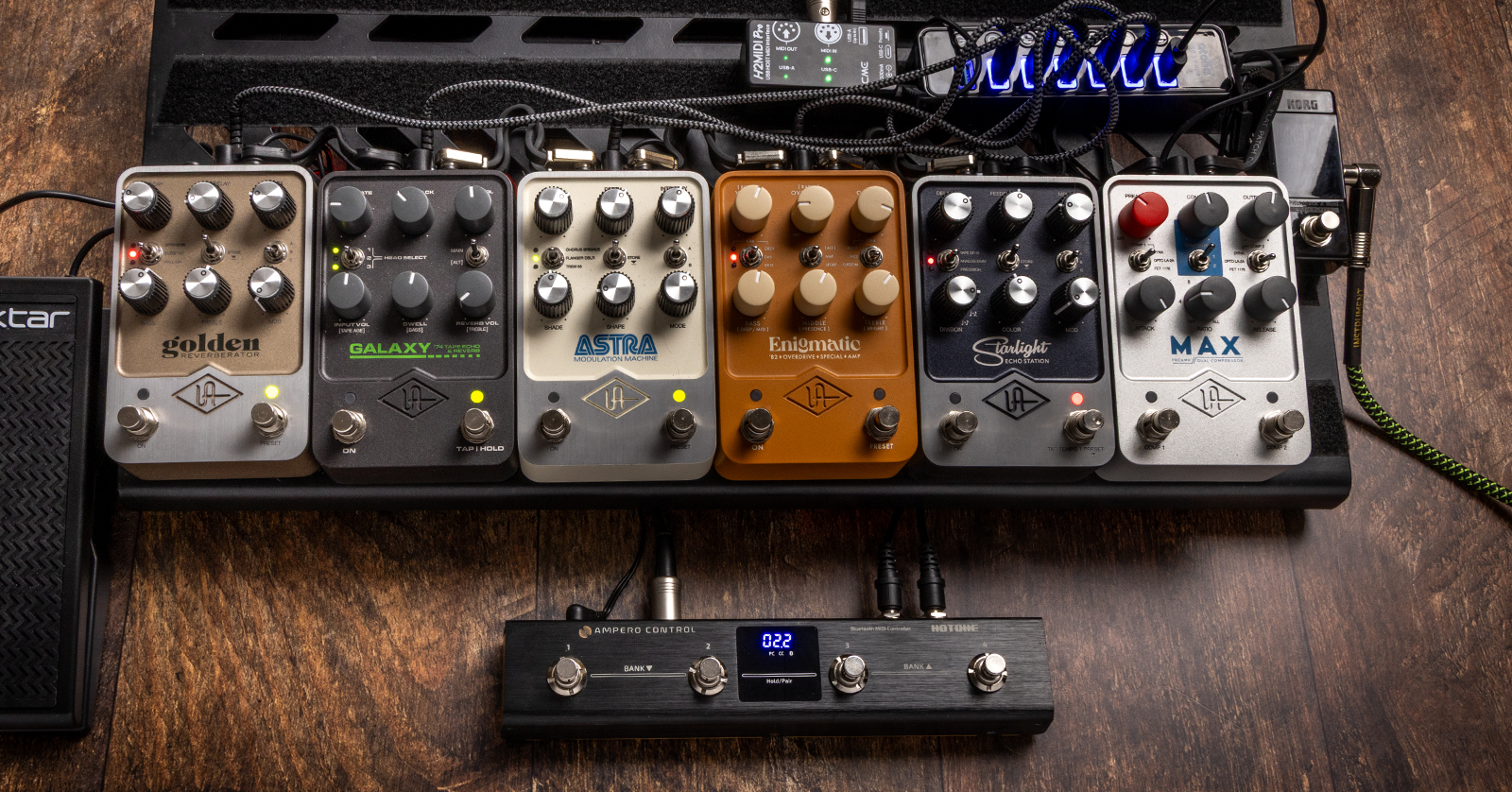
Pedalboard with Hotone Ampero Control USB Out to CME H2MIDI Pro USB host to a USB hub to control six UAFX pedals
What Kind of USB & MIDI Cables Do I Need?
USB Cables
UAFX pedals have a USB-C port on the back, so the USB cable you connect to each one needs to terminate in a USB-C plug. Various other devices, your USB hub, and USB hosts may use several different kinds of USB ports. You’ll need to collect and assemble the cables and adapters needed to hook up each piece of gear in your rig.
Note that the connection ports and plugs on USB cables don’t actually indicate the connection speed that a cable is rated for. Data cables with USB-C connections may be designed for the data transmission speed of USB 2.0, or one of the much faster subsequent versions: USB 3, USB 4, or even one of the versions of Thunderbolt.
In this scenario, it’s less of an issue, because the USB connections you are making will be dedicated to transmitting only MIDI data, and don’t require high speed. Almost any cable you find will be rated for USB 2.0 speed, 480 Mbps, or higher. You can use cables rated for USB 3 or USB 4, which will be backward-compatible, but faster cables don’t provide an advantage in this case.
Learn more in our SweetCare guide, What is USB?
Here’s the link to various kinds of USB cables at Sweetwater.
Universal Audio provides further specifications in their UAFX Cable & Power Guide.
MIDI Cables
Some units use the standard 5-pin DIN MIDI connection, whereas others transmit MIDI over 1/8-inch (3.5mm) TRS cables. Some units come with proprietary adapter cables that are needed to interface their ports to standard cable connections. You’ll have to consult the specifications in the owner’s manuals for each piece of gear.
Some companies make 5-pin DIN MIDI cables with right-angle connector plugs and short, thin cables specially designed to be easy to hook up on a pedalboard. This may be a better option than the bulky cables designed for use with keyboard instruments.
Check out the range of MIDI cables at Sweetwater.
Here’s the link to 1/8-inch TRS cables at Sweetwater.
Universal Audio Support Resources
UAFX 2.0 provides a host of new features, but there’s some assembly required. If you are a guitarist with a DIY mentality, then we hope we’ve provided the guidance to get you started.
For further information and examples, Universal Audio has a number of support resources on their website under the Universal Audio Support > UAFX Pedals section.
These include:
- Universal Audio Blog: Unlock UAFX with USB MIDI Control
- FAQ: UAFX 2.0 Update
- UAFX Control Manual
- USB MIDI with UAFX Pedals Manual
Related Articles
When you need help, Sweetwater has the answers!
Our knowledge base contains over 28,000 expertly written tech articles that will give you answers and help you get the most out of your gear. Our pro musicians and gear experts update content daily to keep you informed and on your way. Best of all, it’s totally FREE, and it’s just another reason that you get more at Sweetwater.com.

