
Universal Audio Sphere Microphone Quickstart Guide
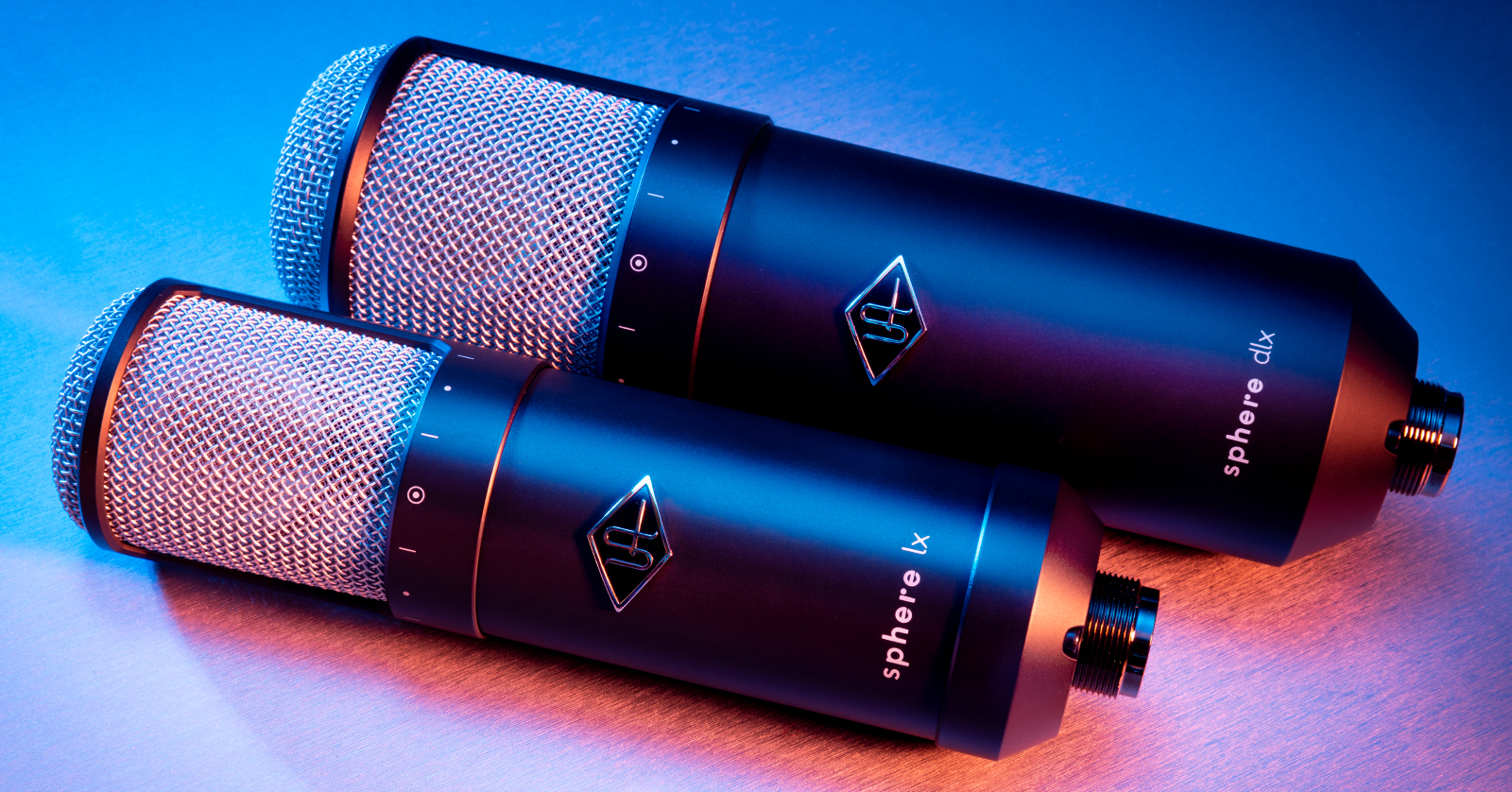
In this guide, we will show you how to register, install, and activate the Universal Audio Sphere microphone and its companion software. Follow the instructions below to get started.
Create an iLok account
The Universal Audio Sphere software is licensed with iLok, which means to use it, you will need to connect its iLok license to your computer with an iLok USB dongle. If you don’t already have an iLok account, you’ll need to create one and install the iLok License Manager app. Follow the steps below to get started.
If you already have an account, skip these steps and continue to the Download and Install UA Connect section. Learn more about iLok licensing on our iLok Setup Guide.
- Visit iLok’s registration page and complete the registration form.
- Please take note of your User ID and password, as they are case-sensitive.
- Open the iLok Account Activation email and click on the verification link.
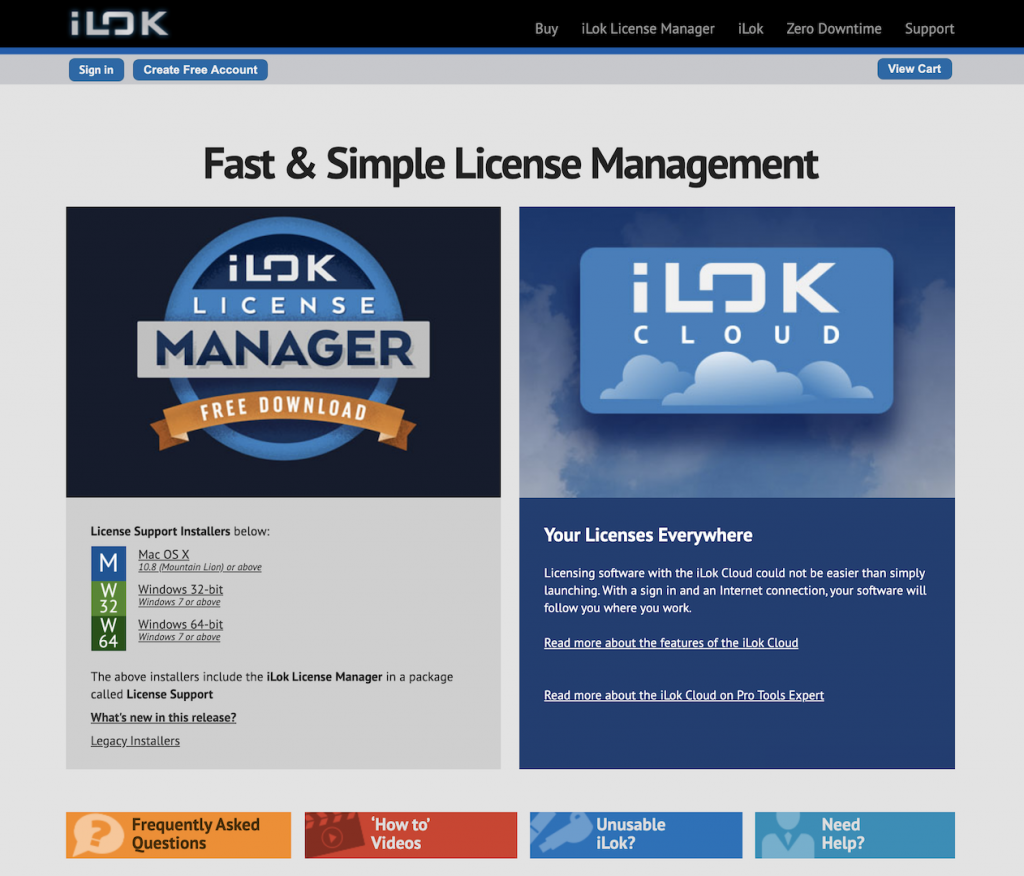
- Download and install the iLok License Manager.
- Launch the iLok License Manager app and sign in to your account.
- (Optional) Connect an iLok and click Yes to register the dongle to your account when prompted.
Download and install UA Connect
To use the Sphere and its software, you must first register it with Universal Audio. Once registered, the microphone and system information are available on your UA account’s My Hardware page. The software you’ll install will also include the companion plug-in you will use. Follow the steps below to register your Universal Audio device.
- Log into your Universal Audio account. If you don’t have one yet, you can create it here.
- Go to the UA Connect download page and download the latest version for your OS.
- Navigate to your Downloads folder, then locate and launch the installer.
- When prompted, enter your iLok account information. If you haven’t created an account, follow the instructions outlined above.

Register the Sphere Microphone
Now that you’ve created your UA and iLok accounts, the last step is registering the Sphere microphone and activating its software plug-in counterpart.
- Launch UA Connect and enter your Universal Audio login credentials.
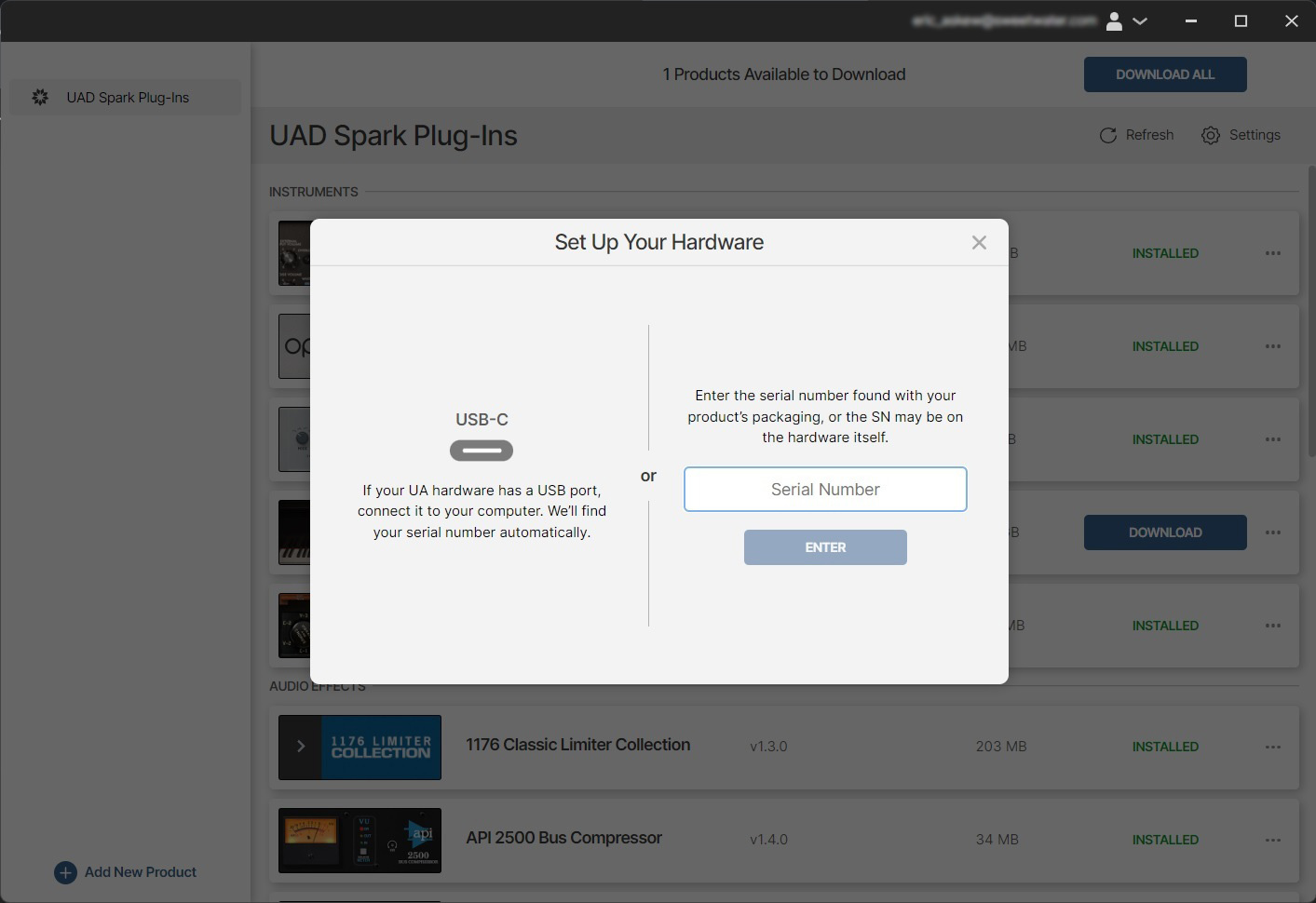
- Click Add New Product at the bottom of the app, then enter the mic’s serial number.
- Click Enter. Finally, click Register to complete the registration process.
Download, install, and activate the Sphere plug-in
After registering the microphone, you should see the Sphere software plug-in available to download and activate.
- Click Download to download the plug-in.
- If you want to change the default installation folder, click the Gear (Settings) icon, click Change beneath Instrument Content Location, then select the drive onto which you wish to install the plug-ins.
- Click the Gear (Settings) icon, then click Manage.
- Choose iLok Cloud, then click Select to activate the plug-in.

When you need help, Sweetwater has the answers!
Our knowledge base contains over 28,000 expertly written tech articles that will give you answers and help you get the most out of your gear. Our pro musicians and gear experts update content daily to keep you informed and on your way. Best of all, it’s totally FREE, and it’s just another reason that you get more at Sweetwater.com.

