

Troubleshooting network connection issues with the Soundcraft Ui series mixers
Connecting to WiFi Hotspot
If you find that after following the Ui Series Getting Started Guide you are having issues connecting your personal device to the Ui mixer try the following steps:
- Reset the Network Settings on the Ui Mixer by holding the reset button for about 10 seconds while powering on the unit. After this, attempt to connect your device to the mixer.
- If this does not work, try resetting the network settings on your device. Then, try the connection again. If you are not sure how to reset the network connections on your device, please refer to the user manual for your device.
Loss of connection, sluggish performance, and/or dropouts
If you are using the Ui mixer over WiFi or Hotspot but find it to be lagging or losing connection frequently, you may be experiencing interference due to an overcrowded WiFi channel. To resolve this:
Hotspot Settings
1. Connect your device to the Ui Mixer.
2. Open the Mixer app in your HTML5 web browser. This can usually be done by entering 10.10.2.1.
3. Access the Ui mixer settings, then access the Network settings page. If you are prompted to login credentials, the username and password will both be “admin” by default.
-
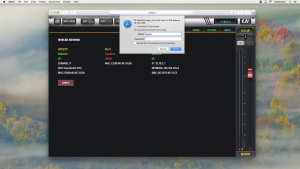
- Ui Network Config Login, click to enlarge.
4. Change the channel to something else. Typically, channel 9 will be the most common and widely used channel, and the Ui mixer will likely be set to channel 9 by default.
-

- Ui Config Hotspot, Channel Menu, click to enlarge.
5. Save the settings, then reboot the mixer.
External WiFi
If you are using your own WiFi router to connect your devices to your Ui mixer, you may need to configure the WiFi router to use a different channel. To do so, see the user manual for your router.
DHCP vs Static IP
When connecting to your Ui mixer out of the box, you will likely be connecting via the Hotspot. In this scenario, you will be relying on DHCP to automatically assign your device an IP address so everything syncs up correctly for proper communication. In most cases, DHCP will be used when using an external WiFi router or switch as well, and is recommended for quickest and easiest setup.
However if you are having trouble with DHCP assigning IP address to your devices, or if you need to manually set up your network configuration, you may need to use a Static IP address. In this case, you will need to manually assign your router an IP address, and then make sure that your devices all match up to that IP address. In all cases, the subnet mask should be set to 255.255.255.0.
A standard example of an IP address would be 10.10.1.1. You could set your router to be that IP address. Then, to connect each device to the router, you would need to set the static IP address on each device to 10.1.1.x, where x is any number other than 1. The last digit in an IP address should not be the same on any two devices. 
Note: When you are configuring a Static IP or DHCP, you will need to make the appropriate changes to the Ui mixer. You can always connect your computer directly to the Ui mixer using a Cat5 cable with your web browser directed to 10.10.2.1.
Helpful Links
Soundcraft Ui Series Tutorial – Chapter 2: WiFi and Ethernet setup
Soundcraft Ui Series Tutorial – Chapter 10: Advanced Settings
Where do I find the manual for my Soundcraft Ui16/Ui12 digital mixer?
How do I update the software for my Soundcraft Ui 12/16 digital mixer?
Soundcraft Ui Series Tutorials
When you need help, Sweetwater has the answers!
Our knowledge base contains over 28,000 expertly written tech articles that will give you answers and help you get the most out of your gear. Our pro musicians and gear experts update content daily to keep you informed and on your way. Best of all, it’s totally FREE, and it’s just another reason that you get more at Sweetwater.com.

