
TASCAM SERIES Audio Interface Quickstart Guide
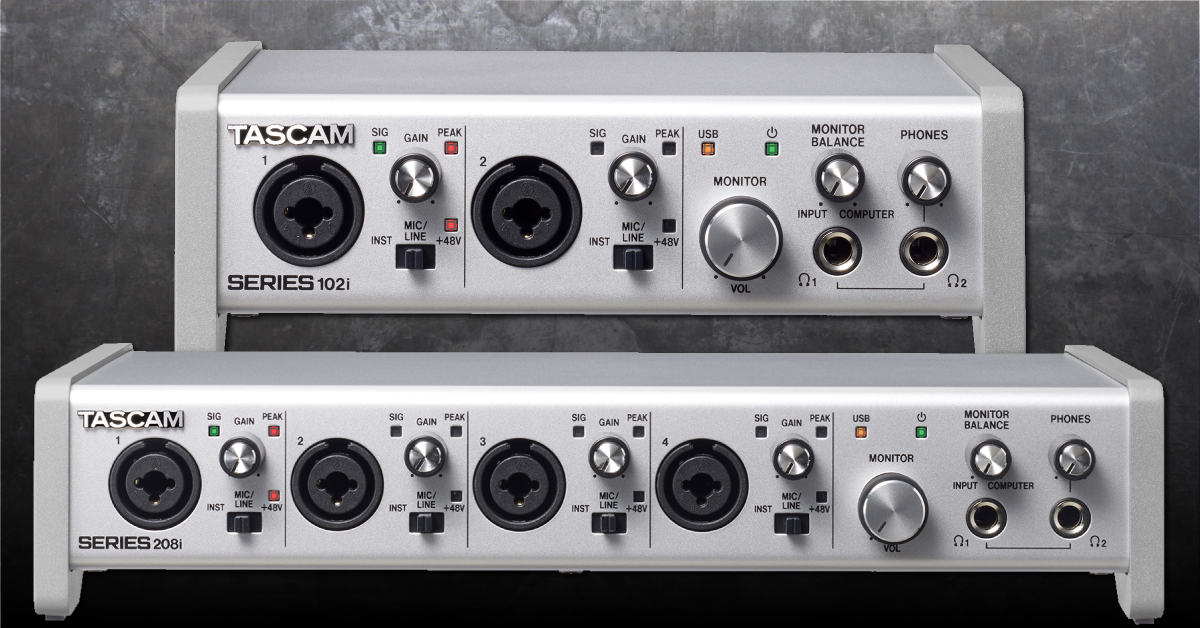
In this guide, we will show you how to register, set up, and connect a TASCAM SERIES audio interface for the first time. Follow the sections below to get started.
Register the interface
Before everything gets connected, we’ll show you how to register the interface. Once you register the SERIES interface, you’ll get exclusive support and notifications for upgrades to your interface. Keep your Sweetwater invoice handy, as you’ll need that during the registration process. All you need to do is go to the registration page, fill out the registration form, and then click Submit. Once registered, continue to TASCAM SERIES setup and connections.
Register Cubase LE
All TASCAM SERIES audio interfaces come with a free copy of the Cubase LE for both PC macOS. The registration card should come in the box with your interface. The download and installation process is straightforward, so check out our article to learn how to activate Steinberg software.
Learn more about how to activate, download, and install Cubase LE!
TASCAM SERIES setup and connections
Once you’ve registered your SERIES audio interface with both TASCAM and Steinberg, the next step is to set everything up and get connected. The TASCAM SERIES interfaces use a standalone application for routing, updating, and adjusting various settings, so you first must download that before you connect the interface to your computer.
Download and install the Settings Panel software
IMPORTANT: Do not connect your interface before running the Setting Panel installer. If you do, please disconnect the interface, then rerun the installer.
The first step in the setup process is to download and install the TASCAM Settings Panel software for your 208i or 102i. It’s a straightforward process, so follow these steps to get the Settings Panel software installed onto your system.
- Go to the TASCAM 208i or 102i download page and scroll down to Software.
- Click the Settings Panel download for your OS.
- Go to your Downloads folder, then extract and launch the installer.
- Connect your interface to your computer, then launch the Settings Panel control panel.

Click this image to download the TASCAM 102i software

Click this image to download the TASCAM 208i software
Connect the interface to your computer
Now that you have taken care of let’s get set up and connected! While both TASCAM SERIES interfaces use an external power supply, we recommend connecting it directly to your computer. USB hubs may not be able to transfer data fast enough, resulting in connectivity issues.
- Turn the Volume knob down, then connect your speakers.
- If you have headphones connected, turn its volume knob down, as well.
- Connect the USB cable from the interface to your computer, then power it on. The USB LED on the interface will light up.
- Navigate to your OS sound settings and set it as the default input and output device.
- PC: Right-click the Speaker icon on the Windows taskbar, select Sounds, then click the Playback tab. Locate and select the interface, click Set Default, then click OK to close the menu. Do the same in the Recording tab.
- Mac: Click the Apple icon from the Menu Bar and select System Preferences. Click Sound, then select the SERIES interface under both the Input and Output tabs.
- If applicable, connect your headphones to the jack on the front.
- Play some music or a video, and slowly turn the Monitor (and headphone) knob up until it’s at your desired listening level.
- Launch your DAW, select your SERIES interface as the primary playback and recording device.
- Create an audio track, begin recording, and use the Monitor Balance knob to balance out what you hear.
- The more the knob is turned towards Input, the more you’ll hear yourself (and less of what’s being played back.)
Is your interface not showing up?
If the interface isn’t showing up when connecting it to your computer, reconnect the interface by unplugging and plugging it back in. If you have not done so yet, try reconfiguring the USB connections so that the TASCAM Series is connected directly to your computer. If the problem persists, try a different USB port or cable. Visit our Windows and Mac guides for more tips on resolving audio device connectivity.
Learn more about how to troubleshoot audio interface issues on PC!
Learn More
Learn more about how to troubleshoot audio interface issues on Mac!
Learn MoreRelated content
Learn more about optimizing your Windows 10 computer for music production!
Learn More
Learn more about optimizing your Mac computer for music production!
Learn More
Learn more about how to get up and running with Cubase!
Learn More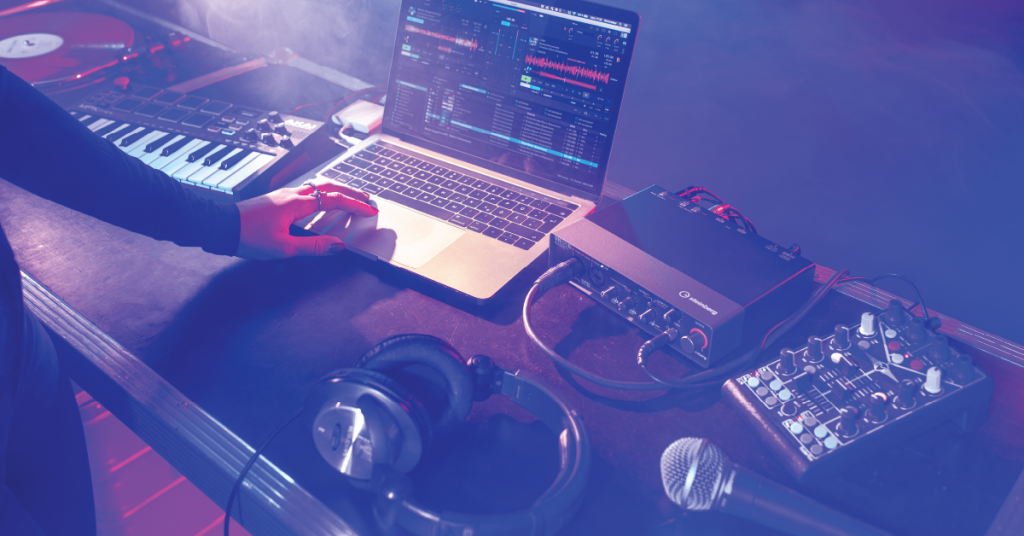
Learn more about how to reduce latency, clicks, and pops while recording.
Learn MoreAdditional resources
When you need help, Sweetwater has the answers!
Our knowledge base contains over 28,000 expertly written tech articles that will give you answers and help you get the most out of your gear. Our pro musicians and gear experts update content daily to keep you informed and on your way. Best of all, it’s totally FREE, and it’s just another reason that you get more at Sweetwater.com.

