
TASCAM DR-40X Quickstart Guide
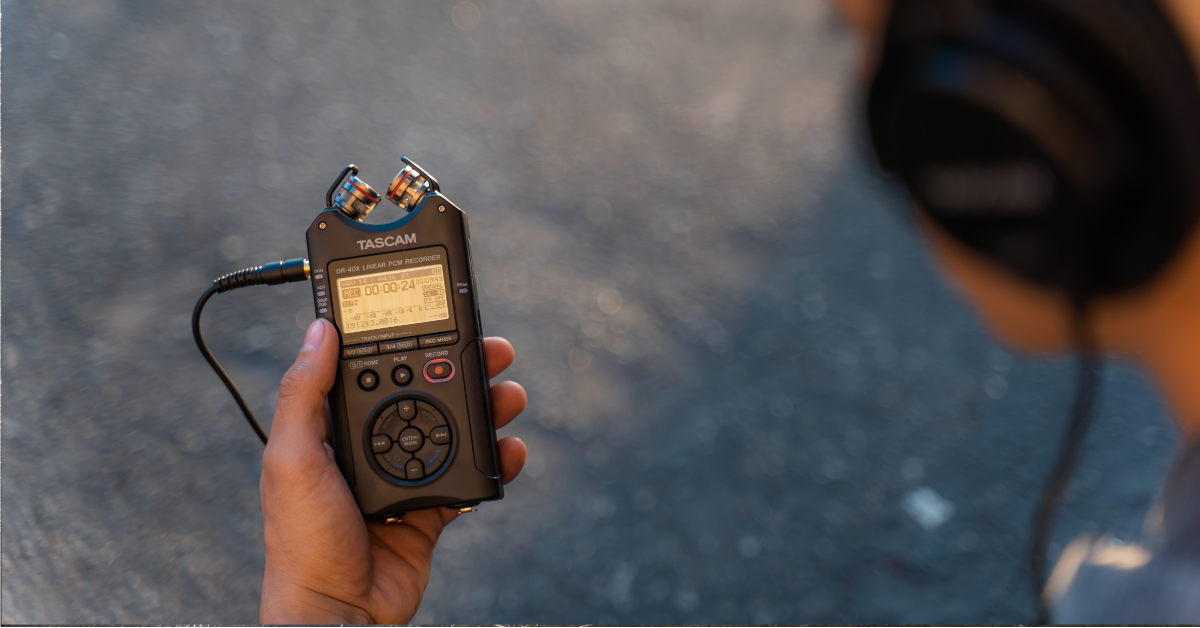
Getting started with the TASCAM DR-40X
In this guide we will show you how to set up, connect, and record using your TASCAM DR-40X. Follow the instructions below to get started.
- Register the DR-40X
- Setting up the DR-40X
- Recording with the DR-40X
- Use the DR-40X as an audio interface
IMPORTANT!!! Before we begin this guide, please review TASCAM’s SD card compatibility list to make sure that yours is compatible with your device.
Register the DR-40X
Before everything gets connected, we’ll show you how to register the recorder. Once you register the DR-40X, you’ll get exclusive support and notifications for upgrades to your interface. Keep your Sweetwater invoice handy, as you’ll need that during the registration process. All you need to do is go to the registration page, fill out the registration form, and then click Submit.
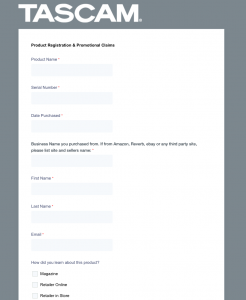
Click the image to register your TASCAM DR-40X
Setting up the DR-40X
When you power on the DR-40X for the first time, you’ll first need to update the date and time. No menu navigation is necessary for first time setup, as the correct window will automatically appear after the recorder is turned on.
Selecting a language
- Simultaneously press and hold the HOME (Stop) and Power buttons until the start up screen appears.
- Once the Language menu appears, use the + and – buttons to select your preferred language. After it’s set, press the ENTER/MARK button.
Setting the date and time
- Press the MENU button, use the + and – buttons to scroll to OTHERS, then press the ENTER/MARK button.
- Use the + and – buttons to scroll to DATE/TIME, then press ENTER/MARK.
- Use the REWIND/FAST FORWARD (left and right pads) to move between date and time values, and use the + and – buttons to change their value.
- Press ENTER/MARK to save the changes and exit the menu.
Initialize the SD card
IMPORTANT: When formatting cards on the DR-40X, TASCAM recommends that it be connected to your computer via USB or powered by new batteries or the external TASCAM power supply.
For the SD card to work correctly with your DR-40X, it must be initialized (formatted). It’s important to note that initializing an SD card will erase any current data.
- With the DR-40X powered off, insert the SD card.
- Ensure that the Write Protection switch is set to the unlocked position, or else it won’t read.
- Press the ENTER/MARK button once you see Format Error: Format Card on the display.
- Once the SD card is formatted, you will automatically be taken back to the Home screen.
External gear and built-in microphone
TIP: If you’re using the built-in mics and are recording in an A-B position (the mics are pointing out), set the left and right channels to L-R. If using them in an X-Y pattern, set the left and right channels to R-L.
Once everything is taken care of, you can now get set up and connected. It’s a straightforward process, too. Just connect your external gear, adjust the built-in microphone, use the EXT switch to select what type of input you’re using (Line, Mic, Mic+Phantom), then start recording!
Recording with the DR-40X
So now that you’re ready to record, you can update the recording and playback settings. Depending on what and how you’re recording, you may need to fine tune these to make it sound as best as possible. Before showing you how to record, you’ll need to learn what recording mode you should choose. To change the record mode, press the REC MODE button and use the + and – buttons to select one of the following record modes:
- MONO: For mono recordings.
- STEREO: For stereo recordings.
- 4CH: When using both built-in mics as well as the two external inputs.
- OVERDUB: For recording over current recordings.
- Press the MENU button, navigate to REC SETTING, then update the Format, Sample, Track INC, and Low Cut.
- Press the MENU button to apply the changes and go back to the MENU screen.
- Press the STOP (HOME) button to go back to the home screen.
- Press the RECORD button to arm the recording. Now is when you’ll want to check and update your levels.
- Press the RECORD button a second time to begin recording. Once complete, press the STOP or RECORD button.
TASCAM DR-40X Recording Modes
TASCAM DR-40X Record Ready & Record Button
Use the DRX-40X as an audio interface
One great thing about the TASCAM DR-40X is that not only is it a portable recorder, but it can be used as a USB audio interface, as well. The DR-40X is class-compliant on Mac, but Windows users must install an audio driver beforehand so the device can work properly. Mac users can skip the Install the audio driver section and continue directly to Setting up the DR-40X as an audio interface.
Install the audio driver (Windows users only)
- Go to the DR-40X download page, scroll down to Software, then click ASIO Driver Installer to begin the download.
- Navigate to your Downloads folder and extract the installer file.
- Launch the installer, follow the on-screen instructions, then reboot your system.
Setting up the DR-40X as an audio interface
As soon as you connect the recorder to your computer, a USB screen will appear on the DR-40X.
- Use the + and – buttons to select one of the following, then press ENTER:
- BUS POWER: Powers the device when connected. No batteries or power supply necessary.
- SD CARD READER: Allows you to transfer files from the DR-40X SD card.
- AUDIO I/F: Turns the DR-40X into an audio interface.
- When AUDIO/IF is selected, use the + and – buttons to select PC/Mac.
- Select your sample rate, navigate to CONNECT, and then press EXEC.
Related content
Additional resources
DR-40X Tutorials
When you need help, Sweetwater has the answers!
Our knowledge base contains over 28,000 expertly written tech articles that will give you answers and help you get the most out of your gear. Our pro musicians and gear experts update content daily to keep you informed and on your way. Best of all, it’s totally FREE, and it’s just another reason that you get more at Sweetwater.com.

