
SSL UF8 Setup Guide
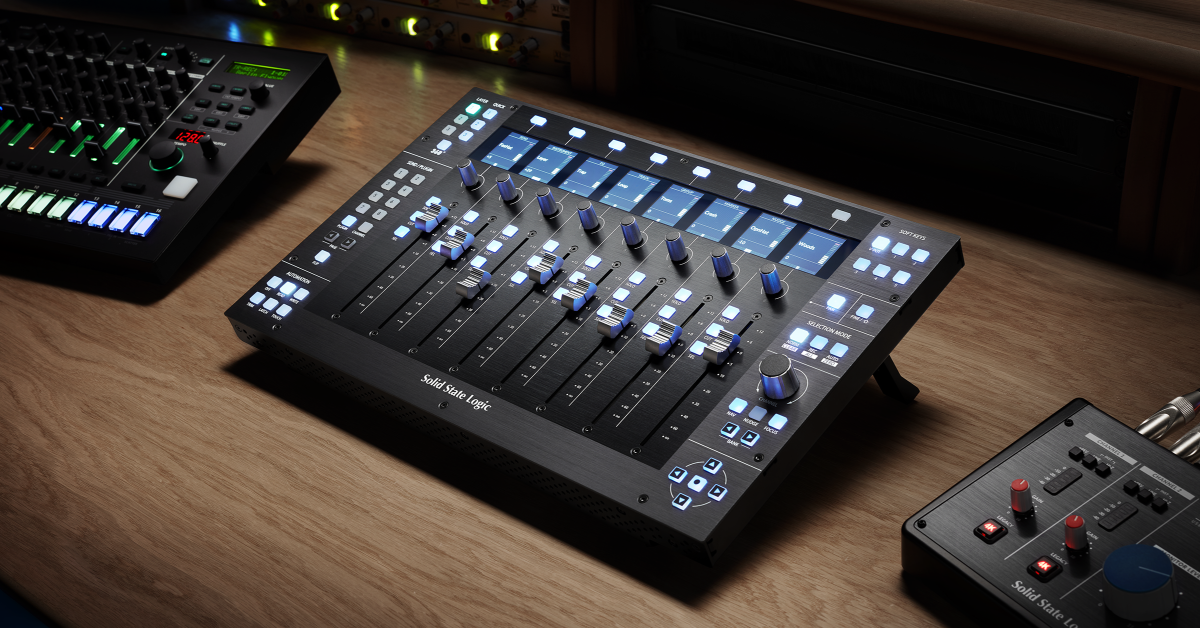
Getting started with the SSL UF8
This article will cover how to register, set up, and connect an SSL UF8 studio controller for the first time. The UF8 is a very powerful tool in your studio with a limitless amount of features, so to learn more about it, be sure to check out its User Manual! Follow the sections below to get started.
Register the SSL UF8
Before you begin, you’ll first need to register the UF8 with SSL. Once you register your UF8, you’ll gain access to the SSL 360 software, which is required to use your UF8 within your DAW. Keep your Sweetwater invoice handy, as you’ll need some information from it to complete the registration process.
- Log into your SSL account. If you don’t have an account, you can create a new one here.
- Go to your account dashboard, then click Add Product.
- Use the dropdown box to select the UF8 and fill out the necessary information, including the serial number located on the bottom of the unit, then click Submit Details.
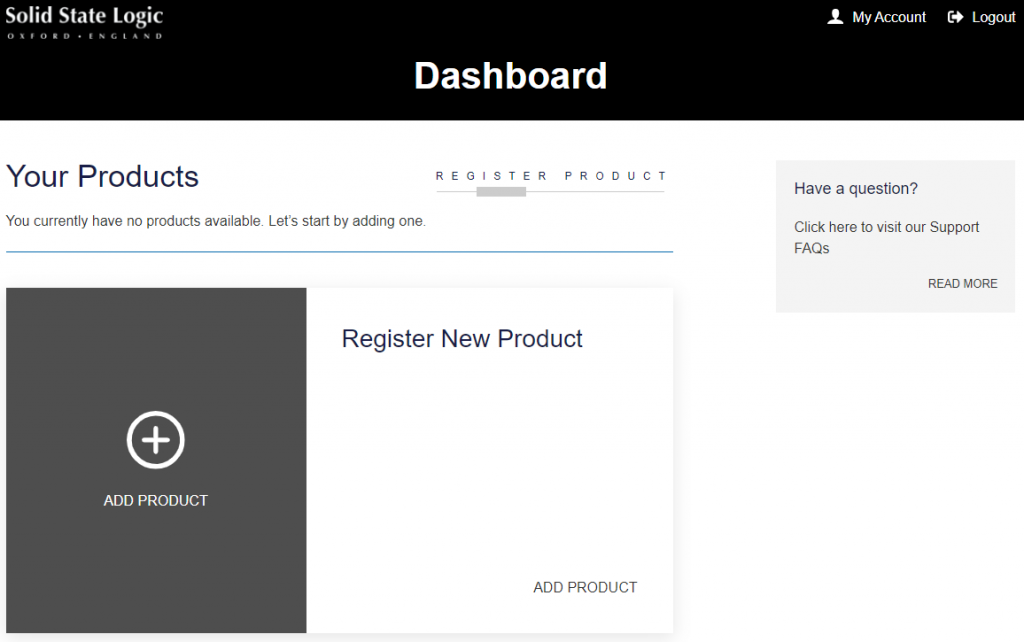
Click the image to log in and register your UF8
Download and install the SSL 360 software
The SSL 360 software is necessary for the UF8 to function correctly. Not only that, but it’s where you’ll download updated versions of the software and firmware. If you have more than one SSL UF8 and link them together, you can identify and rearrange them the way you want them within this software.
- Go to the SSL support download page.
- Select the UF8 from the dropdown box and download the install SSL 360 installer for your OS.
- Navigate to your Downloads folder, launch the installer, and follow the on-screen instructions.
- PC: Double-click the .exe file and follow the on-screen instructions.
- Mac: Double-click the .dmg file, and in the new window that appears, double-click the .pkg file and follow the on-screen instructions.
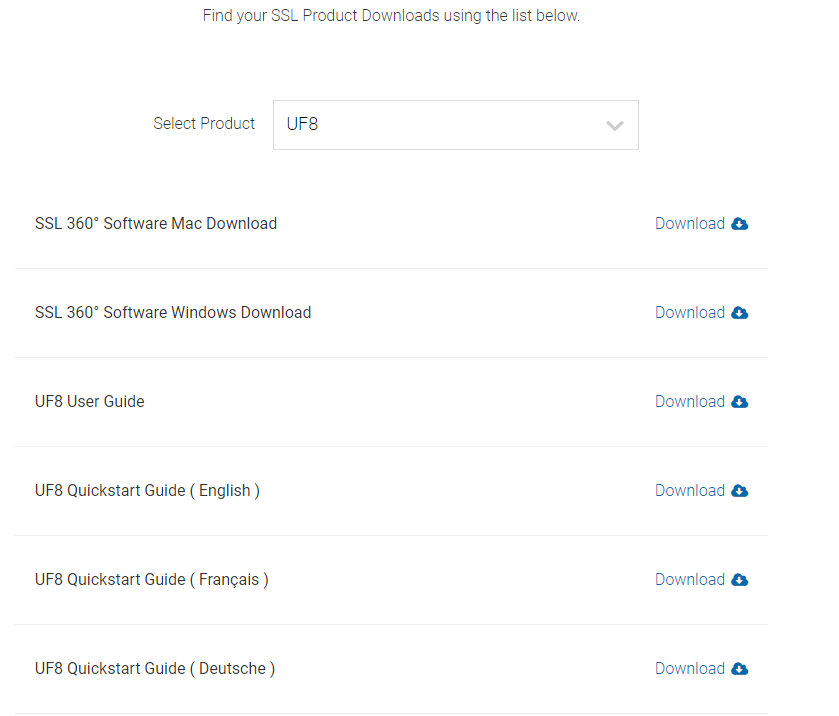
Click the image to download the SSL 360 software.
SSL UF8 setup and configuration
TIP: You can use the USB THRU port to connect a USB dongle like an iLok and eLicenser.
The SSL UF8 controller is a powerful tool to have in your studio setup, and setting it up is easy. Once you have the SSL 360 software installed, it’s just a matter of connecting it to your computer and configuring it for operation inside your DAW(s). We’ll cover the basics to get you up and running, but check out the SSL UF8 manual for in-depth information!
Hardware connections
The SSL UF8 hardware connections are straightforward. It’s essentially a plug-and-play device, so you’ll be mixing in your DAW in no time. You just need to connect the UF8 to your computer via the USB-C port to an available USB-A or USB-C port on your computer.
Connecting multiple UF8 controllers
If you have more than one UF8 studio controller, you can use the THRU port (USB-A connection) to link them together. SSL has made it as simple as possible to do this. It’s just a matter of using the first unit’s THRU (USB-A) port to connect to the USB-C port on the second unit.
You can link up to four UF8 controllers, which will give you a maximum of 32 channels to use. If you are using this configuration, please note that your computer may run out of resources, so SSL recommends that you connect the fourth UF8 to a different USB port on your computer. If you don’t have enough ports, you can also connect all UF8 controllers using a powered USB hub.
Foot controllers
The SSL UF8 has two foot controller connections that can trigger any DAW command or keyboard shortcut you program within the SSL 360 software. When using a footswitch, it must meet two requirements: it must be normally closed (-) and have a momentary switch. You can also use a footswitch with a latch/momentary combination switch (make sure it’s set to momentary.)
SSL 360 configuration
TIP: The UF8 will autosave any changes you make, so you don’t have to worry about losing anything if you accidentally close the software.
Once your computer detects your UF8, it’s time to launch the SSL 360 software to configure the UF8 to work within your DAW. You can launch the software by double-clicking the SSL 360 icon on your desktop, or you can just press the 360 button on the UF8.
When you first launch the software, the home page is where you’ll view and update your firmware version, rearrange and identify multiple UF8’s (if applicable), and generate error reports that you’ll provide to SSL support if you’re having issues. While you will use most of those options at some point, the primary window you’ll want to be in is the UF8 page. This is where you’ll update and edit controls, select the DAW you want to control, and more.
Updating Layers
You can store configurations for up to three DAW’s at a single time, which are called Layers. This is useful in situations where you have to work in multiple DAW’s. Instead of having to reconfigure your board every time you switch DAW’s, you can just adjust the Layer settings once within the SSL 360 software, then click that tab when you’re ready to use the DAW you’ve assigned it.
Additional resources
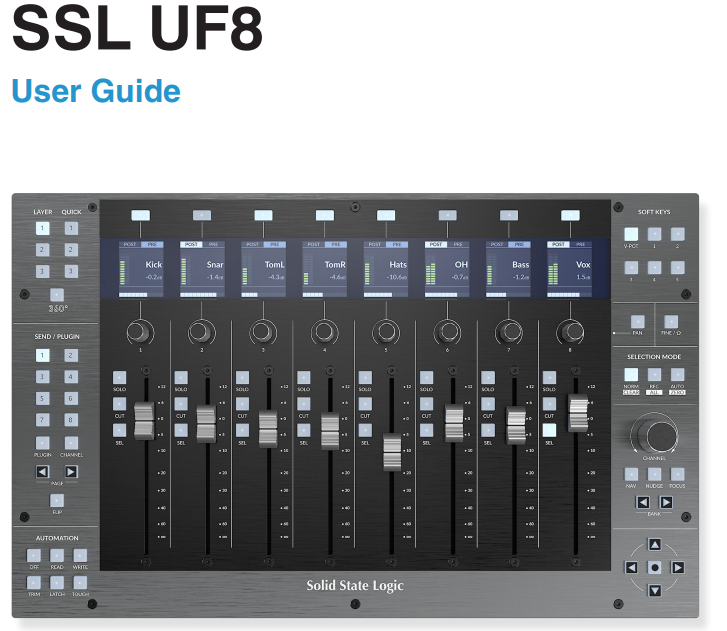
SSL UF8 User Guide
UF8 Pro Tools Install & Set-up
UF8 Cubase Install & Set-up
UF8 Logic Pro X Install & Set-up
UF8 Studio One Install & Set-up
UF8 Ableton Live Install & Set-up
When you need help, Sweetwater has the answers!
Our knowledge base contains over 28,000 expertly written tech articles that will give you answers and help you get the most out of your gear. Our pro musicians and gear experts update content daily to keep you informed and on your way. Best of all, it’s totally FREE, and it’s just another reason that you get more at Sweetwater.com.

