
SSL UC1 Setup Guide
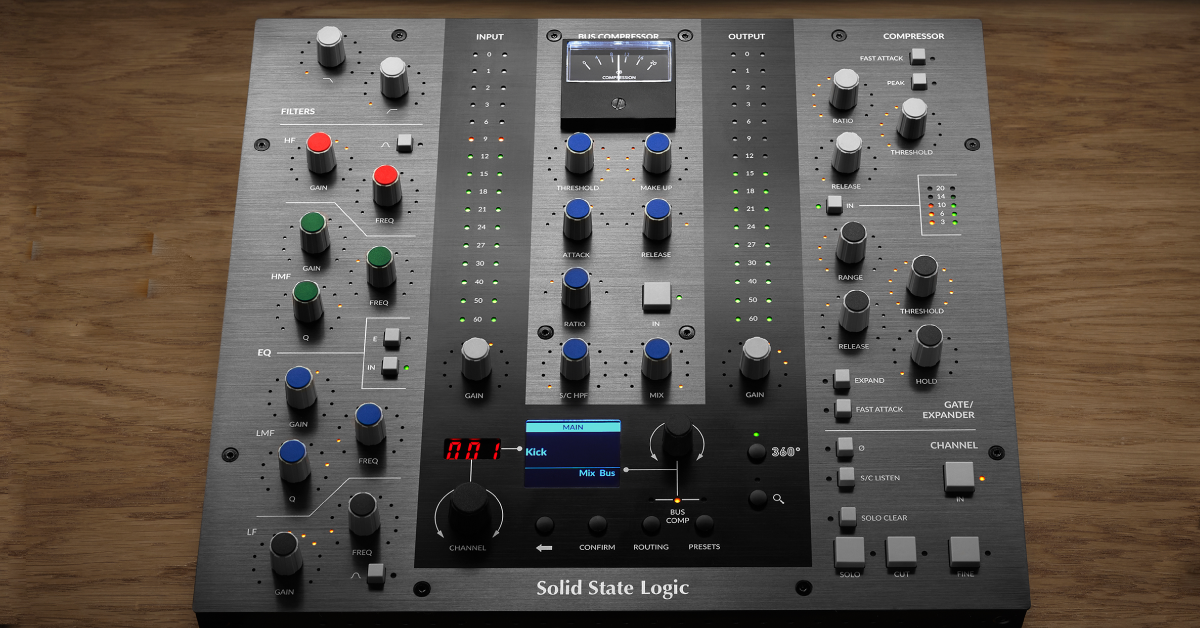
In this guide, we will show you how to register, set up, and connect an SSL UC1 controller for the first time. Follow the sections below to get started.
Register the device
Before you get started, the first thing you need to do is register the UC1 with Solid State Logic. Upon registration, you’ll gain access to the SSL 360 software, which is required to use your UC1 within your DAW. You’ll also receive a free bundle of SSL plug-ins. Follow these steps to register.
- Log in to your SSL account. If you don’t have an account, you can create a new one here.
- Go to your account dashboard, then click Add Product.
- Use the dropdown box to select the UC1 and fill out the necessary information, including the serial number located on the bottom of the unit, then click Submit Details.
- You can also register your UC1 by visiting the Get Started page.
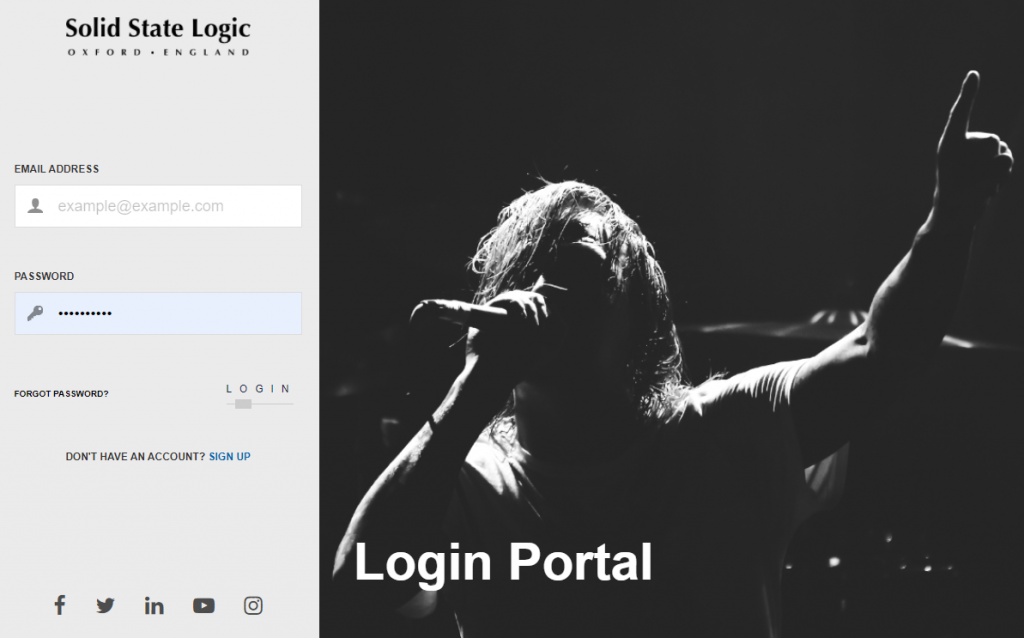
Click the image to log in to your SSL account.
Get your additional software
YOU’LL NEED AN ILOK ACCOUNT: You will need to create a free iLok account beforehand, as SSL plug-ins are activated via iLok License Manager.
Once you’ve registered the UC1, you can then download and install your additional software. The SSL 360 and plug-in installation process is easy. First, click the respective software on your account page, go to your Downloadsfolder, and follow the standard installation procedure. Alternatively, you can get the plug-ins and SSL 360 by visiting the software download page.
The SSL plug-in bundle has a few more steps in the process. Please note that the Channel Strip 2 plug-in is a free upgrade for current Channel Strip users.
- Go to the iLok account setup page and complete the registration form.
- Please take note of your user ID as it is case-sensitive.
- Open the iLok Account Activation email and click on the verification link to complete iLok registration.
- If you don’t see the email, be sure to check your spam folder!
- Navigate to the iLok License Manager page and download and install the application for your operating system.
- Go back to your SSL account page, enter your iLok user ID in the box on the right side of the account screen, and then click Validate.
- Launch iLok License Manager, click the Available tab, and drag the licenses to your computer.
- Click Get Your Additional Software to download and install your new SSL plug-ins.
UC1 setup and configuration
The UC1 controller is a great tool to have in your studio and integrating it into your setup is seamless. You just need to connect it to your computer and configure it for operation inside your DAW(s). No additional driver configuration is necessary, as all of the work is done via the SSL 360 app.
Working with SSL 360
After your computer detects the UC1, you must launch the SSL 360 software to configure it to work within your DAW. You can launch the software by double-clicking the SSL 360 icon on your desktop, or you can just press the 360 button on the UC1.
When you first launch SSL 360, the home page is where you’ll view and update your firmware version, identify the UC1 (and any UF8s connected), and generate error reports that you’ll provide to SSL support if you’re having issues with the controller. While you will use most of those options at some point, the main window where you’ll be operating is the Plug-In Mixer window.
- The arrangement of the channel strips in the plug-in mixer is dependent on the DAW. For example, if you reorder the tracks in your Cubase, Ableton Live, Logic (v10.6.1 or above), or Studio One session, the plug-in mixer is rearranged the same way. In Pro Tools and Logic (v10.6.0 or lower), it was automatically assigned a slot by the time it was added.
- For the quickest workflow, it’s recommended to load the Channel Strip plug-in on all of your tracks. This makes it much easier, as the plug-in mixer will match that of your projects.
Related content
5 Tips for Better Mixes
Getting the Most from Your Studio Gear
Additional resources
UC1 SSL Plug-in Controller Install & Setup
When you need help, Sweetwater has the answers!
Our knowledge base contains over 28,000 expertly written tech articles that will give you answers and help you get the most out of your gear. Our pro musicians and gear experts update content daily to keep you informed and on your way. Best of all, it’s totally FREE, and it’s just another reason that you get more at Sweetwater.com.

