
Scarlett Settings for Windows Playback
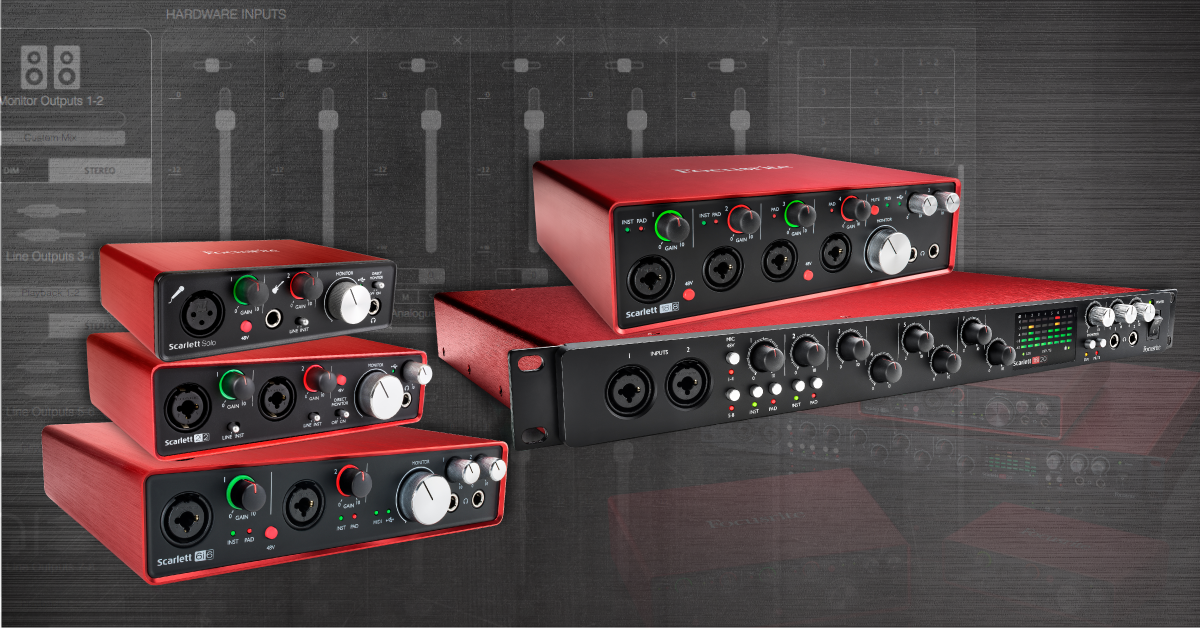
Get Windows Sound out of Scarlett Interfaces
To get sound in and out of your computer, your Focusrite interface must be selected as the audio device. For most applications (not DAWs), this will be done from Windows Sound Settings (Windows). DAWs like Pro Tools, Studio One, Ableton Live, etc. have their own sound settings for selecting an audio device. When using your interface with a DAW, make sure to select your interface from the Playback Engine or Audio Settings window. Follow these steps to select your Focusrite interface as your computer’s audio playback device.
If you’ve installed the driver and have restarted your computer but your audio device still does not show up, visit SweetCare’s article for resolving audio interface issues on Windows. For more information, we’ve attached a few other articles below in our Helpful Links section that you can check out.
Select Windows Playback Device
- From your Windows taskbar, right-click the sound icon and select Playback devices.
- Select your audio interface followed by Set Default.
- Click OK to close the menu.
Related Content
- Resolving Audio Interface Issues on Windows 10
- Focusrite Scarlett interface popping and clicking
- Where can I download the drivers for my audio interface?
- PC Optimization Guide for Windows 10
- Why am I hearing a delay when I use my Focusrite Scarlett interface?
When you need help, Sweetwater has the answers!
Our knowledge base contains over 28,000 expertly written tech articles that will give you answers and help you get the most out of your gear. Our pro musicians and gear experts update content daily to keep you informed and on your way. Best of all, it’s totally FREE, and it’s just another reason that you get more at Sweetwater.com.

