
Roland TD-1 Quickstart Guide
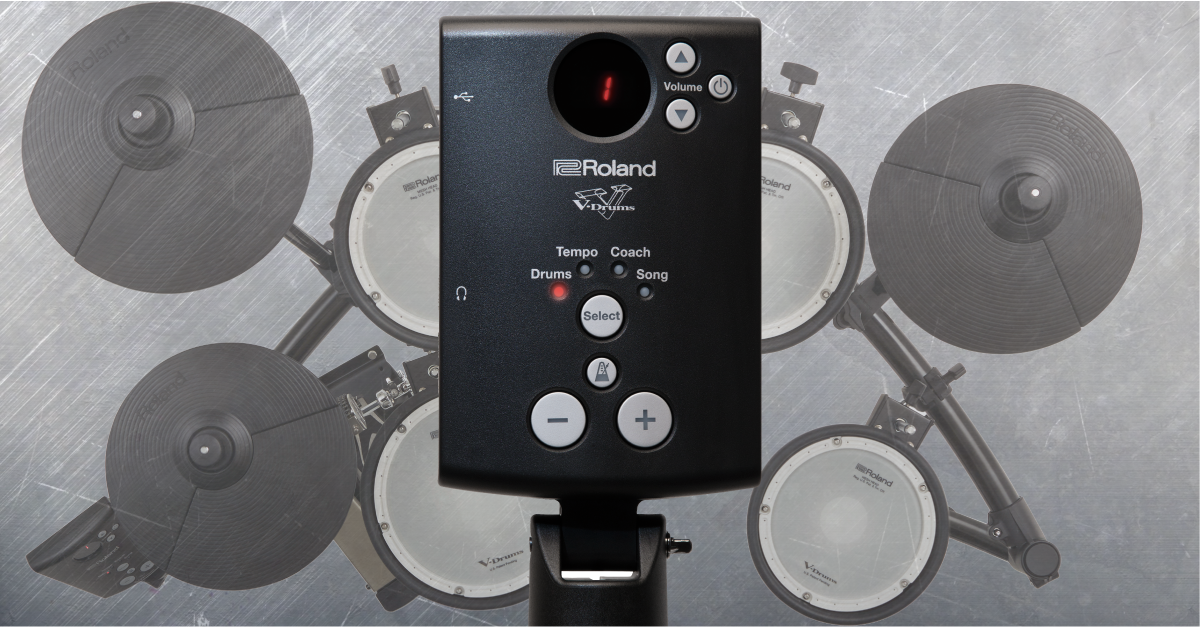
Getting started with the Roland TD-1
Here at Sweetwater, we’re dedicated to giving you the best experience possible, so in this guide, we’ll show you how to set up, connect, and play the Roland TD-1 series electronic drum kit for the first time. Follow the sections below to get started.
- How to register the Roland TD-1 series drum kit
- Roland TD-1 kit setup and connections
- Working with the module
How to register the Roland TD-1 series drum kit
Before we get everything set up, the first thing you’ll need to do is register the device with Roland. After registering the device, you’ll get access to Roland’s product support, an extended warranty, and training videos, and clinic information. Follow the steps below to register and then continue to setup and configuration.
- Log in to your Roland Backstage account. If you don’t have one yet, you can create one here.
- Roland will then send an account activation email to the registered email address to complete the account creation process. Check your spam folder if you don’t see the email.
- On your account home page, click My Gear, and select Register a Product.
- Fill out the required information, including the serial number located on the drum module, and click Register.
- Keep your Sweetwater invoice handy, as you will need to enter the purchase date, method, and Dealer (Sweetwater).
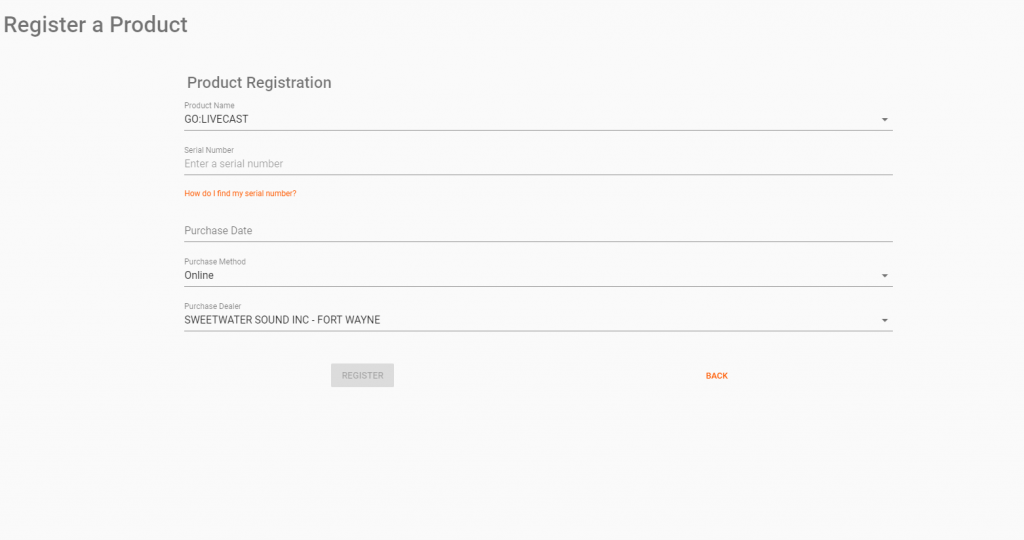
Click the image to register your Roland TD-1 series drum kit
Roland TD-1 kit setup and connections
A great thing about the Roland TD-1 series kits is that they’re very compact and effortless to assemble and store. Depending on which model of the TD-1 series you have, the assembly will differ slightly. So you can set everything up correctly, check out the assembly section of the included owner’s manual for specific instructions.
Learn more about how to set up an electronic drum set for the first time!
How to connect the cables to the module
Once the TD-1 kit has been fully assembled, you’ll need to connect the pads to the drum module. Each cable is labeled with the pad it’s associated with, so make sure that all of them are connected to the correct drum or cymbal pad so it can trigger the right sound. This is especially true with the hi-hat connections. Also, be sure that the wiring harness is securely connected to the module. If you can wiggle the connector attached to the module, then it’s too loose.
TIP: Keep your cabling neat and use velcro straps zip ties to secure them to the rack. Not only will it keep it tidy, but it’ll ensure that your cables don’t get tangled up.
Connect the TD-1 kit to your computer
A great thing about the TD-1 module is that you can connect it to your computer and use it to record MIDI and trigger virtual instruments. All you need is a USB B-A cable to connect to your computer’s available USB 2.0 port. The TD-1 series kit is class-compliant, so that means you can plug it in and start playing!
Connecting to iOS devices
One very unique thing about the TD-1 is the ability to connect it to an iPad! All you need to do is connect a USB B-A cable to an official Apple Lightning to USB adapter and then connect it to your iPad.
Learn more about how to connect electronic drums to your computer for the first time!
Working with the module
Once everything is set up just the way you want, it’s time to dig in and start playing! We’ll go over the unique modes, as you only use the + and – buttons in KIT mode to the change drum kit presets and + and – in TEMPO mode to change the tempo.
Coach mode
Coach mode is made specifically to help build up your “chops”: timing, accuracy, stamina, and speed. All of the exercises within the TD-1’s module will help build these attributes. There are a total of 10 exercises included. To access these, press the SELECT button until the COACH LED is illuminated. Once in Coach mode, press the – and + buttons to change in between the following exercises:
- C-1 and C-2: Time check. This will determine how ahead or behind the metronome you are when you play.
- C-3: Change-up. This will allow you to play along with different rhythms every two bars.
- C-4: Auto up/down. The tempo will increase and decrease during a specified increment of time.
- C-5: Quiet count. The metronome will play for two measures, then stop for two measures.
- C-6 and C7: Tempo Check. The metronome will play, then stop after two measures. If you see three circles on the display, that means you’re in time. If your tempo is starting to get off, the metronome will begin playing.
- C-8: Stroke Balance. This will help to fine-tune your dynamics. The display shows how soft and hard you’re striking the drum.
- C-9: Timer. When this mode is selected, you just choose the amount of time you want to practice freely.
- C-10: Recording. The Recording mode will let you record your performance then listening back to hear any mistakes you’ve made.
Practicing with songs
You can practice songs in two ways: using the songs inside the module or your own songs streamed from your computer. There are 15 songs built into the TD-1 module; all of them are different genres.
IMPORTANT: The tempo of the preset songs cannot be changed!
To practice with a song built into the module, press Select to switch to Song mode, press the – and + to change the songs, then press the Metronome button to start and stop. To practice streaming your music, use an ⅛-inch to ⅛-inch cable from your external device to the MIX IN port on the module.
Related content
Learn more about how to dial in your bass drum pedal!
Learn More
Learn more about six drum technologies that changed the sound of music forever!
Learn MoreAdditional resources
Roland TD-1K V-Drums Quickstart Video Playlist
When you need help, Sweetwater has the answers!
Our knowledge base contains over 28,000 expertly written tech articles that will give you answers and help you get the most out of your gear. Our pro musicians and gear experts update content daily to keep you informed and on your way. Best of all, it’s totally FREE, and it’s just another reason that you get more at Sweetwater.com.

