
Roland JX-08 Setup Guide
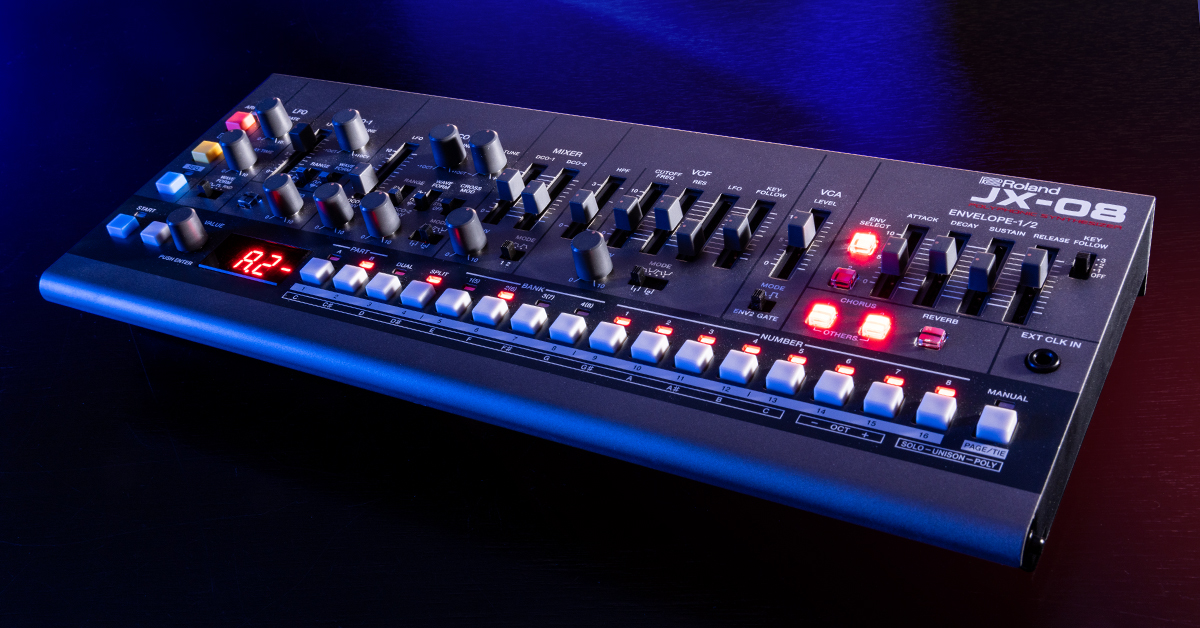
In this guide, we will show you how to register, set up, and connect a Roland JX-08 synth for the first time. Follow the sections below to get started.
Register the JX-08
Before you start setting up, you will first need to register your Roland JX-08. After registering the unit, you can access Roland product support, an extended warranty, training videos, and more. Follow the steps below to register the unit.
- Scan the QR code on the orange card that came in the box or go to www.roland.com/start.
- Scroll down to the sign-in section.
- Sign into your Roland Backstage account. If you don’t have one yet, select the New to Roland? tab.
- If you scan the orange card’s QR code, the serial number field should be auto-filled. If not, you can find the serial number on the bottom of the JX-08.
Click the image to log in to your Roland account to register the JX-08
Install the driver (Mac only)
Driver installation is only necessary on macOS if you would like to send MIDI or audio to and from the JX-08 via USB. If you are running Windows 10 or Windows 11, the driver is automatically installed when you plug your JX-08 to your computer via USB.
Follow the steps below to install the driver on your Mac computer:
- Download the latest driver for your macOS version from Roland’s JX-08 product downloads.
- Open the downloaded file and run the installer.
- Follow the instructions on the screen to proceed with the installation.
- Once the installation is complete, restart the computer.
- Once the computer restarts, plug the JX-08 into the computer with a USB cable.
Check the System Version
After registering your device, you’ll want to check the system version and update the firmware, if necessary. Before updating the firmware, check if you are already on the latest system version.
- Power off the JX-08.
- Hold down 1 while powering on the JX-08.
- Keep holding down 1 for about 3 seconds, then let go of 1.
- The version information is displayed on the screen.
- Power off the JX-08.
Update the System Program (firmware)
IMPORTANT: The firmware update process can take a couple minutes. Never turn off the power while the update is in progress! Doing so may result in your device becoming inoperable.
If you are not on the latest version, then follow these steps to update your JX-08.
- Download the latest System Program from Roland’s JX-08 downloads section and extract the zipped folder.
- Make sure that the power to the unit is turned off and connect the USB-C connection on the JX-08 to the computer.
- Push in and hold down the VALUE knob while turning on the JX-08.
- up appears on the display and the JX-08 drive appears on the computer.
- Copy the update program BQ6_UPA_up.bin to the root folder of the JX-08 drive.
- Eject the JX-08 drive, then press VALUE knob.
- Updating starts and the progress (%) is displayed on the display. “End” appears on the display when the update has finished.
- Turn off the power.
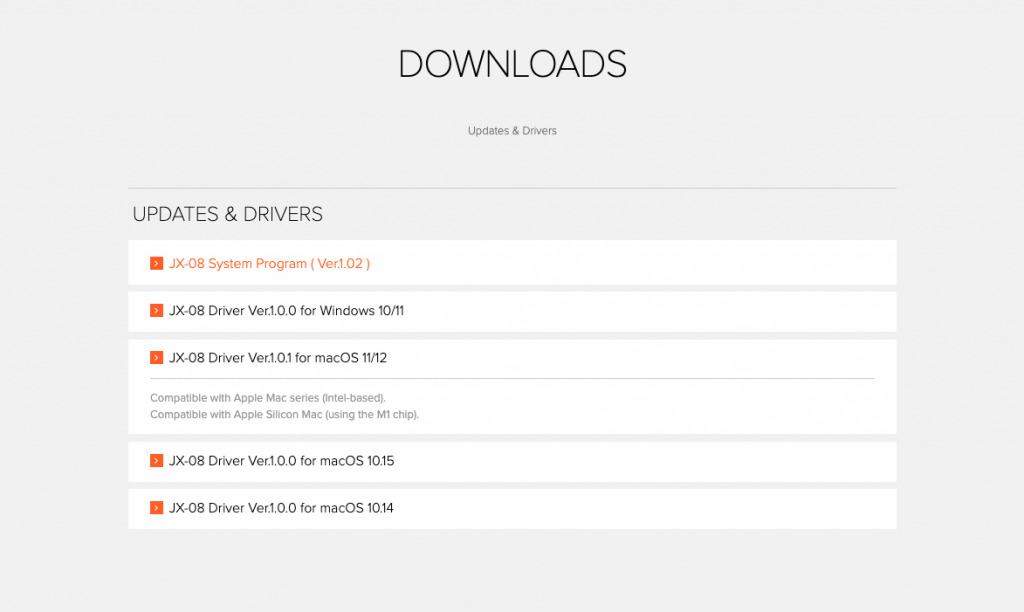
Click the image to download the latest System Program (firmware)
Connections
Top
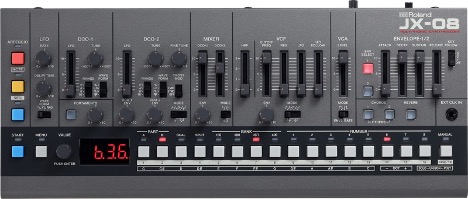
- EXT CLK IN: Use a ⅛-inch TS cable to sync the JX-08’s sequencer, effects, and arpeggiator to an external clock source. Each pulse into this jack causes the sequencer and arpeggiator to advance one step.
Rear

- POWER: Power switch to turn the JX-08 on or off.
- USB-C: The USB-C connection can pass MIDI and audio in and out to a computer or iOS device. The JX-08 can also be powered via the USB-C port from a device that can provide at least 500 mA of current.
- VOLUME: Master volume level control.
- PHONES: Stereo ⅛-inch output to connect headphones
- OUTPUT: Stereo ⅛-inch output that will connect to a line-level input. Use a ⅛-inch TRS to dual TS cable to connect into the mono inputs of your audio interface/mixer.
- MIX IN: Stereo ⅛-inch input to connect a line-level device. The signal connected to this jack will output at the PHONES and OUTPUT jack.
- MIDI IN and OUT: Use these jacks to connect MIDI devices to the JX-08.
Related Articles
When you need help, Sweetwater has the answers!
Our knowledge base contains over 28,000 expertly written tech articles that will give you answers and help you get the most out of your gear. Our pro musicians and gear experts update content daily to keep you informed and on your way. Best of all, it’s totally FREE, and it’s just another reason that you get more at Sweetwater.com.

