

Roland JX-08 – Factory Reset Guide
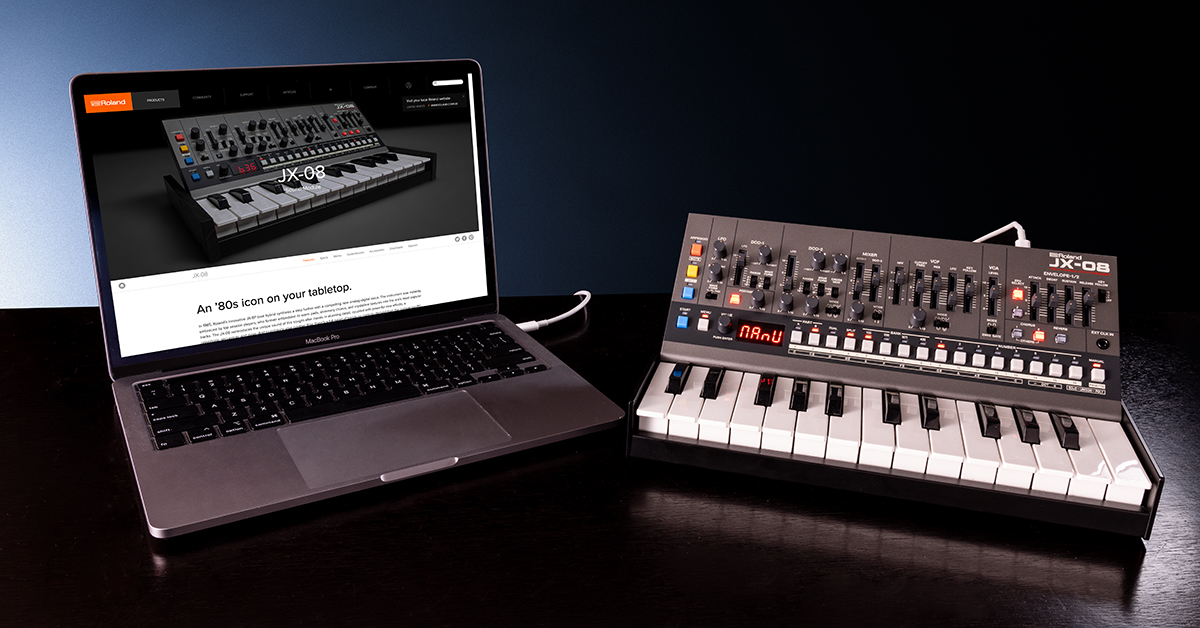
There may be a time when you will need to perform a factory reset on your Roland JX-08, so in this article, we will show you how to back up, restore, and perform a factory reset on the JX-08. Follow the sections below to get started.
Backing up the JX-08
You can save (back up) the tones, patterns, and system settings stored on the JX-08 to your computer. You can then restore this backup data to the JX-08.
- Connect your computer to the JX-08 with a USB cable.
- While holding down the MENU button, turn on the power.
- The JX-08 operates in USB mass storage mode. The JX-08 is recognized by your computer as an external storage device. It takes around 20 seconds for the connection to be recognized.
- Open the “JX-08” on your computer. The “BACKUP” folder is shown in the JX-08.
- Open the “BACKUP” folder. The backup file appears.
- Copy (drag and drop) the backup file to your computer.
- Disconnect the JX-08 from your computer by using the appropriate method below, depending on your computer.
- If you’re using Windows, click the Safely Remove Hardware icon in the taskbar, then click “Eject Boutique.”
- If you’re using macOS, drag the JX-08 icon to the trash.
- Turn off the JX-08.
Performing a factory reset on the JX-08
IMPORTANT: Performing a factory reset will reset any user settings and erase any user presets and sequences. Be sure to back up the JX-08 if you need any user settings or presets!
If you would like to retrieve all the factory presets and/or default settings of the JX-08, a factory reset is an easy way to do so.
- Turn off the JX-08 if it is currently on.
- Turn on the power while holding down the PART B button. The PAGE/TIE button blinks. To cancel the factory reset, turn off the power.
- Press the PAGE/TIE button, and initialization will begin. Once the JX-08 is restored to factory default settings, “donE” appears on the display.
- Turn the JX-08’s power off and then on again. It is now fully restored to the original factory settings.
Restoring JX-08 data
You can use the backup data that you created on your computer to restore the settings of the JX-08.
- Connect your computer to the JX-08 with a USB cable.
- While holding down the MENU button, turn on the power. It takes around 20 seconds for the connection to be recognized.
- The JX-08 operates in USB mass storage mode and is recognized by your computer as an external storage device.
- Open the JX-08 on your computer, then delete the BACKUP folder.
- Copy the backup file that you backed up on your computer to the RESTORE folder on the JX-08.
- Disconnect the JX-08 from your computer. Check out our guide on safely ejecting hardware from your computer for more information!
- If you’re using Windows, click the Safely Remove Hardware icon in the taskbar, then click “Eject Boutique.”
- If you’re using macOS, drag the JX-08 icon to the trash.
- Press the PAGE/TIE button on the JX-08. The restore operation begins, and the PAGE/TIE button blinks. “donE” is displayed once the restore operation is finished.
- Turn off the JX-08.
Related Articles
When you need help, Sweetwater has the answers!
Our knowledge base contains over 28,000 expertly written tech articles that will give you answers and help you get the most out of your gear. Our pro musicians and gear experts update content daily to keep you informed and on your way. Best of all, it’s totally FREE, and it’s just another reason that you get more at Sweetwater.com.

