

RME Babyface Pro FS Setup Guide
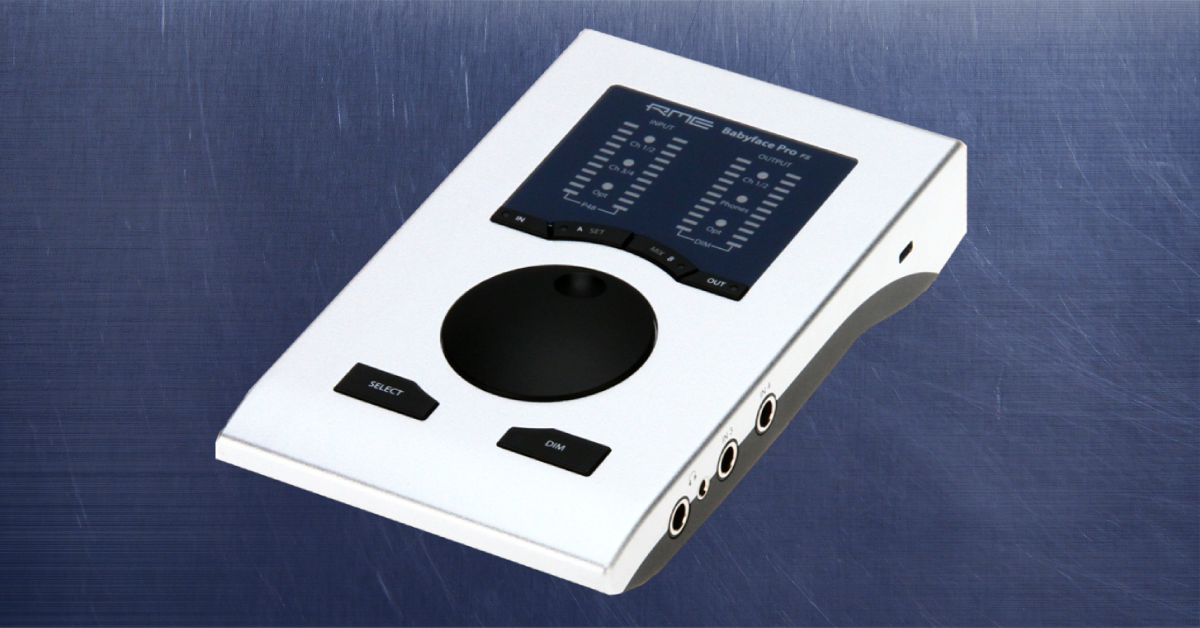
In this guide, we will show you how to register, set up, and connect an RME Babyface Pro FS interface for the first time. Follow the sections below to get started.
Register the Babyface Pro FS
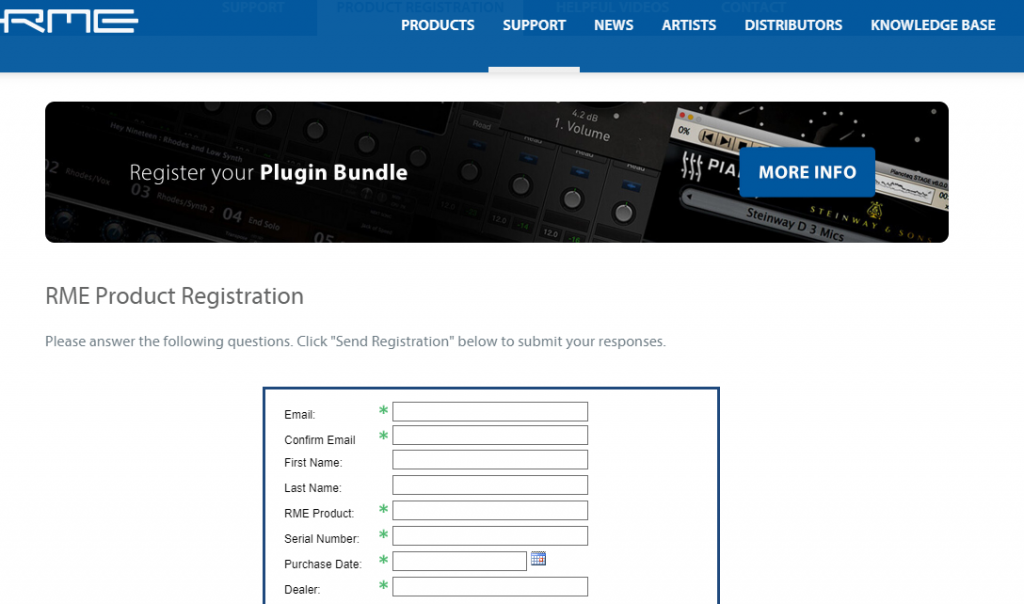
Before you can start using the Babyface Pro FS, the first thing you need to do is register the interface with RME. Once registered, you’ll be able to access their premium plug-in bundle! You don’t have to create an account, either. All you need to do is fill out their registration form on their support page, and then click Send Registration.
Download and install the drivers
Once the Babyface Pro FS is registered, the next step is to download and install the drivers. When you run the installer, TotalMix FX is also installed. TotalMix FX is the standalone software where you can access advanced routing parameters and I/O settings, change the monitoring mix, and more.
- Go to the RME download page, then use the dropdown boxes to select the Babyface Pro FS driver download for your OS.
- Now would be a good time to download the firmware file, as well.
- Navigate to your Downloads folder, then extract and run the installer.
macOS users
If you recently upgraded to Big Sur or if your Mac has an M1 chip, then you will need to download the compatible driver, boot your computer in Recovery mode, and update your security utility settings.
Check out RME’s guide for details on how to install the driver. Also, be sure to check out our Big Sur compatibility guide to learn more about upgrading your system.

Click the image to download the macOS 11 Big Sur driver
Driver & TotalMix FX Installation for RME Audio Interfaces on Windows
Driver & TotalMix FX Installation for RME Audio Interfaces on Mac
Update the firmware
RME firmware (flash) updates are released periodically and usually include new features, bug fixes, and optimizations to the interface’s internal software. When you downloaded the driver, you should have downloaded the flash updater, as well. If not, do so at this time.
Launch the flash updater tool once the download is complete. It should tell you whether your Babyface Pro FS is updated or not. If the dialogue screen displays “Not updated,” click the Update button and wait until it has been completed. After that, power cycle the interface.
Firmware Updates for RME Audio Interfaces
Setting up your gear
Once the driver and firmware are installed, you’re ready to make some music! The following instructions apply when using the Babyface Pro FS in standalone mode (outside of TotalMix FX). If you plan on using TotalMix FX to update any of your settings, check out our guide on how to use RME TotalMix FX!
- Connect your gear and speakers to the Babyface.
- Navigate to your OS sound settings and set the Babyface as the default input and output device.
- PC: Right-click the Speaker icon on the Windows taskbar, select Sounds, then click the Playback tab. Locate and select the interface, click Set Default, then click OK to close the menu. Do the same in the Recording tab.
- Mac: Click the Apple icon from the Menu Bar and select System Preferences. Click Sound, then select the Babyface Pro FS under the Input and Output tabs.
- Use the OUT and IN buttons to select the channels you want to control.
- Play some music or a video, and slowly turn the jog wheel until it’s at a safe listening level.
- Launch your DAW and select your Babyface Pro FS as the primary playback and recording device.
- If you want to do your routing inside your DAW and not TotalMix FX, switch TotalMix FX to DAW mode. To do this, click Options, select Operation Mode, then click Digital Audio Workstation Mode.
Interface button shortcuts
If you are not using TotalMix FX, here are some useful shortcuts using the buttons on the Babyface Pro FS.
- Press the IN and OUT buttons to change between I/O channels. The orange LED will reflect which sets of inputs and outputs are currently being controlled.
- Press the SET button to engage phantom power (+48V).
- Change the monitoring mix by following these instructions:
- Press the OUT to select the output for the monitoring.
- Press the IN button to select the input with the signal that you want to be monitored.
- Press MIX. The input level LEDs should begin flashing.
- Press SELECT to choose between left, right, or both channels.
- Turn the jog wheel to set the monitoring level.
TotalMix FX DAW Mode for RME Audio Interfaces
5 Tips for Better Mixes
Getting the Most from Your Home Studio Gear
Additional resources
Related Articles
When you need help, Sweetwater has the answers!
Our knowledge base contains over 28,000 expertly written tech articles that will give you answers and help you get the most out of your gear. Our pro musicians and gear experts update content daily to keep you informed and on your way. Best of all, it’s totally FREE, and it’s just another reason that you get more at Sweetwater.com.

