

How to Pair an Akai Pro LPD8 Wireless via Bluetooth LE
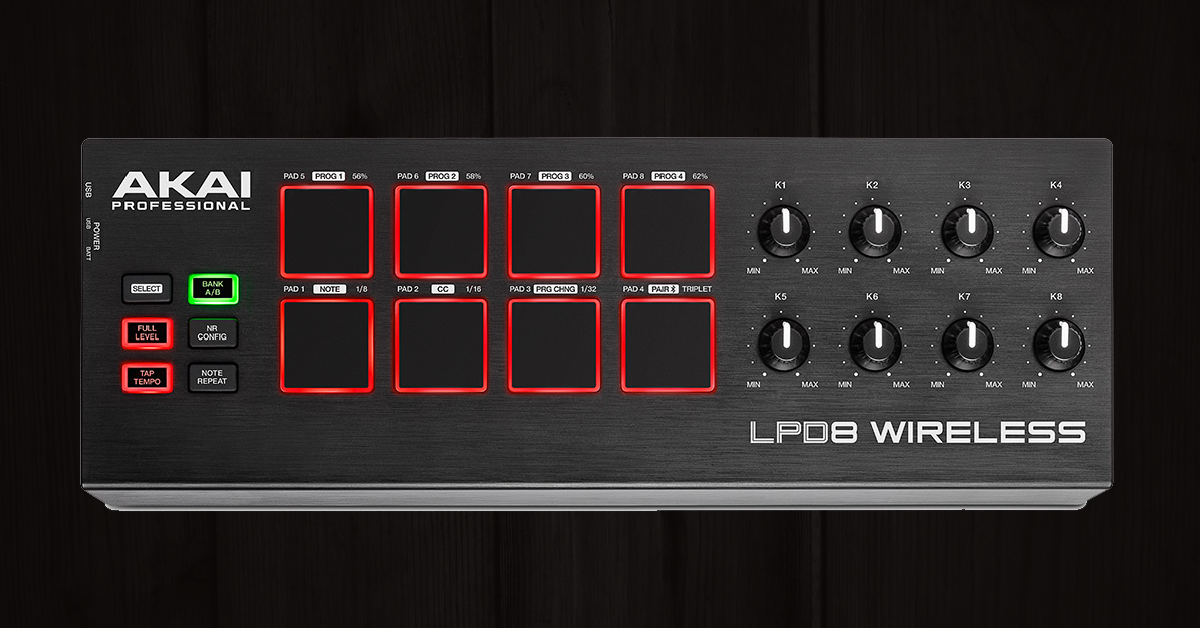
Pairing the LPD8 Wireless via Bluetooth
In this article, we will show you how to get started with the AKAI LPD8 Wireless by pairing it to your tablet/computer over Bluetooth. Follow the instructions below to get started.
Enable Bluetooth on LPD Wireless
The LPD8 Wireless can connect over Bluetooth LE regardless of power supply. Note that if your tablet/computer does not have Bluetooth LE (Version 4+), the LPD8 Wireless may not be able to pair and you will need to use the USB connection. Follow the steps below to enable Bluetooth pairing on your LPD8 Wireless.
LPD8 Wireless Blueooth pairing
- Power on your LPD8 Wireless:
- Battery: Insert 3 AA batteries and move the POWER switch to BATT.
- USB: Connect to a USB power supply and move the POWER switch to USB.
- Hold down the SELECT button and press PAD 4 (PAIR).
Unpair AKAI LPD8 Wireless
Unpairing your LPD8 wireless is just like pairing it. Hold SELECT and press PAD 4 (PAIR).
LPD8 Wireless Bluetooth pairing
Connecting LPD8 Wireless to iOS or Android apps
While Bluetooth must be enabled on your tablet/computer, connecting to the LPD8 Wireless is done within the settings of a compatible app. If a given app does not support Bluetooth connectivity, try connecting to a MIDI routing app (like midimittr for iOS) or use the USB connection. Visit AKAI’s LPD8 Wireless FAQ page for more information about this topic.
Once the LPD8 Wireless is ready to pair and Bluetooth is enabled on your device, follow the steps below to connect it to an application.
Connect LPD8 Wireless to iOS or Android tablets
- Turn on Bluetooth (and Location for Android).
- Launch a DAW or instrument app.
- Open the app’s Settings and scan for Bluetooth devices.
- Select the AKAI LPD8 Wireless to connect with it.
Pairing the LPD8 Wireless to the GarageBand app
Connect LPD8 Wireless to Mac
- Launch the Audio MIDI Setup app.
- In the MIDI Studio window (Window >Show MIDI Studio…), double-click the Bluetooth icon.
- In the new Bluetooth Configuration window, click Connect next to the AKAI LPD8 Wireless.
- Enable AKAI LPD8 Wireless, Bluetooth in your DAW or stand-alone software.
Pairing the LPD8 with Mac
Connect LPD8 Wireless to Windows
Connecting to Windows over Bluetooth is not officially supported. For best results, instead, connect the LPD8 Wireless via USB. If your Windows PC has Bluetooth LE (version 4) or above, workarounds can be down with utilities like loopMIDI and MIDIberry. Learn more in AKAI’s LPD8 Wireless FAQ page.
Example workaround
Using LoopMIDI and MIDIberry to pair the LPD8 on Windows
When you need help, Sweetwater has the answers!
Our knowledge base contains over 28,000 expertly written tech articles that will give you answers and help you get the most out of your gear. Our pro musicians and gear experts update content daily to keep you informed and on your way. Best of all, it’s totally FREE, and it’s just another reason that you get more at Sweetwater.com.

