
Nektar Aura Beat Composer Quickstart Guide
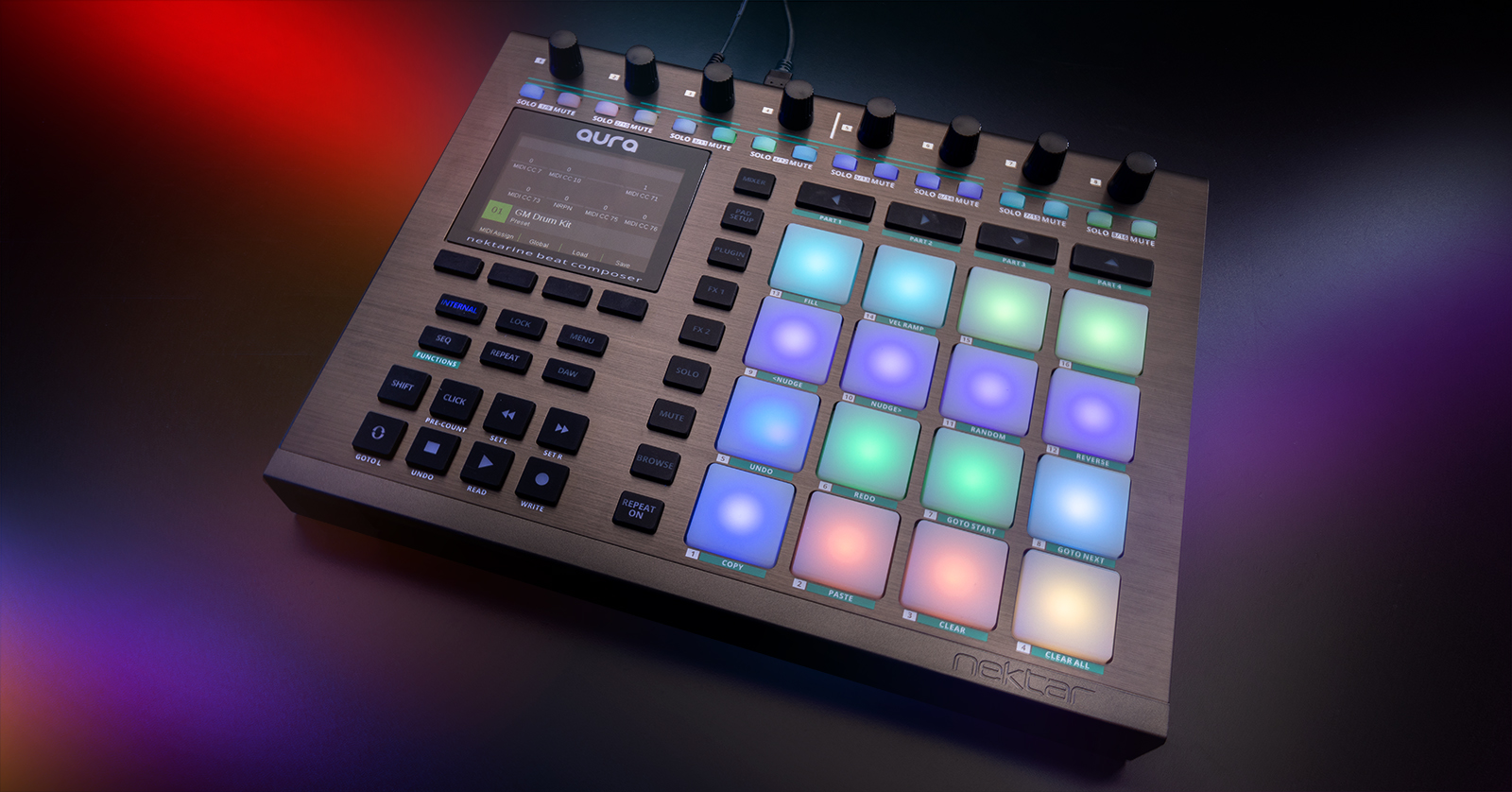
The Nektar Aura Beat Composer is a phenomenal controller in your gear rig. Not only can you create beats directly from the device, but you can also use it for DAW control! So, in this article, we will show you how to register and set up the Aura Beat for the first time. Follow the sections below to get started!
- Register the Nektar Aura Beat Composer
- Setup and Connections
- Adjusting Pad Parameters
- Create a Sequence
Register the Nektar Aura Beat Composer
Before you get set up and connected, the first thing you must do is register the Aura Beat Composer with Nektar. Registering is necessary for downloading the DAW control maps and firmware, so be sure this is done before anything else.
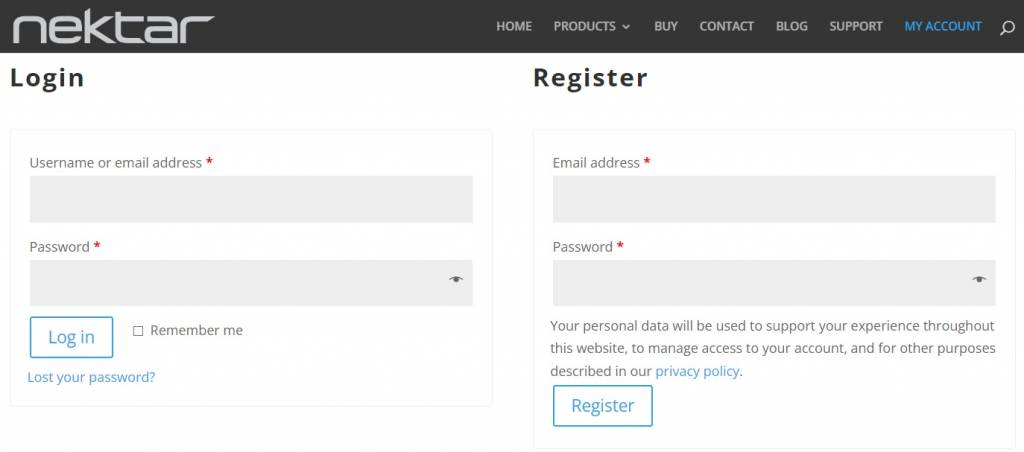
- Create an account with Nektar. If you already have an account, you can log in on the same page.
- Enter the serial number, which you can find at the bottom of your Aura Beat. Once the product image shows, use the dropdown boxes to choose your OS and DAW(s).
- Once your Aura Beat is registered, go to your account page and download Nektarine, the software that enables plug-in control for your Aura Beat Composer.
Update the firmware
Once it is registered, you’ll need to check the current firmware version installed on your Aura Beat Composer and compare that to the latest version listed on your account page. If it’s out of date, you will need to update it.
- On the Aura Beat, press and hold Internal, then press Menu. The firmware version will appear on the About page.
- Go to your Nektar account page and check to see if it matches the latest version.
- If the firmware on your Aura Beat Composer matches the one on your Nektar account page, skip this section and continue to Setup and Connections.
- Turn off the power on the device.
- Download the latest firmware on your Nektar account page, then navigate to your Downloads folder.
- Extract Aura_Firmware_WIN_v******.zip and the .zip (PC) or .dmg (macOS) located within the subfolder.
- Press and hold the Internal and Shift buttons on your Aura Beat Composer while turning on the device.
- Press the display’s bottom-right button to enter firmware update mode.
- On your computer, launch nkupdate. The app should display “OK Nektar unit is connected in firmware update mode.”
- On the app, click Load, find the Aura_FW_xxxx.bin file, then click Open. You should now see “OK Correct firmware file has been loaded.”
- Click Program to begin the update. After the update, you should see “OK Programming and verification successful!”
- Close the firmware updater app.
Setup and Connections
The Aura Beat Composer is class compliant, which means no additional software is required, so you can just plug it in, turn it on, and start playing! This also means no additional setup is required in your DAW, either! Simply set it as the primary MIDI input and output device, and you’re all set.
The device has a MIDI Out connection that allows you to control external MIDI hardware and also comes with a TRS footswitch jack for transport control. You can even use a Y cable to connect two footswitches, which you can assign to control two different MIDI parameters.
Adjusting Pad Parameters
Once everything is set up and connected, it’s time to personalize your Aura Beat Composer’s pads. Depending on your application, you may want to choose one over the other, but the great thing is that you can save the presets for later recall.
- Press the MIDI Assign pad, then press one of the 16 pads you wish to edit.
- Use the eight encoder knobs to adjust the primary MIDI parameters associated with that pad.
- Press and hold the Pot-Select pad to further adjust the MIDI settings.
- Press the Pad Config pad to change the color and sensitivity of the pad.
- Press the Global pad to adjust the performance and master MIDI parameters.
Create a Sequence
You can create sequences directly on your Aura Beat Composer, which can then be sent to the Nektarine software or recorded as a MIDI track inside your DAW.
- Press the SEQ pad, then press one of the 16 pads you want to trigger.
- Use the 16 pads below the encoders to enter your pattern and the 16 encoders to adjust the sequence parameters.
- Press the Run/Stop pad to playback and stop your pattern.
- Press the Pattern Edit pad and use the encoders to adjust the pattern further.
What Is a Sequencer?
When you need help, Sweetwater has the answers!
Our knowledge base contains over 28,000 expertly written tech articles that will give you answers and help you get the most out of your gear. Our pro musicians and gear experts update content daily to keep you informed and on your way. Best of all, it’s totally FREE, and it’s just another reason that you get more at Sweetwater.com.

