
Korg Volca Beats Quickstart Guide
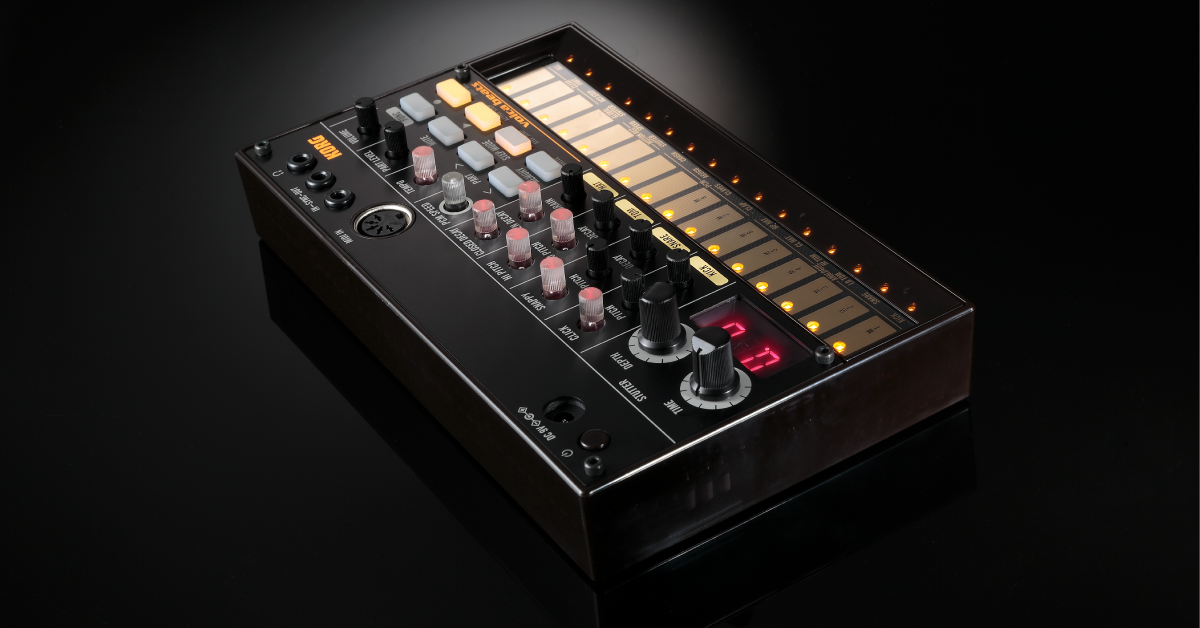
Getting started with the Korg Volca Beats
In this guide, we will show you how to register, set up, and use the Korg Volca Beats drum machine for the first time. Follow the sections below to get started.
Navigating the Volca Beats
The Volca Beats is a simple yet powerful drum sequencer you can use on your own, or sync and control it with external devices, including other Volca sequencers! Setup is straight forward. Simply insert six AA batteries, turn it on, and start making drum patterns!
Use the correct power supply!
The Korg Volca series hardware requires a specific power supply. Using any other brand may damage the module.
Sections of the sequencer
The Korg Volca Beats can be broken down into three basic sections: the Input & Output, Step Sequencer, and Sound Controls. Some sections have additional controls that you can access by holding down the FUNC button, then pressing that button. If there are smaller words underneath it, that means an additional function is available.
Inputs & Outputs
This is the section where you’ll connect external devices via 5-pin MIDI cables or ⅛” inch headphone cable to control or sync with the Volca Beats.
Step sequencer
This section is where you’ll be entering and recording your beats. The last six steps have additional functions that you can access by holding down the FUNC button.
Sound controls
The sound controls allow you to alter the pitch, decay, and attack of each drum. If you’re recording the Clap, Clave, Agogo, or Crash sample, you can adjust the “PCM” to alter the speed and pitch of that particular sample.
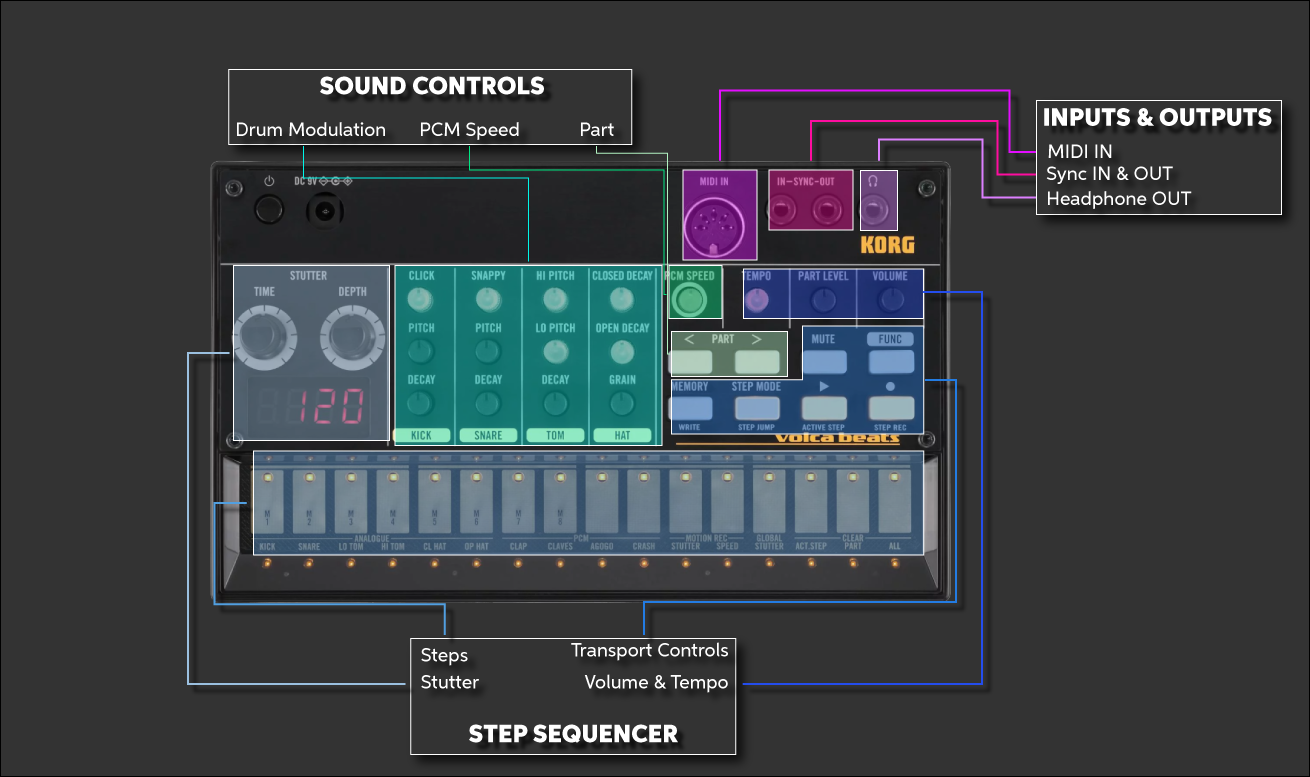
Sections of the Korg Volca Beats. Click to enlarge.
Creating a beat on the Korg Volca Beats
The Volca Beats is a great drum sequencer that allows you to create basic and advanced beats literally from your fingertips. You can program a basic hip-hop beat or you can automate pitches of certain samples, the Volca Beats has you covered. To get you started, let’s create a basic beat.
Create a basic beat
You can record beats in two different ways with the Korg Volca Beats: Live or Step. When you’re recording in Live mode, anything you perform will be recorded while it’s playing. If you’re in Step mode, it allows you to manually enter and remove individual steps. This is really useful when you need to edit a specific instrument’s pattern without having to re-record.
TIP: If you need to edit a specific sample’s pattern, press the STEP MODE button, then use the Part < and > to navigate to it.
Live recording
- Hold the FUNC and press the last step button (labeled ALL underneath) to start from scratch. Make sure the display reads LIVE.
- Press the step button associated with the drum you want to record.
- Press the Rec button to arm it, then once you’re ready, press the Play button to begin recording.
- Stop recording by pressing the Play button again.
- Once you’re happy with your beat, hold the FUNC button, press the MEMORY button, and select the slot to save it in.
Step recording
- While in Live mode, press the step button associated with the drum you want to record.
- Press the Step Mode button and enter the pattern.
- Press Play to play the pattern back.
- Once you’re happy with your beat, hold the FUNC button, press the MEMORY button, and select the slot to save it in.
Create an advanced beat
Now that we’ve created a basic beat, lets select the Agogo sample and automate its pitch so that a melody is created. The pitch automation is only available for the Clap, Claves, Agogo, and Crash. You can however automate the Stutter (swing) on any sample.
- Select the Agogo sample, then turn off Global Stutter by holding the FUNC and pressing the fourth to last pad. The light should turn off.
- Press and hold the FUNC button, then press the pad that is labeled as Speed.
- Start recording and use the PCM Speed knob to begin automation. Press the Play button once you’ve finished.
- Once you’re happy with your beat, hold the FUNC button, press the MEMORY button, and select the slot to save it in.
Related content
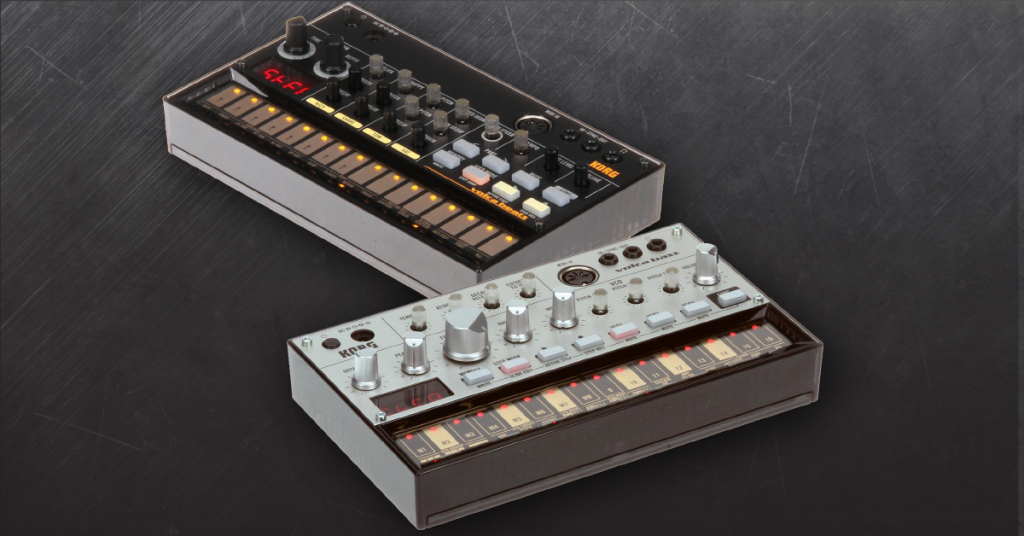
Learn more about how to sync Korg Volca modules together!
Learn More →When you need help, Sweetwater has the answers!
Our knowledge base contains over 28,000 expertly written tech articles that will give you answers and help you get the most out of your gear. Our pro musicians and gear experts update content daily to keep you informed and on your way. Best of all, it’s totally FREE, and it’s just another reason that you get more at Sweetwater.com.

