

iRig Pro Duo I/O Quickstart Guide
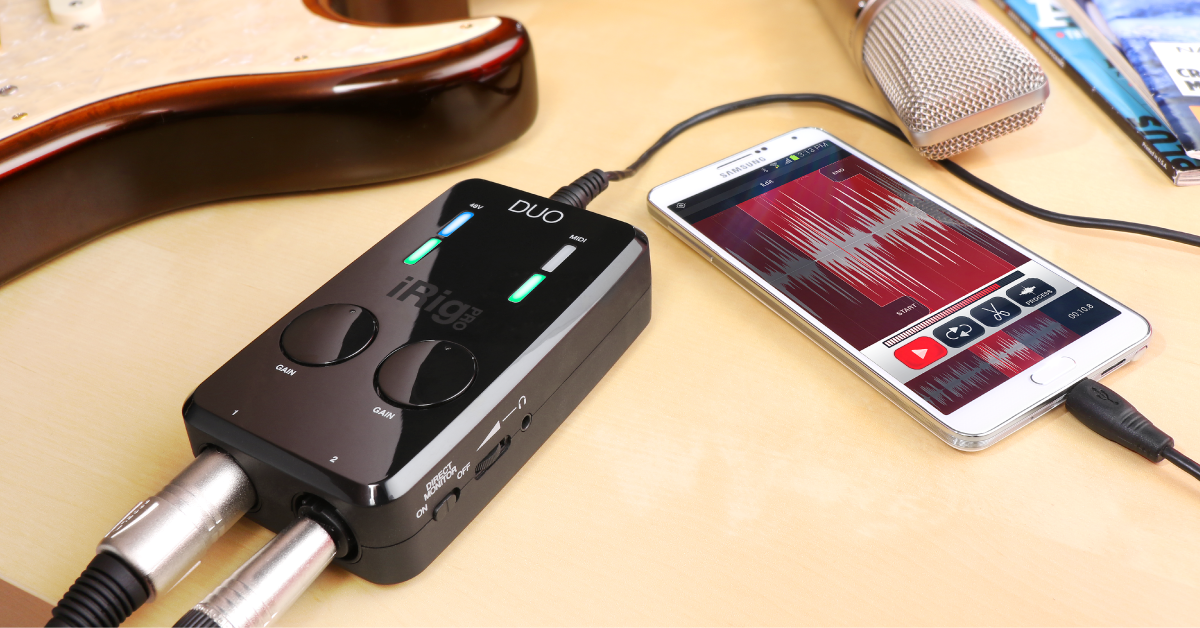
Getting started with the iRig Pro Duo I/O
This guide will show you how to register, set up, and connect the IK Multimedia iRig Pro Duo I/O for the first time. Follow the sections below to get started.
Register the iRig Pro Duo I/O
Before we begin, the first thing you’ll want to do is register the iRig Pro Duo. By registering your interface with IK Multimedia, you’ll receive a free copy of AmpliTube 4 and an extended warranty.
- Log in to your IK Multimedia account. If you don’t have an account, click the red Register button on the right, fill out the required information, and then click Register again.
- Go to the registration page, enter the serial number, then click Register.
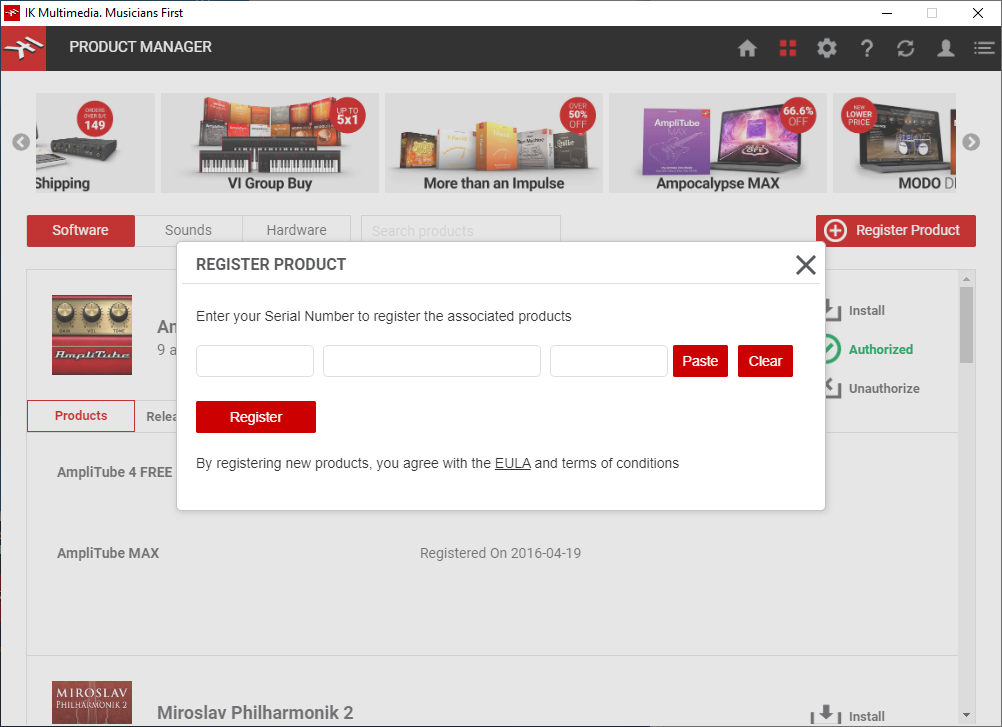
Click the image to register your iRig Pro Duo
iRig Pro Duo setup and connections
Once your iRig Pro Duo I/O is registered, you can then get everything set up and connected. The interface comes with plenty of IK Multimedia apps, so your creative possibilities are endless! Connecting to mobile devices and desktop computers is a breeze, so follow these steps to get set up and connected.
Before connecting your iRig Pro Duo I/O
- If you’re using the iRig Pro Duo I/O with an iOS device, it will only work with AA batteries and will not turn on. If you want to use an external power supply, you must use a 9V power supply with at least 500 mA.
- Before you connect anything, be sure that the volume for your mobile device and iRig Pro Duo I/O are turned down.
- Make sure that the phantom power (+48v) switch is in the OFF position.
- If using ¼” inch cables, you must use unbalanced TS cables. No signal will pass through if balanced TRS cables are used.
Connect to iOS and Android devices
You’ll first need to download the AmpliTube app from the App Store, then get everything connected. Follow these steps to download the app and connect to your iRig Pro Duo I/O to your mobile device.
- Download the included apps from the App Store, Google Play, or Samsung store. Alternatively, you can download them directly from IK Multimedia’s website.
- Launch the app of your choice and enter the required information.
- Connect one end of the included Lightning (iOS devices) or OTG cable (Android devices) to the iRig’s Mini-DIN port, then connect the other end to your mobile device.
- Connect your instrument or microphone to input 1 or 2.
- Set the input levels to a point where the level LED peaks at orange.

Click the image to search for your IK Multimedia apps from the Google Play store.

Click the image to search for your IK Multimedia apps from the App Store.
Connect to Mac or PC
Connecting your iRig Pro Duo I/O to your Mac or PC is a straightforward process. It’s class-compliant on Mac, meaning you can connect it and start playing, but if you’re using it on a PC, you’ll need to download its ASIO driver first. Follow these steps to set up your iRig Pro Duo I/O on a desktop computer.
- Connect the included USB cable from your iRig Pro Duo I/O to your computer. If you’re a Mac user, you can skip to step 3.
- WINDOWS USERS ONLY: Go to the iRig Pro Duo’s download page, scroll to the bottom, then download and install the ASIO driver.
- Launch the app of your choice, update its settings, and set the iRig Pro Duo as the input.
- Set the input levels to a point where the level LED peaks at orange.

Click the image to download your free IK Multimedia software and drivers.
When you need help, Sweetwater has the answers!
Our knowledge base contains over 28,000 expertly written tech articles that will give you answers and help you get the most out of your gear. Our pro musicians and gear experts update content daily to keep you informed and on your way. Best of all, it’s totally FREE, and it’s just another reason that you get more at Sweetwater.com.


