

PreSonus AudioBox 96 Setup Guide
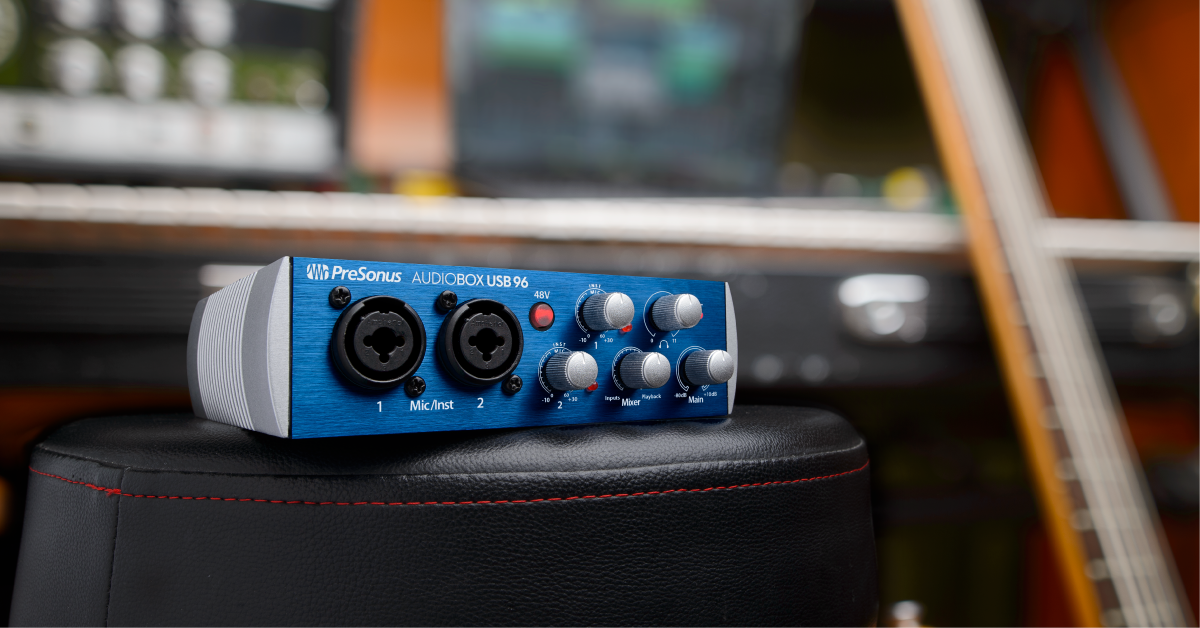
In this article, we will show you how to register the PreSonus AudioBox 96, install the PreSonus AudioBox 96 drivers and get connected on PC (Windows) and Mac (macOS). While it’s tempting to start by plugging in your interface, it works best to follow our instructions below beforehand.
- Register the AudioBox 96 and bundled software
- Download and install the AudioBox 96 driver
- Connecting & configuring audio settings
- Optimize your speakers
Register the AudioBox 96 and bundled software
Before you set up and start using your new AudioBox 96, you’ll want to register it with PreSonus. By registering your AudioBox 96, you will be given access to Studio One Artist (the bundled DAW software) and Studio-Magic Plug-in Suite effects bundle. Follow the steps below to register your AudioBox 96.
- Log in to your PreSonus account. If you haven’t created one yet, do so now.
- Click Register a Product and fill out the required information.
- Read and agree to the terms, and then click Register.
- Once registered, click My Products on the top of the PreSonus page, then click Software under My Products to download and register the software.
Download and install the AudioBox 96 driver
Once registered, the PreSonus AudioBox 96 drivers can be downloaded from your PreSonus account. Windows users need to download the AudioBox 96 driver and install it before connecting your AudioBox 96. The PreSonus AudioBox 96 USB driver is not required on Mac (macOS) computers. Follow the steps below to install the AudioBox 96 driver (Windows only) and connect your AudioBox 96.
- Visit the AudioBox 96 USB download page.
- Select your operating system version from the drop-down menu and click Download Now.
- When the download completes, open your Downloads folder.
- Double-click the PreSonus_Universal_Control.EXE file and follow the on-screen instructions. The AudioBox driver will be installed at this time.
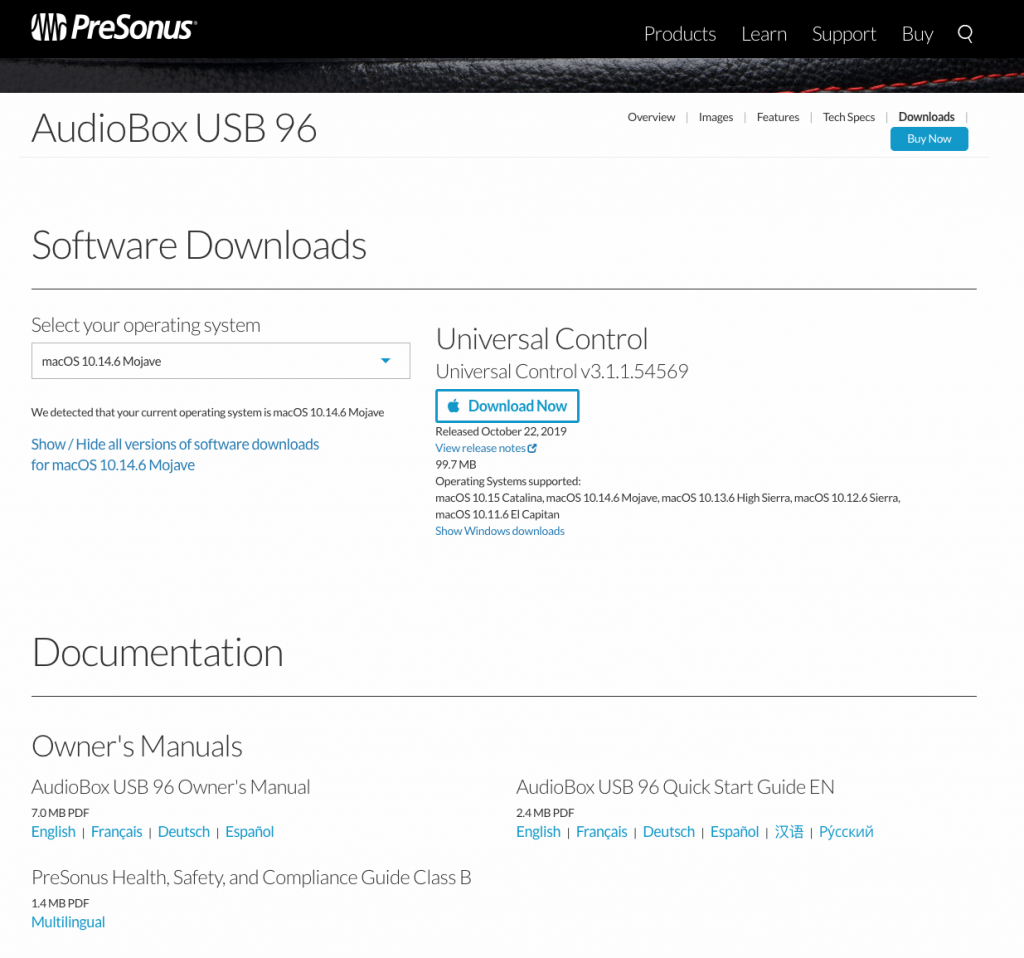
Click the image to download Universal Control
Connecting and configuring audio settings
To get sound in and out of your computer, your Presonus AudioBox must be selected as the operating system’s audio device. For most applications (not DAWs), this will be done from Sound Settings (Windows) or Sound Preferences (Mac). DAWs like Pro Tools, Studio One, Ableton Live, etc. have their own sound settings for selecting an audio device. When using your interface with a DAW, make sure to select your AudioBox USB 96 from the Playback Engine or Audio Settings window. Follow these steps to select the AudioBox as your computer’s audio playback device.
IMPORTANT: The AudioBox 96 is bus-powered, meaning it is powered solely by your computer. Connecting to a USB hub may not provide enough power for your AudioBox. This is especially true with hubs that do not use their own power adapter (passive hubs). If the interface isn’t being recognized, visit our guides for resolving audio interface issues on Mac and PC.
- Connect the USB cable from the interface to your computer.
- Navigate to your OS sound settings and set it as the default input and output device.
- Windows (PC) users: Right-click the sound icon on the Windows taskbar, select Sounds, then click the Playback tab. Locate and select the interface, click Set Default, then click OK to close the menu. Do the same in the Recording tab.
- Mac users: Click the Apple icon from the Menu Bar and select System Preferences. Click Sound, then select the PreSonus under the Input and Output tabs.
Optimize your speakers
Audio comes out of your AudioBox’s Phones and Main Out jacks. Each output can be adjusted independently by turning their respective knobs on the front of the interface. You will need to calibrate them with your AudioBox so that when you turn the interface’s Mains knob all the way up, your speakers will be at your desired maximum level. If you optimize your speakers, you will be able to set how loud the speakers get and eliminate the possibility of way-too-loud playback (we have all been there). Follow the steps below to calibrate your speakers with the AudioBox USB 96.
TIP: Your headphones and speakers output the same audio, but have independent volume controls. When recording, prevent feedback and bleed by turning the Mains knob all the way down and using headphones.
- Turn the volume knob of your speakers all the way down.
- Turn the Mains knob on your AudioBox USB 96 all the way up.
- Turn the Mixer knob on your AudioBox USB 96 all the way to the right (Playback).
- Play a video from your computer and slowly turn up the volume on your speakers until you reach the ideal maximum volume.
Related Articles
When you need help, Sweetwater has the answers!
Our knowledge base contains over 28,000 expertly written tech articles that will give you answers and help you get the most out of your gear. Our pro musicians and gear experts update content daily to keep you informed and on your way. Best of all, it’s totally FREE, and it’s just another reason that you get more at Sweetwater.com.

