

How do I trash my Pro Tools preferences?
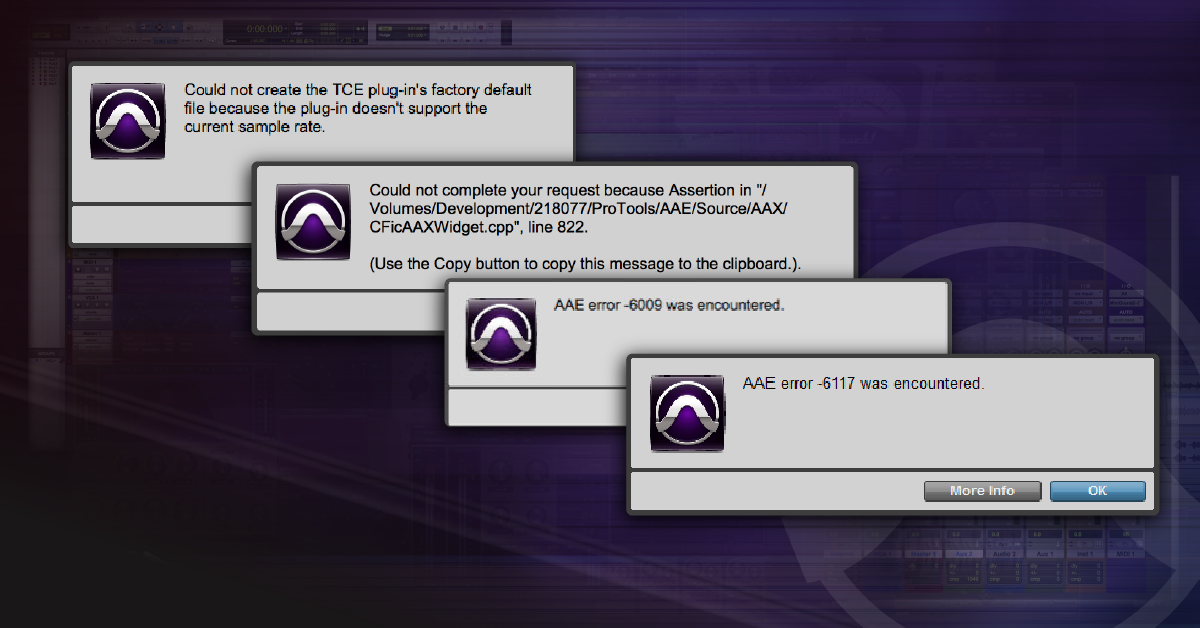
In this article, we will show you how to ‘reset’ Pro Tools by deleting its preference files. This helps Pro Tools get back to normal when the app does not appear to be functioning properly or if plug-ins are not showing up. Follow the Mac or PC instructions below to return Pro Tools back to its default state.
IMPORTANT: Trashing the Pro Tools files detailed below will reset Pro Tools. Before deleting any of the files as instructed below, copy them into a new folder on your Desktop called “Pro Tools Workspace Backup”. Returning these files back to where they were or replacing a newly created set of preferences will return Pro Tools to its past state.
Trash Pro Tools Preferences for Mac
Pro Tools 11, 12, 2018+
- Close Pro Tools and launch Finder.
- Click Go and select Go to Folder…
- Enter ~/Library/Preferences/Avid and click Go.
- Delete the Pro Tools folder.
- Restart your computer and launch Pro Tools.
Pro Tools 10
- Close Pro Tools and launch Finder.
- Click Go and select Go to Folder…
- Enter ~/Library/Preferences and click Go.
- Delete the following files in this Preferences folder:
- com.digidesign.ProTools.plist
- com.digidesign.ProTools.plist.lockfile
- DAE Prefs
- DigiSetup.OSX
- Pro Tools Prefs
- Restart your computer and launch Pro Tools.
Trashing Pro Tools 2018 Preferences on Mac
Trash Pro Tools Preferences for PC
Show hidden folders first
Before trashing Pro Tools preferences, follow these steps to show hidden folders:
Windows 8 & 10
- Click ‘View’ in your File Explorer window, then check Hidden items above Show/hide.
Windows 7
- Navigate to the Control Panel, and select Appearance and Personalization.
- Go to Folder Options, then select the View tab.
- Lastly, under Advanced Settings, select Show hidden files, folders, and drives, and then select OK.
Trash Pro Tools preferences for Windows
Pro Tools 11, 12, and 2018
- Close Pro Tools.
- Hold the Windows key on your keyboard and press R.
- When the Run window appears, type %appdata% and press OK.
- Open the Avid folder, and delete the Pro Tools folder.
- Restart your computer and launch Pro Tools.
Pro Tools 10
- Go to your Start menu and click on Computer.
- Double-click on the C:\ drive.
- Double-click on Program Files (x86)\Common Files\Digidesign.
- Go to the DAE folder, and delete the DAE Prefs folder.
- Hold the Windows key on your keyboard and press R.
- When the Run window appears, type %appdata% and press OK.
- Open the Avid folder (Digidesign folder with Pro Tools 8 and 9), and delete the Pro Tools folder.
- Restart your computer and launch Pro Tools.
Trashing Pro Tools 2018 Preferences on PC
Related content
- Pro Tools 12 System Requirements
- How to Activate & Authorize Avid’s Pro Tools 12 & 2018
- How to Download and Install Avid’s Pro Tools 12 & 2018
- How to Configure Pro Tools 12 & 2018 Audio & MIDI Settings
- Pro Tools Workspace & Soundbase Reset
When you need help, Sweetwater has the answers!
Our knowledge base contains over 28,000 expertly written tech articles that will give you answers and help you get the most out of your gear. Our pro musicians and gear experts update content daily to keep you informed and on your way. Best of all, it’s totally FREE, and it’s just another reason that you get more at Sweetwater.com.


Offer applies only to single-receipt qualifying purchases. Select manufacturers may require that only the manufacturer’s products qualify towards the minimum purchase amount needed to be eligible for promotional financing. Otherwise, an invoice that meets the minimum purchase amount and contains at least one qualifying manufacturer product is eligible for promotional financing. No interest will be charged on promo purchase balance, and equal monthly payments are required on promo purchase until it is paid in full. The payments equal the amount financed divided by the number of months in the promo period, rounded up to the next whole dollar. These payments may be higher than the payments that would be required if this purchase was a non-promo purchase. During the last month(s) of the promo period the required monthly payment may be reduced due to the prior months’ rounding. Regular account terms apply to non-promo purchases. New Accounts as of 07/31/2025: Purchase APR is 34.99%. Penalty APR is 39.99%. Min Interest Charge is $2. Existing cardholders: See your credit card agreement terms. Subject to credit approval.
Offer applies only to single-receipt qualifying purchases. No interest will be charged on the promo balance if you pay it off, in full, within the promo period. If you do not, interest will be charged on the promo balance from the purchase date. The required minimum monthly payments may or may not pay off the promo balance before the end of the promo period, depending on purchase amount, promo length and payment allocation. Regular account terms apply to non-promo purchases and, after promo period ends, to the promo balance. New Accounts as of 07/31/2025: Purchase APR is 34.99%. Penalty APR is 39.99%. Min Interest Charge is $2. Existing cardholders: See your credit card agreement terms. Subject to credit approval.
The estimated required monthly payment shown which excludes taxes and delivery equals the amount financed divided by the number of months in the promo period, rounded up to the next cent. During the last month(s) of the promo period the required monthly payment may be reduced due to this rounding. These payments apply only with the financing offer shown. If you make these payments by the due date each month, you should pay off this amount financed within the promo period, if it is the only balance you are paying off. If you have other balances on your account, this payment will be added to any other minimum monthly payments.
Applies only to select items from this manufacturer. Ask your Sweetwater Sales Engineer for more details.