
Guitar Wireless System Setup Guide

Getting started with wireless guitar systems
In this guide, we will show you how to set up a guitar wireless system. If you’re just getting started with a guitar wireless system, this guide will give you a lot of useful information, but check out the user manual for specific setup and configuration instructions. Follow each of the sections below to get started.
- Setup tips: batteries, line of sight and levels
- Wireless channels and frequencies
- Additional resources
- Related content
Setup tips: batteries, line of sight and levels
Setting up a wireless system for your guitar is a simple solution for losing the cord, but it’s good to be prepared just in case the wireless environment at your gig is different than the rehearsal space. Your wireless system is designed to perform well at optimal conditions. Some elements of your wireless system are controllable, such as fresh batteries or position, but they’re also affected by environmental factors, such as wireless interference and reflective surfaces. Check out your wireless system’s user guide for specific operational information but here’s are a few tips for managing a reliable wireless system.
- All audio cables are securely connected and without twists or bends.
- Both transmitter and receiver are powered on.
- Both transmitter or receiver are not muted, locked or in standby mode.
- Both transmitter and receiver must be set to the same frequency or channel.
- If using multiple wireless systems, assign them to different channels of the same group.
- Frequencies or channels must not overlap with local TV or radio frequencies.
Fresh batteries
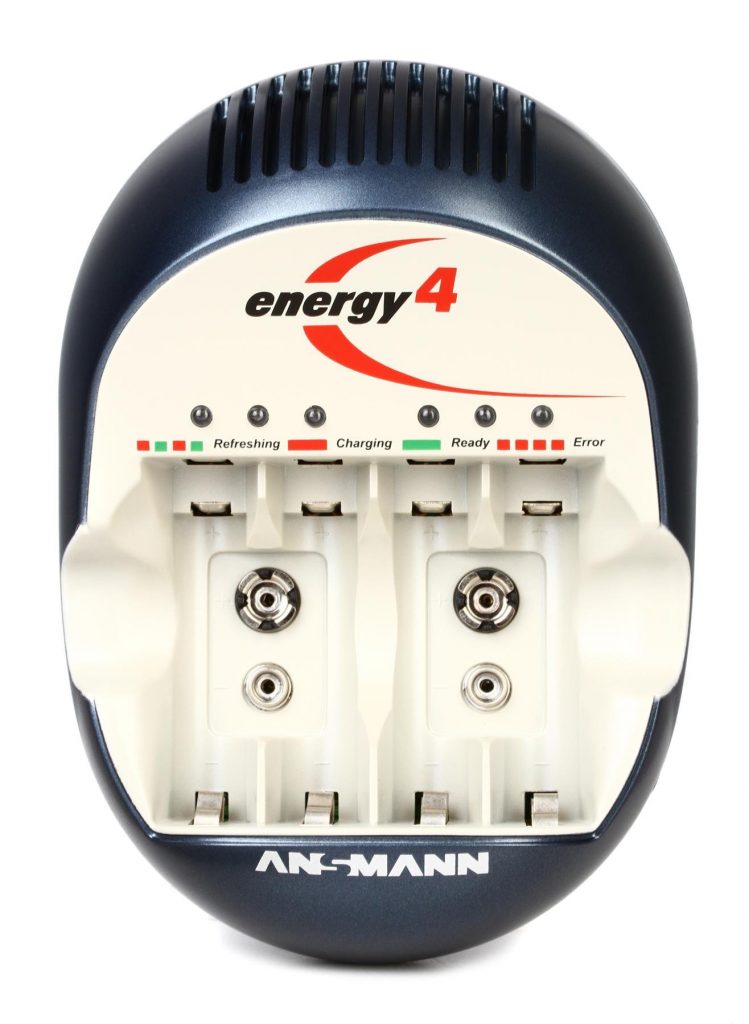
Wireless transmitters, and sometimes receivers, require battery power. Most transmitters use either replaceable AA batteries or a built-in rechargeable battery. If you’re playing a long set, name brand, disposable batteries are your best bet. Rechargeable batteries are better for the planet but are often unable to last as long over time. Built-in batteries are recharged via USB or charging dock and should be fully charged before use. Learn more about using batteries with wireless systems in this useful article from our friends at Shure.
- Check your wireless system’s user manual for specific manufacturer recommendations.
- New, high-quality alkaline batteries are the most reliable.
- Used batteries offer much shorter operating time than fresh batteries.
- Rechargeable NiMH batteries must be fully charged before use and have varied performance.
- Do not attempt to recharge alkaline batteries in non-alkaline battery chargers.
- Some devices will not operate properly with rechargeable batteries because of their lower voltage (1.2V). In this case, use standard 1.5V batteries.



Pedalboard receiver power
Most wireless receivers have their own power supply adapter. When using pedalboard wireless receivers like the Line 6 G10S, Boss WL-50, or GLXD16, you might consider connecting to the pedalboard power supply rather than the one included with your system.
Each receiver will indicate which power supplies are compatible in their user manual (usually the included power supply) but most wireless guitar pedal receivers will operate just fine with a compatible power supply. Any third-party power supply must match the receiver’s polarity, voltage, and meet or exceed the amperage rating. Learn more about pedal power in Guitar Pedal Power Demystified.
- Power supply specifications must match the receiver’s voltage and polarity and then meet or exceed the amperage (mA) rating.
- Since all pedal receivers are digital (2.4GHz) they need a stronger current than most analog pedals, usually greater than 100mA.
Daisy chain pedal power
If daisy chaining multiple pedals, including the wireless receiver, make sure the amperage rating on the power supply is equal to or greater than the amperage total of all connected pedals. Failure to use a compatible power supply may damage the pedal(s) or cause them to malfunction.
Maintain a clear line of sight
Transmitters and receivers work best when there is a clear line of sight between them. It’s difficult for the signal to pass without interference or dropouts when there are people, metal objects, or walls in the way. Do your best to keep a clear, unimpeded line of sight between the transmitter and the receiver. Learn more in the Shure Whiteboard video below where they discuss how metal and salt water impede radio frequencies.
- Create a clear line of sight between the transmitter and receiver.
- Maximize the distance between the antenna and reflective or metallic surfaces.
- Stay within the wireless system’s range.
- Avoid blocking the line of sight with your body while performing or sitting.
Shure Whiteboard – Two Common Causes of RF Interference
RF level, audio gain, and squelch
Most wireless transmitters have adjustable levels for audio gain and RF. Audio gain refers to the transmitter’s adjustment level. This setting varies from system to system, but it’s typically used for additional gain when the input level is too low. The radio frequency (RF) level refers to the wireless signal strength of the transmitter. It’s not adjustable on all systems and it’s sometimes referred to as power saving mode. When the RF level is low and less clear, the transmitter may save battery life, but be less distinguishable from interference. When the RF level is strong and clear, the receiver is better able to distinguish it from interference.
- Too much audio gain causes the signal to overload the input and sound distorted.
- Too little audio gain produces a low signal-to-noise ratio and overall noisier audio.
- For wireless receivers with output volume controls, set the level to the maximum as to provide the greatest dynamic range.
- If adjustable, set the RF levels for clear wireless transmission without interference.
In addition to signal and wireless levels, many wireless systems have an adjustable squelch setting. Squelch is an automatic muting that silences unnecessary wireless noise, typically when the audio guitar is silent. Squelch controls should be set to only pass audio signal and always mute background interference noise.
- Set the squelch level to mute the background radio noise and only pass audio signal.
- Reset squelch level by turning the squelch all the way down (allow everything, no squelch).
Wireless channels and frequencies
Guitar wireless systems use radio frequencies (RF) to transmit guitar signals through the air. Depending on the environment, other wireless frequencies may interfere with your signal or cause dropouts.
- If your wireless system has an auto-scan feature, use it to automatically select the best available wireless channel.
- Position the transmitter and receiver so that they can see each other.
- Antennae should be positioned in a V shape, with the tips pointing up (to the sky).
- Avoid enclosing or surrounding the wireless antenna with reflective surfaces.
- Have at least 10 feet of distance between multiple 2.4 GHz wireless systems.
- Turn off unnecessary Wi-Fi networks, and always power on wireless systems last.
Auto-scan and sync
Wireless systems have two ways of selecting a wireless channel: manual and automatic. Manual requires that both transmitter and receiver are set to the same wireless channel. Some systems will have channel numbers while others use frequencies. Automatic systems will pair themselves to each other using the strongest available wireless channel/frequency in the area.
Some systems have auto-scan features. Auto-scan will detect and select the optimal frequencies in the area. This is particularly useful when you’re not sure what the ideal frequencies are or want to get up and running right away. Check your system’s user manual for specific instructions on changing the operating frequency or channel.
If you are using multiple wireless systems, their frequencies can overlap and produce additional frequencies called intermodulation. This can especially occur when two or more transmitters either cross paths or are in close proximity. You can avoid this by assigning each system to a channel or frequency from the same group, or intermodulation-free frequencies.
Shure Whiteboard: How to Coordinate a Wireless System
What is Intermodulation?
Analog vs. digital
Both analog and digital systems use radio frequencies to transmit audio signals, but each one is a bit different. For instance, analog has a frequency response of 60Hz – 16kHz and a dynamic range of 50db while digital typically offers full frequency response (20Hz – 20kHz) and a wider dynamic range of 110db or more. This is because the audio signal in digital systems is converted to digital 1’s and 0’s before being wirelessly transmitted, allowing for greater audio resolution and stability. Digital systems can also be configured in closer frequency assignments without interference or performance loss. All systems will use certain frequency bands, but some digital systems are 2.4GHz and have additional wireless considerations.
Shure Whiteboard – Analogue v Digital Wireless
2.4GHz wireless guitar systems
2.4 GHz devices (wireless systems, Wi-Fi routers, Bluetooth, etc.) have flexible wireless connectivity and will often change frequencies to maintain a strong wireless connection. With so many devices like smartphones, tablets, Bluetooth and Wi-Fi using the 2.4 GHz spectrum, it can sometimes be tricky operating them in a crowded wireless area. Avoid placing the 2.4 GHz transmitters or receivers next to other 2.4GHz or RF equipment. Line 6 recommends at least 10ft (3 meters) of distance from any other 2.4 GHz devices. The 2.4 GHz spectrum is also easily absorbed by people’s bodies, so maintaining a clear line of sight between the transmitter and receiver is even more important.
- Wi-Fi, Bluetooth, and many other devices use 2.4 GHz.
- 2.4 GHz Wi-Fi networks can compete for WLAN channels and cause interference or dropouts.
- When using Wi-Fi for a show, power on the Wi-Fi network first and wireless guitar system last.
The Ultimate Guide to Wireless Systems for Guitarists ft. Scott Uhl
Additional resources
Boss
Shure
- GLXD Reception Problems Caused by Wireless Wi-Fi Router
- Avoid These Five Mistakes In Wireless
- Squelch Circuit Technology In Wireless Audio Systems
- Locking and Unlocking Shure Transmitters and Receivers
Line 6
- Line 6 2.4 Wireless FAQ
- RF1/RF2 Switching & Frequencies
- Relay G10/G10S FAQ
- Relay G10/G10S Guitar Compatibility (Fit/Electronics)
- Relay G30 FAQ
- Relay G50/G55/G90 Series FAQs
- Relay G70/G75 FAQs
How Line 6 Digital Wireless Works in WiFi Space
Related Articles
When you need help, Sweetwater has the answers!
Our knowledge base contains over 28,000 expertly written tech articles that will give you answers and help you get the most out of your gear. Our pro musicians and gear experts update content daily to keep you informed and on your way. Best of all, it’s totally FREE, and it’s just another reason that you get more at Sweetwater.com.

