
Getting Started With the Apogee BOOM
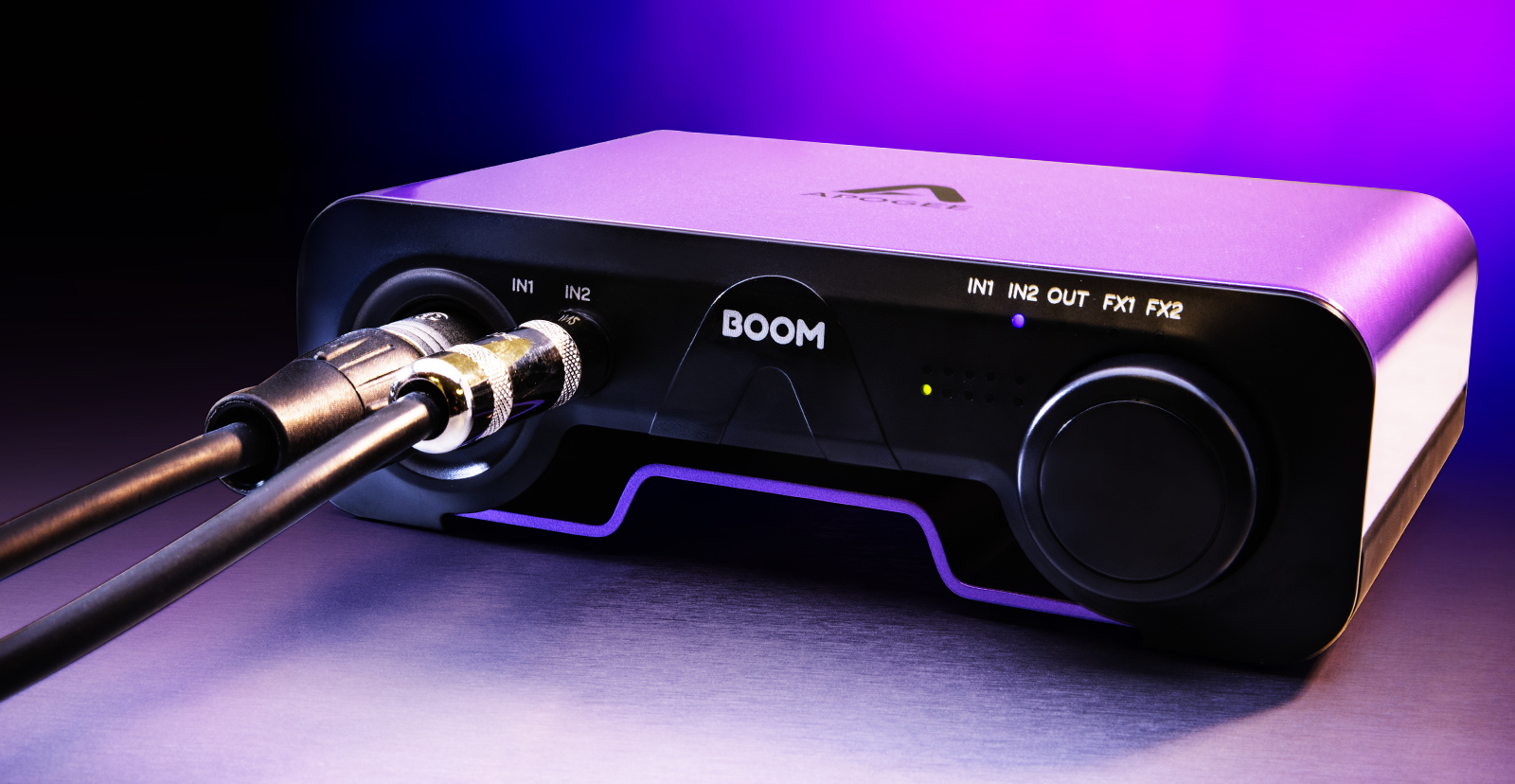
The Apogee BOOM is a great interface to have in your studio. In this article we’ll show you how to register, set up, and connect the BOOM for the first time. Follow the sections below to get started.
Register the interface
Before using the Apogee BOOM, you first need to register the interface with Apogee. Upon registration, you’ll get access to free software and, more importantly, the drivers for the interface.
- Sign into your Apogee account. If you don’t have an account yet, you can create one here.
- When creating a new Apogee account, check your email for account activation instructions. If you don’t receive the email, be sure to check your spam folder.
- Once you’re logged in and on your account page, click Register New Product.
- On the next page, select BOOM from the dropdown menu, enter the Serial Number located at the bottom of the interface underneath the barcode, then click Submit.
Download the software
TIP: Once registered, you will receive copies of free software such as Ableton Live Lite and Neural DSP’s Tone King Imperial plug-in. You can download and activate the free bundled software at any time.
For your Apogee BOOM to work correctly, you will need to download the driver. Apogee Control 2 is included in this download, which is the control software you will use to adjust the input and output mixes, as well as other various tasks.
- On your account home page, click Download Installers.
- Click on the OS you will be using, navigate to your Downloads page, then locate and launch the driver installer.
- Once the drivers are installed, you can then connect the interface to your computer.
How to Register BOOM and Install Software
Setup and connections
Once the Apogee BOOM has been registered and its drivers have been installed, the next step is to get everything set up and connected!
TIP: You can also control the input and output settings from the Apogee Control 2 software.
- Connect the USB cable from the interface to your computer.
- Press the control knob twice to select the output, turn the knob all the way down, then connect your speakers.
- Navigate to your computer’s sound settings and set it as the default recording and playback device.
- PC: Right-click the Speaker icon on your Windows taskbar and click Sounds. Select Playback, right-click your interface, and click Set as Default Device and Set as Default Communications Device. Lastly, select Properties, go to the Advanced tab, and uncheck the boxes under Exclusive Mode. Click the Recording tab and follow the same procedure.
- Mac: Click the Apple icon from the Menu Bar and select System Preferences. Click Sound, then select BOOM under the Input and Output tabs.
- Play some music or a video, and slowly turn the knob to the right until it’s at a comfortable listening level.
- Launch your DAW, then set it as the default input and output device.
iOS connections
Most iPad models nowadays have a USB-C connector, however, if you have an iOS device with a Lightning connector, connect the interface to a powered USB hub and then connect an official Apple Lightning to USB 3 Camera Adapter to the hub and the interface.
Apogee BOOM firmware update
If the Apogee Control 2 app notifies you that there is a newer version of the firmware his means you will need to update the BOOM’s firmware which often includes optimizations to the devices internal software and also address any bugs that are currently present.
- Disconnect the interface from your computer.
- Press and hold the control knob while reconnecting the USB cable to the computer.
- When you receive a notification that it’s in firmware update mode, let go of the control knob, then click Yes in the Apogee Control app.
- Once the firmware update process is complete, click OK.
How to Update the Firmware On BOOM
Related Articles
When you need help, Sweetwater has the answers!
Our knowledge base contains over 28,000 expertly written tech articles that will give you answers and help you get the most out of your gear. Our pro musicians and gear experts update content daily to keep you informed and on your way. Best of all, it’s totally FREE, and it’s just another reason that you get more at Sweetwater.com.

