
GetGood Drums Software Activation Instructions
In this article, we will talk you through the steps needed to get your GetGood Drums software up and running. Follow the sections below to get started.
System Requirements
To ensure that your GGD software works with your current operating system, verify that your computer meets the System Requirements. To view the requirements, select your product and scroll down to the Requirements section of the product page.
Register GetGood Drums Software
To register your software, all you have to do is visit Continuata’s registration page and fill out your purchase information including your name, email, and download code. The download code can be found in the Software Activation Instructions email sent from your Sweetwater Sales Engineer.
GetGood Drums will then send you an email containing download instructions for your product. After reading through the email’s instructions, continue to the next section of our article to install and activate your new software.
- Visit the Continuata registration page.
- Enter the product purchase information. The Download Code can be found in the Software Activation Instructions email sent from your Sweetwater Sales Engineer.
- Click Register.
- Locate the new email from Continuata and follow the included instructions to download your software.
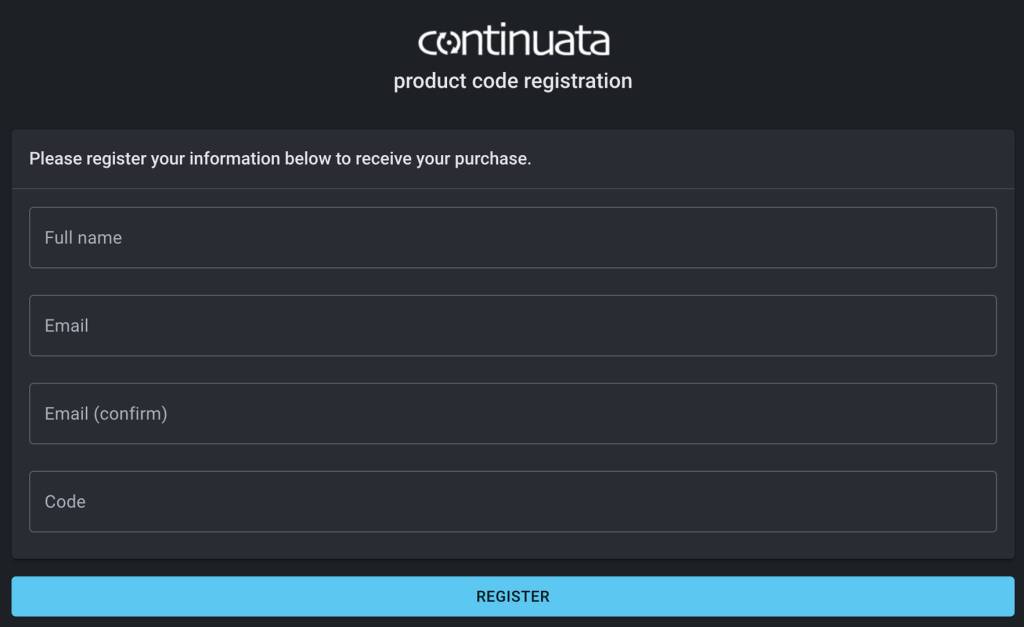
Click the image to register your GetGood Drums software.
Install and Activate Software
In order to activate your software, you will need to download and install both Native Access and Kontakt applications. Native Access is an all-in-one hub used to easily register and install your software. Kontakt and Kontakt Player (free version) is a virtual instrument engine for VST, AU, and AAX plug-in formats. Make sure both applications are updated to the latest available versions before activating and installing your new software.
Once the applications are installed, you will use Native Access to activate and install your new GGD software. Then, load your software in Kontakt using the same Download Code from the Sweetwater email.
- If you haven’t already, download and install Kontakt (or Kontakt Player) and Native Access.
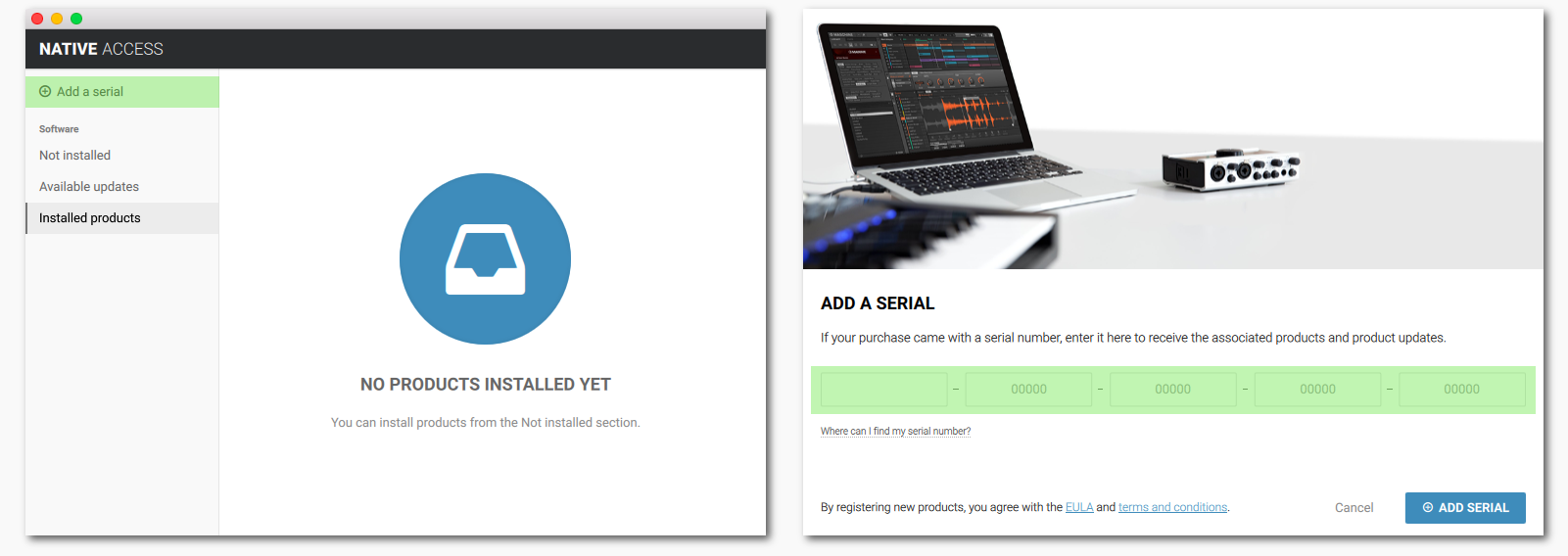
- In Native Access, select Add A Serial in the top-left corner.
- In the new window, enter the serial number (pictured below) included in the Software Activation Instructions from Sweetwater and click Add Serial.
- Select the location on your computer where you have installed this library and click the Install button to complete the installation process.
- Close Native Access and launch Kontakt. Then, go to the Libraries rack and load your new GGD software!
Additional Resources
Now that you have your GetGood Drums software downloaded and installed, you’re ready to dive into GetGood Drums’ exciting and versatile drum samples. But if you come across any problems or just want to bulk up on more information, you can take a look at GetGood Drums’ YouTube Channel and Support Pages.
Related Articles
When you need help, Sweetwater has the answers!
Our knowledge base contains over 28,000 expertly written tech articles that will give you answers and help you get the most out of your gear. Our pro musicians and gear experts update content daily to keep you informed and on your way. Best of all, it’s totally FREE, and it’s just another reason that you get more at Sweetwater.com.

