
My plugins do not show up in Pro Tools
Overview
If you can’t find your plug-ins or they seemingly disappeared in Pro Tools, you’re in the right place! In this article, we will show you how to find your plug-ins so you can get back to recording. As long as you installed the AAX, RTAS, or TDM version of your plug-in, you be back up and running in no time. We broke this article down into the three steps below:
Find your plug-ins in Pro Tools
The first thing we need to do is to organize your plug-ins by manufacturer in Pro Tools. You can adjust this setting through the Preferences window. After doing that, create a mono and a stereo track and check to see if that fixed the issue. Follow the instructions below:
How to find your plug-ins in Pro Tools
- Launch Pro Tools and go to the Preferences window.
- Windows: Setup > Preferences…
- Mac: Pro Tools > Preferences…
- Set Organize Plug-In Menus By section to Category and Manufacturer and then press OK.
- Create a mono and stereo audio track.
- Click Insert A-E to view the plug-in menu.
I still don’t see my plug-ins!
If you’re still don’t see your plug-ins, let’s try trashing Pro Tools preferences. This will force Pro Tools to rescan all the plug-ins in that folder. If that didn’t do the trick, read through the next section to check the Pro Tools Plug-ins folder.
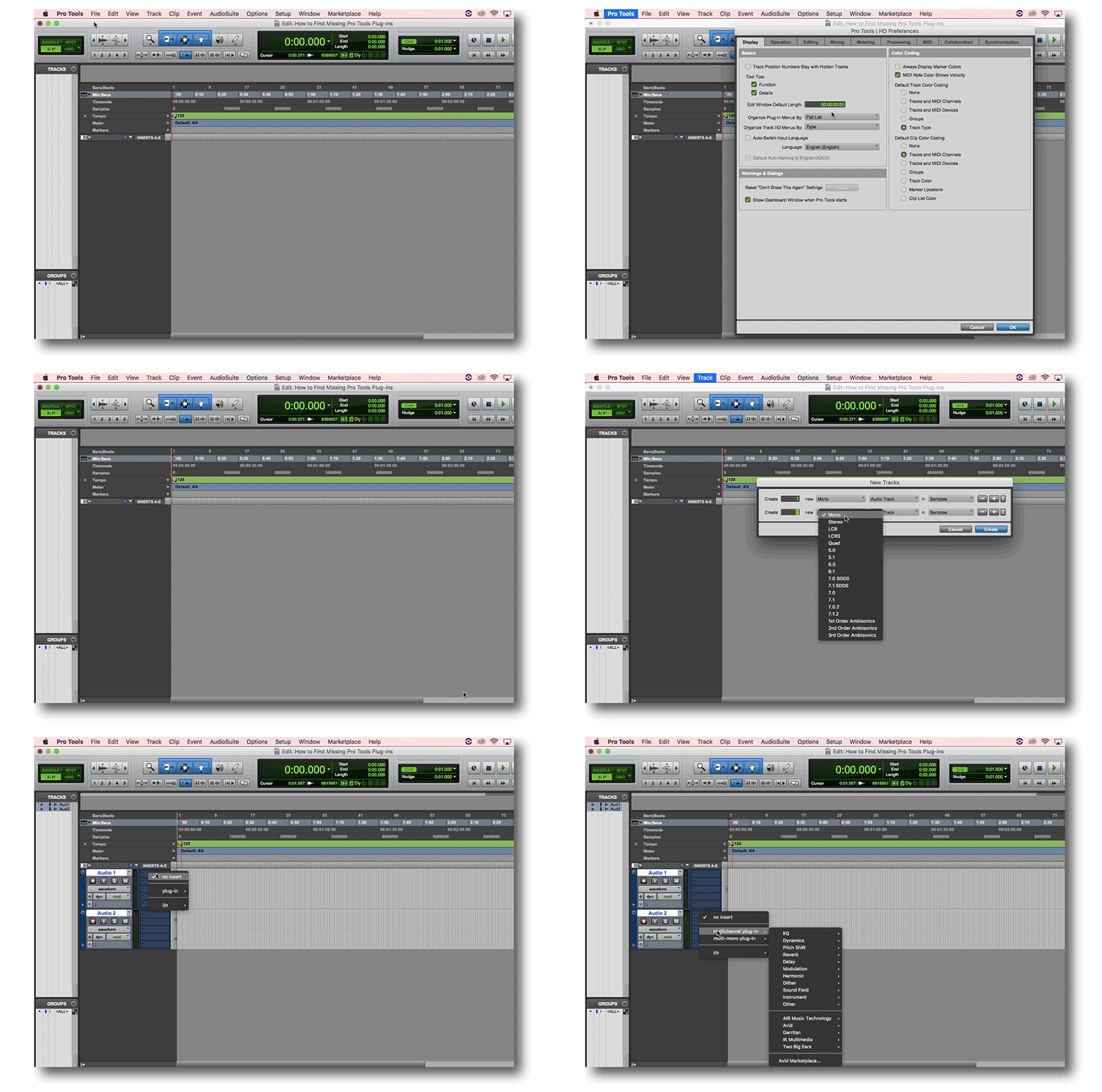
View the plug-ins on a stereo and audio track after resetting the plug-in menu.
Check the plug-ins folder
In this section, we are going to check your plug-ins folder and make sure the plug-ins are where they need to be. Follow the instructions below for Windows or Mac:
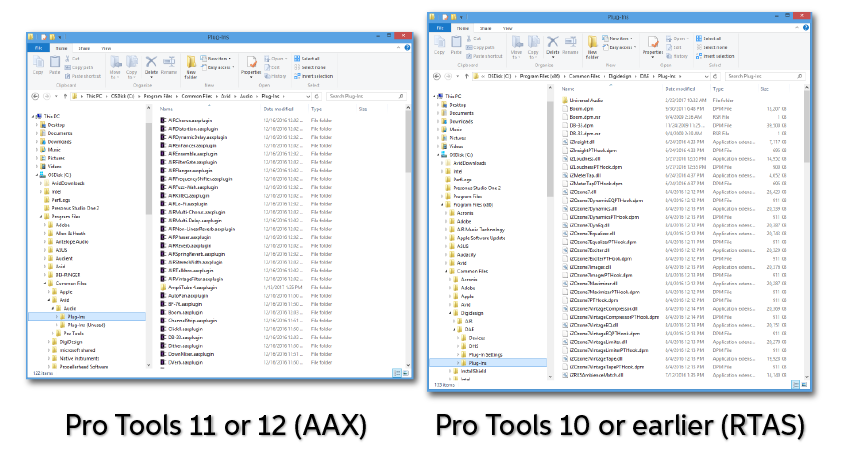
How to check Pro Tools plug-ins folder on Windows
- Open File Explorer and select the C: drive.
- Follow the file path below for your Pro Tools version to find your plug-ins.
Pro Tools 11 or 12 (AAX)
- C:\Program Files\Common Files\Avid\Audio\Plugins
Pro Tools 10 or earlier (RTAS)
- C:\Program Files (x86)\Common Files\Digidesign\DAE\Plug-ins
Pro Tools 10 (AAX)
- C:\Program Files (x86)\Common Files\Avid\Audio\Plugins
How to check Pro Tools plug-ins folder on Mac
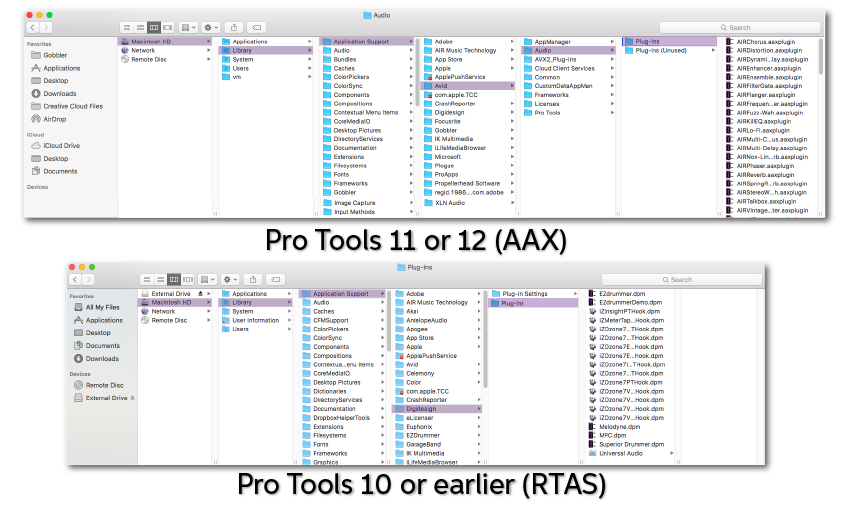
- With Finder open, click on Go and choose Computer.
- Follow the file path below for your Pro Tools version to find your plug-ins.
Pro Tools 11 or 12 (AAX)
- Macintosh HD > Library > Application Support > Avid > Audio > Plug-ins
Pro Tools 10 or earlier
- Macintosh HD > Library > Application Support > Digidesign > Plug-ins
Other common solutions
If you’re still not seeing your plug-ins, this means that you need to reinstall your plug-ins. Luckily, we have created a guide that will walk you through how to activate, download, and install Avid plug-ins!
For more resources to optimize or troubleshoot Pro Tools, check out our Helpful Links below, including our Pro Tools Troubleshooting Guide! You can also take a look at Avid’s Support and YouTube pages for more information!
Related content
- Pro Tools Troubleshooting Guide
- How do I trash my Pro Tools preferences?
- How to Download and Install Avid’s Pro Tools 12 & 2018
- Pro Tools 12 System Requirements
- Pro Tools won’t recognize my interface!
When you need help, Sweetwater has the answers!
Our knowledge base contains over 28,000 expertly written tech articles that will give you answers and help you get the most out of your gear. Our pro musicians and gear experts update content daily to keep you informed and on your way. Best of all, it’s totally FREE, and it’s just another reason that you get more at Sweetwater.com.

