

Avid Plug-ins Software Activation Instructions
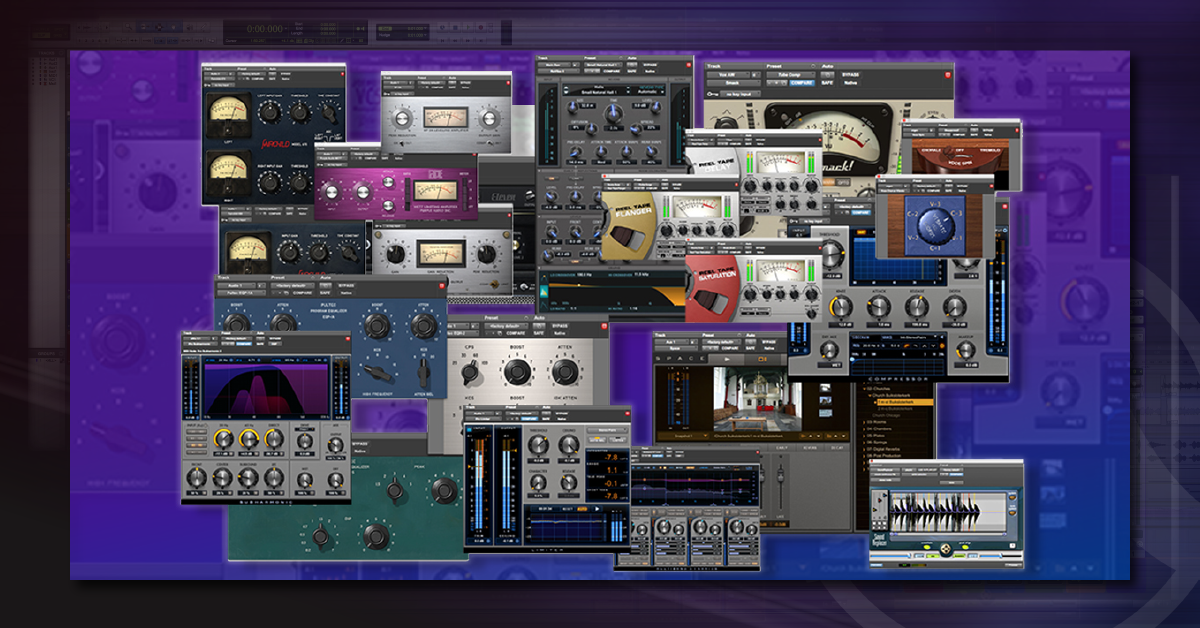
In this guide, we will show you how to activate, download, and install Avid plug-ins. Follow the sections below to get started.
- Create and sync accounts
- Activate Avid plug-ins
- Authorize Avid plug-ins
- Download and install Avid plug-ins
Create and Sync Accounts
Before you can activate your plug-ins with Avid, you first need to create an Avid Master Account. We strongly recommend writing down your email address and password and keep them in a safe place. If you forget, you can reset your Avid password here, and you can reset your iLok info here. Once your Avid Master Account has been created, you can activate your software with Avid. You will also need to set up an iLok account. If you’re new to iLok, check out our iLok License Manager Tutorial to learn how to set up an iLok account before proceeding. Once you’re finished, come back to this page to continue. After your iLok account is set up, you need to enter your iLok account information into your Avid Master Account. This tells Avid where to send your plug-in license(s) after you submit an activation code. Watch the GIF and follow the steps below.
Sync iLok Account with Avid Master Account
Important iLok info!
A valid iLok license must be detected every time you launch Pro Tools. The iLok License Manager app can be used to store licenses on either a physical iLok USB dongle or iLok Cloud session. If you’re going to store your license in an iLok Cloud session, make sure your license is not already on an iLok USB dongle. You cannot store your license in both locations simultaneously.
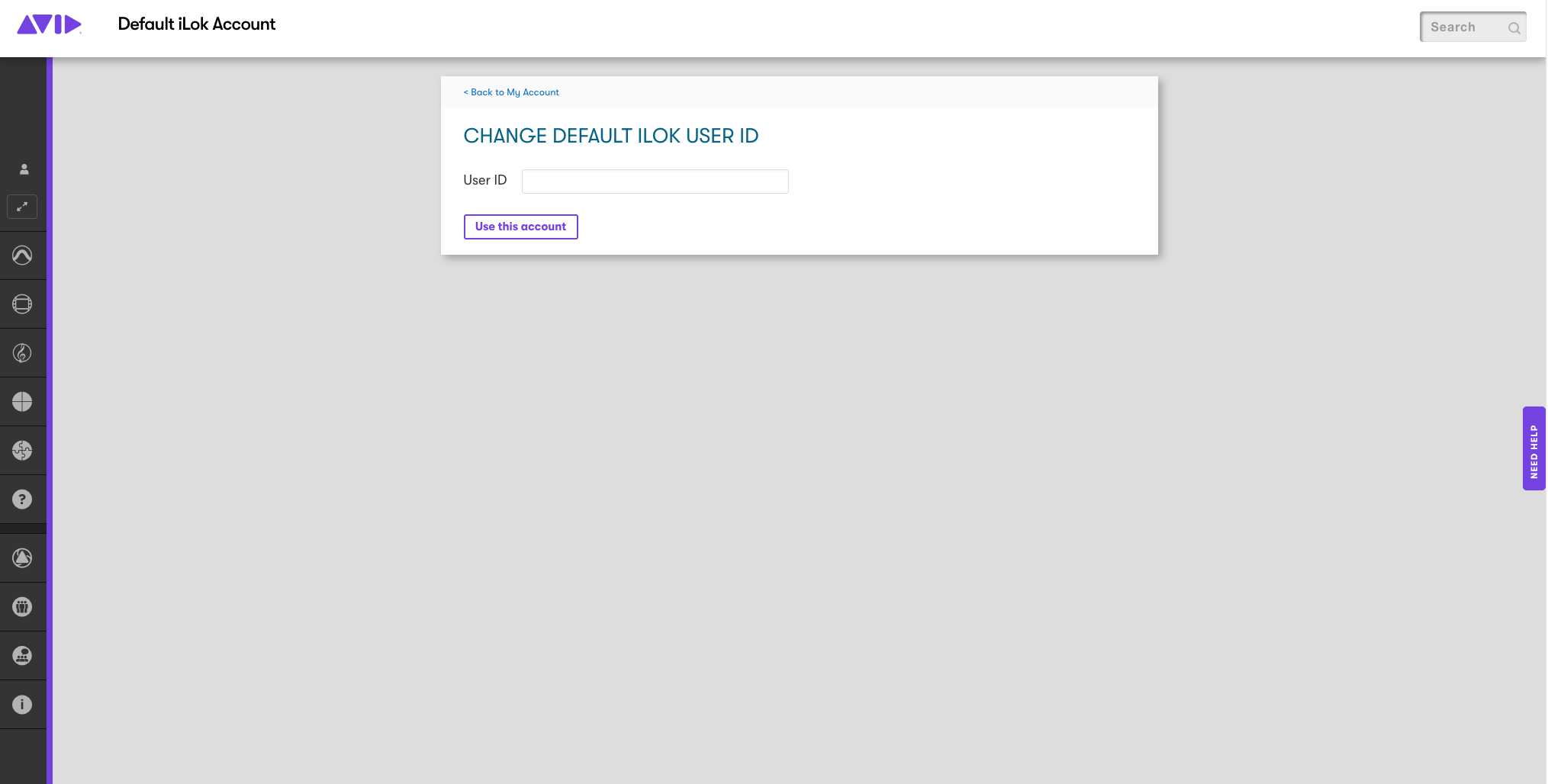
- Visit the Linked iLok Account page of your Avid Master Account and select Link this Account.
- Enter your iLok ID and follow the on-screen instructions to sign in and sync your iLok account.
How to Activate Avid Plug-ins
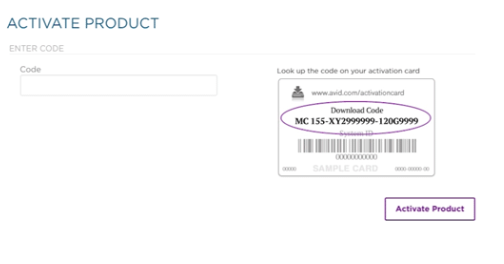
Activating your Avid product(s) is easy! Simply open the Software Activation Instructions email from your Sweetwater Sales Engineer, and find the Activation/Download Code (e.g. FE 260-999E9001L-5BE47R9N). Once you have your code, follow the steps below to activate. Downloads will appear on the My Products and Subscriptions page of your Avid Master Account after you have completed the activation process. This is also where you’ll download updates after they’ve been released.
- Copy the activation code you received from your Sweetwater Sales Engineer and go to the Avid Activation page.
- Paste the code into the box and click Activate Product.
- Follow the on-screen instructions to activate Pro Tools.
Authorize Avid Plug-ins with iLok
Avid plug-ins are authorized by iLok, which means you’ll need to have a valid license on your iLok or an iLok Cloud session in order to launch your software. If using an iLok Cloud Session, make sure your license is not on an iLok USB dongle, otherwise, you won’t be able to access it until the license is removed from the iLok. Follow the steps below to complete the authorization process to your iLok USB dongle and iLok Cloud Session.
iLok USB dongle
- Launch the iLok License Manager
- Locate your license under the Available tab.
- Drag/drop the license onto the icon for your iLok USB dongle.
iLok Cloud session
- Launch Pro Tools and follow the on-screen instructions.
- You will be automatically prompted to sign in to your iLok account and start an iLok Cloud session.
Download and Install Avid Plug-ins
Your Avid plug-in installers are located on the My Products and Subscriptions page of your Avid Master Account. Sign in and select your product to start the download. Follow the steps below.
- Go to the My Products and Subscriptions page and locate your Avid plug-in.
- Click the arrow on the right of the purple banner.
- Locate and download the version that is compatible with either your Windows or Mac computer.
- Go to your Downloads folder, locate your Avid plug-in file and double click the installer.
- Windows users: Before your software can be installed you must first use Extract All on the .ZIP folder. Learn how in our How to Zip and Unzip Files article.
Related Content
- How to Activate & Authorize Avid’s Pro Tools 12 & 2018
- How to Download and Install Avid’s Pro Tools 12 & 2018
- How to Configure Audio & MIDI Settings for Pro Tools 12 & 2018
- How to Activate, Download & Install Avid’s Sibelius 8 & 2018
- How to Renew a Pro Tools or Sibelius Subscription
When you need help, Sweetwater has the answers!
Our knowledge base contains over 28,000 expertly written tech articles that will give you answers and help you get the most out of your gear. Our pro musicians and gear experts update content daily to keep you informed and on your way. Best of all, it’s totally FREE, and it’s just another reason that you get more at Sweetwater.com.

