
External Hard Drive Troubleshooting Guide
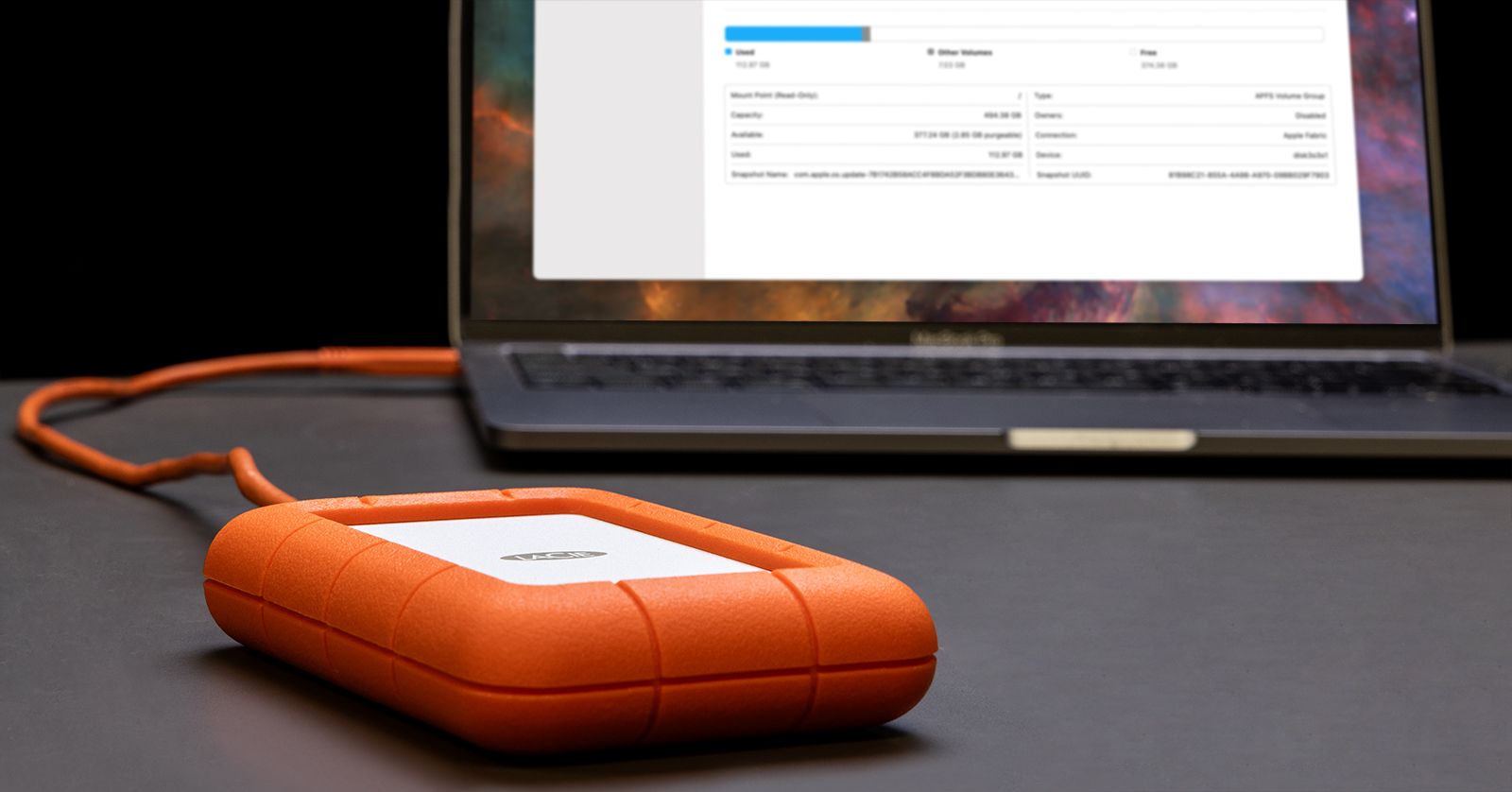
If your external hard drive isn’t showing up or mounting, it can be a very frustrating experience. Luckily, there are a few steps you can take to ensure this doesn’t happen. In this guide, we will show you how to troubleshoot your external hard drive so you can get up and running again. Follow the sections below to get started.
- My External Hard Drive Isn’t Showing Up
- External Hard Drive Won’t Mount on Mac
- Formatting Hard Drives
- My External Hard Drive Is Clicking
- Why Is My External Hard Drive Getting Hot?
My External Hard Drive Isn’t Showing Up
NOTE: Before you do any troubleshooting, restart your computer to see if that fixes your issue!
There could be various reasons why your external hard drive isn’t showing up on your Windows PC or Mac. While it could be a connectivity issue, it could also be that the hard drive is not be formatted, or the drivers may not be up to date.
External Hard Drive Connectivity
If your external hard drive isn’t showing up, connectivity is the easiest thing to check. First, try a different USB port. Connect the USB cable to another device if it still doesn’t show up. If that device doesn’t show up when you connect it to different ports, the cable likely went bad.
Like any other cable, USB cables can go bad, especially off-brand ones that you may find at a budget store or gas station. When you shop for USB cables for your external hard drive, look for quality, name-brand ones.
If your device still isn’t showing up even after you’ve confirmed you have a working USB cable, it could also be caused by where you’re connecting your external hard drive. If you’re connecting an external hard drive to a USB hub, especially a passive USB hub which doesn’t rely on an external power source, the hub may not be able to provide enough power to transfer data. If this is the case, reconfigure your USB connections to connect your external hard drive directly to your computer.
Updating Drivers
Another reason why your external hard drive isn’t showing up might be that the external hard drive’s drivers are out of date. Some (but not all) external hard drives may require additional driver software to work correctly. Out-of-date drivers can cause various issues, including connectivity issues, so keeping the drivers up to date can fix your problem immediately.
Check out our guides below on updating drivers on Macs and Windows PCs to learn more!
If none of these steps are working, it may be an issue with your hard drive format. Continue below to learn more about formatting hard drives. —-Platform Entry Note: Please make this a page jump to the Formatting Hard Drives H2.
External Hard Drive Won’t Mount on Mac
While it doesn’t happen often, there might be a time when your external hard drive won’t mount on your Mac.
If your Mac doesn’t recognize your external hard drive, ensure it isn’t hidden within the Finder Settings. You can change this by navigating to Finder > Settings and checking both Hard disks and External disks boxes within the General tab. If both Hard disks and External disks are checked, and it’s still not appearing, another simple fix is remounting it. This process couldn’t be easier! Go to Disk Utilities, find your external hard drive, and click Mount.
Run the Disk Utility First Aid Tool
Mac has a built-in tool for hard drive issues called the First Aid Tool. It’s located in Disk Utility. If your external hard drive isn’t mounting, run the First Aid Tool to see if that fixes the issue.
- Reboot your Mac.
- Apple processor: Press and hold the Power button until you see Startup Options. Next, navigate to Options, then click Continue.
- Intel processor: Hold Command + R until you see the Utility window appear.
- Click Disk Utility, then select Continue.
- Click View, choose Show All Devices, and select your external hard drive located on the left side of the window.
- Click First Aid and select Run.
If after you ran the Disk Utility First Aid Tool and your hard drive still isn’t working, you may need to double-check your hard drive’s format. Continue below to learn more about formatting hard drives. —-Platform Entry Note: Please make this a page jump to the Formatting Hard Drives H2.
Formatting Hard Drives
If you’ve confirmed your external hard drive is connected to the correct port with a working USB cable and it still isn’t mounting on Mac, it could be that your external hard drive isn’t showing up is because it’s not formatted (or it’s formatted incorrectly).
When you format a hard drive, you create partitions so your Windows PC or your Mac can read and write files. Not only do the files have to be formatted, but they must also have the correct format type.
You can check out some of our excellent guides about Hard Drive Setup and Formatting, How to Format External Hard Drives on Windows, and How to Format External Hard Drives on Mac.
External Hard Drive Is Making a Clicking Sound
Sometimes, you may hear a clicking sound coming from your hard drive. In the tech world, it’s called the Click of Death (COD). This clicking noise can only come from HDDs (spinning disk drives), as SSDs have no moving components.
If you look at the inside of an HDD (spinning disk drive), it looks like a record player. A spinning coated magnetic disk with a read/write head is attached to an arm. While the disk spins, the arm will register 1s and 0s and translate the data into specific information (like a saved document, software, etc.).
The head, the arm, or the actuator malfunctioning can cause the clicking noise. This can often be caused by normal wear and tear or excessive vibration (and dropping it will most certainly do damage). Overheating and excessive moisture (humidity) can also cause a clicking sound in your external hard drive. We will discuss more about your external hard drive overheating below.
Your external hard drive clicking means it is nearing the end of its life, so it’s imperative that you immediately back up all your data to the cloud or to a new external SSD as soon as possible!
Check out our article on File Management to learn more about backup hard drives!
Can You Fix a Hard Drive That’s Clicking?
One common question people have if they hear their hard drives clicking is they can be fixed. The short answer is not really. If your external hard drive is clicking because of overheating, you can try placing it in a waterproof bag and sticking it in a freezer for a couple hours (no longer than two!). If you have the know-how, you can potentially retorque the arm, but it cannot be stressed enough that these are not permanent fixes. They just give you a little extra time to back up your data.
While you can send your hard drive to a hard drive manufacturer that offers recovery services, the cost of that outweighs the cost of getting a new external SSD.
How to Prevent External Hard Drives from Clicking
Now that you know what can cause clicking in external hard drives, here are a few things you can do to prevent it from happening.
- Store your external hard drive in a comfortable temperature range.
- Back up your files and other data frequently, following the 3-2-1 rule:
- Three copies of the data. This includes the original and two backup copies.
- Two different storage media types. This could be another external hard drive and the cloud.
- One copy offsite. This prevents the possibility of data loss due to something like a power outage. Again, this could be an additional external hard drive or the cloud.
- Invest in an external SSD, as they read and write data faster and have no mechanical parts, making it impossible for the Click of Death to occur.
Why Is My External Hard Drive Getting Hot?
It’s normal for hard drives to get slightly warm, especially if a lot of data is being processed (like running a process-heavy application like photo or video editing software). However, if it starts to overheat, there could be a reason behind it.
While this mainly applies to internal hard drives, external hard drives with vents can overheat if the vents aren’t cleaned or they don’t have proper ventilation. We recommend checking and cleaning it weekly if it has vents and is being used often. Good airflow means cooler and more stable temperatures.
Your hard drive could also get hot due to placing your external hard drive on a surface that absorbs heat and doesn’t dissipate well, like a pillow or carpet. Although the hard drive only generates a small amount of heat, it can get warmer the longer it sits on that surface. This issue is magnified if you’re in a very warm environment.
Some other, less thought-about reasons could be bad sectors on your external hard drive, too many programs running simultaneously, high CPU usage, and even viruses or malware! So, if your external hard drive gets hot while it’s clean and not on a surface that absorbs heat, first shut down any unnecessary software to see if it gets cooler. If not, run a virus and malware scan to ensure your computer isn’t infected.
When you need help, Sweetwater has the answers!
Our knowledge base contains over 28,000 expertly written tech articles that will give you answers and help you get the most out of your gear. Our pro musicians and gear experts update content daily to keep you informed and on your way. Best of all, it’s totally FREE, and it’s just another reason that you get more at Sweetwater.com.

