

Connecting to a Scarlett with ADAT
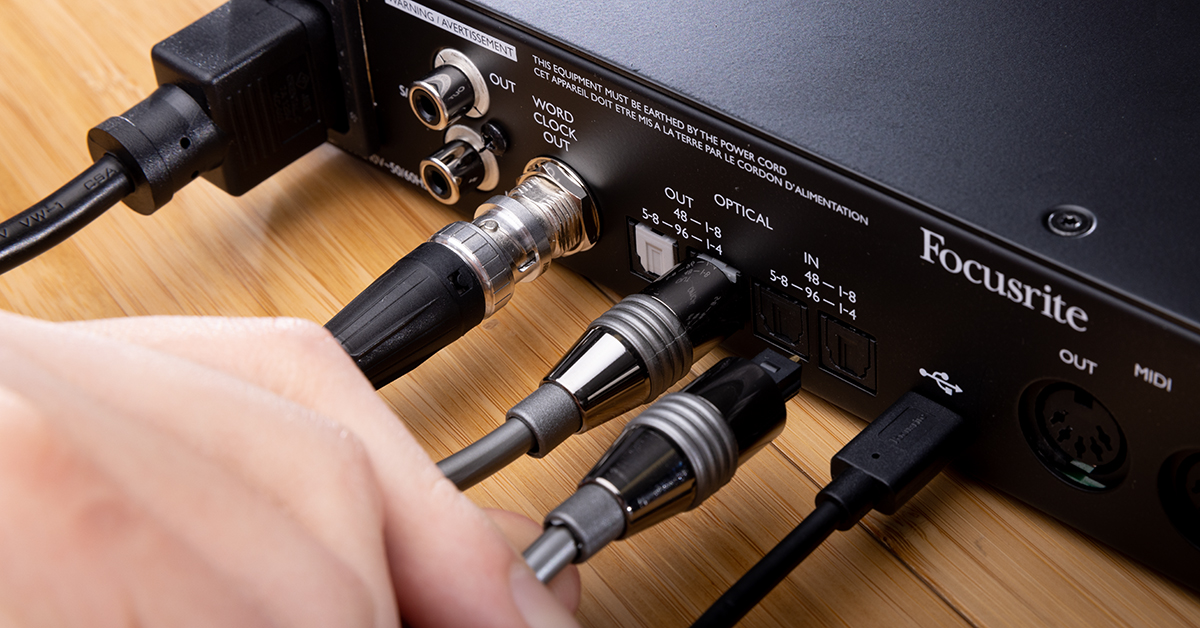
The Focusrite 18i8 and 18i20 all have ADAT connections that allow you increase your channel count by connecting another digital device. In this article we’ll show you how to connect, sync, and route ADAT devices with your Scarlett series interface. This guide breaks down into two parts:
What is ADAT?
ADAT is short for Alesis Digital Audio Tape. ADAT inputs are typically used for adding more input channels via additional microphone preamps and audio interfaces. Both 18i8 and 18i20 have ADAT Optical input jacks for eight more inputs at 44.1 & 48 kHz, and only four additional channels are available when recording at 88.2 & 96 kHz. ADAT Outputs are generally used to send signal out of your Scarlett to external devices like headphone distribution systems and D/A converters. Just like ADAT inputs, higher sample rates will also reduce the amount of output channels.
Connect to Scarlett with ADAT
Connecting another device to your Scarlett via ADAT is really just a matter of connecting the cables, synchronizing both devices, and then setting up the routing. Synchronizing two digital devices might sound a little intimidating but if you follow the steps below, you’ll be surprised just how easy it is.
ADAT input
- Using a Toslink cable, connect the ADAT output of the external device to OPTICAL INPUT of your Scarlett interface.
- Set all devices in the system to the same sample rate (44.1 kHz, 48 kHz, etc.).
- Set your devices’ clock settings so that all devices are receiving clock signal from a single master device.
- Route the signal in your DAW or Focusrite Control:
- DAW: Assign your track’s input to the appropriate ADAT input channel(s).
- Focusrite Control: Add the ADAT channels to a Scarlett Output’s Mix or choose them as the direct output.
- If you run into connection issues, please visit our guide on resolving audio interface issues on PC and Mac.
ADAT output
- Using a Toslink cable, connect the OPTICAL OUTPUT of your Scarlett to the external device’s ADAT input.
- Set all devices in the system to the same sample rate (44.1 kHz, 48 kHz, etc.).
- Set your device’s clock settings so that all devices are receiving clock signal from a single master device.
- Route the signal in your DAW or Focusrite Control:
- DAW: Assign your track’s output to the appropriate ADAT output channel(s).
- Focusrite Control: Select the ADAT output’s source: Mix, DAW, or direct output.
Connect with S/PDIF
Scarlett 6i6, 8i6, 18i8, and 18i20 interfaces also have S/PDIF connections. S/PDIF connections are typically used to connect an additional input and output stereo signal with another S/PDIF equipped device. Visit our Connecting to a Scarlett with S/PDIF page to read more.
Related Articles
When you need help, Sweetwater has the answers!
Our knowledge base contains over 28,000 expertly written tech articles that will give you answers and help you get the most out of your gear. Our pro musicians and gear experts update content daily to keep you informed and on your way. Best of all, it’s totally FREE, and it’s just another reason that you get more at Sweetwater.com.

