
Checking performance in PreSonus Studio One software
Studio One allows for unrestricted access to the program and its features, meaning that it is possible to utilize the software beyond the computer’s available resources. As more elements (such as new tracks, effects, and virtual instruments) are added to a song session, additional computer resources are needed to process them. If the program does not have enough resources available for smooth processing, audio glitching can occur. This will normally manifest as audio dropouts, “crunching” sounds, and static.
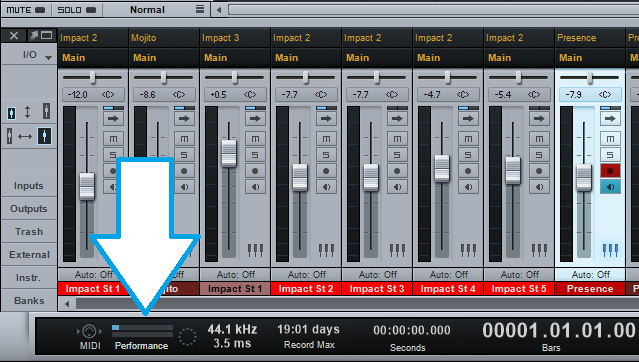
It is handy to be able to check up on your song session to see if it is exceeding what the computer is capable of. To do this, check the Performance Monitor in the bottom-left corner of the screen, as indicated below:
You can click the Performance Monitor for a more detailed view of the system resources being utilized. Checking the “show devices” box will give a detailed readout of each plugin in your current song session:
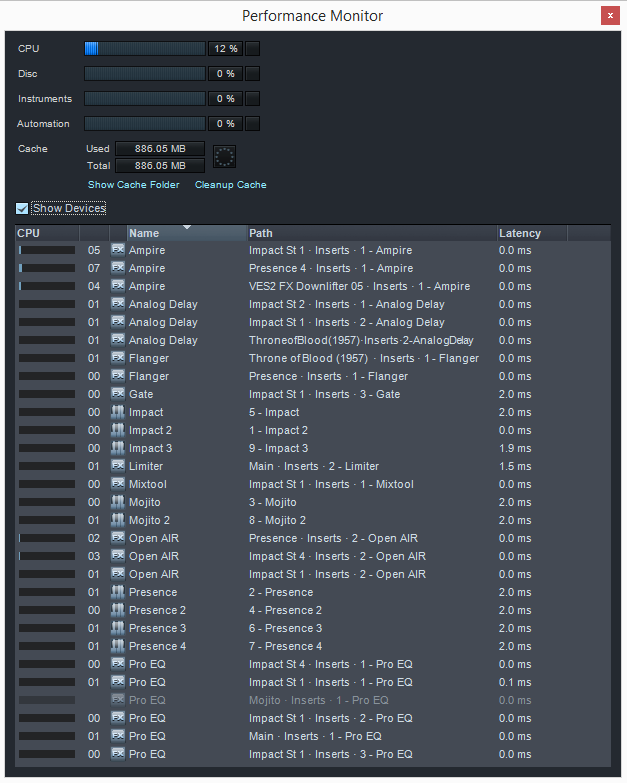
If any of the meters are reaching levels near the maximum, enough system resources are not available. To reduce resource usage, follow the steps below:
- Remove plugins and virtual instruments from the song that are not in use.
- Set up buses for effects, so that multiple tracks are routed through one effects bus, rather than each individual track having its own iteration of a plugin. For more information regarding this, check out section 9 (specifically 9.1.8.4) of the Studio One 2 manual. The manual is accessible through the Help Menu on PC and Studio One menu on MAC’s.
- Close any other programs on your computer not essential for audio recording.
- Disable programs from “starting up” with your computer that are not essential. For more information regarding this, consult the help menu for your computers operating system.
- Render Instrument Tracks to audio, so that the instruments do not need to be processed in real time. For more information regarding this, see section 9.11.7 of the Studio One 2 manual. The manual is accessible through the Help Menu on PC and Studio One menu on MAC’s.
- Raise the audio buffer size for your interface. The audio buffer dictates the amount of time the computer is given to process audio in real time; more time means more stability, but an increase in latency. It is common practice to raise the buffer to the max value during mixing for a smooth audio stream. To change your audio interface’s buffer size, see the instructions for your particular interface in the interfaces manual.
- Clean the pool in StudioOne of unused files. Open the browser in StudioOne, select the pool and then right click on any blank space and choose, “Remove unused files…”. This will remove any files that have been saved to the pool in that session/song.
- Uncheck one of the listed cores on StudioOne’s start page to free up a core for other applications that may be running in the back ground. Though one typically does not want other applications running in the back ground while recording audio on a computer, in some cases, you may need to run an adjacent software VST program or other audio related software along with your DAW. In this case, you can choose to tell StudioOne to only use a certain amount of the available cores on your system. This option is found under the Configure Audio Device link at the StudioOne start page.
- Core Parking on PC’s: Core Parking is when your power profile on your Windows based PC computer has disabled virtual cores to save power. This can be checked by going to the Task Manager (CONTROL +ALT+DELETE). Select the Performance tab in the Task Manager. Now select the “Resource Monitor” button and choose the “CPU” tab. Your cores will list on the right and under each core, you will see “CPU #” if the core is parked, it will say, “CPU # – Parked”. If you find that you have parked cores on your power profile, we suggest doing some research on how to change core parking on your operating system. There are plenty of resources out there on the web outlining how to change core parking features on your a Windows based PC computer.
You will also want to check to ensure your system meets the minimum system requirements for Studio One. If the computer does not, certain aspects of your system may be able to be upgraded, such as the RAM and hard disk. The CPU of the computer is usually not able to be upgraded beyond what the motherboard supports. For more information regarding upgrading your system, please consult your computer’s manufacturer or help information.
When you need help, Sweetwater has the answers!
Our knowledge base contains over 28,000 expertly written tech articles that will give you answers and help you get the most out of your gear. Our pro musicians and gear experts update content daily to keep you informed and on your way. Best of all, it’s totally FREE, and it’s just another reason that you get more at Sweetwater.com.

