
Behringer X32: S16, S32, SD8, and SD16 Setup
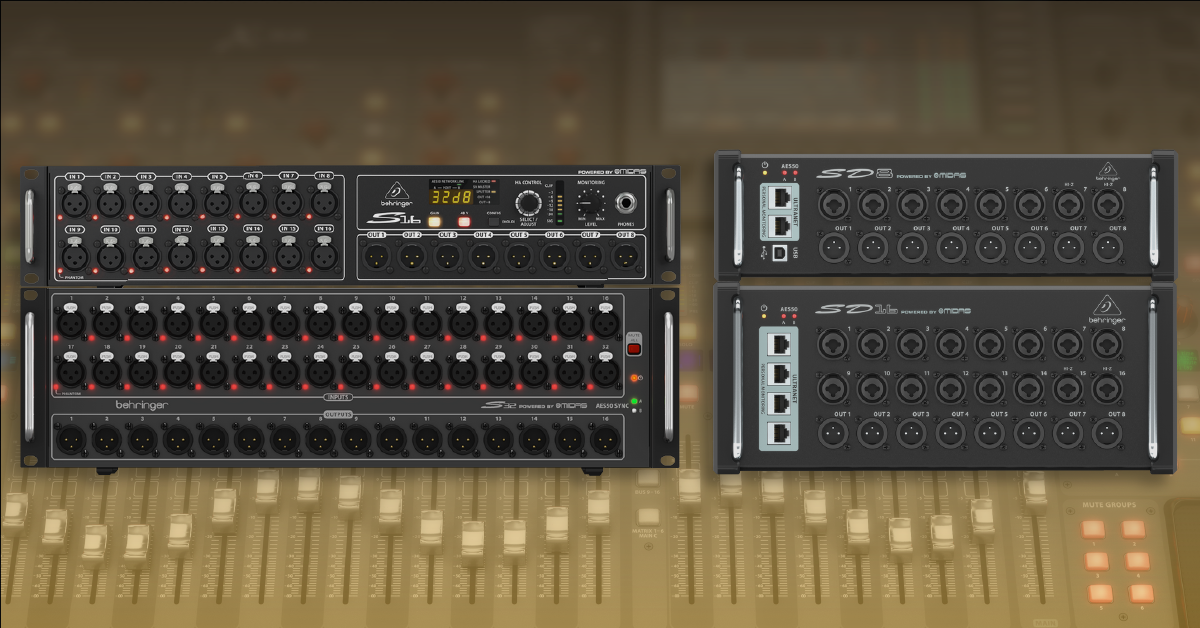
In this guide, we will show you how to set up digital stage boxes (SD8, SD16, S16, and S32) with an X32. Digital stage boxes function just like analog snakes: they pass audio in two directions over a long cable (snake). The main difference is that Behringer’s digital stage boxes only require a single shielded Cat5-e networking cable to connect to your X32 mixer’s AES50 ports. Once connected, you just need to configure each device’s settings for your particular setup. Follow the sections below to learn a few ways to connect Behringer stage boxes.
What is AES50?
It’s like the internet but for audio.
Each X32 AES50 port supports 48 input and 48 output channels and can each connect to up to three stage boxes at a time. That’s a lot of channels, meaning you can configure a variety of setups. For example, a single S16 offers 16 inputs and 8 outputs. Use two S16’s and you’ll have 32 mic preamps and 16 analog outputs. Or, cascade an S16 with an S32 and you have 48 mic preamps and 24 analog outputs. Just remember that each X32 has a limited number of channel strips (32) and analog outputs.
AES50 input channels
When connecting to an X32’s AES50 port, the stage box’s built-in inputs will be assigned to their respective AES50 channels. So, the first stage box’s inputs will occupy AES50 1-8, 1-16, or 1-32, respective to its number of inputs. Cascading a second stage box to the first would occupy the next available AES50 channels.
The signals are connected to the X32, but not yet routed to a channel. To configure each set of stage box inputs to an X32 channel, it must be assigned via the Routing menu’s Home page. The X32 only has 32 channel strips, so any additional AES50 inputs will only have local/remote controllable preamp gain and phantom power via the Settings menu’s Preamps page.
AES50 output channels
Each AES50 port’s output signals are selected from their Routing menu pages. That means you need to select which outputs are assigned to each group of eight AES50 channels. So when you want to send a mix bus to a stage box, first assign the mix bus to an X32 analog output and then assign that output to your AES50 channels.
For S32’s, signals sent to its analog outputs are dependant on the S32’s order in the AES50 path. If it’s first, the outputs are AES50 1-32. If it’s second, they’ll be 17-48. An S16’s outputs are configured from the digital encoder and the SD16 and SD8 outputs are assigned with the selector switch (1-8, 9-16, 17-24). AES50 outputs 33-40 and 41-48 are reserved for P16 Ultranet channels by default.
Stage snake setup and configuration
Now that you know a little more about AES50, let’s set up the stage box system. Below are three methods for connecting stage boxes: individual stage box, cascading multiple boxes, and multiple with separate Ultranet ports.
Where are the Mains?
Remember that the default outputs for the Main mix are 15-16 on the X32 and 7-8 on all other models. Use the matching outputs when connecting the stage box to the mains.
Connect a single stage box
Digital stage boxes can connect to either of the X32’s AES50 ports (A or B). Whichever you connect to, just remember that you’ll need to select that port when choosing routing assignments. For this example, we’ll connect an S16 to the X32’s AES50-A port.
- Using a shielded Cat5-e ethernet cable, connect the S16’s AES50-A jack to your X32’s AES50-A port.
- On the X32, press the SETUP button and go the global page.
- Use ENCODER 2 to choose a sample rate and then select INTERNAL Synchronization.
- Press the Routing button and assign the AES50 inputs to the X32 channels.
- On the S16, hold the CONFIG button and rotate the encoder all the way to the left (1-8).
Cascade multiple stage boxes
If you have multiple stage boxes, they can be connected either individually to the AES50-A and B ports or by cascading them over a single AES50 connection. The cascading option means to “daisy chain” multiple stage boxes over a single AES50 connection and is useful when the stage boxes are in the same location. Follow these steps to cascade your stage boxes, or follow option 3 to connect them separately.
- Using a shielded Cat5-e ethernet cable, connect the first S16’s AES50-A jack to your X32’s AES50-A jack.
- Next, connect the first S16’s AES50-B jack to your second S16’s AES50-A jack.
- On the X32, press the SETUP button and use ENCODER 2 to select a Sample Rate.
- Use ENCODER 2 to chose and select INTERNAL Synchronization.
- Press the Routing button and assign the AES50 inputs to the X32 channels.
- On the S16’s, hold the CONFIG button and rotate the encoder to 1-8 for the first box and 9-16 for the second.
Multiple snakes with separate AES50 ports
If you want to use two stage boxes at different locations, they’ll need to be connected from their respective AES50-A port to the X32’s AES50-A and B ports. This is useful when the stage boxes need to be in different spots or you need to take advantage of each AES50 port’s 48 input/output channels. Since the stage boxes are using different ports, use AES50-A for the first box and AES50-B for the second.
- Using a shielded Cat5-e Ethernet cable, connect the first S16’s AES50-A jack to your X32’s AES50-A jack.
- Next, connect the second S16’s AES50-A jack to your X32’s AES50-B jack.
- On the X32, press the SETUP button and use ENCODER 2 to select a Sample Rate.
- Use ENCODER 2 to choose and select INTERNAL Synchronization.
- Press the Routing button and assign both AES50 A and B inputs to the X32 channels.
- On each S16, hold the CONFIG button and rotate each encoder to 1-8. The first S16’s outputs are AES50-A 1-8 and the second’s are AES50-B 1-8.
Related Content
- Behringer X32: Setup and Connections
- Behringer X32: Sound, Routing, and Recording
- Behringer Powerplay P16-HQ and P16-M Personal Mixer Quickstart Guide
When you need help, Sweetwater has the answers!
Our knowledge base contains over 28,000 expertly written tech articles that will give you answers and help you get the most out of your gear. Our pro musicians and gear experts update content daily to keep you informed and on your way. Best of all, it’s totally FREE, and it’s just another reason that you get more at Sweetwater.com.

