

Behringer WING Firmware/OS Update

Getting started
In this guide, we will show you how to update the firmware for the Behringer WING digital mixer. This information also applies to the WING Black, WING Compact, and WING Rack. Each update applies new features and optimizations to improve the mixer. Connect WING directly to your computer and follow each of the sections below to get started.
Download WING firmware file
WING firmware (OS) files are downloaded from the Behringer WING product page. Update to the newest version available to obtain the newest features.
On your computer, go to the WING product page at the Behringer website. Click Downloads. Under “Firmware,” locate the newest version and click to download it. Follow the prompts.
Once the firmware file is downloaded, open your Downloads folder on your computer and extract the firmware .zip file.
Connect WING_OS drive to a computer
WING connects directly to your computer via USB to access the WING_OS or WING_DATA drives. The “OS” drive holds the firmware and is where you will move the new firmware file. You don’t need to remove the old firmware files, but Behringer recommends placing them in a sub-folder. The “DATA” drive is where you can back up or reload Snapshot and Preset settings, and is not used for updating the firmware.
- Connect WING to your computer with a USB cable.
- Windows PC users must first download, extract (unzip), and install the WING driver. Download it from the Behringer WING product page.
- Press the Setup menu button.
- Select the Global Settings Edit icon.
- Press OS then Confirm.
- WING will appear as a USB storage device on your computer named WING_OS. Drag the .wingfw firmware file into the WING_OS drive.
- When done copying the WING firmware file, right-click the WING_OS drive and select to eject.
- Once safely ejected, restart WING.
- WING may automatically restart itself a few seconds after the WING_OS drive ejects.
If WING does not connect
If WING does not power up or appear on your computer, you can follow these troubleshooting steps:
- Power off WING.
- Press and hold the SELECT button on the main display bezel and switch on the console.
- The console will not start up (screen stays dark). Connect the console to a computer using the rear USB port.
- WING will appear as two external drive partitions: WING_OS and WING_DATA.
- Drag the .wingfw firmware file into the WING_OS drive.
- When done copying the WING firmware file, right-click the WING_OS drive and select to eject.
- Once safely ejected, restart WING.
- WING may automatically restart itself a few seconds after the WING_OS drive ejects.
Behringer WING Firmware V3.0
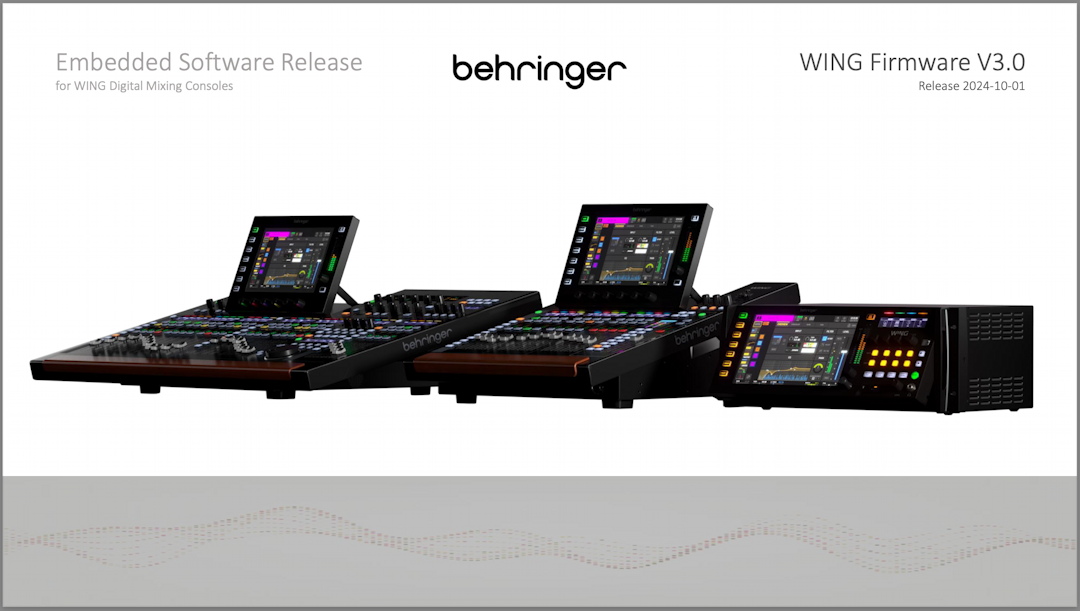
Behringer WING Firmware V3.0
With the release of the WING Black, WING Compact and WING Rack in October, 2024, Behringer released WING Firmware V3.0, an update which brings significant improvements. The original WING model can be updated with Firmware V3.0 as well. We recommend that you install the update to the newest version published.
New features in v3.0 include:
- Bus-to-bus sends across all 16 busses
- Channel sends to all matrices
- Enhanced Custom Control functionality
- Pre-fader delay on aux channels and post-fader delay on buses
- Multiple plug-in improvements
- New Source Extractor/LA Leveler gate/compressor combo is available for all channels and the Dynamics slot
- Improved GPIO functions for delayed power-on for power amps
- Expanded MIDI CC control functions
When you download the WING firmware package and extract the .zip file, in the resulting folder you’ll find the firmware update file along with a PDF document that lists all the new features and bug fixes. You can update your firmware over a USB cable from your computer, as we explain above, or you can choose to install the firmware update from a USB flash drive. Further instructions are in the PDF.
Here is Behringer’s tutorial video on installing the 3.0 firmware, with an overview of the new features.
Behringer: WING 3.0 Firmware has arrived!
As Behringer explains in the following video, if you have the Dante option installed on your WING, when you update the WING firmware, you must also update the Dante firmware in a separate operation.
WING 3.0.6 Firmware Update Brings Many Improvements
For more information about the Dante option, here’s our SweetCare Dante Firmware Update Guide.
WING 3.1 Firmware Update is Here!
Related Articles
When you need help, Sweetwater has the answers!
Our knowledge base contains over 28,000 expertly written tech articles that will give you answers and help you get the most out of your gear. Our pro musicians and gear experts update content daily to keep you informed and on your way. Best of all, it’s totally FREE, and it’s just another reason that you get more at Sweetwater.com.


