
Akai MPK2 Setup Guide
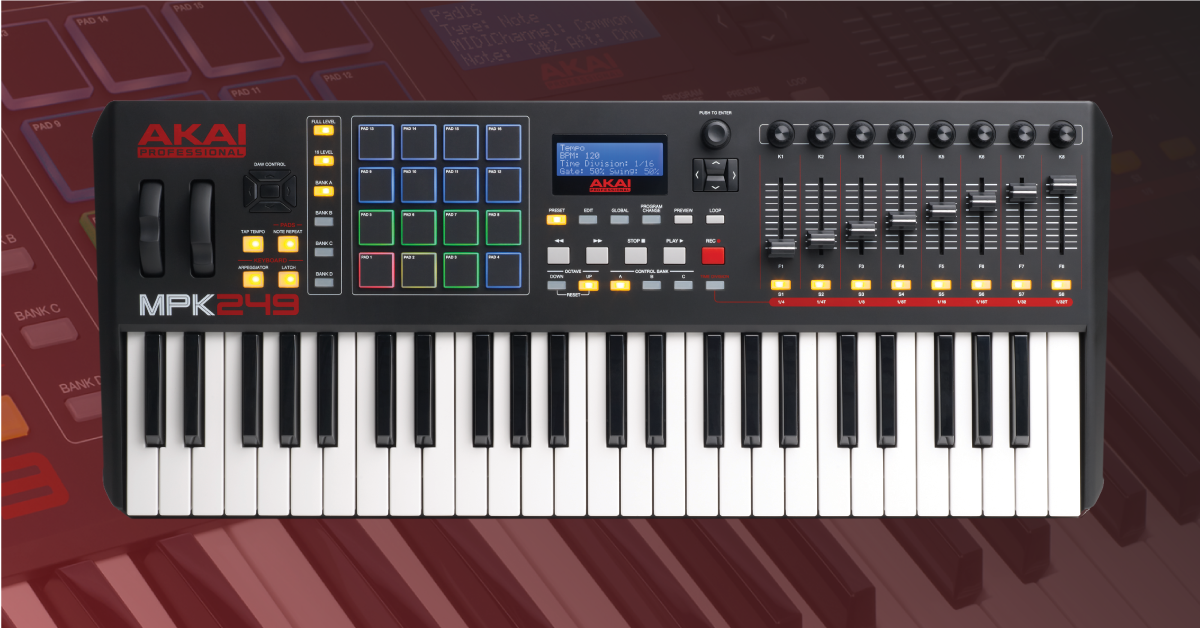
The Akai MPK2 series is a fully customizable MIDI controller that you can use with any DAW. It speeds up your workflow no matter what software you use. In this guide, we’ll show you how to register, set up, and program the MPK2 for the first time. Follow the sections below to get started.
Register the MPK2
Before you begin, you’ll first want to register the MPK2 with Akai. Upon registration, you’ll gain access to the MPK software, drivers, and a premium collection of sounds. Follow these steps to register your device.
- Log in to your Akai account. If you don’t have one, then click Create Account and fill out the necessary information.
- On your account home page, click REGISTER NEW PRODUCT, enter the serial number, which is located on the bottom of the unit and is also printed on the back of the MPK owner’s manual.
- Click CHECK SERIAL, fill out the required information, then click REGISTER YOUR PRODUCT.
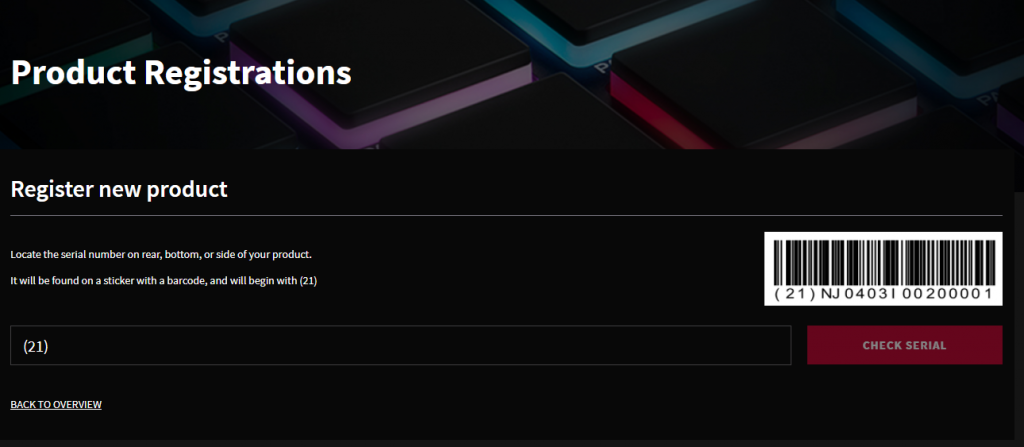
Click the image to register your AKAI MPK2
Download and install Software Manager
Akai’s Software Manager app includes the installers for all of your bundled software and any drivers. It uses your serial number to unlock everything, so all you need to do is launch Software Manager, connect your MPK2 to the computer, and then let it do the rest.
- Go to the bottom of your Akai account page, click the MPK2 software, then click the installer for your OS.
- Navigate to the Downloads folder on your computer, launch the Software Manager installer file, and then follow the on-screen instructions.
- During the installation process, you will be asked to connect your MPK and choose the software you wish to download.
- All instruments and sound packs will be located in the Software Manager, so feel free to download and install them anytime you’d like.
Activate the third-party content
Some of the free bundled software is activated through iLok. Once you register your hardware, Akai will deposit an iLok code into your account, which you can use to activate via iLok License Manager. If you don’t have an iLok account, follow the instructions below. If you already have an iLok account, skip this section and continue to Setup and Connections.
Create an iLok account
- Visit iLok’s registration page and complete the registration form.
- Please take note of your user ID and password, as they are case-sensitive.
- Open the iLok Account Activation email and click on the verification link.
- Download and install the iLok License Manager.
- Launch the iLok License Manager app and sign in to your account.
- (Optional) Connect an iLok and when prompted, and click Yes to register the dongle to your account.
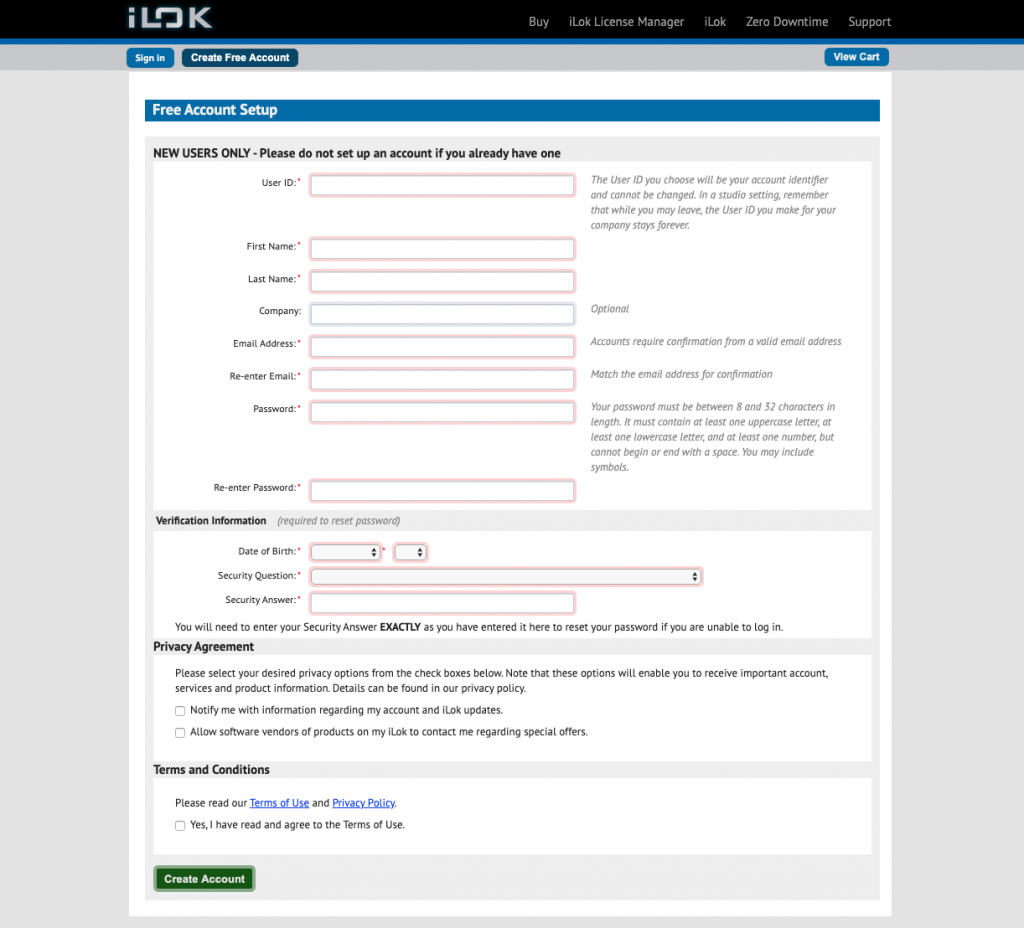
Click the image create an iLok account
Activate the virtual instruments
- In the My Products section of your Akai account, click SEE DETAILS, DOWNLOADS, AND OFFERS.
- Go to the Software downloads section, then click GET ACTIVATION CODE.
- The serial number that is revealed will be your iLok activation code.
- Launch iLok License Manager, click Licenses, then click Redeem Activation Code.
- Copy and paste the serial number located in the Software downloads section, click Next, then follow the on-screen instructions.
- All three virtual instruments are now activated.
Setup and connections
The MPK2 series MIDI controller isn’t just a standard MIDI controller. It’s unique in that it not only functions on its own, but it also has built-in control presets that allow you to control different functions for some of the most popular DAWs and the bundled software you received. You can even sync it with external MIDI devices to further expand your studio or live setup.
The MPK2 series is primarily bus-powered, meaning no additional power supply is required. The only time you need a power supply is when using it in conjunction with external hardware. Follow these steps to set up your MPK2. Also, be sure to check out Akai’s video below on how to sync it with external devices.
- Connect the USB cable from the MPK2 to the computer or powered USB hub.
- Navigate to your computer’s device settings to ensure that the MPK2 is recognized.
- PC: Navigate to Device Manager, then click Sound, video and game controllers to verify it’s listed.
- Mac: Go to Applications, then click Utilities and System Information. Verify it’s listed in the USB section.
Akai MPK2 Series — Syncing to External MIDI Devices
How to sync with a DAW
The MPK2 series includes presets that you can load to control various functions within popular DAWs and virtual instruments. You just need to load the preset on the MPK2, update the DAW’s settings, and then you’ll be all set!
The instructions are different for each DAW and virtual instrument, so visit MPK2 Complete Preset Overview for specific instructions on updating the settings.
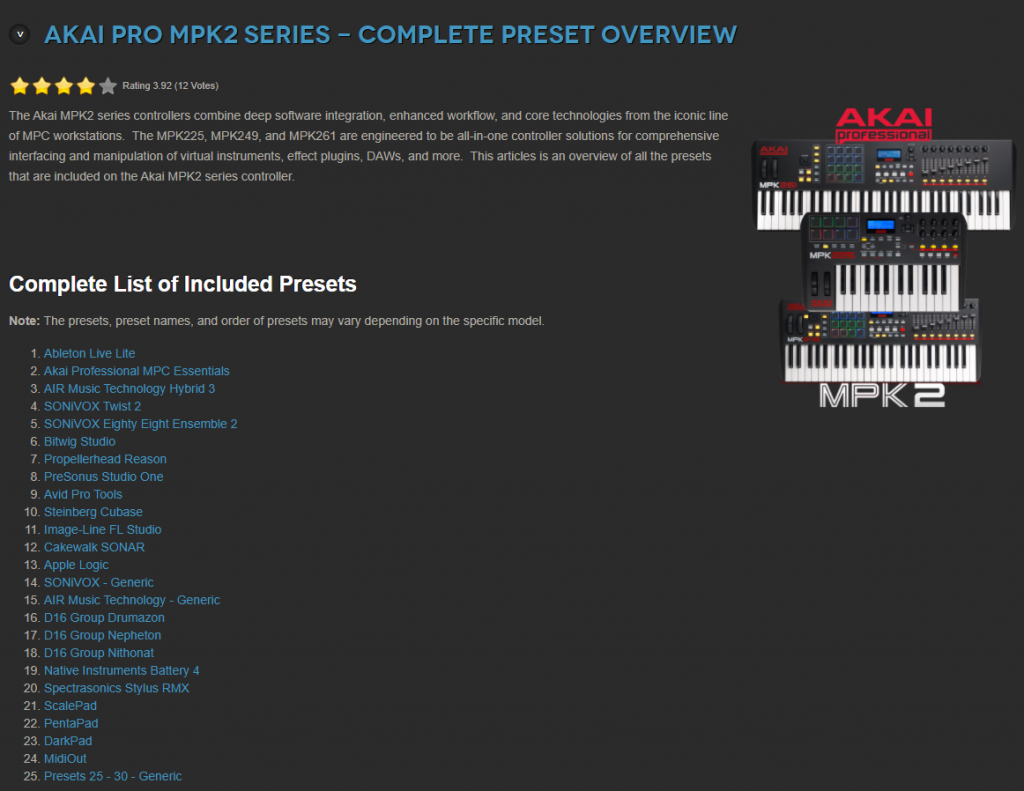
Is your MPK2 not recognized?
If your MPK2 isn’t being recognized by your computer, disconnect and reconnect it. If that still doesn’t work, try a different port. Also, be sure to check out our guide on resolving MIDI issues on PC and Mac for more troubleshooting steps.
Additional AKAI resources


When you need help, Sweetwater has the answers!
Our knowledge base contains over 28,000 expertly written tech articles that will give you answers and help you get the most out of your gear. Our pro musicians and gear experts update content daily to keep you informed and on your way. Best of all, it’s totally FREE, and it’s just another reason that you get more at Sweetwater.com.

