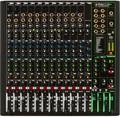
Now that the Mackie Control is working with Digital Performer, we thought it would be a good idea to publish a simple quick start guide for those who want to get up and running with a minimum of fuss. We’ve tested it here and found it is just as easy as setting up a HUI. Here’s the basic procedure.
Using the Mackie Control Plug-in requires Digital Performer 3.1 or later. The DP3 to 3.1 update, and the Mackie Control Plug-in can be downloaded for free at www.motu.com.
1) Connect Mackie Control MIDI IN and OUT to the MIDI OUT and IN on one port of your functioning MIDI interface.
2) Launch FreeMIDI setup and choose “create device” from the configuration menu. Choose Manufacturer: Mackie, and Model: HUI. Change the “name” to “Mackie Control”.
3) Open a Digital Performer project and select “Control Surface Setup” in the Basics menu.
6) Select “Mackie Control” in the “Device” field. The “Unit” field should then say “Mackie Control” as well.
7) In the “MIDI” field of this window, choose “Mackie Control”
8) Click OK in the Control Surface window. Faders on the Mackie Control should snap to DP’s current mixing board settings. Transport and other functions on the Mackie Control should work as well.
It’s really that simple. If you’re interested in adding a simple control surface to your DP setup call your Sweetwater Sales Engineer and get one of these on order.